Last updated: September 16, 2026. Model-year support and setup guidance were rechecked against Toyota and Apple documentation.
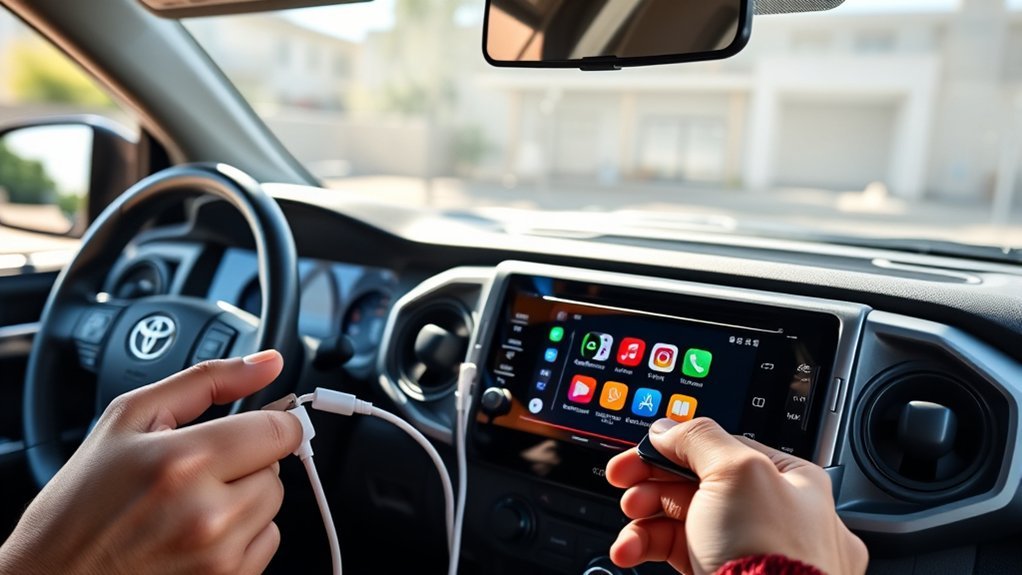
To set up Apple CarPlay on a Toyota Tacoma, start with the truck’s model year. U.S.-market 2020–2023 Tacomas use factory wired CarPlay through the USB media port. 2024–2026 Tacomas support factory wireless CarPlay through Toyota Audio Multimedia. Enable Siri before setup; for wired CarPlay, use a direct data-capable USB cable, while wireless CarPlay requires Bluetooth and Wi-Fi on the iPhone. A 2019 or older Tacoma did not include factory CarPlay and generally needs an aftermarket CarPlay-capable head unit or vehicle-specific integration system.
Quick Answer: Connect CarPlay to a Tacoma
Choose the setup path that matches your Tacoma:
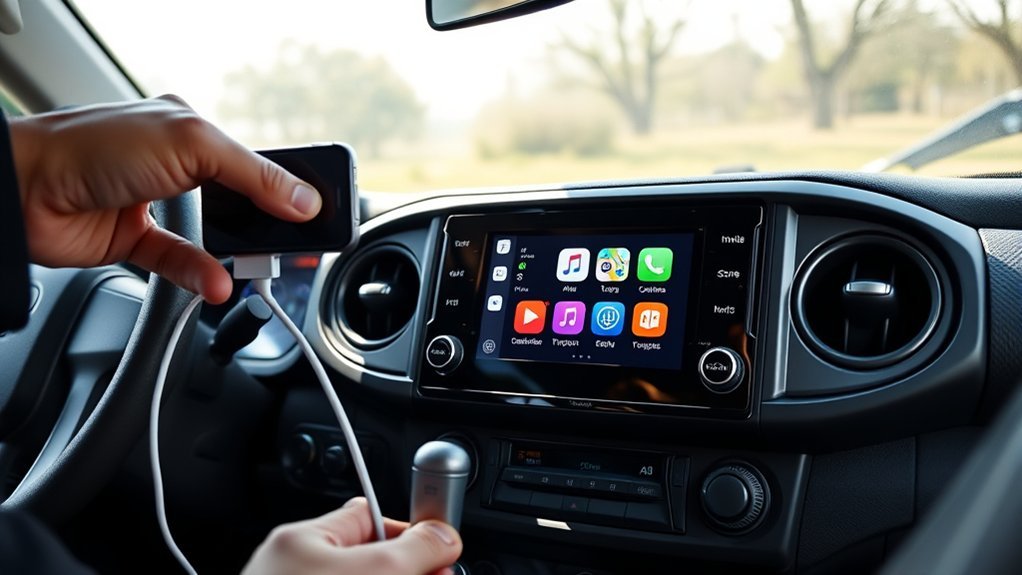
- 2020–2023 Tacoma: Park the truck, enable Siri, unlock the iPhone, and connect it directly to the USB media port with a data-capable cable. Approve the CarPlay prompts on the Tacoma and iPhone.
- 2024–2026 Tacoma: Turn on Siri, Bluetooth, and Wi-Fi. Open the Tacoma’s Bluetooth & Devices menu, add the iPhone, confirm the pairing code, and approve Apple CarPlay.
- 2019 or older Tacoma: Factory CarPlay is not built in. Adding CarPlay generally requires an aftermarket CarPlay-capable head unit or a vehicle-specific integration system.
| Tacoma model year | Factory CarPlay | Connection method |
|---|---|---|
| 2019 and older | No factory CarPlay | Aftermarket CarPlay head unit or compatible integration system |
| 2020–2023 | Yes | Wired through the USB media port |
| 2024–2026 | Yes | Wireless through Toyota Audio Multimedia; wired operation may also be available depending on the multimedia configuration |
Which Tacoma Model Years Support CarPlay?
Toyota introduced factory Apple CarPlay across the U.S.-market Tacoma lineup for the 2020 model year. Toyota’s 2020 Tacoma documentation confirms that the upgraded multimedia system included Apple CarPlay, Android Auto, Bluetooth, and a USB media port. The 2020–2023 generation uses an approved data cable connected to the USB media port for factory CarPlay.
The redesigned 2024 Tacoma introduced Toyota Audio Multimedia with wireless Apple CarPlay, and Toyota continues to list wireless Apple CarPlay on later fourth-generation Tacomas, including the 2026 model year. You can also confirm compatibility through Apple’s CarPlay vehicle compatibility list and the multimedia manual for your exact Tacoma.
If you own a 2019 or older Tacoma, factory Apple CarPlay was not included. A simple wired-to-wireless CarPlay dongle will not create CarPlay support on an unsupported factory radio. To add CarPlay, you generally need an aftermarket CarPlay-capable head unit or a vehicle-specific integration system.
Prepare Your iPhone and Tacoma for CarPlay
Before connecting the phone, park the Tacoma and start the vehicle or power the multimedia system as directed by your owner’s manual. Update the iPhone to the latest iOS version available for the device and make sure Siri is enabled. Keep the iPhone unlocked during the first connection so you can approve setup prompts.
Identify the Tacoma’s model year first: 2020–2023 factory CarPlay uses the USB media port, while 2024–2026 models support wireless CarPlay through Toyota Audio Multimedia.
- Update iOS: Install the latest iOS version available for your iPhone.
- Turn on Siri: CarPlay setup requires Siri. Menu wording can vary by iOS version.
- Check CarPlay permissions: Open Settings > General > CarPlay and verify the Tacoma when it appears.
- Check Screen Time if CarPlay is missing: Under Settings > Screen Time > Content & Privacy Restrictions, make sure CarPlay is allowed under the applicable Allowed Apps or Allowed Apps & Features menu.
- For wireless setup: Turn on both Bluetooth and Wi-Fi.
- For wired setup: Use the Tacoma’s USB media/data port rather than a charging-only USB port.
For wired CarPlay, use a direct data-capable USB cable that fits both the iPhone and Tacoma media port. A cable can charge an iPhone while failing to carry the data required for CarPlay, so charging alone does not prove the cable or port is suitable.
Wired CarPlay Setup (Front USB Port)
Wired CarPlay is the normal factory setup for a 2020–2023 Tacoma. Connect the iPhone directly to the Tacoma’s USB media port with a data-capable cable. Avoid USB hubs, charging-only ports, and unnecessary adapters while setting up or troubleshooting CarPlay.
- Park the Tacoma safely and power on the multimedia system.
- Enable Siri and unlock the iPhone.
- Connect the iPhone directly to the Tacoma’s USB media port.
- Wait for the Apple CarPlay prompt on the multimedia screen.
- Select the option to enable CarPlay when prompted.
- Approve the corresponding prompt on the iPhone, including permission to use CarPlay while the phone is locked if shown.
- If CarPlay does not open automatically, select the Apple CarPlay icon on the Tacoma display.
Once activated, the CarPlay interface opens on the multimedia display with supported navigation, messaging, calling, and audio apps. Use the touchscreen, supported steering-wheel controls, or Siri to operate compatible functions.
If the iPhone charges but CarPlay does not start, first confirm that you are using the multimedia/data port and a known-working data cable. For a deeper port diagnosis, see the Toyota Tacoma USB port troubleshooting guide.
Wireless CarPlay Setup (Bluetooth & Pairing)
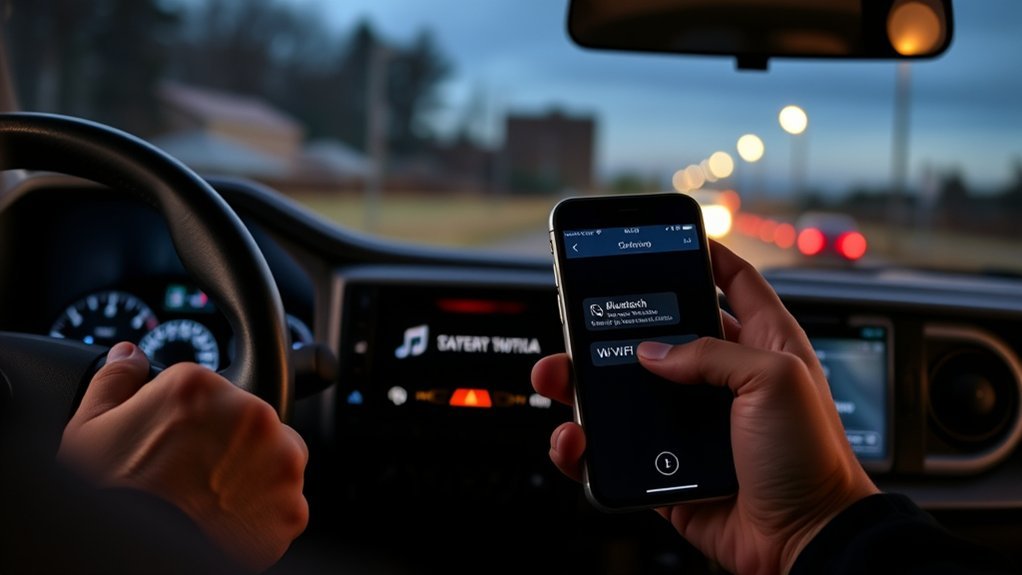
If you own a 2024–2026 Tacoma with Toyota Audio Multimedia, factory wireless Apple CarPlay uses Bluetooth during device discovery and pairing and Wi-Fi for the active CarPlay connection. Turn on Siri, Bluetooth, and Wi-Fi on the iPhone before you begin.
- Park the Tacoma and power on the multimedia system.
- On the iPhone, turn on Siri, Bluetooth, and Wi-Fi.
- On the Tacoma screen, open Settings and then Bluetooth & Devices.
- Choose the option to add or search for another device.
- Select your iPhone when it appears.
- Confirm that the pairing code shown on both devices matches.
- Approve the Bluetooth and Apple CarPlay prompts on both screens.
- Allow CarPlay for future connections when the iPhone offers that option.
After the first successful pairing, the iPhone should reconnect automatically when the required wireless settings remain enabled. If Bluetooth reconnects but CarPlay does not, open the iPhone’s Wi-Fi settings and confirm that Auto-Join is enabled for the CarPlay network.
For additional phone-pairing guidance, see how to pair Bluetooth on a Toyota Tacoma.
Owners of 2020–2023 Tacomas may use a compatible wired-to-wireless CarPlay adapter to convert an existing factory wired CarPlay connection to wireless operation. Such an adapter does not add CarPlay to a factory radio that never supported CarPlay.
Can You Add Apple CarPlay to a 2019 or Older Tacoma?
Yes, but not through Toyota’s original factory CarPlay system. U.S.-market Tacomas before the 2020 model year did not include factory Apple CarPlay. To add it, you generally need an aftermarket CarPlay-compatible head unit or a vehicle-specific integration system designed for your Tacoma’s existing radio.
Before choosing an aftermarket system, verify compatibility with the Tacoma’s model year, factory JBL audio if equipped, steering-wheel controls, backup camera, microphone, and factory USB connections. A small wireless CarPlay dongle designed for vehicles that already have wired CarPlay is not a substitute for an actual CarPlay-capable head unit or integration module.
Troubleshooting Common Connection Issues
When Apple CarPlay is not working in a Tacoma, identify the symptom before resetting settings or replacing parts. Apple’s current troubleshooting guidance recommends checking the wired or wireless connection, confirming Siri and CarPlay settings, restarting the iPhone and vehicle system, checking restrictions, and reconnecting the vehicle. See Apple’s CarPlay troubleshooting guidance.
| Symptom | Likely area to check | First fix to try |
|---|---|---|
| iPhone charges but CarPlay does not open | Charging-only cable, wrong USB port, phone permission, or multimedia setting | Use a known-working data cable directly in the USB media port |
| Bluetooth audio works on a 2020–2023 Tacoma but CarPlay does not | The factory CarPlay connection requires the USB media port | Connect the iPhone directly by USB instead of relying on normal Bluetooth audio |
| Bluetooth connects on a 2024–2026 Tacoma but wireless CarPlay does not | Wi-Fi, Auto-Join, CarPlay permission, or saved pairing record | Turn on Wi-Fi, check Auto-Join, then remove and pair the vehicle again if needed |
| CarPlay icon is missing | Siri, Screen Time restriction, CarPlay permission, or vehicle setting | Enable Siri and confirm that CarPlay is allowed in Screen Time |
| CarPlay repeatedly disconnects | Cable, connector, saved pairing record, Wi-Fi connection, or software | Test another cable for wired CarPlay or forget and re-pair the vehicle for wireless CarPlay |
| CarPlay works but one app does not | Individual app, cellular connection, or app update | Update or restart the affected app and check the iPhone’s data connection |
If Wired CarPlay Will Not Connect
- Confirm the Tacoma supports factory CarPlay and that you are following the procedure for its model year.
- Use the USB media/data port rather than a charging-only port.
- Try a different known-working data-capable cable.
- Connect directly without a USB hub or unnecessary adapter.
- Unlock the iPhone and approve any connection prompts.
- Make sure Siri is enabled.
- Confirm CarPlay is allowed under Screen Time restrictions.
- Restart the iPhone and Tacoma multimedia system.
- On the iPhone, open Settings > General > CarPlay, select the Tacoma, choose Forget This Car, and reconnect.
If Wireless CarPlay Will Not Connect
- Turn on both Bluetooth and Wi-Fi on the iPhone.
- Check that Auto-Join is enabled for the CarPlay Wi-Fi network.
- Confirm Siri and CarPlay permissions are enabled.
- Remove the Tacoma from the iPhone’s Bluetooth and CarPlay lists and remove the iPhone from the Tacoma’s device list.
- Restart the iPhone and multimedia system, then complete pairing again.
- Install the latest available iOS version and check Toyota’s official resources for multimedia software guidance.
If multiple known-good phones and cables fail, the USB media port has no power or data function, the multimedia system freezes repeatedly, or other multimedia features fail at the same time, an authorized Toyota dealer or qualified technician may need to diagnose the vehicle-side hardware.
After Connection: Using Apps, Siri, and Settings
Once CarPlay is connected, supported iPhone apps appear on the Tacoma’s multimedia display. CarPlay can provide navigation, hands-free calling, messages through Siri, music, podcasts, audiobooks, calendars, and other compatible functions.
- Use Siri hands-free: activate Siri by voice when supported or use the steering-wheel voice control to place calls, send messages, request directions, or control audio.
- Navigation: use compatible navigation apps for turn-by-turn directions and traffic information.
- Messages: ask Siri to read, compose, and reply to supported messages rather than handling the iPhone while driving.
- App layout: open Settings > General > CarPlay on the iPhone, select the Tacoma, and customize supported apps.
Set up your preferred apps and layout while parked. Once driving, use Siri and the simplified CarPlay controls whenever possible so your attention stays on the road.
Dealer & Support Options (Software Updates & Compatibility)
Keep the iPhone and Tacoma multimedia software current. Toyota update methods and menu names can vary by model year and multimedia system, so use the multimedia manual for your exact truck rather than installing an update intended for a different head unit.
Toyota’s Audio Multimedia and Apple CarPlay support resources provide current setup information. Apple also recommends using the latest iOS version and checking the vehicle manufacturer’s software guidance when CarPlay problems continue.
Professional diagnosis is appropriate when the USB media port is physically loose or damaged, no compatible phone can connect after basic troubleshooting, the multimedia system repeatedly freezes or restarts, or several multimedia functions fail together. Record your Tacoma’s model year, multimedia version, iPhone model, iOS version, connection method, and troubleshooting steps before seeking service.
Frequently Asked Questions
How Do I Set up CarPlay on My Toyota Tacoma?
For a 2020–2023 Tacoma, enable Siri and connect the iPhone directly to the USB media port with a data-capable cable. For a 2024–2026 Tacoma, enable Siri, Bluetooth, and Wi-Fi, add the iPhone through the Tacoma’s Bluetooth & Devices menu, and approve the CarPlay prompts on both screens.
How Do I Get CarPlay to Work in a Tacoma?
First confirm the Tacoma’s model year and required connection type. For wired CarPlay, use the USB media port and a known-working data cable. For wireless CarPlay, turn on Bluetooth and Wi-Fi and confirm Wi-Fi Auto-Join. Also check Siri, Screen Time restrictions, software updates, and saved CarPlay connections.
How Do I Activate Apple CarPlay on My Toyota?
Enable Siri, connect or pair the iPhone using the method supported by your Tacoma, and approve the Apple CarPlay prompts on both the multimedia system and iPhone. On a wired Tacoma, connect through the USB media port. On a wireless-capable Tacoma, complete Bluetooth pairing with Wi-Fi enabled.
Why Isn’t Apple CarPlay Working in My Tacoma?
Common causes include the wrong connection method for the Tacoma’s model year, a charging-only or damaged USB cable, the wrong USB port, disabled Siri, a Screen Time restriction, disabled Wi-Fi or Bluetooth, Wi-Fi Auto-Join being off, a corrupted saved pairing, or outdated phone or multimedia software. Check these items one at a time and test CarPlay after each change.
Does the Toyota Tacoma Have Wireless Apple CarPlay?
Factory wireless Apple CarPlay arrived with the redesigned 2024 Toyota Tacoma and continues on later fourth-generation models, including 2025 and 2026. The 2020–2023 Tacoma’s original factory CarPlay connection is wired through the USB media port.
Can a 2020–2023 Tacoma Use Wireless CarPlay?
Not through the original factory connection. A compatible wired-to-wireless CarPlay adapter can convert the existing wired CarPlay connection to wireless operation, but it does not add CarPlay to a radio that lacks CarPlay support.
Does Toyota Apple CarPlay Require a Subscription?
No. Toyota states that Apple CarPlay itself does not require a Toyota subscription or registration. Individual apps may use cellular data or require their own subscriptions.
Why Does My iPhone Charge but CarPlay Not Work?
Charging does not prove that the cable and USB port are carrying CarPlay data. On a wired Tacoma, use the designated USB media port with a known-working data-capable cable, connect directly without a hub, unlock the iPhone, and approve any CarPlay prompts.
Sources
- Toyota USA Newsroom — 2020 Tacoma multimedia and Apple CarPlay
- Toyota USA Newsroom — 2024 Tacoma wireless Apple CarPlay
- Toyota — Apple CarPlay and Audio Multimedia support
- Apple — CarPlay compatible vehicle list
- Apple Support — CarPlay troubleshooting
Conclusion
The correct Toyota Tacoma CarPlay setup depends primarily on model year. A 2020–2023 Tacoma uses factory wired CarPlay through its USB media port, while a 2024–2026 Tacoma supports factory wireless CarPlay through Toyota Audio Multimedia. A 2019 or older truck needs an aftermarket CarPlay-capable system rather than a simple wireless adapter.
If CarPlay does not connect, verify the connection method first. Then check the data cable or media port for wired systems, Bluetooth and Wi-Fi Auto-Join for wireless systems, and Siri, Screen Time permissions, saved CarPlay connections, and software updates on either type. Escalate to vehicle-side diagnosis only after those basic checks fail.
