
Connecting an Android phone to a Toyota Tacoma is usually quick, but the correct method depends on your truck’s model year and multimedia system. Most U.S.-market 2020–2023 Tacomas use wired Android Auto through the USB media port. Newer Tacoma models with Toyota Audio Multimedia can support wireless Android Auto, but you should confirm the equipment in your owner’s manual.
Quick Answer
Park your Tacoma, turn on the multimedia system, and confirm the truck supports Android Auto. For a wired connection, plug a compatible Android phone into the USB media port with a high-quality data cable. For supported wireless systems, pair through Bluetooth, keep Wi-Fi enabled, and approve the prompts on both screens.
Key Takeaways
- Toyota introduced factory Android Auto on the U.S.-market Tacoma for the 2020 model year.
- Most 2020–2023 Tacomas require a wired connection through the USB media port.
- Wireless Android Auto needs a compatible truck and phone, with Bluetooth, Wi-Fi, and location services enabled during setup.
- Current Google guidance requires Android 9 or newer for wired use and generally Android 11 or newer for wireless projection.
- Complete setup while parked, then use voice controls and the Tacoma display instead of handling your phone.
At a Glance
| Time Required | About 5–10 minutes |
| Difficulty | Easy |
| Tools Needed | Compatible Android phone; high-quality USB data cable for wired setup |
| Cost | No separate Android Auto fee; phone data charges may apply |
Check Your Tacoma’s Android Auto Compatibility

Start with the model year because Tacoma systems do not all connect the same way. Toyota added Android Auto to the Tacoma for 2020, along with an updated multimedia system. Current Toyota guidance also tells owners to use the vehicle’s USB media port for wired setup.
| Tacoma model year | Factory Android Auto | Usual connection |
|---|---|---|
| 2019 and older | Not included on the original U.S. factory system | Compatible aftermarket receiver required |
| 2020–2023 | Yes on the factory multimedia system | Wired through the USB media port |
| 2024 and newer | Available through Toyota Audio Multimedia | Wireless on supported equipment; wired capability can vary |
Do not rely only on an Android Auto icon or the words “Entune 3.0.” Toyota’s newer trucks use the Toyota Audio Multimedia name instead of Entune. Equipment can also vary by market, trim, replacement head unit, or previous owner modifications. Check your exact truck in the owner’s manual or Toyota’s multimedia support page before troubleshooting.
Note: Bluetooth calling and music streaming do not prove that the truck supports wireless Android Auto. Bluetooth starts the wireless pairing process, while Wi-Fi carries most of the Android Auto projection data.
Phone and Connection Requirements
For wired Android Auto, Google currently requires an Android phone running Android 9 or newer, an active data plan, a compatible vehicle, and a high-quality USB cable. Wireless Android Auto also needs a compatible phone with 5 GHz Wi-Fi support. Google states that wireless projection works with phones running Android 11 or newer, subject to vehicle compatibility.
Current Google guidance says Android Auto is integrated into supported phones, so you normally do not need to download a separate app. Update Android, Google Play services, and your phone’s apps before setup. Your phone may still show an Android Auto entry under Settings, Connected devices, or Connection preferences.
Prepare Your Phone
- Update the phone to the latest Android version available for that device.
- Turn on Bluetooth, Wi-Fi, and location services for wireless setup.
- Make sure mobile data works and the phone is not in airplane mode.
- Unlock the phone and keep it nearby during the first connection.
- Remove aggressive battery restrictions from Android Auto if your phone repeatedly disconnects.
Review Permissions Without Oversharing
Android Auto may request access to the microphone, phone, contacts, messages, notifications, and location. Approve the functions you plan to use. Navigation needs location access, while calls and voice messaging need phone, microphone, and contact access. You can review or change permissions later in the phone’s app settings.
| Permission | What it enables |
|---|---|
| Location | Navigation, traffic, and nearby search |
| Microphone | Voice commands and calls |
| Contacts and phone | Hands-free calling and caller names |
| Messages and notifications | Message alerts and voice replies |
Warning: Complete pairing, permission changes, destination entry, and app rearrangement while the Tacoma is parked. Do not troubleshoot or handle the phone while driving.
Wired Setup for a Toyota Tacoma

Use this method for most 2020–2023 Tacomas and whenever your multimedia system requires a cable. The USB port must support data, not charging only.
- Park the Tacoma. Turn on the ignition or accessory mode and let the multimedia screen finish starting.
- Choose a proper cable. Use a short, high-quality USB data cable that fits the phone and the truck’s USB media port.
- Connect to the media port. Plug the cable directly into the Tacoma’s labeled USB media port. Avoid a power-only port, USB hub, adapter chain, or extension.
- Unlock the phone. Follow any request to update Android Auto, accept terms, or allow permissions.
- Approve the Tacoma prompt. Select Android Auto, Enable, Always Enable, or the closest option shown on the truck’s display.
- Test the connection. Open a map, play audio, and try the steering-wheel voice button before driving.
Pro Tip: Google recommends a cable shorter than 3 feet, or 1 meter, without hubs or extensions. A cable can charge the phone and still fail to carry Android Auto data.
Wireless Setup for a Supported Tacoma
Wireless Android Auto is available only when both the Tacoma’s multimedia system and the phone support it. A normal Bluetooth connection by itself provides calls and audio streaming, not the full Android Auto interface.
- Park the Tacoma and turn on the multimedia system.
- On the phone, enable Bluetooth, Wi-Fi, location services, and mobile data.
- Open the Tacoma’s device or Bluetooth settings and choose the option to add a phone.
- Select the phone when it appears, then confirm that the pairing code matches on both screens.
- Approve the request to use Android Auto and accept the phone’s permission prompts.
- Wait several seconds for Android Auto to open. Tap the Android Auto tile if it does not launch automatically.
Menu labels can differ by model year and software version. On some systems, pressing and holding the steering-wheel voice button opens the phone-pairing flow. If your Tacoma supports only wired Android Auto, use the USB method instead of repeatedly pairing Bluetooth.
Confirm First-Time Prompts on Both Screens
The first connection usually asks you to approve terms and share selected phone functions. Keep the phone unlocked, read each prompt, and make sure you respond on both the phone and the Tacoma display. If you deny a required permission, Android Auto may open with missing navigation, calling, or messaging features.
- Accept the Android Auto terms on the phone.
- Allow the permissions needed for the features you want to use.
- Choose whether the Tacoma may start Android Auto automatically.
- Confirm the vehicle prompt to enable Android Auto.
- Test voice control, audio, maps, and calling before leaving Park.
A successful Bluetooth pairing does not always mean Android Auto is active. Look for the Android Auto interface or tile on the Tacoma display before you drive.
Tips for a Stable Connection
Most connection problems come from an incompatible system, a charge-only cable, stale pairings, disabled Wi-Fi, or outdated phone software. Use the simplest connection path and avoid extra adapters.
| Action | Why it helps |
|---|---|
| Use the labeled USB media port | Some ports provide power without Android Auto data |
| Use a short data cable | Reduces cable faults and communication loss |
| Keep Wi-Fi and Bluetooth enabled | Both are used during supported wireless setup |
| Update and restart the phone | Clears temporary software and service errors |
| Remove unused vehicle pairings | Prevents the system from choosing the wrong device |
Troubleshooting Android Auto in a Toyota Tacoma
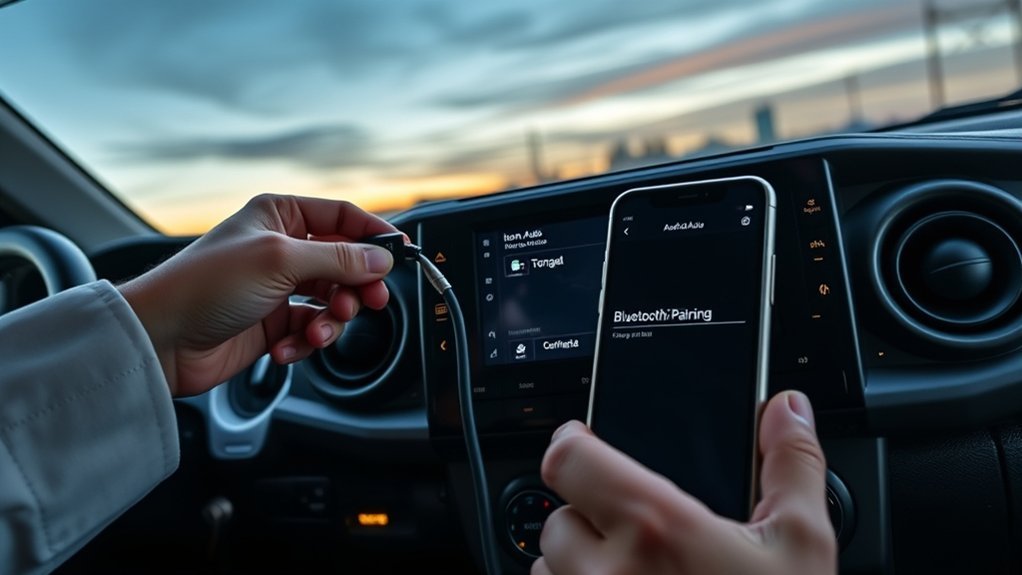
Work through these checks in order. Changing several settings at once makes it harder to identify the actual cause.
Android Auto Does Not Start Over USB
- Confirm the Tacoma supports Android Auto and that the feature is enabled in its multimedia settings.
- Move the cable to the labeled USB media or data port.
- Try a different high-quality cable shorter than 3 feet or 1 meter.
- Remove hubs, extensions, and multi-port adapters.
- Unlock the phone and approve any prompt that was previously missed.
- Restart the phone and the Tacoma multimedia system.
Wireless Android Auto Is Missing or Disconnects
- Verify that the exact Tacoma system supports wireless Android Auto. Wired support does not guarantee wireless support.
- Keep Bluetooth, Wi-Fi, location services, and mobile data turned on during setup.
- Forget the phone in the Tacoma and forget the Tacoma in the phone’s Bluetooth settings, then pair again.
- Remove old vehicles under Android Auto’s previously connected cars list.
- Disable battery-saving restrictions that shut down Android Auto or wireless services in the background.
- Restart both devices and retry while parked.
Android Auto Connects but Has No Sound
- Raise the media and navigation-prompt volume while audio is playing.
- Select Android Auto or the correct media source on the Tacoma.
- Check whether the phone is sending sound to earbuds or another Bluetooth device.
- Pause Do Not Disturb or app-specific mute settings long enough to test.
The Phone Is Not Recognized
Update Android and Google Play services, restart the phone, and reconnect with a known data cable. In Android settings, open Android Auto and remove the Tacoma from previously connected cars. Then start a fresh connection. Android Auto will not work through every USB port just because that port charges the phone.
The Screen Freezes or Goes Black
Disconnect the phone, close recent apps, and restart both the phone and the multimedia system. Reconnect after the Tacoma screen fully loads. If the fault continues with more than one compatible phone and cable, check Toyota’s support resources or ask a dealer to inspect the multimedia software and USB port.
Your Older Tacoma Has No Android Auto Option
A factory 2019-or-older U.S.-market Tacoma generally does not gain Android Auto by ordinary phone pairing. A software update alone may not add the required hardware. The practical option is a compatible aftermarket receiver installed with the correct dash kit, wiring interface, microphone, and steering-wheel-control adapter.
Useful Android Auto Features to Try
Once connected, Android Auto can place supported navigation, communication, and media apps on the Tacoma’s display. Available functions depend on your phone, region, apps, and permissions.
- Navigation: Use Google Maps, Waze, or another supported app for routes, traffic, lane guidance, and estimated arrival times.
- Calls and messages: Make calls, hear supported messages, and dictate replies without typing on the phone.
- Media: Play music, podcasts, audiobooks, and news through supported services such as YouTube Music or Spotify.
- Voice control: Say “Hey Google,” tap the microphone, or hold the steering-wheel voice button. Depending on your phone and account, Android Auto may use Gemini or Google Assistant.
- App shortcuts: Arrange compatible apps in Android Auto settings before driving so your most-used tools are easy to reach.
Safety Tips and Best Practices
Secure the Phone and Cable
Place the phone where it cannot slide into the pedals, fall from the console, or pull on the USB connector. A mount is optional when you use the Tacoma display. If you use one, place it where local law allows and where it does not block your view, controls, airbags, or windshield.
Minimize Distractions
Enter the destination, choose audio, and adjust notification settings before moving. Use the vehicle display and voice controls for essential tasks, but remember that hands-free technology can still take attention from driving. Pull over safely when a task needs more than a brief command.
The National Highway Traffic Safety Administration reports that distracted-driving crashes killed 3,208 people and injured 315,167 people in the United States in 2024. Treat Android Auto as a tool for reducing phone handling, not as permission to multitask behind the wheel.
Keep Software Current
- Install stable Android and Google Play system updates when available.
- Update navigation, media, and messaging apps through Google Play.
- Check Toyota’s owner and multimedia support resources for your exact model year.
- Restart the phone after major updates if the connection behaves differently.
Frequently Asked Questions
How do you set up Android Auto in a Toyota Tacoma?
Park the Tacoma and turn on its multimedia system. For wired use, connect a compatible Android phone to the USB media port with a data cable. For supported wireless use, pair the phone through Bluetooth with Wi-Fi enabled. Approve the prompts on both screens, then open Android Auto.
How do you activate Android Auto in a Toyota?
Connect a compatible phone by the method supported by the vehicle. Accept the phone permissions and select Enable, Always Enable, or Android Auto on the Toyota display. If the tile remains missing, confirm compatibility and check that Android Auto is enabled in the multimedia settings.
What are the basic Android Auto setup steps?
Confirm phone and vehicle compatibility, park the vehicle, connect by USB or supported wireless pairing, approve prompts, allow the needed permissions, and test maps, audio, calls, and voice control before driving.
Why is Android Auto not connecting in my Toyota Tacoma?
Common causes include an unsupported model year, a charge-only or damaged USB cable, the wrong USB port, missed permission prompts, disabled Wi-Fi or Bluetooth, stale pairings, battery restrictions, or outdated phone software. Restart both systems and test one fix at a time.
Which Toyota Tacoma years have Android Auto?
Toyota introduced factory Android Auto on the U.S.-market Tacoma for the 2020 model year. Most 2020–2023 trucks use wired Android Auto. Newer Tacoma models use Toyota Audio Multimedia and can support wireless Android Auto. Confirm the exact equipment by model year, trim, and market.
Can you add Android Auto to a 2019 or older Tacoma?
Usually, the reliable solution is a compatible aftermarket receiver. Confirm that the installation preserves the backup camera, microphone, steering-wheel controls, factory amplifier, and any vehicle settings you still need. A normal Bluetooth pairing does not add the Android Auto interface.
Conclusion
To connect Android Auto to a Toyota Tacoma, match the setup method to the truck’s actual multimedia system. Use the USB media port on most 2020–2023 models, or pair wirelessly only when the newer system supports it. Keep the phone updated, use a proven data cable, approve prompts while parked, and use voice controls once you are moving.
Sources
- Toyota USA Newsroom: 2020 Toyota Tacoma upgrades — confirms the Tacoma gained Android Auto for the 2020 model year.
- Toyota Connected Services: Android Auto — provides Toyota’s wired setup and USB media-port guidance.
- Toyota Tacoma technology overview — confirms wireless Android Auto support on the current Tacoma multimedia system.
- Google Android Auto requirements — lists Android version, data-plan, cable, Wi-Fi, and wireless requirements.
- Google Android Auto setup guide — explains wired and wireless connection steps.
- NHTSA distracted-driving guidance — supports the safety recommendations and 2024 U.S. crash figures.
