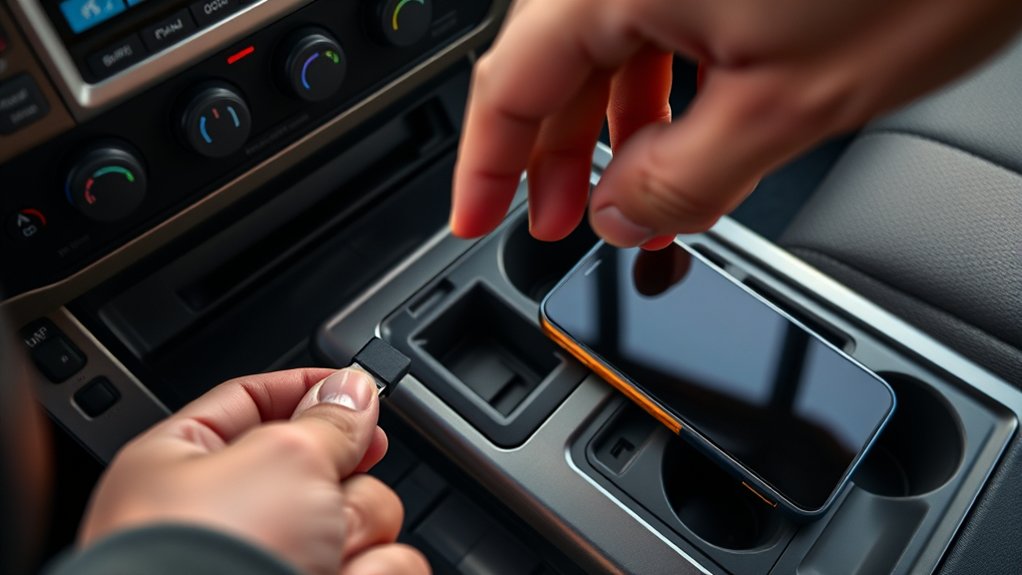
A Toyota Tacoma USB port not working can mean it has stopped charging your phone or launching Apple CarPlay or Android Auto, so start by identifying exactly what has failed. A port that still charges but will not transfer data usually points to a cable, phone setting, compatibility, or infotainment problem. A completely dead port may involve power, a fuse, wiring, or the USB module.
Quick Answer
To fix a Toyota Tacoma USB port, test whether it provides power, try a short data-capable cable and another phone, inspect the port for debris, restart the phone and infotainment system, and check your model-year manual for the correct port and fuse. Use Toyota’s official support resources for software updates.
Key Takeaways
- First determine whether the port has lost charging power, data communication, or both.
- Use the Tacoma’s multimedia data port. Some USB ports may be intended only for charging.
- A cable can charge a phone but still lack the data conductors needed for CarPlay or Android Auto.
- Restart the phone and infotainment system before attempting a factory reset or battery disconnection.
- Fuse locations and multimedia hardware vary by model year, trim, and head unit.
- Use Toyota’s official manual, firmware page, or an authorized dealer instead of third-party VIN update sites.
At a Glance
| Time Required | 10–30 minutes for basic checks; longer if fuse or wiring diagnosis is needed |
| Difficulty | Easy for cable, port, and software checks; moderate for electrical testing |
| Tools Needed | Flashlight, soft brush or air blower, two known-good data cables, a second phone, owner’s manual, and optional fuse puller or USB power meter |
| Cost | Often $0 for basic troubleshooting; replacement parts and professional diagnosis vary by fault and model year |
Warning: Park the truck and turn off the ignition before cleaning the port or removing a fuse. Never insert a metal pick, wet swab, or multimeter probe into the small USB contacts. Replace a fuse only with the same amperage rating, and stop if the replacement fuse blows again.
Is Your Toyota Tacoma’s USB Port Not Working? Start With the Symptom
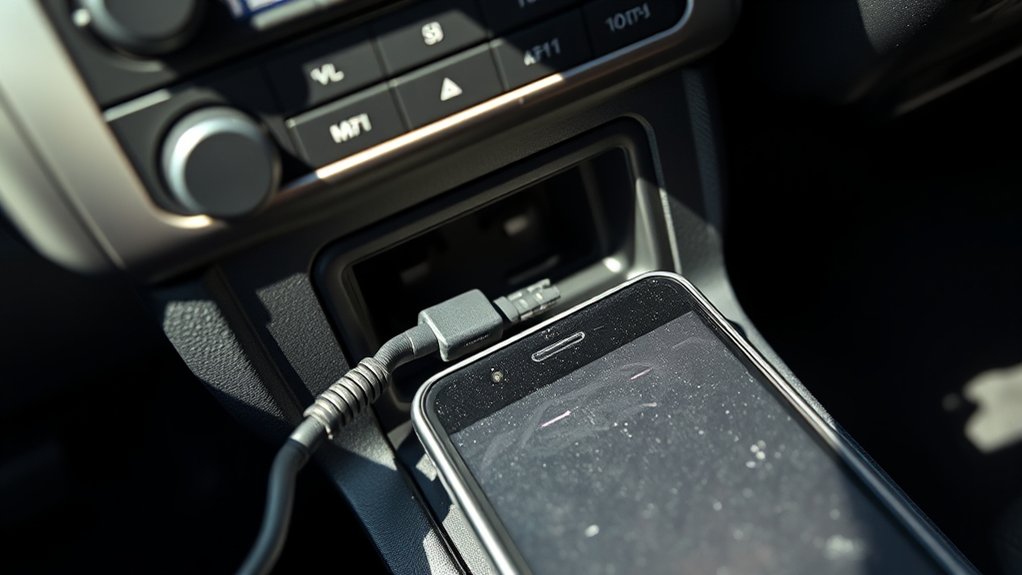
Before removing a fuse or resetting anything, connect your phone and observe what happens. The result narrows the possible causes and prevents unnecessary electrical work.
| Symptom | Most Likely Areas to Check |
|---|---|
| No charging and no data connection | Ignition mode, wrong port, debris, port damage, fuse, wiring, USB hub, or multimedia module |
| Phone charges but CarPlay or Android Auto does not start | Charging-only cable, wrong USB port, phone permissions, compatibility, saved connection, or infotainment software |
| Connection drops when the cable moves | Worn cable plug, lint in the phone or vehicle port, bent contacts, or a loose port assembly |
| One phone fails but another works | Phone connector, operating system, permissions, USB settings, or device compatibility |
| Every phone and cable fails | Vehicle port, power supply, fuse, wiring, multimedia software, USB module, or head unit |
Confirm that you are using the USB port assigned to multimedia data. A Tacoma may have more than one USB connection, and a charging port may not support phone projection. Check the Toyota owner’s manual for your exact model year if the port markings are unclear.
Pro Tip: Test the phone on another known-working data connection. Then test a second phone in the Tacoma. This two-way test quickly shows whether the problem follows the phone or stays with the truck.
Troubleshooting Steps for USB Port Issues
Work through these checks in order. Test the USB connection after each step so you know which change solved the problem.
- Park the truck and select the correct ignition mode. Some ports work only when the ignition is in accessory mode or the engine is running.
- Confirm that you are using the multimedia USB port. A charging-only port cannot provide wired CarPlay or Android Auto data.
- Inspect and clean the port. Remove visible lint or dirt without touching or bending the contacts.
- Try another data-capable cable. Avoid hubs, extensions, magnetic adapters, and multi-ended cables during diagnosis.
- Try another compatible phone. This separates a phone-side problem from a truck-side problem.
- Restart the phone and infotainment system. Reconnect only after both have fully restarted.
- Review phone permissions and saved connections. CarPlay, Android Auto, Siri, Bluetooth, Wi-Fi, and USB permissions can block a connection.
- Check for official software updates. Update the phone and verify the Tacoma’s multimedia software through Toyota.
- Inspect the correct fuse. Use only the fuse chart for your exact Tacoma model year and trim.
- Arrange professional diagnosis. Do this if the port is loose, damaged, wet, unpowered, or repeatedly blows a fuse.
Inspect the USB Port Condition
Shine a flashlight into the port and look for packed lint, dirt, corrosion, a pushed-in connector, or bent contacts. Also inspect the phone’s connector because compacted debris in the phone can stop the cable from seating fully.
Turn off the ignition before cleaning. Use a dry, soft brush, a hand-operated air blower, or short bursts of electronics-safe compressed air held upright. Do not spray cleaner into the port, and do not scrape it with a pin, screwdriver, paper clip, or knife.
If the port moves in the dashboard, feels unusually loose, has green or white corrosion, or contains damaged contacts, stop using it. Continued cable movement can worsen the connector or wiring damage.
Test With Multiple Data Cables
A cable that charges a phone is not necessarily able to transfer data. Some low-cost cables omit data conductors, while worn cables may supply power but lose communication whenever they move.
| Cable Check | What It Tells You |
|---|---|
| Original phone cable works | The previous cable was likely damaged, incompatible, or charging-only |
| Phone charges but projection does not start | The cable may lack data support, or the wrong vehicle port or phone settings may be involved |
| Connection changes when the plug moves | The cable plug, phone connector, or Tacoma port may be worn or contaminated |
| Two known-good cables fail with several phones | The problem is more likely in the vehicle port, module, wiring, power supply, or infotainment system |
For Android Auto, Google recommends a high-quality cable under 3 feet, without a USB hub or extension. Google also suggests trying the cable supplied with the phone or one that meets USB-IF standards. See Google’s Android Auto troubleshooting guidance.
Check the Phone’s Settings and Compatibility
Unlock the phone before connecting it and accept any permission request displayed on the phone or Tacoma screen. Update the phone’s operating system before continuing.
For an iPhone, confirm that Siri and CarPlay are enabled. If the Tacoma is already stored under Settings > General > CarPlay, select the truck, choose “Forget This Car,” and connect it again. Apple also recommends checking Screen Time restrictions and restarting both the iPhone and vehicle. See Apple’s CarPlay troubleshooting instructions.
For Android Auto, confirm that the phone and Tacoma model support the feature, Android Auto is enabled in the vehicle settings, and the phone is not blocking the USB connection. If needed, remove the Tacoma from the phone’s previously connected cars and pair it again.
Note: The presence of a USB port does not prove that a Tacoma supports wired CarPlay or Android Auto. Availability depends on the model year, multimedia unit, equipment, and market.
How to Check for Electrical Problems in the USB System
Electrical diagnosis becomes relevant when the port provides no charging power with several known-good cables and phones. Begin with the exact owner’s manual and fuse chart for your Tacoma. Fuse names, locations, shared circuits, USB modules, and head-unit connections differ across generations and trims.
- Turn the ignition off and remove connected accessories.
- Locate the interior or engine-compartment fuse diagram specified for your model year.
- Identify the fuse or circuit associated with the multimedia system, accessory power, USB system, or power outlet.
- Remove the fuse with the supplied fuse puller and inspect it, or test it with an appropriate fuse tester.
- If it is blown, replace it only with a fuse of the identical amperage and type.
- Test the port again. If the new fuse blows, stop and have the circuit inspected for a short or failed component.
A fuse that looks intact can still be open, so a continuity test may be useful. However, do not probe the contacts inside the USB connector with ordinary multimeter tips. A USB power-meter adapter is safer for a basic power check. Detailed voltage, ground, and data-line diagnosis should follow Toyota wiring information and is better handled by an experienced technician.
Also check whether other systems on the same circuit have stopped working. A dead radio, accessory outlet, or related interior feature may support a power-supply diagnosis. If everything else works, the fault may be limited to the USB port assembly, connector, harness, hub, or multimedia unit.
Why Use a Quality Data Cable With Your Tacoma?
A suitable cable must fit securely, carry data, and meet the electrical requirements of the connected devices. Certification does not make a cable indestructible, but compliant products are less likely to create avoidable compatibility and performance problems.
Supports Reliable Data Transfer
Wired CarPlay and Android Auto depend on stable data communication, not charging power alone. A cable with damaged conductors, loose plugs, excessive length, or charging-only construction may produce intermittent connections, slow recognition, or no phone projection.
| Phone Connection | Recommended Cable Check |
|---|---|
| Lightning iPhone | Use an undamaged data cable from Apple or an appropriately certified accessory maker |
| USB-C iPhone | Use a direct USB data cable that matches the Tacoma port and supports the required connection |
| USB-C Android phone | Use a short, high-quality data cable; avoid hubs and extensions during testing |
| Micro-USB Android phone | Use a securely fitting cable that supports both charging and data |
The USB-IF certified-product database lists products that have passed the organization’s compliance program. Check the exact brand and model number rather than relying only on a logo shown in an online listing.
Reduces Avoidable Electrical and Connector Risk
A damaged, loose, or poorly constructed cable can create heat, unstable charging, repeated disconnects, or excess mechanical stress on the port. Stop using a cable if its connector becomes hot, the insulation is split, the plug is bent, or the connection cuts in and out when touched.
Do not force a plug that does not fit easily. Avoid stacking several adapters unless the phone or vehicle manufacturer specifically supports that connection. Apple notes that some adapter-and-cable combinations can disrupt wired CarPlay and recommends a direct USB cable when possible.
Understand the Warranty Correctly
Using a third-party cable does not automatically void your Tacoma’s entire warranty. Federal warranty guidance generally prohibits requiring a particular branded item merely to keep coverage in effect. However, a warranty may exclude repair of damage that was actually caused by a defective cable, charger, adapter, modification, or improper installation.
The safest approach is to use an undamaged, standards-compliant accessory and keep the cable or charger if a failure occurs. Review the vehicle’s warranty terms or ask the dealer to explain any coverage decision in writing. See the FTC’s federal warranty guidance for information about tie-in sales and damage caused by third-party products.
Resetting the Infotainment System: A Simple Guide
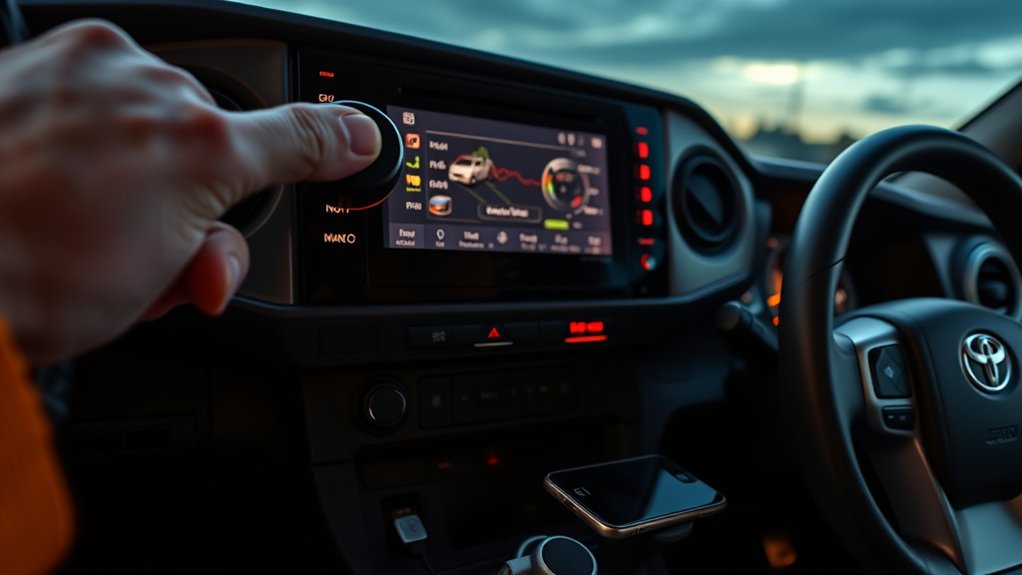
A temporary multimedia-system error can stop USB recognition even when the port still has power. Use the least disruptive reset first.
- Park the Tacoma and disconnect the phone.
- Turn the infotainment system off and restart the phone.
- On Toyota systems that support it, press and hold the audio power or volume knob until the display restarts. If your unit does not respond, follow its model-specific multimedia manual.
- Allow the system to finish loading before reconnecting the phone.
- Test with one known-good data cable and no adapters or hubs.
If a normal restart does not help, remove the saved vehicle from the phone and remove the phone from the Tacoma’s device list. Pair or connect it again and approve all prompts.
A factory reset should be a later step because it may erase paired phones, audio presets, personal settings, and account information. Record anything you need before selecting a reset or “delete personal data” option.
Warning: Do not disconnect the 12-volt battery as a routine first reset. Battery procedures and required system initialization vary by Tacoma model year. Follow the applicable Toyota manual or have a technician perform the procedure.
Check for Official Software Updates
Phone and multimedia software can affect device recognition, CarPlay, Android Auto, Bluetooth, and USB stability. Update the phone’s operating system first, then check the Tacoma.
- Identify the Tacoma’s model year and multimedia-system version.
- Review the official Toyota manual for its update method.
- Check Toyota’s official firmware-update page or contact an authorized Toyota dealer.
- Follow only the instructions intended for the exact head unit and vehicle.
- Keep the truck powered as directed while an update is being installed.
- Restart the multimedia system and reconnect the phone after the update finishes.
Older Tacoma models may use an Entune-generation system, while newer trucks may use Toyota Audio Multimedia. Update availability and installation methods are not interchangeable. Never install a file intended for another head unit, model, or market.
Note: Use only Toyota-owned domains, the Toyota Owners portal, the official Toyota multimedia support site, or an authorized dealer. Do not enter your VIN into an unaffiliated “firmware update” website.
Understanding the Role of Fuses in USB Functionality
A fuse protects a circuit from excessive current. Depending on the Tacoma’s equipment, the USB port may receive power through a shared accessory or multimedia circuit, a USB hub, a separate module, or the head unit. That is why a universal “Tacoma USB fuse” answer is unreliable.
| Component | Role | Possible Failure Clue |
|---|---|---|
| USB port assembly | Provides the physical phone connection | Loose fit, bent contacts, debris, corrosion, or intermittent operation |
| Fuse and power circuit | Protects and supplies the relevant electrical circuit | No charging power and possibly other dead accessories on the same circuit |
| Wiring and connectors | Carry power and data between components | Failure after trim work, liquid exposure, impact, vibration, or connector movement |
| USB hub or data module | Manages one or more USB connections | Power may remain while data communication fails |
| Infotainment head unit | Controls multimedia and phone integration | Several phones fail, menus freeze, projection disappears, or other multimedia functions malfunction |
A good fuse does not prove that the port, wiring, module, or head unit is healthy. Likewise, a port that charges is not proof that its data path works.
When Should You Call in the Experts?
Professional diagnosis is appropriate when basic cable, phone, cleaning, restart, update, and fuse checks do not restore the connection.
- The port has no power with several devices. A technician can test the circuit under load and inspect its ground and connectors.
- The connector is loose, pushed inward, corroded, or visibly damaged. The port assembly or surrounding harness may need replacement.
- A replacement fuse immediately blows. This can indicate a short circuit or failed component. Do not install a higher-rated fuse.
- The port charges but never transfers data. The USB hub, data wiring, multimedia module, software, or head unit may be involved.
- The infotainment system freezes or loses other functions. Diagnosis may require Toyota-compatible scan equipment or service information.
- The failure followed dashboard work, water exposure, or an accessory installation. A connector may be loose or a circuit may have been damaged.
- The Tacoma is under warranty. Document the symptoms and ask the dealer to evaluate coverage before authorizing repairs.
Before the appointment, record the Tacoma’s model year, trim, multimedia version, phone model, phone software version, cable type, whether the port charges, and the steps already completed. A short video of an intermittent failure can also help the technician reproduce it.
Alternative Charging Options for Your Tacoma
You can keep a phone powered while the factory USB port is being diagnosed, but charging and multimedia data are separate needs.
Bluetooth Audio Streaming Options
If the Tacoma supports Bluetooth audio, pair the phone wirelessly for music and hands-free calling. This can restore basic audio use when a wired USB data connection fails.
Bluetooth does not charge the phone, and it does not add CarPlay or Android Auto to a truck that lacks compatible wireless projection. Available controls and audio quality also depend on the phone and multimedia system.
12-Volt and Aftermarket USB Charger Solutions
A quality charger connected to the Tacoma’s 12-volt power outlet can provide temporary charging. Choose one from a reputable manufacturer, confirm that its input rating matches an automotive 12-volt outlet, and use a suitable cable.
| Alternative | What It Provides | Limitation |
|---|---|---|
| 12-volt USB charger | Phone charging through the accessory outlet | Usually does not provide a data connection to the factory head unit |
| USB battery pack | Independent temporary charging | Must be stored securely and kept away from excessive cabin heat |
| Bluetooth audio | Wireless music and compatible hands-free functions | Does not charge the phone or guarantee phone-projection features |
| Factory wireless charger, if equipped | Cable-free charging for compatible phones | Charging speed and availability vary; it does not repair the USB data path |
Stop using any charger that becomes unusually hot, fits loosely, smells burnt, produces electrical noise, or repeatedly interrupts charging. Do not leave a battery pack or phone exposed to extreme cabin temperatures.
Tips to Prevent Future USB Port Problems
- Keep the port covered and clean. Remove dust with a dry, nonmetallic method before it becomes packed into the connector.
- Use a short, flexible data cable. A long or stiff cable places more leverage on the dashboard port.
- Pull the plug, not the wire. Yanking the cable can loosen the internal connector or damage the cable conductors.
- Secure the phone. A sliding phone can tug the cable during turns or braking.
- Avoid unsupported hubs and adapters. Use a direct cable while troubleshooting and whenever the manual recommends one.
- Replace worn cables early. Frayed insulation, loose plugs, heat, or repeated disconnects are signs to stop using the cable.
- Keep phone and vehicle software current. Install updates from the phone manufacturer and Toyota’s official resources.
- Protect the console from liquids. Spills can corrode the port and nearby connectors even after the surface appears dry.
- Do not force incompatible connectors. Confirm the connector type and orientation before inserting it.
A port that charges but will not launch CarPlay or Android Auto usually has a data or compatibility problem, not a total loss of electrical power.
Frequently Asked Questions
Why is my Toyota Tacoma USB port not working?
Common causes include debris, a worn or charging-only cable, the wrong USB port, phone permissions, outdated software, a frozen infotainment system, a blown fuse, a loose connector, damaged wiring, or a failed USB hub or head unit. Test whether charging, data, or both have failed before choosing the next step.
Why does the port charge my phone but not connect to CarPlay or Android Auto?
The cable may support charging without data, you may be using a charging-only vehicle port, or the phone and infotainment settings may be blocking projection. Try a short data cable, unlock the phone, approve connection prompts, restart both devices, and remove and recreate the saved vehicle connection.
How do I fix an unresponsive USB port?
Confirm the ignition mode and correct multimedia port, inspect the connector, try two known-good data cables and another phone, restart the phone and infotainment system, check official updates, and inspect the correct model-year fuse. Seek service if the port is physically damaged or remains unpowered.
Does a Toyota Tacoma USB port have its own fuse?
It depends on the model year, trim, multimedia unit, and circuit design. The port may share an accessory or multimedia circuit rather than use a fuse labeled “USB.” Use the fuse diagram and owner’s manual for your exact Tacoma instead of relying on a universal fuse number.
How do I reset the Tacoma USB or infotainment system?
Disconnect the phone, restart the phone, and perform the normal infotainment restart described in the applicable Toyota multimedia manual. On systems that support it, holding the audio power or volume knob may restart the display. Use a factory reset only after recording your settings, and do not disconnect the battery unless Toyota’s model-specific procedure calls for it.
Can a bad USB cable damage the Tacoma’s port?
A damaged, contaminated, loose, or poorly constructed cable can create unstable charging, heat, repeated disconnects, or mechanical stress. Stop using a cable with bent plugs, split insulation, excessive heat, or an intermittent connection. A third-party cable does not automatically void the vehicle warranty, although damage caused by an accessory may not be covered.
Conclusion
Start with the simplest distinction: does the Tacoma USB port charge, transfer data, or do neither? Then test the correct multimedia port with a short data-capable cable and another phone. Clean the connector safely, restart the phone and infotainment system, and use official Toyota resources for manuals and updates.
If the port remains dead, inspect only the fuse identified for your exact model year. A loose port, recurring blown fuse, complete loss of power, or failure with every phone and cable calls for professional diagnosis of the port assembly, wiring, USB module, or head unit.
Sources
- Toyota Manuals and Warranties — model-year-specific vehicle, fuse, feature, and multimedia guidance
- Toyota Firmware Updates — official Toyota multimedia software-update resource
- Apple Support: If You Need Help With CarPlay — cable, connection, phone-setting, restart, and firmware troubleshooting
- Google Android Auto Help — cable requirements, compatibility checks, and infotainment troubleshooting
- USB-IF Certified Product Search — verification of products that passed the USB-IF compliance program
- Federal Trade Commission Warranty Guidance — tie-in sales provisions and coverage for damage caused by third-party products

