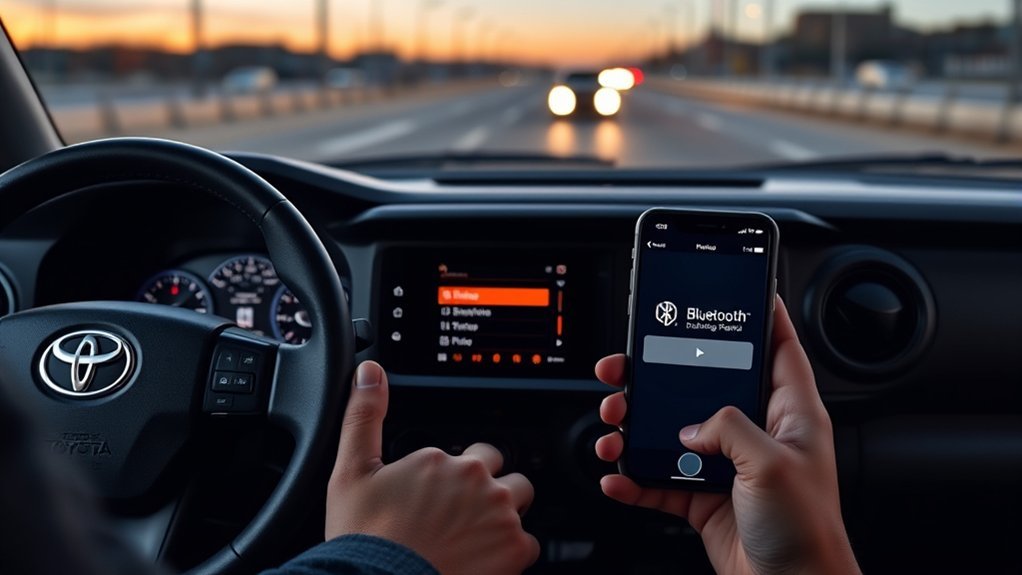
Connecting your phone to a Toyota Tacoma usually takes only a few minutes, but the exact buttons and menu names depend on the truck’s model year and installed radio. Older systems may use voice prompts or a phone button, while touchscreen and newer Toyota Audio Multimedia systems provide an on-screen device menu. Complete the setup while parked, confirm the displayed passcode, and test both calling and music before driving.
Quick Answer
Park your Tacoma and turn on its multimedia system. Enable Bluetooth on your phone, open the truck’s Phone, Setup, or Bluetooth & Devices menu, and select the option to add a device. Choose the Tacoma on your phone, verify the matching passcode, approve the requested permissions, and test calls and audio.
Key Takeaways
- Toyota Tacoma Bluetooth pairing steps vary by model year, trim, and multimedia system.
- Keep the truck in Park and finish the complete setup before driving.
- Verify that the same pairing code appears on the phone and the Tacoma before accepting it.
- Bluetooth must remain enabled after pairing, but your phone does not need to remain publicly discoverable.
- Factory Apple CarPlay and Android Auto compatibility arrived on the Tacoma for the 2020 model year.
- Deleting old devices from both the phone and the truck fixes many recurring connection problems.
At a Glance
| Time Required | About 5–10 minutes |
| Difficulty | Easy |
| Tools Needed | Compatible phone, Tacoma multimedia system, and the exact-year owner’s manual if menu labels differ |
| Cost | No cost for a factory-equipped Bluetooth system |
Warning: Put the Tacoma in Park, apply the parking brake, and finish pairing before driving. Toyota, Apple, and Google advise users not to complete phone setup while the vehicle is moving.
Quick Phone Checks Before Pairing (Compatibility & Bluetooth)
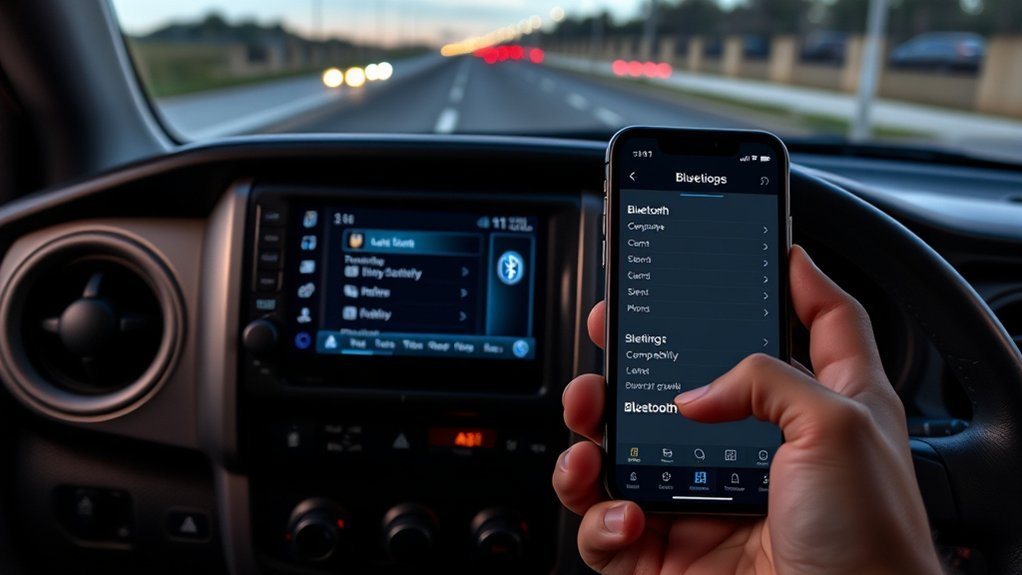
Start by confirming that the installed Tacoma radio supports Bluetooth. A touchscreen, steering-wheel phone button, Bluetooth Audio source, or hands-free phone menu usually indicates factory support. However, equipment varies across model years and trims. A base or replacement radio may use different controls or may not include Bluetooth at all.
Use Toyota’s manuals and warranties page to select your exact year and model. The multimedia or navigation manual is often more useful than the general owner’s manual for phone-pairing instructions.
- Install available iPhone or Android system updates.
- Turn Bluetooth on and open the phone’s Bluetooth settings.
- Keep the phone within a few feet of the multimedia system.
- Temporarily disconnect earbuds, watches, or other devices that may take over the phone’s audio.
- Delete obsolete Tacoma entries from the phone if you previously paired the truck.
- Remove unused phones from the truck if its saved-device list is full.
Most current phones become available for pairing while their Bluetooth settings screen is open. You do not need to leave the phone discoverable after the connection has been saved.
Pro Tip: Rename your phone before pairing if several family members use similar devices. A clear name such as “Hasan’s iPhone” makes device priority and troubleshooting easier.
Identify Your Tacoma’s Multimedia System
The correct pairing path depends more on the installed radio than the body generation alone. Look at the physical buttons and on-screen labels before following a procedure.
| System Type | How to Recognize It | Common Pairing Route |
|---|---|---|
| Older factory hands-free system | Phone or talk buttons, small radio display, or voice prompts | Phone button or voice command, followed by a pairing or setup prompt |
| Touchscreen or Entune-era system | Physical Menu button and on-screen Setup tile | Menu > Setup > Bluetooth or Phone > Add/Register Device |
| Toyota Audio Multimedia | Newer interface with a settings gear and Bluetooth & Devices menu | Settings > Bluetooth & Devices > Add Device or Add Another Device |
| Aftermarket radio | Brand name other than Toyota, JBL, or the original factory interface | Use the radio manufacturer’s manual |
Menu wording can include Add Device, Add New Device, Register Device, Connect Phone, or a plus symbol. These options perform the same basic task: they make the truck ready to exchange a secure pairing request with your phone.
Turn On the Tacoma Infotainment and Enable Pairing Mode
Start the Tacoma or switch it to the accessory or ignition-on position so the multimedia system has full power. Keep the transmission in Park. Wait for the radio to finish starting before opening the phone or Bluetooth menu.
On many touchscreen systems, press Menu, choose Setup, and open Bluetooth. Toyota’s official Bluetooth pairing support confirms the Menu and Setup route for applicable Toyota Audio Multimedia displays. Select the option to add or register a device.
On systems without a physical Menu button, open the settings gear, select Bluetooth & Devices, and choose the add-device option. If the display instead opens a Phone screen, look for Connect Phone, Add, or a plus symbol.
The screen may display a vehicle Bluetooth name, begin searching for nearby devices, or ask you to search from the phone. Leave this screen open while completing the next steps.
Pair a New Phone With Your Tacoma (Step-by-Step)
The sequence is similar across iPhone and Android devices. The Tacoma and phone may discover each other in either direction, so follow the prompts shown on your installed system rather than forcing one specific route.
Prepare Your Phone
- Unlock the phone and open its Settings app.
- Open Bluetooth or Connected devices.
- Turn Bluetooth on.
- Keep the Bluetooth settings screen open so the phone can find nearby devices.
- Temporarily stop music or calls using another Bluetooth accessory.
On an iPhone, the Tacoma normally appears under Other Devices. On Android, you may need to tap Pair new device, Scan, or Available devices.
| Action on Phone | Action on Tacoma |
|---|---|
| Open Bluetooth settings | Open Phone, Setup, or Bluetooth & Devices |
| Tap Pair new device or wait for the truck to appear | Choose Add, Register, or Connect Device |
| Select the Toyota or Tacoma entry | Select the phone if the truck found it first |
| Confirm the displayed code | Confirm the same code on the multimedia screen |
Set Multimedia to Pair
- Select the add-device option on the Tacoma.
- Wait for the truck or phone to finish scanning.
- Select your phone’s name on the Tacoma, or select the Toyota entry on your phone.
- Compare the number displayed on both screens.
- Accept only when the codes match.
- Approve contacts, call history, messages, and notification access according to the features you want to use.
Do not guess a passcode or enter common numbers such as 0000 or 1234 unless the exact system manual specifically instructs you to do so. Modern systems generally display a temporary matching code. If the codes differ, cancel both requests and restart pairing.
The truck may ask whether the phone should be used for calls, media audio, messaging, Apple CarPlay, or Android Auto. Enable the services you plan to use. You can usually change them later in the saved-device settings.
Confirm and Test the Connection
After the system reports a successful connection, leave the phone’s pairing screen and verify each function separately:
| Test Type | What to Check |
|---|---|
| Phone call | The caller’s voice uses the truck speakers, and the cabin microphone works |
| Bluetooth music | Select Bluetooth Audio as the source and test play, pause, and track controls |
| Contacts | Names appear after contact-sync permission is approved |
| Automatic reconnection | Turn the truck off, restart it, and confirm that the saved phone reconnects |
Contact syncing may take a few minutes when the phonebook is large. Keep Bluetooth enabled after setup, but the phone does not need to remain discoverable.
Pairing an Older or 2011 Toyota Tacoma
A 2011 Tacoma does not have one universal Bluetooth procedure because the installed audio and navigation equipment varies. First, check the radio and steering wheel for a phone handset button, talk button, Bluetooth label, or hands-free menu.
If the truck has a voice-controlled hands-free system, press the phone or talk button while parked and listen for a setup or pairing prompt. The system may ask you to say a command such as “pair phone” or “setup.” Follow the spoken instructions and enter or confirm the passkey shown or announced by the system.
If the truck has a factory navigation touchscreen, open its phone or Bluetooth setup menu and register the phone there. Do not assume that the newer Menu > Setup > Bluetooth sequence will appear exactly as written.
If you cannot find a phone button, Bluetooth Audio source, hands-free menu, or Bluetooth section in the factory manual, the installed radio may not support factory Bluetooth. An aftermarket radio or hands-free adapter would then be required.
Note: A used Tacoma may have a replacement radio. When the brand shown on the startup screen is not Toyota, follow that radio manufacturer’s pairing instructions instead of the factory Tacoma procedure.
Confirm the Bluetooth Connection and Set Call/Audio Defaults
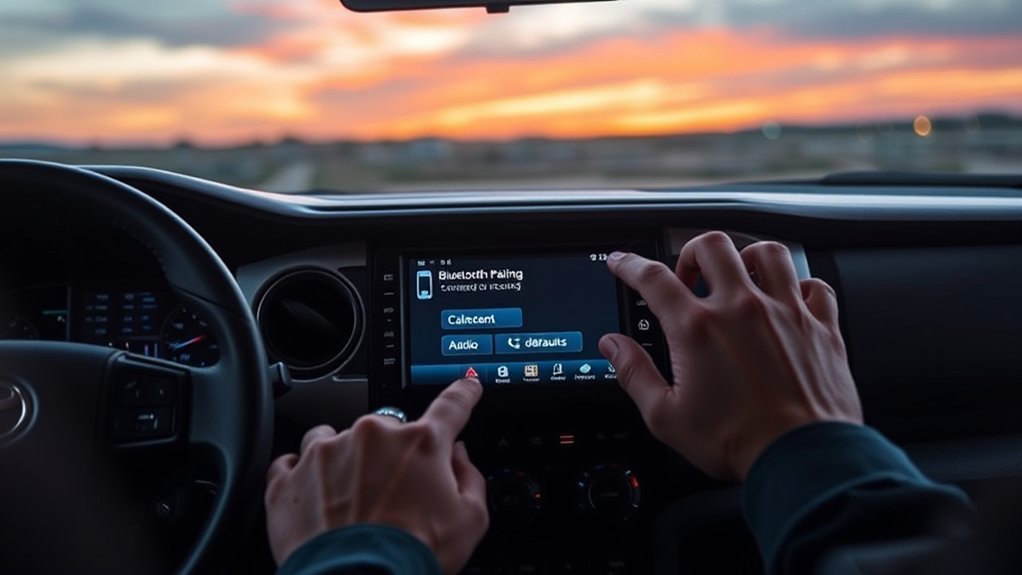
Open the Tacoma’s saved-device list and select your phone. Depending on the system, you may see separate options for phone calls, media audio, messaging, contacts, or smartphone projection.
Enable both the phone and audio services when you want hands-free calls and music. If calls work but music does not, confirm that media audio is enabled for the Tacoma in the phone’s Bluetooth settings. Then select Bluetooth Audio from the truck’s audio-source screen.
If music works but calls remain on the phone, enable the phone-call service for the saved Toyota connection. Also verify that the Tacoma is selected as the call-audio destination during an active call.
When several phones are saved, the system may connect to the first available device or to a preferred device. Set your main phone as the primary or preferred device when that option exists. Turn Bluetooth off on another nearby saved phone if it repeatedly connects first.
Only approve contact and message access when you want those features. Removing permission will not normally stop basic calling or Bluetooth audio, but names and message notifications may no longer appear on the display.
Use CarPlay or Android Auto Instead of Bluetooth
Bluetooth is suitable for hands-free calling and basic audio streaming. Apple CarPlay and Android Auto add compatible navigation, messaging, voice-assistant, and media apps to the Tacoma’s display.
Toyota introduced factory Apple CarPlay and Android Auto compatibility to the Tacoma for the 2020 model year. Earlier factory systems generally do not provide these features unless the radio was replaced or upgraded. Wired or wireless operation depends on the model year and installed multimedia system.
Wired CarPlay Benefits
When the Tacoma supports wired CarPlay, connect the iPhone to the vehicle’s data-capable USB media port with a good-quality cable. Follow the prompts on the phone and display, and make sure Siri is enabled. Apple’s official CarPlay setup guide explains the requirements for wired and wireless systems.
CarPlay provides a driving-focused interface for compatible maps, calls, messages, music, podcasts, and other supported apps. A wired connection can also provide charging and may help when Bluetooth pairing is unreliable. However, cable condition and USB-port capability still affect operation.
| Benefit | What It Provides | What to Verify |
|---|---|---|
| App integration | Supported maps, messages, calls, and media on the Tacoma display | Vehicle and app compatibility |
| Voice control | Siri access through compatible controls | Siri is enabled on the iPhone |
| USB connection | Phone projection and charging on supported systems | Use the media USB port and a data-capable cable |
Android Auto Features
Android Auto presents compatible navigation, communication, and media apps in a driving-focused interface. It does not simply duplicate every item on the phone screen.
For a wired system, connect the phone to the Tacoma’s USB media port with a data-capable cable and follow the prompts. For a compatible wireless system, the initial connection normally uses Bluetooth, while Wi-Fi supports the continuing projection connection. Google’s Android Auto setup instructions require the vehicle to remain parked during setup.
- Confirm that the phone and Tacoma system support Android Auto.
- Turn on Bluetooth and Wi-Fi when setting up a wireless connection.
- Use the vehicle’s media USB port for a wired connection.
- Approve the requested phone, notification, microphone, and location permissions.
- Follow the display prompts before starting the drive.
When to Choose Bluetooth
Choose Bluetooth when you need straightforward hands-free calling or music without connecting a cable. It uses fewer on-screen apps and works with many phones that do not support smartphone projection.
Choose CarPlay or Android Auto when your Tacoma supports it and you want compatible navigation, messages, voice commands, and apps on the multimedia display. Use a wired connection when required by the system or when wireless projection is unstable.
Common Pairing Problems and Fast Fixes to Try First
Most Toyota Tacoma Bluetooth problems come from saved-device conflicts, missing permissions, a full device list, another phone connecting first, or an incomplete pairing record. Work through the following table before resetting anything.
| Symptom | Likely Cause | Fast Fix |
|---|---|---|
| Tacoma does not appear on the phone | Truck is not actively adding a device | Reopen the add-device screen and rescan from the phone |
| Phone does not appear on the Tacoma | Phone is not available for discovery or another accessory is connected | Open the phone’s Bluetooth screen and temporarily disconnect other accessories |
| Add-device option is unavailable | Truck is moving, system is busy, or saved-device memory is full | Remain in Park, wait for startup, and delete an unused saved phone |
| Pairing code does not match | The phone selected the wrong nearby device or an old request remains active | Cancel both prompts, restart the scan, and select the correct Toyota entry |
| Phone pairs but will not reconnect | Incomplete saved record or another preferred phone connects first | Delete the connection from both devices, restart them, and pair again |
| Calls work but music does not | Media audio is disabled or the wrong source is selected | Enable media audio and select Bluetooth Audio on the Tacoma |
| Music works but calls do not | Phone-call profile is disabled | Enable calls for the saved Toyota connection |
| Contacts do not appear | Contact-sharing permission was denied | Enable contact syncing for the Toyota connection and reconnect |
| Audio skips or disconnects | Competing connections, phone software issue, or temporary multimedia fault | Disconnect other accessories, restart the phone, and cycle the truck off and on |
Remove and Re-Pair the Phone Correctly
- Delete or forget the Tacoma from the phone’s Bluetooth settings.
- Delete the phone from the Tacoma’s saved-device list.
- Turn Bluetooth off on the phone for about 10 seconds.
- Turn the Tacoma off, open the driver’s door, and allow the multimedia system to shut down.
- Restart the phone and truck.
- Repeat the pairing procedure and approve the required permissions.
Deleting only one side can leave an outdated connection key on the other device. Removing both records creates a clean pairing request.
Check Phone Permissions and Audio Routing
Open the saved Toyota connection in the phone’s Bluetooth settings. Depending on the phone, verify options for calls, audio, contacts, messages, and notifications. The exact labels vary between iPhone and Android.
During a call, use the phone’s audio button to confirm that the Toyota or Tacoma connection is selected. For music, select Bluetooth Audio from the Tacoma’s source menu and raise the volume on both the phone and truck.
Reset Phone Network Settings Only as a Last Resort
A phone network reset may fix a damaged Bluetooth configuration, but it can also erase saved Wi-Fi networks, Bluetooth accessories, and related network settings. Use this step only after normal deletion, restarting, and re-pairing fail. Review the phone manufacturer’s instructions before proceeding.
When to Update Software or Visit Your Dealer for Help
Update the phone’s operating system when Bluetooth problems began after an app change, the phone has known connection bugs, or the Tacoma pairs correctly with another phone. Restart the phone after installing an update and test the connection again.
Toyota multimedia update procedures differ by system. Some systems may support updates through a connected service, Wi-Fi, USB media, or dealer equipment. Do not install an unverified firmware file. Check the exact-year multimedia manual or Toyota support before attempting an update.
Arrange professional diagnosis when:
- The Bluetooth or Phone menu remains unavailable after a complete vehicle restart.
- No compatible phone can discover the truck.
- The multimedia system repeatedly freezes or restarts.
- The microphone, speakers, or USB media port also fail with other devices.
- The problem began after battery, radio, electrical, or dashboard work.
- A factory reset and software check do not restore normal operation.
Before visiting a dealer or qualified audio technician, record the Tacoma’s year, trim, radio type, phone model, operating-system version, error message, and troubleshooting steps already completed. This information helps separate a compatibility problem from a multimedia hardware fault.
Related Guides
Frequently Asked Questions
How do you put a Toyota Tacoma in Bluetooth pairing mode?
Park the Tacoma and open its Phone, Setup, or Bluetooth & Devices menu. Select Add Device, Register Device, Connect Phone, or the plus symbol. On many touchscreen systems, the route is Menu > Setup > Bluetooth. Newer interfaces may use Settings > Bluetooth & Devices. Follow the exact labels shown on your system.
How do you put an older Toyota into pairing mode?
Older systems may use a steering-wheel phone button, talk button, voice-command setup menu, navigation screen, or radio phone menu. Press the phone or talk button while parked and listen for pairing prompts. Consult the multimedia manual for the exact year and installed radio when no add-device option appears.
How do you connect Bluetooth to a 2011 Toyota Tacoma?
First confirm that the installed 2011 radio includes factory Bluetooth. Look for a phone button, talk button, Bluetooth Audio source, or hands-free menu. Use the phone or voice-command setup prompts when equipped. A navigation system may provide an on-screen Bluetooth menu. If none of these controls exists, the radio may not support factory Bluetooth.
Why is Bluetooth not working in my Toyota Tacoma?
Common causes include a full saved-device list, another phone connecting first, an incomplete pairing record, disabled call or media permissions, outdated phone software, or a temporary multimedia fault. Delete the connection from both devices, restart them, pair again, and approve the required permissions.
Why do calls work but Bluetooth music does not?
The phone-call profile may be enabled while media audio is disabled. Open the saved Toyota connection on the phone and enable audio or media. Then select Bluetooth Audio from the Tacoma’s source menu. Raise the media volume on both devices.
Can you use CarPlay or Android Auto instead of Bluetooth?
Yes, when the Tacoma’s factory or aftermarket multimedia system supports it. Toyota added factory Apple CarPlay and Android Auto compatibility to the Tacoma for 2020. Some systems require a USB data cable, while compatible newer systems may support wireless projection. Bluetooth remains useful for basic calls and music.
Conclusion
To connect Bluetooth to a Toyota Tacoma, keep the truck parked, place the multimedia system in add-device mode, select the Toyota entry on your phone, and verify the same pairing code on both screens. Approve the permissions needed for calls, contacts, messages, and music, then test each function separately.
When the expected menu is missing, identify the installed radio and use the multimedia manual for the exact model year. Older Tacomas may rely on phone buttons or voice prompts, while newer systems use touchscreen device menus. If pairing fails, delete the saved connection from both devices, restart them, and create a fresh pairing record before considering a software update or professional diagnosis.
Sources
- Toyota Bluetooth Pairing Support — Toyota pairing guidance, compatibility information, and parked-vehicle warning.
- Toyota Manuals and Warranties — model-year-specific owner, navigation, and multimedia manuals.
- Toyota 2020 Tacoma Multimedia Announcement — introduction of Apple CarPlay and Android Auto compatibility to Tacoma.
- Apple: Use CarPlay With Your iPhone — official wired and wireless CarPlay setup instructions.
- Google: Set Up Android Auto — official wired and wireless Android Auto requirements and setup steps.

