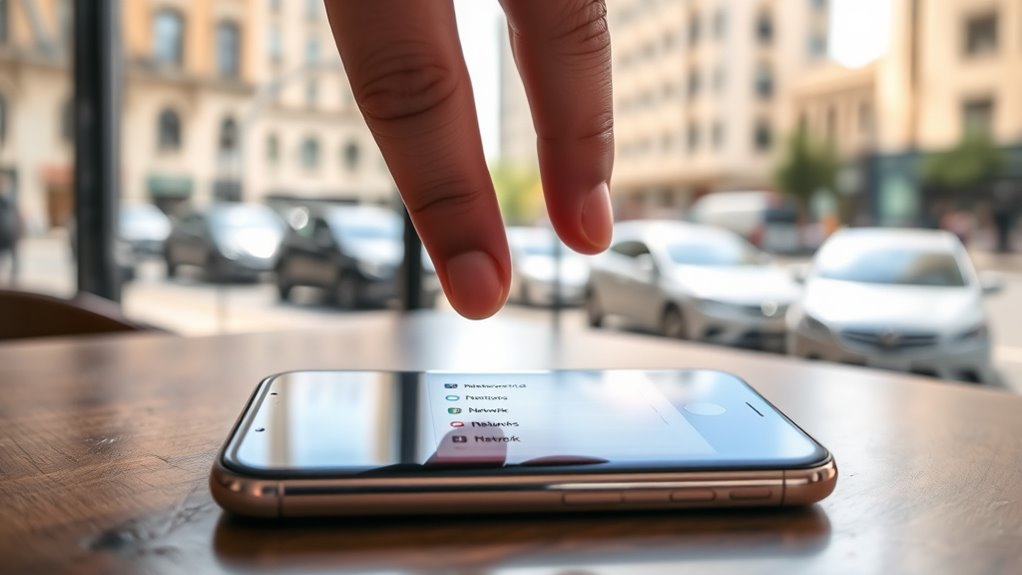
To test reception quality on an iPhone 16, open Field Test Mode by dialing *3001#12345# and review LTE readings such as dBm, RSRP, and SINR. Turn off Wi‑Fi first so the phone uses cellular service only. RSRP near -59 to -79 dBm is strong; below -110 dBm is poor. SINR above 10 dB is excellent. Check multiple spots indoors, since walls and distance from towers affect results, and better methods are covered next.
Key Takeaways
- Use iPhone Field Test Mode by dialing *3001#12345#* to view cellular signal metrics.
- Check RSRP in dBm; around -59 to -79 dBm is strong, while below -110 dBm is poor.
- Review SINR; above 10 dB is excellent, above 5 dB is good, and above 0 dB is acceptable.
- Turn off Wi‑Fi and restart the iPhone before testing to measure true mobile network reception.
- Test signal in different spots, like windows and basements, to find where reception is strongest.
How to Test iPhone 16 Signal Strength
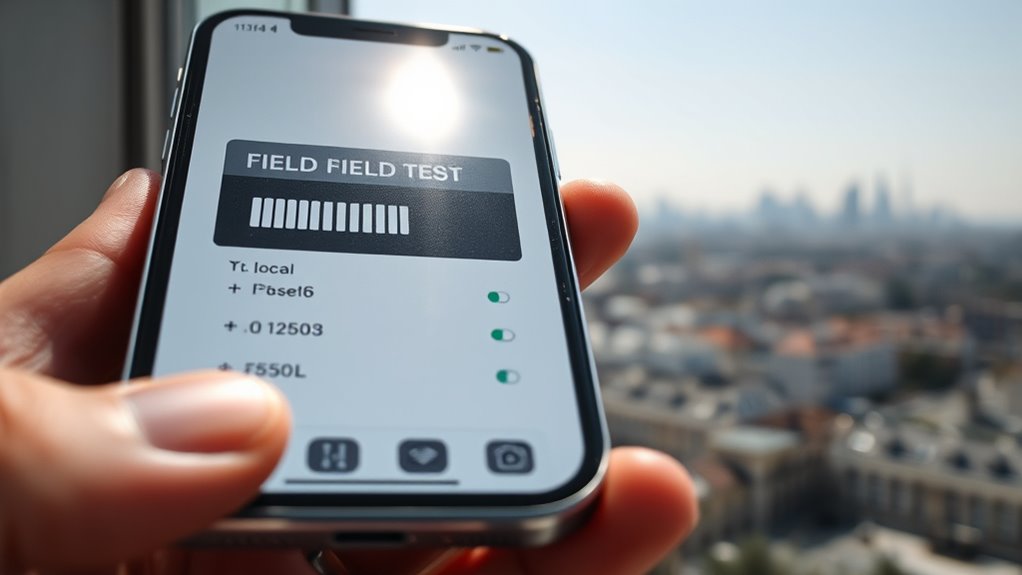
To test iPhone 16 signal strength, the user can open Field Test Mode by dialing *3001#12345#* and pressing call. Then check the LTE section for detailed dBm readings. This Test gives a direct view of iPhone signal strength without carrier summaries.
Open Field Test Mode by dialing *3001#12345#* to view detailed iPhone 16 signal strength readings.
In Field Test Mode, cellular signal strength is measured in dBm: values near -50 indicate excellent Signal, while readings near -120 show severe weakness. RSSI reflects total received power, while RSRP isolates LTE and 5G quality.
For practical use, readings between -59 and -79 dBm usually support reliable calls and data. The user should sample multiple locations and compare values to identify the strongest position.
Consistent monitoring helps reveal dead zones and empowers informed movement, so connectivity becomes a chosen tool rather than an imposed limit. Accurate interpretation turns raw numbers into useful guidance for daily communication, navigation, and work.
Turn Off Wi‑Fi Before You Start
Wi‑Fi should be disabled before testing to prevent it from masking the iPhone 16’s cellular reception.
With the device relying only on the mobile network, signal strength can be measured more accurately. The setting is available in Settings > Wi‑Fi, after which Field Test Mode can be used for dBm readings.
Disable Wi‑Fi First
Before measuring cellular performance on an iPhone 16, Wi‑Fi should be turned off so the device relies solely on the mobile network.
To disable Wi-Fi, go to Settings > Wi-Fi and switch it Off, confirming a direct cellular connection. This removes a common source of distortion and supports accurate measurements of reception.
With Wi‑Fi disabled, Field Test Mode can be opened by dialing *3001#12345#* in the Phone app. There, signal strength is read in dBm, giving a clearer view of the carrier link.
Tests should then be repeated in multiple locations to map stronger and weaker coverage. The result is a freer, more truthful assessment of network quality, without the shelter of wireless access points.
Prevent Signal Interference
Signal interference should be minimized by turning off Wi‑Fi on the iPhone 16 before any cellular test begins. This isolates the handset on the mobile network, the accurate way to measure signal strength in dBm without mixed routing. To check your iPhone signal in poor signal areas, Access Field Test Mode after Wi‑Fi is disabled. The phone then locks onto the nearest tower, exposing RSRP and SINR for direct evaluation.
| Step | Action | Result |
|---|---|---|
| 1 | Turn off Wi‑Fi | Cellular-only path |
| 2 | Restart iPhone 16 | Clear cached settings |
| 3 | Open Field Test Mode | Read precise metrics |
| 4 | Compare dBm | Verify real signal strength |
This method supports transparent testing and user control.
How to Read RSRP, SINR, and dBm
RSRP, SINR, and dBm provide a compact view of cellular performance in Field Test Mode. RSRP shows received power in dBm; values nearer -50 dBm indicate strong coverage, while figures below -110 dBm warn of serious weakness.
dBm is logarithmic and negative, so -60 dBm is stronger than -80 dBm, and even small shifts can alter performance. SINR tracks signal quality by comparing signal to interference and noise; higher readings mean cleaner reception.
In Field Test Mode, SINR updates often, making live diagnosis practical and freeing users from guesswork.
- RSRP: raw power, read fast.
- SINR: cleaner lanes, clearer data.
- dBm: smaller negatives, stronger presence.
- Field Test Mode: watch changes in real time.
This reading method gives direct control over connectivity, helping the user identify whether trouble comes from weak power, interference, or both, without waiting for the network to explain itself.
What RSRP and SINR Numbers Are Good?
In practical testing, RSRP and SINR can be judged against clear performance bands. For RSRP, values from -59 dBm to -79 dBm are ideal for strong mobile performance. As the number moves closer to zero, signal strength improves; -60 dBm is stronger than -80 dBm.
Readings below -110 dBm are a warning zone, and below that, poor call quality and slow data often appear. Typical RSRP spans from -50 dBm, excellent, to -120 dBm, very poor.
SINR is the interference test. Above 10 dB is excellent and supports clean connectivity. Above 5 dB is good, and anything over 0 dB is still acceptable for basic connectivity.
For reliable use, the target should remain above 10 dB so interference stays low and signal strength can be used efficiently. Together, strong RSRP and high SINR indicate a liberated, usable mobile link.
How to Check Signal in Different Places
To compare signal quality across locations, WiFi should be turned off and Field Test Mode opened on the iPhone 16 by dialing *3001#12345#*. From there, the LTE readings provide dBm values that are more accurate than the standard bars.
In this Mode, each Cell site can be evaluated with disciplined Test steps, revealing true Signal Strength rather than guesswork.
- Record dBm in open streets.
- Compare readings near buildings and trees.
- Use an app for RSSI and SINR.
- Repeat at peak and quiet hours.
Each spot should be logged, then matched against the strongest readings to map freedom of movement without dead zones.
Outdoor and indoor passes expose where reception holds and where it collapses. The process stays practical: move, measure, note, and compare.
Better routes, rooms, and schedules emerge when Signal data is treated as evidence, not decoration.
Why Does Your iPhone 16 Lose Signal Indoors?
The iPhone 16 may lose signal indoors when walls, metal framing, and energy-efficient glass attenuate cellular reception.
Signal strength also drops as distance from the nearest cell tower increases, making basements and deep interior rooms more vulnerable.
These conditions often combine to produce weaker bars, slower data, and dropped calls.
Indoor Signal Blockers
Concrete walls, metal framing, and energy-efficient windows can attenuate cellular signals enough to weaken iPhone 16 reception indoors.
These indoor signal blockers reduce signal strength and quality, especially when the nearest cell tower is already marginal.
Furniture, appliances, and room layout can add further loss, leaving users trapped in unreliable bars and dropped calls.
During busy hours, congestion can intensify the problem.
- Weak bars signal obstruction
- Calls fail without warning
- Data slows under pressure
- Relief comes from control
Practical remedies include repositioning near windows, using WiFi calling, and, when needed, installing cell phone signal boosters.
A clear home layout supports better placement and freer access to communication.
For testing, note where reception improves, then compare rooms, materials, and call stability.
Tower Distance Effects
As tower distance increases, the iPhone 16 receives a weaker radio signal, and that loss becomes more pronounced indoors where walls, glass, and metal already absorb or reflect energy.
Greater tower distance reduces signal strength, so signal readings fall faster once indoor materials intervene. Concrete, metal framing, and energy-efficient windows can trim the cellular signal enough to push reception into marginal ranges.
When readings drift below about -110 dBm, calls and data often degrade sharply, even if the display still shows bars. Peak-hour congestion can compound the issue by dividing tower capacity among many users. Heavy rain or snow may add further attenuation.
For practical testing, compare indoor signal readings near windows, central rooms, and basements to isolate tower distance effects from local obstruction.
How to Improve iPhone 16 Signal Indoors
- Move toward windows or upper floors.
- Remove avoidable physical obstructions.
- Enable WiFi calling when supported.
- Use a signal booster for persistent dead zones.
These steps reduce dependence on fixed locations and restore communication options indoors.
Field Test Mode provides objective feedback, allowing changes to be judged by dBm rather than guesswork.
For households trapped by poor reception, the path to reliable voice and data starts with measurement, then targeted correction.
Which Signal Booster Fits Your Home?
Once indoor signal trouble has been confirmed with dBm readings, the next step is selecting a booster sized to the home and the carrier environment. A reliable signal measurement should guide the choice: if RSRP falls below -110 dBm, a high-gain model may be needed to pull in the best signal and make it strong enough for indoor use.
Coverage area matters. A unit like the weBoost Home MultiRoom serves up to 5,000 square feet, while the Home Complete Installed reaches 7,500 square feet with professional setup.
Compatibility should also be checked. Some boosters are carrier-specific; others support multiple bands for broader freedom across networks.
Every effective system includes an outdoor antenna to capture weak outside signals and an indoor antenna to redistribute improved service.
FCC compliance is nonnegotiable, since approved operation prevents interference and keeps performance dependable.
Frequently Asked Questions
Why Is My iPhone 16 Signal so Bad?
His iPhone 16 signal is bad due to network provider issues, physical obstructions effects, weather, and congestion. Signal interference solutions include device settings adjustments and software update impacts checks; further testing should confirm tower proximity and indoor attenuation.
What Does Dialing *3001-12345#* Do?
It opens iPhone Field Test Mode, a network diagnostics dashboard. Like a sailor reading a compass in fog, it exposes dBm, RSRP, and SINR, helping assess signal interference, carrier settings, software updates, antenna performance.
How Do I Test My iPhone’S Cellular Signal Strength?
They test cellular strength by enabling Airplane mode, dialing *3001#12345#* for Field Test Mode, and reading dBm/RSRP. Network settings, carrier updates, environmental factors, and signal boosters help diagnose weak reception objectively.
How Do I Check My Signal Strength on My iPhone?
Signal bars whisper only half the truth; irony thrives there. He should open network settings, toggle airplane mode, check carrier updates, and rule out software glitches. For precise strength, Field Test Mode reveals dBm values.
Conclusion
In testing iPhone 16 reception quality, the evidence should be collected with Wi‑Fi off and signal readings compared across locations. RSRP, SINR, and dBm reveal whether weak service is caused by distance, interference, or building materials. The theory that poor indoor reception is mainly a hardware flaw is often false; the data usually points to environmental loss. Practical improvement depends on placement, network conditions, and, when needed, a properly matched signal booster.
