
Signal loss, low battery warnings, and unclear home-point settings can turn a normal drone flight into a stressful recovery. A reliable Return-to-Home setup helps your drone climb to a safe altitude, navigate back to the recorded home point, and land with fewer surprises. Before every flight, you should confirm your RTH altitude, signal-loss action, GPS lock, battery status, and obstacle settings.
Quick Answer
Set your drone’s Return-to-Home altitude higher than nearby trees, buildings, towers, and terrain. Confirm the home point before takeoff, set signal-loss behavior to RTH, check GPS strength, and test the feature in an open area before relying on it during longer flights.
Key Takeaways
- RTH works best only after the drone records an accurate home point with a strong GPS lock.
- Your RTH altitude should clear the tallest nearby obstacle, with extra room for terrain changes.
- Set the signal-loss action to Return-to-Home instead of Land when flying over unsafe landing areas.
- Obstacle sensing helps, but it does not replace careful planning and line-of-sight awareness.
- Always test RTH settings in a wide, open area before flying near trees, buildings, water, or hills.
At a Glance
| Time Required | 5 to 10 minutes before each flight |
| Difficulty | Beginner-friendly, but important for every pilot |
| Tools Needed | Drone, remote controller, flight app, charged batteries, and a clear launch area |
| Cost | No extra cost if your drone already includes Return-to-Home |
Understanding Return-to-Home (RTH) Functionality
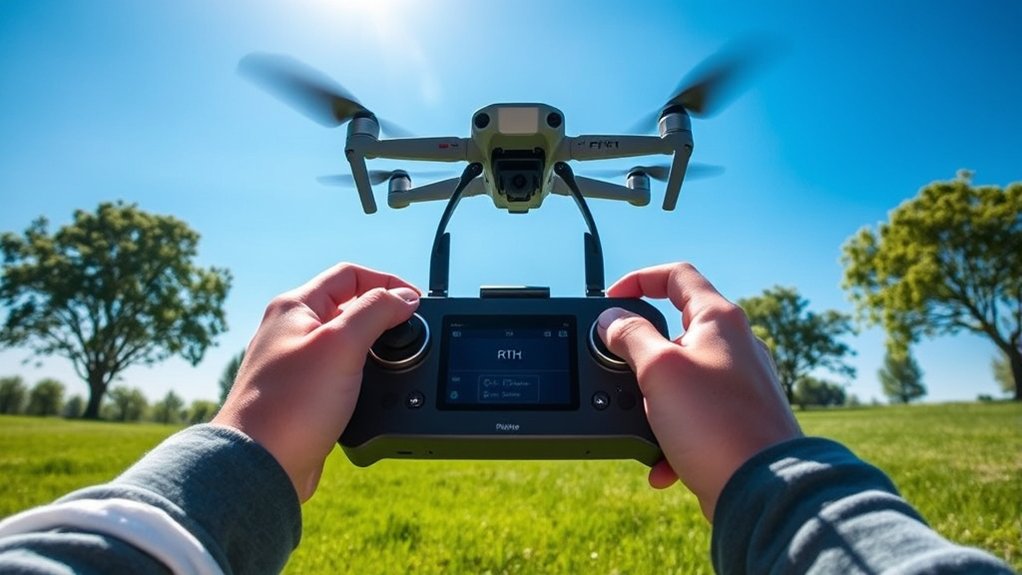
When your drone reaches a low battery level or loses signal, Return-to-Home functionality can guide it back to its recorded home point. It is one of the most useful safety tools on a modern GPS drone, but it only works well when you set it up correctly before takeoff.
RTH usually depends on three things: a saved home point, enough GPS positioning, and enough battery power to return. If one of those pieces is weak, your drone may hover, land, delay its return, or fail to follow the route you expected.
Many drones offer several RTH modes. Low-battery RTH starts when the battery reaches a level where the drone calculates that it should return. Failsafe RTH starts when the controller connection drops for a set period. Smart RTH lets you manually start the return from the remote controller or flight app.
You can often cancel Smart RTH before landing if you regain control and the drone is still in a safe position. However, you should not treat RTH as a panic button. It works best as a planned safety backup, not as a replacement for good piloting habits.
Note: RTH behavior can vary by drone model, firmware version, app, sensor setup, and flight mode. Always check your own drone manual and app settings before flying.
Always remember, the effectiveness of the RTH system depends on correctly setting the return altitude and confirming the home point. A low RTH altitude may send the drone into trees, buildings, power lines, or rising terrain during the return flight.
Setting the Return Altitude: Key Considerations
Setting the Return-to-Home altitude is one of the most important steps for a safe automated return. The goal is simple: your drone should climb high enough to clear nearby obstacles before it flies back toward the home point.
To configure this altitude effectively, consider the following key points:
- Assess surroundings: Look for the tallest nearby structures, trees, poles, towers, cranes, hills, and ridgelines before launch.
- Add a safety margin: Set the RTH altitude above the tallest obstacle, with extra clearance for GPS drift, terrain changes, and judgment errors.
- Use a practical height: Many pilots use around 100 meters in open areas with tall trees or buildings, but the right height depends on your environment and legal limits.
- Remember automatic climb behavior: If the drone is below the programmed RTH altitude when RTH starts, it may climb before returning.
- Adjust when the area changes: If you move to a new launch site, fly near a hill, or enter a denser area, check the setting again.
Warning: Do not copy one fixed RTH altitude for every location. A safe setting in a flat field may be unsafe near trees, buildings, cliffs, or sloped terrain.
Setting the correct RTH altitude belongs in your pre-flight checklist. This is especially important when the drone may fly beyond your immediate view or return from a direction where obstacles are hard to judge.
Configuring RTH Settings in Your Flight Controller
Configuring the RTH settings in your flight controller or flight app helps your drone respond safely when something goes wrong. You should review these settings before takeoff, not after you already have a signal problem.
First, open the RTH or safety settings in your flight app. Set the desired return altitude higher than nearby obstacles, then confirm that the drone has recorded the correct home point.
Next, configure the Signal Lost Action to “Return-to-Home” when the area below the drone is not safe for landing. This helps the aircraft return instead of descending over water, roads, rooftops, trees, or private property.
Some drones let you choose between Return-to-Home, Hover, Land, or Descend when signal is lost. RTH is usually the safest choice for open outdoor flights. Hover can help during short signal interruptions, but it may drain the battery if you cannot reconnect. Land can be risky unless the drone is above a known, clear landing zone.
Regularly check that obstacle sensing features are enabled when your drone supports them. Obstacle sensing may help during RTH, but it can have limits in low light, against thin branches, around wires, near glass, or when sensors are disabled by the flight mode.
Finally, verify that the home point updates correctly before takeoff. The drone will return to the recorded home point during RTH, so launching before GPS lock can cause confusion or an unsafe return path.
Confirming the Home Point Before Takeoff
Your home point is the location your drone uses as its return target. If the home point is wrong, RTH may guide the drone to the wrong place, even when every other setting looks correct.
Before takeoff, wait for the flight app to confirm that the home point has been recorded. Check the map view when available, and make sure the marked home point matches your real launch area.
If you launch from a moving location, such as a boat or vehicle, use extra caution. Some drones allow dynamic home point updates, but not all models handle moving launches the same way. In those cases, you should know exactly how your aircraft manages RTH before you fly.
Pro Tip: After the drone lifts off, hover for a few seconds at a low, safe height. This gives you time to confirm stable GPS, controller connection, and correct home-point behavior.
Importance of Proper Ascend and Descend Rates
When configuring your drone’s Return-to-Home settings, ideal ascent and controlled descent behavior both matter. A drone that climbs too slowly may not clear obstacles quickly enough, while a drone that descends too aggressively may land hard or drift near hazards.
Your drone may not let you customize every ascent or descent value. Even so, you should understand how it behaves during automated return, especially if you fly in tight spaces or near changing terrain.
Optimal Ascent Speed
Achieving the right ascent behavior helps your drone navigate safely during its Return-to-Home process. The aircraft needs enough climb performance to reach the preset altitude without wasting too much battery or making unstable movements.
Here are key points to consider:
- Know your model’s limits: Check how your drone climbs during normal flight and RTH mode.
- Clear obstacles early: A safe ascent helps the drone get above surrounding structures before flying back.
- Watch wind conditions: Strong wind can slow the climb, reduce stability, and increase battery use.
- Test in open space: Practice RTH in a field so you can see how quickly your drone climbs and turns.
Controlled Descent Rate
A controlled descent rate is essential for ensuring your drone returns home safely and lands without unnecessary stress. During Return-to-Home, a gradual descent gives the aircraft more time to stabilize, correct its position, and prepare for touchdown.
Proper descent behavior helps prevent sudden drops that could lead to hard landings, tip-overs, or propeller contact with grass, rocks, uneven ground, or other obstacles. It also improves landing accuracy when the home point is clear and level.
If your drone supports precision landing, make sure the takeoff area has enough visible detail and light for the system to work. A plain surface, poor lighting, moving shadows, or clutter near the landing zone may reduce accuracy.
Adjusting Return Ground Speed for Safe Navigation
To help your drone navigate safely during its Return-to-Home process, pay attention to return speed. Some drones control this automatically, while others let you adjust speed or influence it through flight mode and environmental choices.
Here are key points to reflect on:
- Customize speed when available: Use a speed that balances battery efficiency with safe obstacle awareness.
- Slow down in complex areas: A slower return can help the drone respond better near trees, buildings, and uneven terrain.
- Monitor battery levels: Higher speeds can use more power, especially in wind or over longer distances.
- Account for headwind: A drone returning into wind may need more battery and more time to reach home.
- Test before relying on it: Practice RTH at short distances to understand how your drone handles speed, turns, and final approach.
Following these guidelines will improve your drone’s return efficiency while keeping safety first. The safest return path is the one you planned before takeoff, not one you have to guess during a signal-loss event.
Performing Sanity Checks Before Flight
Before each flight, sanity checks help confirm that your drone is ready to operate safely. Start by verifying that the Return-to-Home altitude is higher than any surrounding obstacles, including trees, buildings, poles, and nearby terrain.
Next, check that the Signal Lost Action is configured correctly. For most outdoor flights, Return-to-Home is the best choice when the drone loses contact with the remote controller.
Verify that the aircraft has a solid GPS lock before takeoff. A stronger satellite lock and stable positioning help the drone record an accurate home point and maintain a reliable return path.
Inspect your RTH settings in the flight app and confirm that features such as obstacle sensing, RTH obstacle check, and precision landing are enabled when your drone supports them.
Finally, conduct a full pre-flight checklist. Confirm the home point, battery level, controller battery, propellers, compass status, GPS status, RTH altitude, signal-loss behavior, and landing zone.
Pre-Flight RTH Checklist
- Home point recorded in the correct location.
- RTH altitude set above the tallest nearby obstacle.
- Signal-loss action set to Return-to-Home when appropriate.
- GPS lock stable before takeoff.
- Obstacle sensing and precision landing enabled if available.
- Landing zone clear of people, pets, vehicles, loose objects, and uneven ground.
Common Pitfalls and How to Avoid Them
When setting up your Return-to-Home feature, small mistakes can create serious problems. Incorrect altitude settings, poor signal-loss choices, weak GPS, and limited obstacle awareness can all compromise the drone’s safety during a critical moment.
Always treat RTH as a backup system. You should still maintain visual line of sight when required, monitor the aircraft, and be ready to cancel RTH if the automated route becomes unsafe.
Incorrect Altitude Settings
Setting an incorrect Return-to-Home altitude can greatly increase the risk of drone accidents, especially in areas with trees, buildings, towers, hills, or other obstacles.
To improve safety, follow these steps:
- Set RTH altitude above the tallest surrounding obstacle, with extra clearance.
- Verify the altitude before takeoff instead of relying on the setting from your last flight.
- Check and adjust the altitude when terrain or obstacles change.
- Maintain line of sight when required so you can better judge the area around the drone.
Inadequate Signal Loss Action
Inadequate signal-loss action can lead to serious accidents, especially for inexperienced drone operators. If your drone loses connection and the wrong failsafe option is selected, it may hover too long, land in an unsafe place, or fail to return as expected.
To prevent your drone from landing in a risky area during signal loss, make sure the Signal Lost Action matches the flight environment. In many outdoor situations, Return-to-Home is safer than Land.
If your Signal Lost Action is set to “Land,” the drone may descend at its current location. That could create a problem over water, trees, roads, rooftops, crowds, or rough terrain.
Familiarize yourself with the differences between Failsafe RTH and Smart RTH. Smart RTH is manually triggered by you. Failsafe RTH happens when the drone loses connection long enough to activate the failsafe behavior.
Finally, conduct periodic checks on the RTH settings in your flight app. Settings can change after firmware updates, app updates, aircraft swaps, or different flight profiles.
Overlooking Obstacle Awareness
Failing to maintain obstacle awareness during your drone’s Return-to-Home process can result in dangerous collisions. Automated return is helpful, but it does not guarantee that the aircraft will detect every hazard.
To support safer navigation, consider these important steps:
- Set RTH altitude correctly: Keep it higher than the tallest surrounding obstacle whenever local rules and conditions allow.
- Assess surroundings: Look for buildings, trees, antennas, cranes, power lines, hills, and other hazards before takeoff.
- Use obstacle check: Enable RTH obstacle-check features when your drone includes them.
- Keep the landing zone clear: Remove bags, people, pets, and loose items from the takeoff and landing area.
- Stay ready to intervene: If you regain signal and the return path looks unsafe, cancel RTH and fly manually when safe to do so.
Weak GPS or Compass Errors
Weak GPS or compass problems can make RTH less reliable. If the drone does not know its position accurately, it may struggle to return to the correct home point.
Do not take off before the flight app confirms strong positioning. Avoid launching next to metal structures, vehicles, reinforced concrete, large speakers, or magnetic interference. If the app warns you about compass or GPS problems, resolve the issue before flying.
Low-Battery Planning Mistakes
Low-battery RTH can help, but it should not be your main battery plan. Wind, distance, temperature, altitude, and aggressive flying can all reduce available flight time.
Start your return with enough battery to handle delays, wind, and a possible go-around. Do not wait until the drone triggers a critical warning before heading back. A planned return is safer than an emergency return.
Testing RTH Safely Before You Need It
You should test Return-to-Home before relying on it in a difficult location. Choose a wide, open area with short grass, no people nearby, and no overhead hazards.
Launch the drone, hover at a safe height, confirm the home point, then fly a short distance away. Start Smart RTH from the controller or app and watch how the aircraft climbs, turns, returns, descends, and lands.
During the test, keep your hands near the controls. Learn how to pause, cancel, or regain manual control. This practice helps you stay calm if RTH activates during a real flight.
Frequently Asked Questions
How do you set Return to Home on a DJI drone?
Open the flight app, go to the safety or RTH settings, set the RTH altitude, confirm the home point, and choose Return-to-Home as the signal-loss action when appropriate. Before takeoff, wait for GPS lock and check that the home point shown in the app is correct.
How do I return my drone to home?
You can usually press and hold the RTH button on the controller or tap the RTH icon in the flight app. The drone should climb to the preset altitude, fly back to the recorded home point, and begin landing. Stay ready to cancel RTH if the route becomes unsafe.
What height should DJI Return-to-Home be?
Set the RTH altitude higher than the tallest nearby obstacle, with extra clearance for safety. Many pilots use around 100 meters in areas with trees or buildings, but the right setting depends on your surroundings, terrain, aircraft limits, and local rules.
What will trigger a drone’s Return to Home?
Common RTH triggers include low battery, signal loss, and manual activation from the controller or flight app. The exact trigger behavior depends on your drone model, battery level, GPS status, app settings, and failsafe configuration.
Should I choose RTH, Hover, or Land when signal is lost?
Choose RTH for most outdoor flights where the drone has a clear path back and a safe home point. Choose Hover only when you expect to reconnect quickly and have enough battery. Choose Land only when the area below the drone is safe, open, and legal for landing.
Can obstacle avoidance prevent every RTH crash?
No. Obstacle avoidance can help, but it may miss thin branches, wires, glass, low-light objects, or hazards outside the sensor range. You still need a safe RTH altitude, a clear route, and a good pre-flight check.
Conclusion
By setting your Return-to-Home altitude, home point, signal-loss action, GPS lock, and obstacle settings before takeoff, you give your drone a much better chance of returning safely. RTH is not just another app setting. It is your backup plan when battery, signal, or orientation problems appear.
Before you fly, take a minute to double-check your RTH setup. A careful pre-flight routine can prevent crashes, reduce stress, and help your drone navigate home more reliably when conditions change.
