The Toyota Camry infotainment system can handle audio, hands-free calling, navigation, smartphone apps, and selected vehicle settings, but its exact functions depend on the model year, trim, market, and installed multimedia unit. Before following any setup instructions, identify your system and check the manual for your specific Camry rather than assuming every touchscreen works the same way.
Quick Answer
Toyota Camry infotainment features vary by model year and equipment. Most systems provide audio, Bluetooth calling, USB media, and vehicle settings, while compatible newer units may add wired or wireless Apple CarPlay, Android Auto, Toyota voice controls, and connected navigation. Check the vehicle-specific manual before pairing, resetting, or subscribing to a service.
Key Takeaways
- Infotainment menus and features differ between older Entune systems, Entune 3.0, and newer Toyota Audio Multimedia units.
- Apple CarPlay and Android Auto may be wired, wireless, unavailable, or equipment-dependent.
- CarPlay and Android Auto do not start the car; compatible remote-start functions are normally handled through Toyota Remote Connect.
- Native Toyota navigation and phone-based navigation have different update, data, and subscription requirements.
- Most connection problems can be narrowed down by checking compatibility, cables, ports, phone permissions, wireless settings, and saved device profiles.
At a Glance
| Time Required | About 5–15 minutes for normal phone pairing or basic troubleshooting |
| Difficulty | Easy for setup; moderate if the problem requires profiles, updates, or a factory reset |
| Tools Needed | Compatible smartphone, vehicle key, phone settings, and a high-quality USB data cable if using a wired connection |
| Cost | Usually free; phone data, map updates, dealership service, or optional Toyota Connected Services may cost extra |
Note: This guide uses U.S.-market terminology. Canadian and other regional Camrys may have different equipment, service names, trial periods, and menu layouts. Confirm availability with your VIN-specific manual.
Essential Features of the Camry’s Infotainment System
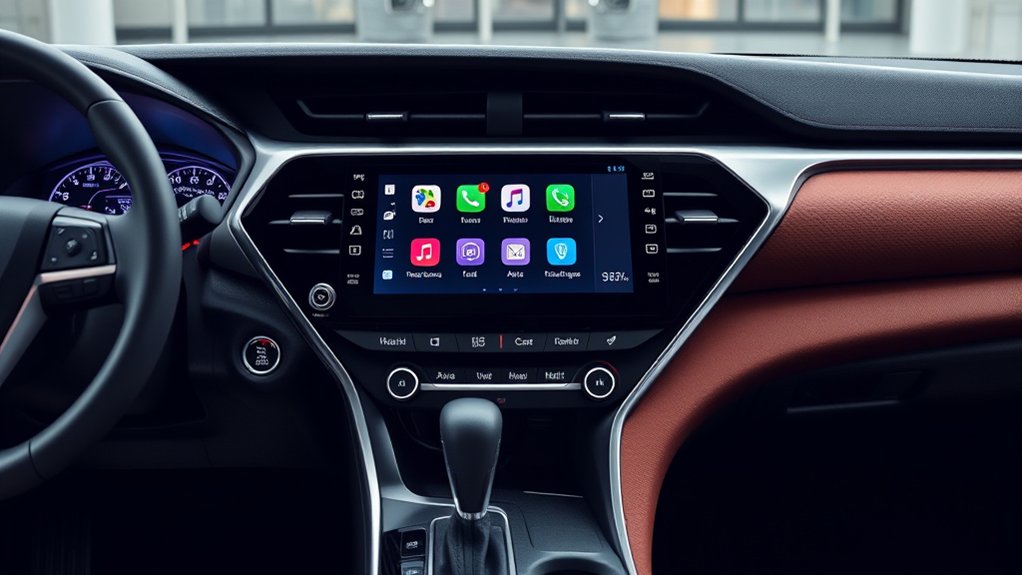
The Toyota Camry’s infotainment system brings frequently used audio, phone, navigation, and connectivity functions into the center display. Depending on the vehicle, you may operate it through a touchscreen, physical buttons, steering-wheel controls, a native Toyota voice assistant, Siri, or Google’s in-car voice assistant.
Screen size is not universal. As one current example, Toyota lists an 8-inch Toyota Audio Multimedia touchscreen on the U.S.-market 2026 Camry LE and a 12.3-inch touchscreen on the XLE. Other years and trims use different displays, software, speakers, and connected-service packages. Review the current Toyota Camry information or your vehicle’s manual for exact specifications.
The most important infotainment “feature” is knowing which system is installed. Instructions for one Camry generation may not match the buttons, menus, connections, or subscriptions in another.
Identify Your Camry’s Multimedia System First
Look at the startup logo, physical controls, Settings menu, and owner’s manual to determine which multimedia generation you have:
- Older multimedia systems: These may focus on radio, CD or USB playback, Bluetooth calling, and optional built-in navigation. Factory Apple CarPlay or Android Auto may be unavailable.
- Entune or Entune 3.0-era systems: Features can include Bluetooth, USB media, connected apps, Apple CarPlay on supported units, optional navigation, and legacy connected services. Android Auto is not present on every Entune-era Camry.
- Toyota Audio Multimedia: Newer systems may include driver profiles, wired or wireless smartphone projection, cloud-based functions, over-the-air updates, Toyota’s native assistant, and current Connected Services.
Toyota provides a vehicle-specific manuals and warranties portal. Select the exact year and model or add the VIN before relying on menu instructions.
Core Infotainment Features
Depending on equipment, the system may provide:
- AM/FM or satellite radio and USB or Bluetooth audio.
- Hands-free calling, contacts, and supported message functions.
- Apple CarPlay for compatible iPhones.
- Android Auto for compatible Android phones.
- Built-in Toyota navigation, phone-projected navigation, or both.
- Audio balance, fader, tone, and source settings.
- Driver profiles and saved preferences on supported newer systems.
- Optional Toyota Connected Services such as Drive Connect or Remote Connect.
- An available JBL premium audio system on selected trims.
Apple CarPlay and Android Auto display supported phone apps on the vehicle screen. They are not the same as Toyota’s native multimedia software, and they do not independently provide remote start or unlock the vehicle.
Remote Start and Connected Services
Do not assume that Apple CarPlay, Android Auto, or an older Amazon Alexa integration can start the Camry. Toyota currently describes compatible remote-start, lock, and unlock functions as part of Remote Connect. Vehicle compatibility, account registration, mobile connectivity, an active trial or subscription, and regional availability may apply.
Current Drive Connect packages may include Cloud Navigation, Destination Assist, and Intelligent Assistant. Older Camrys may instead use legacy Dynamic Navigation or Destination Assist services. Trial length, renewal options, and functions can differ, so check the Toyota app and the exact vehicle documentation rather than relying on a general three-year statement.
Troubleshooting Common Infotainment Issues
Infotainment problems often come from the phone, cable, USB port, wireless settings, saved profile, account, or subscription rather than a failed touchscreen. Start with the least disruptive checks and test the system after each change.
Warning: Park the Camry in a safe location before pairing a phone, entering an address, changing profiles, updating software, or troubleshooting menus. Do not attempt a factory reset or lengthy setup while driving.
Common Connectivity Problems
If Bluetooth, Apple CarPlay, or Android Auto will not connect, work through these checks in order:
- Confirm compatibility. Verify that the phone, operating-system version, vehicle year, head unit, and desired wired or wireless connection are supported.
- Update the phone. Install current operating-system and app updates, then restart the phone.
- Check the correct USB port. Some Camry USB ports provide charging only. Use the port marked for media or smartphone projection.
- Try another data cable. A cable may charge the phone but fail to carry reliable data. Avoid loose connectors, damaged cables, and unnecessary adapters.
- Check wireless settings. Wireless CarPlay and Android Auto normally need Bluetooth and Wi-Fi. Android Auto setup may also require Location Services.
- Check phone permissions. Allow contacts, notifications, microphone access, CarPlay, Android Auto, and other requested permissions.
- Remove stale connections. Delete or forget the Camry on the phone and remove the phone from the vehicle’s saved-device list. Pair it again from the beginning.
- Check the selected device. If several phones are saved, make sure the correct phone is selected for calls, media, and smartphone projection.
- Restart both systems. Restart the phone. With the Camry safely parked, follow the manual’s normal multimedia restart procedure or fully shut down and restart the vehicle.
- Check for vehicle updates. Review the multimedia settings, Toyota app, owner portal, or dealership information for an applicable software update.
Apple recommends checking the cable or wireless connection, confirming that Bluetooth and Wi-Fi are enabled for wireless CarPlay, restarting the phone and vehicle, enabling Siri, forgetting the saved car, and checking the vehicle firmware. See Apple’s official CarPlay troubleshooting guide.
Google similarly recommends confirming vehicle compatibility, setting up Android Auto while parked, using the proper USB port and cable for a wired connection, and enabling the required Bluetooth and Wi-Fi functions for wireless use. See Google’s Android Auto setup guide.
Pro Tip: When a phone charges but CarPlay or Android Auto never starts, test a short, high-quality data cable in the Camry’s media USB port. Charging-only ports and worn cables cause many apparent infotainment failures.
Audio Adjustment Issues
If the display works but the sound is missing, distorted, too quiet, or coming from the wrong source, check the following:
- Confirm that the correct source—radio, Bluetooth, USB, CarPlay, Android Auto, or another input—is selected.
- Raise the volume on both the vehicle and the phone. Bluetooth media volume may be separate from ringtone or call volume.
- Make sure mute, pause, or audio-off mode is not active.
- Check the balance and fader. A setting pushed fully toward one speaker area can make the rest of the system seem silent.
- Test a normal radio station. If radio audio works but phone audio does not, focus on the phone, app, source selection, cable, or Bluetooth profile.
- Close and reopen the audio app. Try a second app to determine whether the problem affects one service or the entire system.
- Disconnect other Bluetooth devices that may be taking over the audio connection.
- Restart the phone and multimedia system if the controls become unresponsive.
Navigation prompts, calls, media, voice-assistant replies, and parking alerts may each use different volume settings. Adjust the volume while the affected sound is actively playing when possible.
Navigation System Glitches
First determine whether the problem affects built-in Toyota navigation or a phone app displayed through CarPlay or Android Auto.
For phone-based navigation:
- Confirm that the phone has a usable data connection and location access.
- Open the map directly on the phone and verify that it can determine your position.
- Update the map app and phone software.
- Check whether battery-saving or privacy settings are limiting background location access.
- Reconnect CarPlay or Android Auto after the map works correctly on the phone.
For built-in Toyota navigation:
- Move away from covered parking, tunnels, tall buildings, or dense tree cover if the GPS position is inaccurate.
- Check whether the vehicle’s connected-navigation trial or subscription is active.
- Review map-update and software-update options for the exact multimedia unit.
- Delete and re-enter a destination if a saved address is wrong or outdated.
- Consult the manual before resetting navigation data or the entire multimedia system.
A factory reset should be a last resort because it may remove paired phones, profiles, saved destinations, audio presets, privacy choices, and other personal settings.
Frozen, Restarting, or Black Screen
If the touchscreen freezes, repeatedly restarts, appears black, or does not respond:
- Park safely and confirm that the display has not simply been turned off or dimmed.
- Disconnect phones, USB drives, adapters, and other accessories.
- Restart the multimedia system using the method listed in the correct manual.
- Turn the vehicle off normally, exit, close the door, allow the vehicle systems to shut down, and restart.
- Check whether other electrical symptoms are present, such as slow starting, flickering lights, or multiple warning messages.
- Record when the failure occurs and whether it is linked to a particular phone, app, cable, profile, or remote-start event.
- Arrange professional diagnosis if the screen remains blank, continually reboots, becomes unusually hot, or affects camera and safety-related displays.
Do not disconnect the 12-volt battery, remove dashboard trim, or replace fuses solely to reboot the infotainment system unless the owner’s manual or a qualified technician directs you to do so.
How to Access and Navigate the Toyota Camry Infotainment System
Most Camry multimedia functions are available through the center touchscreen, dashboard buttons, and steering-wheel controls. Exact labels vary, but common choices include Home, Menu, Audio, Phone, Apps, Map, Settings, and Bluetooth & Devices.
Accessing Infotainment Controls
Start with the vehicle parked and the infotainment system powered on. Use light, deliberate taps and allow the system to finish loading before repeatedly pressing an icon.
- Home or Menu: Returns to the main selection screen.
- Audio: Selects radio, Bluetooth, USB, smartphone projection, or another source.
- Phone: Opens calling, contacts, recent calls, and pairing functions after permission is granted.
- Map or Navigation: Opens factory navigation only if the vehicle is equipped with it. Otherwise, connect CarPlay or Android Auto and open a supported map app.
- Settings or Setup: Controls devices, sound, display, profiles, privacy, updates, and available vehicle preferences.
The steering-wheel voice button may behave differently depending on how long it is pressed and whether CarPlay or Android Auto is active. A short press may open Toyota’s native voice system, while a longer press may activate the connected phone assistant on supported units.
Adjusting Audio Settings
Open the Audio screen and select the current source. Look for Sound, Tone, Options, or a settings icon. Depending on equipment, you may be able to adjust:
- Bass, midrange, and treble.
- Front-to-rear fader.
- Left-to-right balance.
- Automatic sound-level adjustment.
- Surround or other sound-processing modes.
- Radio presets and source order.
Begin with balance and fader centered. Make small tone adjustments while parked and test them with familiar audio. Excessive bass or extreme equalizer settings can make normal speakers sound distorted even when no hardware fault exists.
Navigating Navigation Features
If your Camry has factory navigation, open the Map or Navigation screen and choose a destination by address, point of interest, recent destination, saved place, or supported voice request. Menu wording differs between legacy navigation, Dynamic Navigation, and newer Cloud Navigation.
If the Camry does not have factory navigation, connect a compatible phone and use Apple Maps, Google Maps, or another supported app through CarPlay or Android Auto. Phone-based real-time traffic normally depends on the phone’s data connection and app settings.
Enter destinations before moving. While driving, use lawful hands-free functions and keep attention on the road. The National Highway Traffic Safety Administration identifies operating entertainment and navigation systems as a potential source of distraction.
Profiles, Privacy, and Saved Data
Newer multimedia systems may save a driver profile, phone contacts, recent destinations, favorites, app permissions, and account information. Use a personal profile only on a trusted vehicle.
Before selling, trading, returning, or sharing the Camry:
- Remove paired phones.
- Sign out of Toyota and streaming accounts.
- Delete saved destinations and home or work addresses.
- Remove driver profiles.
- Cancel or transfer connected services as appropriate.
- Use the manual’s personal-data deletion or factory-reset procedure.
Connecting Your Smartphone: Apple CarPlay and Android Auto
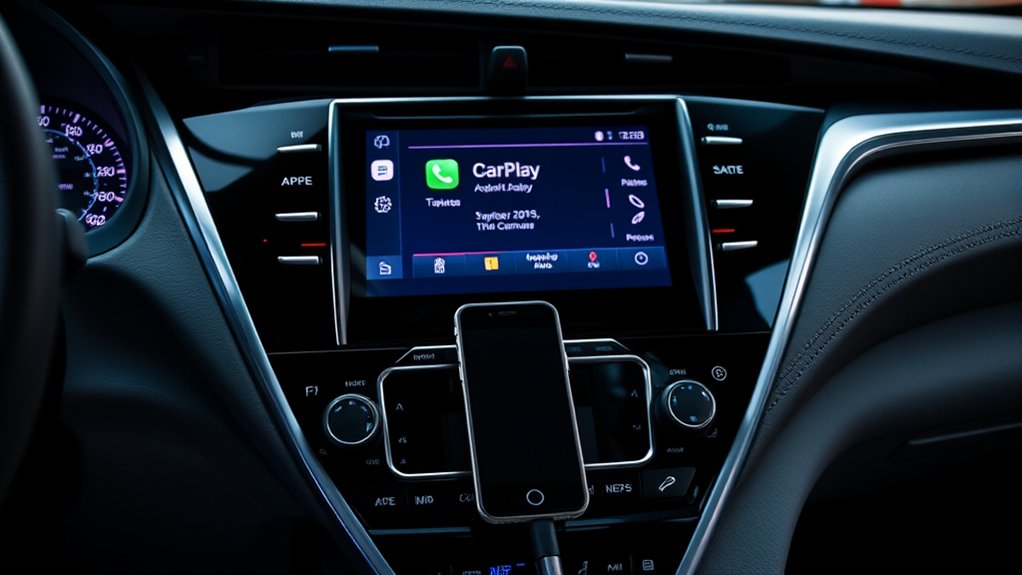
Apple CarPlay and Android Auto let a compatible phone display supported navigation, communication, and audio apps through the Camry’s multimedia screen. Availability and connection type depend on the installed head unit.
Before Connecting Your Phone
- Park the vehicle and turn on the infotainment system.
- Confirm that the vehicle and phone support the desired connection.
- Update the phone’s operating system.
- Enable Siri for CarPlay or the appropriate Google voice service for Android Auto.
- Turn on Bluetooth and Wi-Fi for a wireless connection.
- Use the vehicle’s media USB port and a data-capable cable for a wired connection.
- Accept the phone and vehicle permission prompts.
Connect Apple CarPlay With a Cable
- Start the Camry and leave it in Park.
- Connect the iPhone to the vehicle’s media USB port using a compatible data cable.
- Unlock the iPhone if prompted.
- Accept the CarPlay prompt on the phone and vehicle display.
- Select the CarPlay icon if it does not open automatically.
- Test Siri, audio, and a navigation app before driving.
Connect Wireless Apple CarPlay
- Confirm that the Camry specifically supports wireless CarPlay.
- Enable Bluetooth, Wi-Fi, and Siri on the iPhone.
- Open the vehicle’s Bluetooth or device settings and choose Add Device.
- Select the Camry on the iPhone and confirm that the pairing codes match.
- Approve the CarPlay and contact permissions.
- Confirm that the CarPlay Wi-Fi network can join automatically.
Connect Android Auto With a Cable
- Park the Camry and turn on its multimedia system.
- Connect the Android phone to the media USB port with a reliable data cable.
- Follow the phone and vehicle prompts.
- Grant the requested phone, contact, notification, microphone, and location permissions.
- Select Android Auto on the vehicle screen if it does not launch automatically.
- Test calls, audio, voice commands, and navigation before driving.
Connect Wireless Android Auto
- Confirm that both the Camry and phone support wireless Android Auto.
- Turn on Bluetooth, Wi-Fi, mobile data, and Location Services.
- Open the Camry’s device-pairing menu.
- Select the phone and confirm the matching pairing code.
- Accept the Android Auto prompts.
- Select Android Auto on the touchscreen if it does not start automatically.
Switch Between Multiple Phones
A Camry can save several devices, but it may connect automatically to the last-used or highest-priority phone. To change phones, open Bluetooth & Devices or the equivalent Setup menu and select the desired device for phone, media, CarPlay, or Android Auto.
If two phones compete for the connection, temporarily turn off Bluetooth on the unwanted phone or change the connection priority. Remove old devices that are no longer used.
Voice Commands: Are They Reliable in the Toyota Camry?
Voice-command reliability depends on which assistant is active. A Camry may use Toyota’s built-in voice system, Toyota Intelligent Assistant on supported newer vehicles, Siri through Apple CarPlay, or Google’s in-car assistant through Android Auto.
Toyota’s native assistant may require compatible equipment and an active Drive Connect trial or subscription for cloud-based functions. Siri and Android Auto voice functions depend on the connected phone, its permissions, and the phone’s internet connection for many requests.
Use the correct wake phrase or steering-wheel button for the active system. Speak after the prompt, use a normal voice, and reduce competing cabin noise when possible.
| Factor | Impact on Reliability | What to Do |
|---|---|---|
| Cabin noise | Wind, passengers, and loud audio can cover speech. | Lower the audio and close windows before speaking. |
| Command clarity | Long or indirect requests may be misunderstood. | Use a short request with a clear place, contact, or action. |
| Active assistant | Toyota, Siri, and Android Auto support different commands. | Confirm which assistant opened before repeating the request. |
| Connectivity | Cloud requests may fail with weak data service. | Check the phone signal, vehicle connection, and subscription status. |
| Microphone or permissions | Blocked microphone access prevents recognition. | Check permissions and test a normal hands-free call. |
| Software | Outdated software can cause known compatibility problems. | Install applicable phone and vehicle updates, but do not assume an update will fix every recognition issue. |
If voice commands fail, test the microphone with a phone call. If callers cannot hear you, the issue may involve microphone permissions, the phone connection, or vehicle hardware rather than speech recognition.
How to Adjust Audio and Climate Settings
Open the Audio screen to choose a source and adjust available sound controls. Use the physical volume knob or steering-wheel buttons for quick changes, and make detailed sound adjustments only while parked.
Climate controls are not handled the same way in every Camry. Many models use dedicated buttons and dials below or near the touchscreen. Use those physical controls unless the vehicle manual confirms that climate functions are available through the display or voice system.
On supported newer Toyota Audio Multimedia vehicles, Intelligent Assistant may operate common climate functions through a request such as adjusting the temperature. This can depend on equipment, connectivity, and an active Drive Connect service.
Do not search through touchscreen menus for a climate setting while driving. Set the temperature before moving or use familiar physical controls and supported hands-free commands.
Toyota App, Connected Services, and Subscription Limits
Smartphone projection and Toyota Connected Services are separate:
- Apple CarPlay and Android Auto: Toyota does not normally charge a separate subscription merely to use a compatible phone-projection feature, although mobile data or app charges may apply.
- Remote Connect: May provide remote start, lock, unlock, status, or other compatible functions through a smart device. An active trial or paid plan may be required.
- Drive Connect: May include Cloud Navigation, Intelligent Assistant, and Destination Assist on supported vehicles. Trial or subscription access may be required.
- Dynamic Navigation: A legacy connected-navigation service found on selected older Toyota systems. Registration and service availability vary.
- Wi-Fi Connect and integrated streaming: May require separate enrollment, a data plan, and existing music-service accounts.
Open the Toyota app or connected-services page for the vehicle to see active trials, expiration dates, available plans, and supported functions. Avoid assuming that another Camry owner received the same trial length or package.
When to Reset or Visit a Toyota Dealer
Consider a factory reset only after basic connection, cable, phone, profile, and software checks have failed. Before resetting:
- Photograph or note important presets and settings.
- Confirm Toyota app login details.
- Remove or back up saved destinations where possible.
- Check whether the reset will remove profiles, subscriptions, or downloaded data.
- Follow the exact manual for the installed multimedia unit.
Contact a Toyota dealer or qualified automotive electronics technician when:
- The screen remains black or continually restarts.
- Every audio source is silent.
- The system does not power on after normal vehicle startup.
- The failure affects the backup camera or another safety-related display.
- There is an electrical smell, visible damage, overheating, or moisture intrusion.
- The problem began after a battery, wiring, dashboard, amplifier, or accessory installation.
- A software update fails or the manual directs you to dealer service.
Frequently Asked Questions
What Year to Stay Away From a Toyota Camry?
There is no single Camry year that every buyer should avoid solely because of its infotainment system. Features and reliability vary by trim, head unit, maintenance, updates, modifications, and the condition of the individual vehicle. Test Bluetooth, every audio source, the touchscreen, cameras, USB ports, navigation, and steering-wheel controls before buying, and review the VIN for recalls and service history.
What Are the Key Features of Infotainment?
Typical Camry infotainment features include radio and media playback, Bluetooth calling and audio, USB connectivity, sound settings, steering-wheel controls, and vehicle settings. Compatible systems may also provide Apple CarPlay, Android Auto, built-in or cloud navigation, Toyota Connected Services, driver profiles, voice commands, and an available premium audio system.
What Is the Best Description of the Multimedia System in a Toyota Camry?
It is the Camry’s central interface for entertainment, phone connectivity, navigation, voice functions, and selected settings. Its capabilities depend on the vehicle’s model year, trim, market, hardware, software, connected-service status, and paired phone.
What’s the Most Common Problem With a Toyota Camry?
There is no verified single problem that applies to every Camry generation. In an infotainment context, owners may encounter pairing failures, poor cables, incorrect USB ports, stale device profiles, frozen screens, missing permissions, or subscription-related navigation limits. Diagnose the exact symptom and model before assuming the head unit has failed.
Does Every Toyota Camry Have Wireless Apple CarPlay and Android Auto?
No. Some Camrys have no factory smartphone projection, some support a wired connection, and newer compatible systems may support wireless connections. Availability varies by year, market, trim, and head unit. Check the exact vehicle manual or Toyota specification page.
How Do I Reset the Toyota Camry Infotainment System?
Use the restart or reset procedure in the manual for the exact multimedia unit. Begin with a normal phone and vehicle restart. A full factory reset should be reserved for persistent problems because it may erase paired phones, profiles, destinations, presets, and other personal data.
Conclusion
The Toyota Camry infotainment system is easiest to use and troubleshoot when you begin with the exact model year and multimedia unit. Confirm compatibility, complete phone setup while parked, distinguish Toyota services from CarPlay or Android Auto, and use a factory reset only after simpler checks fail. When the screen repeatedly restarts, remains blank, loses every audio source, or affects a camera display, arrange professional diagnosis instead of continuing to change settings.
Sources
- Toyota Camry — current U.S. Camry multimedia and trim information.
- Toyota Audio Multimedia and Connected Services — CarPlay, Android Auto, Remote Connect, Drive Connect, Dynamic Navigation, and subscription information.
- Toyota Manuals and Warranties — vehicle-specific owner and multimedia manuals.
- Apple Support: If You Need Help With CarPlay — official CarPlay compatibility and troubleshooting steps.
- Google Android Auto Help — official wired and wireless Android Auto setup instructions.
- National Highway Traffic Safety Administration: Distracted Driving — safety guidance for navigation, phone, and infotainment use.
