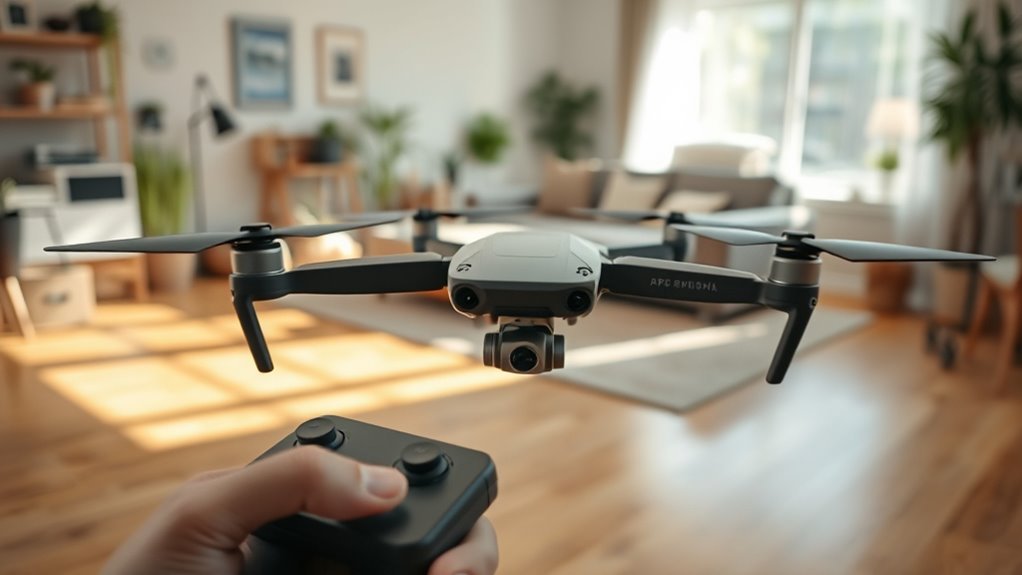
Drone drifting when hovering usually means the aircraft is struggling to hold a reliable position or is receiving an unintended control input. Start with the simple causes—wind, weak satellite positioning, damaged propellers, an uneven launch area, or controller input—before recalibrating anything. A systematic check is safer and usually finds the problem faster.
Quick Answer
If your drone drifts while hovering, test it in calm, open air with good GPS reception first. Then inspect the propellers, confirm the controller sticks are centered, check the app for warnings, and perform only the compass or controller calibration your manufacturer recommends. Persistent drift can indicate damage or another hardware fault.
At a Glance
| Difficulty | Beginner-friendly checks first; service may be needed if drift remains |
| Tools Needed | Drone app, controller, level surface, and a clear outdoor test area |
Why Your Drone Drifts When Hovering
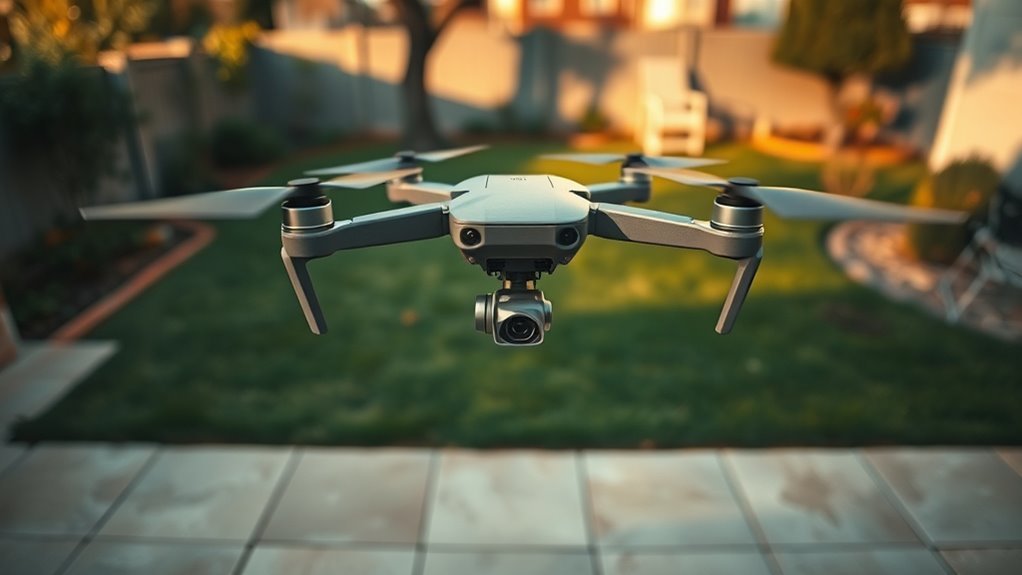
A drone drifts when its flight controller cannot maintain the position or attitude it expects. The cause may be environmental, mechanical, sensor-related, or as simple as a controller stick that is not returning to true center.
For a GPS-equipped drone, position hold depends on satellite data plus onboard sensors. Close to the ground, some models also use downward vision or optical-flow sensors. Wind, poor GPS reception, magnetic interference, damaged propellers, added payload, or incorrect control input can all make the aircraft slide, yaw, or wander.
Do not assume every small movement is a fault. Manufacturers specify a normal hovering-accuracy range. For example, Aeroo currently lists the Aeroo Pro at ±0.5 m horizontal hovering accuracy outdoors, so slight movement can still fall within specification.
| What You See | Likely Area to Check | First Action |
|---|---|---|
| Drift mainly outdoors in gusts | Wind | Retest in calm air |
| Slow movement in one direction | Controller, propellers, level reference | Inspect and check stick neutrality |
| Drift near buildings or metal | GPS or compass interference | Move to a clear open area |
| Vibration, wobble, or drift after impact | Propeller, motor, arm, or sensor damage | Land and inspect before another flight |
Check Drone GPS, Compass, and IMU Calibration
Check positioning status before recalibrating sensors. A calibration should solve a documented sensor problem, not become the automatic response every time the drone moves slightly.
For Aeroo Pro owners, the current manufacturer material focuses on satellite acquisition, compass calibration, and remote-controller calibration. If you use another drone, follow that model’s own IMU procedure rather than applying steps from a different brand.
GPS Signal Check
Weak satellite positioning is one of the first things to rule out when a GPS drone will not hold position. Test outdoors with a broad view of the sky and give the aircraft time to establish a solid position before takeoff.
Aeroo’s pre-flight guidance says the Aeroo Pro is ready after satellite acquisition when the app displays “Ready To Fly.” This is more useful than relying on a generic rule about red or green GPS lights because status indicators vary by model.
At a new location, satellite acquisition may take longer than it did at the previous flight site. Aeroo says a first connection in a new area can take up to about three minutes. Buildings, tall trees, large metal structures, and power infrastructure can make that process harder.
If the app is still showing a positioning warning, do not use a hover test to see whether the warning is serious. Solve the GPS or interference problem on the ground first.
Compass Recalibration
Compass calibration can help when the app requests it or when the aircraft has been moved to a substantially different location and its heading data is unreliable. It should be performed in an open area away from large metal objects and strong magnetic interference.
For the Aeroo Pro, the official compass calibration guide tells you to follow the Aeroo Fly prompts, rotate the aircraft horizontally through 360 degrees three times, and then rotate it vertically through 360 degrees three times. The calibration prompt disappears when the process is complete.
Avoid calibrating beside vehicles, reinforced structures, power equipment, or other large metal objects. A poor calibration environment can produce another bad reference instead of fixing the original problem.
IMU Level Calibration
An IMU, or inertial measurement unit, measures the aircraft’s motion and attitude. Incorrect IMU data can affect how a drone interprets level flight, but the calibration procedure is model-specific.
Do not search for a hidden IMU menu or copy another manufacturer’s steps if your drone does not document a user-accessible IMU calibration. The current Aeroo Pro documentation centers on compass and controller calibration rather than presenting a separate routine IMU procedure.
If your own manufacturer does provide IMU calibration, place the aircraft on the stable, level surface specified in its instructions and follow every orientation prompt exactly. If an IMU error returns after a correct calibration, treat it as a possible sensor or hardware problem rather than repeatedly recalibrating.
Fly in an Open Area
An open test area separates aircraft problems from environmental ones. Clear sky improves satellite reception, while distance from walls, vehicles, reinforced concrete, power lines, and large metal objects reduces potential positioning and compass interference.
Buildings can also create turbulent airflow. A drone that drifts beside a wall or roof may behave normally when tested in a wide field with calmer, cleaner airflow.
Use enough clear space that a small amount of unexpected movement will not put the aircraft into a person, tree, vehicle, building, or other obstacle. Keep the test low and close enough to land immediately if the movement becomes abnormal.
Warning: If the drone suddenly accelerates sideways, spins uncontrollably, shows a motor or sensor warning, or became unstable after a crash, land as soon as it is safe. Do not keep repeating hover tests around people or property.
Fix Controller Drift and Stick Issues
A controller can create apparent aircraft drift if a stick does not return to a true neutral signal. Check the controller only after wind, positioning, propellers, and obvious aircraft damage have been ruled out.
Look for unwanted input while the sticks are untouched. If the app or controller calibration screen shows movement with the sticks centered, recalibration is the logical next step.
Check Stick Neutrality
Both sticks should spring back cleanly to their center positions without sticking or remaining slightly off-center. Dirt, physical damage, wear, or a calibration error can make the controller send a small continuous yaw, pitch, or roll command.
With the motors stopped, move each stick through its full travel and release it. Check for rough movement, uneven centering, or visible damage around the stick mechanism.
If the flight app provides an input display, verify that the values return to neutral when you let go. A consistent off-center reading is much stronger evidence of controller drift than the drone’s movement alone.
Recalibrate Controller Sticks
Recalibration teaches the controller its center points and full stick travel again. Use the instructions for your exact controller because button combinations can change between versions.
For the current Aeroo Smart Controller, Aeroo’s joystick calibration procedure specifies these steps:
- Hold both control sticks in the top-left corner while pressing the power button to enter calibration.
- Rotate both sticks around their full circular travel at least three times, then release them.
- Move the gimbal tilt wheel fully left and right at least three times.
- Hold the RTH button for about two seconds to finish; the calibration beeping should stop.
If you have the standard remote rather than the Smart Controller, use the calibration procedure for that controller revision instead of assuming the same controls apply.
When Controller Drift Still Persists
If calibration completes but the controller still reports input while the sticks are centered, the problem may be inside the controller. At that point, further disassembly is not a sensible first troubleshooting step unless the manufacturer provides a repair procedure.
Clean only accessible exterior areas, check for impact damage, and repeat the official calibration once. If the neutral reading is still wrong, contact the manufacturer or a qualified repair service.
This is safer than assuming a particular Hall sensor or other internal component has failed without diagnostic evidence. Different controllers use different stick assemblies, and opening the controller unnecessarily can create additional problems.
Level the Drone Before Calibration
A stable, level surface gives the aircraft a clean physical reference during startup and any calibration process that requires it. A tilted or moving aircraft can undermine measurements that assume the drone is stationary.
Use firm, flat ground or a suitable landing pad. If the ground is obviously sloped or uneven, move the aircraft instead of trying to compensate with improvised shims under individual landing legs.
Keep the aircraft still while it initializes. If your model calls for an IMU or other level calibration, follow the manufacturer’s surface and orientation requirements exactly rather than assuming every sensor is calibrated the same way.
Compass calibration is different: the aircraft is intentionally rotated during that process. The key is to begin in a clear area free from strong magnetic interference.
Check Your Phone and Flight Settings
Phone settings can affect the flight app, but Aeroplane Mode is not a universal cure for hover drift. Keep whatever connection method your aircraft and controller require, and concentrate on actual app warnings, flight mode, satellite status, and controller connection.
Aeroo states that the Aeroo Pro can operate without a mobile-network connection after initial setup. Cellular reception therefore is not required for normal flight, although online maps, firmware downloads, and cloud features can depend on internet access.
| Check | Action |
|---|---|
| GPS status | Wait for the model’s documented ready-to-fly status before launch |
| Calibration | Calibrate only when prompted or when the manufacturer’s guidance calls for it |
| Phone connection | Keep the wired or wireless connection required by your controller and app |
| Flight app | Resolve sensor, GPS, controller, or firmware warnings before testing hover |
Also confirm that you are using the expected positioning flight mode rather than a mode that intentionally allows more manual movement. If the app shows an error you cannot clear, land and troubleshoot that error directly instead of masking it with repeated calibrations.
Rule Out Low Battery and Wind
Wind, propeller condition, payload, and battery warnings should all be checked before blaming sensors. A clean diagnostic hover is most useful with a healthy battery, no unnecessary payload, intact propellers, and calm conditions.
Inspect every propeller for cracks, bends, chips, deformation, looseness, or incorrect installation. A damaged propeller can create vibration or unequal thrust that looks like a calibration problem.
- Use a normally charged battery with no active battery warning.
- Remove unnecessary accessories or payload for the test.
- Inspect all propellers and confirm they are securely installed.
- Test in calm air with good satellite reception.
- Keep the first test brief and close to the landing area.
Do not use the aircraft’s maximum advertised wind capability as the condition for troubleshooting. Even a drone designed for strong wind is easier to diagnose in calm air because you can see whether it holds position without constantly fighting gusts.
If the drone becomes stable after removing a payload or changing a damaged propeller, you have isolated the likely cause. If it still drifts in the same direction in calm open conditions, continue with controller and manufacturer-approved sensor checks.
Key Takeaways
- A little movement may be within the drone’s published hover-accuracy specification; large or consistent drift needs diagnosis.
- Test in calm, open air before changing settings so wind and poor GPS reception do not confuse the result.
- Inspect propellers and remove unnecessary payload before assuming the compass or IMU is at fault.
- Use the aircraft’s documented ready status and calibration instructions rather than generic light-color rules.
- If official calibrations succeed but unwanted movement continues, stop repeating them and consider a hardware inspection.
Frequently Asked Questions
What Is the Average Lifespan of a Drone?
There is no reliable universal lifespan of three to five years for every drone. Service life depends on crashes, moisture, storage, flight hours, battery condition, motor and propeller wear, and whether replacement parts remain available. Batteries and propellers may need replacement long before the aircraft itself.
How Do I Get My Drone to Hover?
Start in a clear area, wait for the drone’s documented positioning-ready status, and take off with the sticks centered. Let a GPS-assisted drone establish its own position hold instead of making constant corrections. If it moves consistently, land and check wind, propellers, positioning status, calibration warnings, and controller input.
Why Do Drones Drift?
Drones drift when wind, poor positioning data, sensor errors, damaged propellers, uneven thrust, payload changes, or unintended controller input prevent accurate position holding. The fastest diagnosis is to remove environmental variables first and then work through mechanical, controller, and calibration checks one at a time.
Why Is My Drone Going Sideways?
A drone that repeatedly moves sideways may be responding to wind, a damaged propeller, poor GPS or vision positioning, an incorrect sensor reference, or a controller that is sending roll input while centered. Test in calm open conditions and inspect the propellers before recalibrating the controller or sensors.
Is a Small Amount of Drone Hover Drift Normal?
Yes, a small amount of movement can be normal because position hold has a specified accuracy range rather than being perfectly motionless. Aeroo lists the Aeroo Pro’s outdoor horizontal hover accuracy as plus or minus 0.5 meter. Movement well beyond your model’s specification deserves further troubleshooting.
When Should I Stop Troubleshooting and Get the Drone Serviced?
Get the drone inspected when strong drift remains in calm open conditions after propeller checks and the manufacturer’s approved calibrations. Service is also appropriate after significant impact damage, repeated motor or sensor warnings, abnormal vibration, or a controller that still reports unintended input after successful calibration.
Conclusion
Drone drifting when hovering is easiest to solve when you change one variable at a time. Begin with calm open conditions, good positioning status, undamaged propellers, and neutral controller input; then use only the calibrations documented for your model. If significant drift remains after those checks, stop repeated test flights and have the aircraft or controller inspected.
Sources
- Aeroo Pro Pre-Flight Quick-Guide: Supports satellite acquisition and the “Ready To Fly” status before takeoff.
- Aeroo satellite connection guidance: Supports open-sky GPS troubleshooting and acquisition time in a new location.
- Aeroo Pro Calibration Quick-Guide: Supports the documented compass-calibration process and interference precautions.
- Aeroo Pro specifications: Supports published positioning systems and hover-accuracy figures.
- Aeroo Smart Controller Joystick Calibration Procedure: Supports the controller-calibration steps.
- Aeroo mobile-network guidance: Supports operation without cellular service after initial setup.

