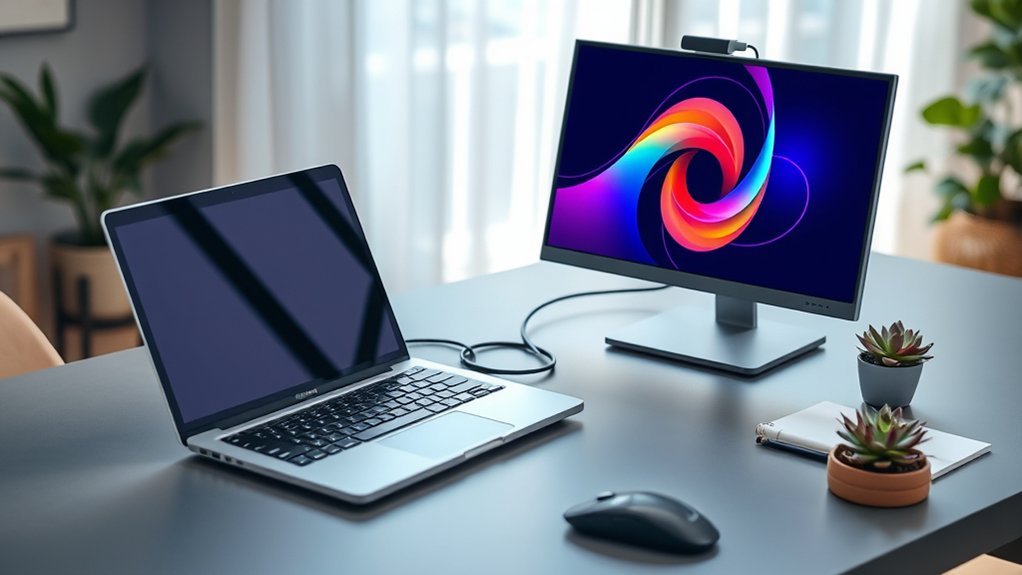
An external monitor gives your laptop more screen space for documents, browser tabs, video calls, editing tools, or other apps. The setup is usually simple, but the laptop, monitor, cable, and adapter must support the same video connection. The steps below cover compatibility, physical setup, display settings, multiple monitors, ergonomics, and common connection problems.
Last updated: September 11, 2026
Quick Answer
To use an external monitor with your laptop, identify a compatible video output, connect it to the monitor with the correct cable or adapter, select the monitor’s input source, and configure the display in Windows, macOS, or ChromeOS. Choose Extend for more workspace or Duplicate or Mirror to show the same content on both screens.
Key Takeaways
- Check the exact laptop model for its supported ports, number of external displays, maximum resolution, and refresh rate.
- A USB-C connector does not automatically support video. Look for DisplayPort Alternate Mode, Thunderbolt, USB4 display support, or confirmed video-output capability in the laptop specifications.
- Use the monitor’s native or recommended resolution for the sharpest image, then adjust scaling if text or icons appear too small.
- Choose Extend for additional workspace, Duplicate or Mirror for presentations, or external-screen-only mode when you do not need the laptop display.
- If the monitor is not detected, check its power, input source, cable, adapter, dock, display settings, and graphics or dock software.
At a Glance
| Time Required | About 5 to 15 minutes |
| Difficulty | Easy |
| Tools Needed | External monitor, compatible video cable, and an adapter or dock when required |
| Cost | No additional cost if you already have a compatible cable; otherwise, cable, adapter, or dock costs vary |
Check Your Laptop’s Compatibility
Before connecting an external monitor, identify the video-output ports on your laptop and the input ports on the monitor. Common laptop connections include HDMI, DisplayPort or Mini DisplayPort, USB-C, and Thunderbolt. Older laptops and monitors may use DVI or VGA.
Next, check your laptop’s manual or manufacturer specifications. Confirm the number of external displays it supports, along with the maximum resolution and refresh rate. These limits can vary between models that look almost identical.
Do not judge support only by whether the laptop has a dedicated graphics card. The processor, display controller, ports, dock, cable bandwidth, operating system, and connected display settings can all affect what works. Apple, for example, states that the number of displays supported by a Mac depends on the exact model and the resolution and refresh rate of each display. You can review Apple’s current guidance on connecting displays to a Mac.
Note: USB-C describes the connector, not every feature it supports. A USB-C port must support video through DisplayPort Alternate Mode, Thunderbolt, USB4 display capabilities, or another confirmed display-output implementation. The cable must also support video at the required resolution and refresh rate.
Compare Common Monitor Connectors
| Connector Type | Typical Use | What to Check |
|---|---|---|
| HDMI | Common on laptops, monitors, TVs, and projectors | Confirm that the laptop, cable, and monitor support your desired resolution and refresh rate. |
| DisplayPort or Mini DisplayPort | Common on business, gaming, and professional displays | Check the DisplayPort version, adapter compatibility, and multi-monitor support. |
| USB-C or Thunderbolt | Video, data, and sometimes laptop charging through one cable | Verify video output, cable bandwidth, and Power Delivery support. Not every USB-C port or cable carries video. |
| DVI | Older digital monitors | Check whether you need DVI-D, DVI-I, single-link, or dual-link compatibility. Audio is generally separate. |
| VGA | Legacy monitors and projectors | VGA is analog and may look less sharp than a digital connection, especially at higher resolutions. |
What Cable or Adapter Do You Need?
Match the laptop’s output to an input on the monitor. When both devices have the same connection, such as HDMI or DisplayPort, use a direct cable whenever possible. For USB-C, first confirm that the laptop port supports video and that the monitor’s USB-C port is intended for display input.
If the ports differ, use a cable or adapter designed for the exact signal direction you need. Treat adapters as directional unless the manufacturer explicitly says they are bidirectional. For example, an HDMI-output laptop connected to a DisplayPort-input monitor normally requires active HDMI-to-DisplayPort conversion. A DisplayPort-output laptop connected to an HDMI monitor may use a passive or active adapter depending on the source. Check the adapter’s stated source and display ends before buying it. You can review an explanation of active and passive DisplayPort conversion.
Check the cable’s specifications before buying it. A cable that fits physically may still limit the resolution, refresh rate, HDR support, data speed, or charging power. This is especially important with USB-C cables, which can have very different capabilities despite looking identical.
- For a basic office monitor: Use a direct HDMI, DisplayPort, or supported USB-C connection.
- For a high-resolution or high-refresh monitor: Verify that the laptop port, cable, adapter or dock, and monitor input all support the target display mode.
- For several peripherals: A compatible USB-C or Thunderbolt dock may simplify the setup.
- For an older VGA monitor: You may need an active digital-to-analog adapter.
Pro Tip: Use the shortest practical direct cable and avoid stacking several adapters. Each additional adapter creates another possible compatibility or signal-quality problem.
Warning: Do not force a connector into a port. Check its orientation and shape first, and replace cables with bent pins, damaged plugs, exposed wiring, or loose connections.
How to Use an External Monitor With a Laptop
After confirming compatibility and obtaining the correct cable, connect the monitor using these steps:
- Place the monitor securely. Make sure its stand is stable and the ventilation openings are not blocked.
- Connect the monitor to power. Turn it on using its physical power button.
- Connect the video cable. Plug one end into the monitor and the other end into the laptop or compatible dock.
- Select the correct monitor input. Use the monitor’s controls to choose HDMI, DisplayPort, USB-C, or the input you connected.
- Wait for detection. Most laptops recognize the monitor within a few seconds.
- Open display settings. Choose whether to extend, duplicate or mirror, or use only one screen.
If you are using an adapter, connect each plug firmly without applying excessive pressure. Many video adapters work in only one direction, so check the source and display labels or product instructions if there is no signal.
A compatible USB-C monitor may carry video, USB data, and charging power through one cable. However, the monitor must supply enough power for the laptop, and the laptop and cable must support the required USB Power Delivery and display modes. If charging is slow or unavailable, keep the laptop’s normal charger connected.
How Do You Configure the External Monitor?
After the monitor is connected, configure the operating system so that screen movement, text size, resolution, and display mode match your workspace.
Configure an External Monitor in Windows
- Right-click an empty area of the desktop and select Display settings, or open Settings > System > Display.
- Select Identify to see which number belongs to each screen.
- Drag the display boxes so they match the monitors’ physical positions.
- Under Multiple displays, choose Extend these displays, Duplicate these displays, or a single-screen option.
- Select each monitor to adjust its scale, display resolution, orientation, and refresh rate.
- Choose the screen you use most often and enable Make this my main display when needed.
You can also press Windows key + P to open the Project menu:
- PC screen only: Uses only the laptop’s primary screen.
- Duplicate: Shows the same content on both screens.
- Extend: Creates one larger desktop across the screens.
- Second screen only: Uses only the external display.
Microsoft provides additional instructions in its multiple-monitor guide for Windows.
Configure an External Monitor on a Mac
- Open the Apple menu > System Settings > Displays.
- Select the external display to change its resolution, refresh rate, color settings, or rotation when those options are supported.
- Arrange the displays so their on-screen positions match your desk.
- Choose whether to extend the desktop or mirror the displays.
- Set the preferred main display if you want the menu bar and new windows to appear there.
The number of external monitors a Mac supports depends on the exact Mac model and the displays’ resolutions and refresh rates. Check the model’s technical specifications before purchasing a dock or additional monitor.
Configure an External Monitor on a Chromebook
- Select the time in the bottom-right corner, then open Settings.
- Under Device, select Displays.
- Select the built-in display or external monitor you want to adjust.
- Change the display and text size, orientation, resolution, or refresh rate as needed.
- Enable Mirror Built-in Display when you want both screens to show the same content.
Google’s Chromebook monitor guide also explains adapters, docking stations, HDR displays, touchscreen calibration, and USB-C cable errors.
Choose the Best Display Mode
- Extend: Best for multitasking because each screen can show different apps or windows.
- Duplicate or Mirror: Best for presentations, demonstrations, and shared viewing.
- External display only: Useful when the external monitor is your main screen and the laptop is connected to power.
- Laptop display only: Useful when disconnecting the monitor or saving space while traveling.
Adjust Resolution, Scale, and Refresh Rate
Start with the external monitor’s recommended or native resolution. This normally produces the clearest text and images. On Windows, Microsoft recommends the resolution marked Recommended; lower-than-native resolutions may make text look less sharp. You can review Microsoft’s screen resolution and layout guidance. If interface elements look too small, adjust display scaling rather than immediately lowering the resolution.
Set the refresh rate to a value supported by the monitor and the complete connection path. If a high-refresh monitor is limited to a lower setting, check the laptop port, cable, adapter, dock, and selected resolution.
Arrange the on-screen monitor icons so their top, bottom, left, and right positions match the physical setup. Correct alignment prevents the pointer from becoming stuck or jumping unexpectedly when moving between screens.
If your monitor has speakers or a headphone output, you may also need to select it under the laptop’s sound-output settings.
Can You Use Multiple External Monitors With a Laptop?
You can use multiple external monitors only when the laptop supports the required number of displays. Check whether the manufacturer describes a maximum number of external displays or a maximum number of active displays that includes the built-in screen.
A dock adds physical ports, but it does not always increase the laptop’s native display limit. The dock, laptop port, operating system, and each monitor’s resolution and refresh rate must be compatible.
Do not use a simple HDMI splitter if your goal is two independent extended desktops. Microsoft notes that a splitter duplicates the same video signal instead of creating independent display streams. To extend the desktop across several monitors, the laptop needs separate supported display streams through its ports, a compatible dock, or another multi-display technology supported by that computer.
Google states that a Chromebook may support one to three external monitors through a docking station, depending on the Chromebook. Mac display limits vary significantly by model. Windows laptops also vary according to their hardware and dock design.
Some USB graphics docks use DisplayLink technology and require software. DisplayLink performance depends on the computer, dock, resolution, workload, and operating system. A native GPU-driven connection is preferable for high-refresh or latency-sensitive work when available. On macOS, DisplayLink documents that some protected streaming content may not play while DisplayLink screens are connected. Check the dock manufacturer’s compatibility information before purchasing.
Why Is the External Monitor Not Working?
The Monitor Shows “No Signal”
- Confirm the monitor is connected to power and turned on.
- Select the correct HDMI, DisplayPort, or USB-C input on the monitor.
- Disconnect and reconnect both ends of the video cable.
- Try another known-working cable or another monitor input.
- Remove unnecessary adapters or docks and connect the monitor directly when possible.
- Check whether a directional adapter has been connected in the correct signal direction.
The Laptop Does Not Detect the Monitor
- Windows: Open Settings > System > Display > Multiple displays, then select Detect. Install current Windows updates and the laptop or dock manufacturer’s applicable software. If a previously working setup suddenly fails, Microsoft also documents Windows key + Ctrl + Shift + B as a way to reset the graphics driver.
- macOS: Open System Settings > Displays. Reconnect the display and verify that the Mac supports the required display count. If needed, hold the Option key in Displays settings to reveal Detect Displays. If an Apple-silicon Mac asks you to allow a new display or accessory to connect, approve it before troubleshooting further.
- ChromeOS: Open Settings > Device > Displays, install ChromeOS updates, and check for a USB-C cable warning.
Microsoft also provides a dedicated external-monitor troubleshooting guide.
A USB-C Monitor Does Not Work
- Verify that the laptop’s USB-C port supports video output.
- Use a USB-C or Thunderbolt cable that the manufacturer explicitly rates for display use at the required resolution and refresh rate.
- Connect the cable to the monitor’s video-capable USB-C input, not a data-only or service port.
- Check whether the monitor requires a menu setting to enable USB-C or DisplayPort mode.
- Confirm that the cable supports the required resolution, refresh rate, data speed, and charging power.
VESA explains how DisplayPort works over USB-C, including carrying video, data, and power through compatible connections.
The Image Is Blurry or the Wrong Size
- Select the monitor’s native or recommended resolution.
- Adjust display scaling to make text and icons more comfortable to read.
- Use a digital HDMI, DisplayPort, or supported USB-C connection instead of VGA when possible.
- Check the monitor menu for aspect-ratio, overscan, sharpness, or picture-size settings.
- Install the monitor’s color profile or software only from the manufacturer or another trusted source when it is actually required.
The Screen Flickers or Goes Black
- Lower the refresh rate temporarily to test the connection.
- Try another cable rated for the selected resolution and refresh rate.
- Bypass the adapter or dock and connect directly when possible.
- Update the laptop’s graphics, Thunderbolt, USB-C, dock, and monitor firmware or software when applicable.
- If variable refresh rate or Adaptive Sync is enabled, temporarily disable it to test whether it is contributing to the problem.
The External Monitor Turns Off When the Laptop Lid Closes
Closing the lid can trigger sleep unless the operating system is configured for closed-lid or docked use. The correct setting depends on your platform:
- Windows 11: Open Control Panel > Hardware and Sound > Power Options > Choose what closing the lid does. For a desk setup, set When I close the lid to Do nothing for Plugged in, then save the change. Use an external keyboard and mouse after closing the lid.
- macOS: Connect the Mac laptop to power, connect the external display, and use an external keyboard and mouse or trackpad. On Apple-silicon Mac laptops, approve new accessories if macOS asks before closing the lid.
- ChromeOS: Open Settings > System preferences > Power and turn off Sleep when lid is closed if you want the Chromebook to remain awake. A managed work or school Chromebook may restrict this setting.
Keep the laptop on a hard, stable surface and leave its ventilation openings unobstructed while using it with the lid closed.
Optimize Your Workspace
A good external-monitor setup should support a neutral head and neck position. OSHA recommends positioning the primary monitor directly in front of you, keeping the top line of the screen at or slightly below eye level, and using a comfortable viewing distance.
A practical starting point is about 20 to 40 inches between your eyes and the screen, with the top of the display at or slightly below eye level. Increase text size if you need to lean forward to read comfortably.
Position the screen you use most often directly in front of you. If both displays receive equal use, place them close together and center yourself between them. Avoid turning your head to one side for long periods.
Adjust your chair and desk so your back is supported, your shoulders remain relaxed, and your keyboard and mouse are easy to reach. Increase text scaling if you find yourself leaning toward the screen.
Place the monitor perpendicular to nearby windows when possible. Adjust blinds, room lighting, monitor tilt, and brightness to reduce reflections and glare. OSHA provides more detailed advice in its computer-monitor workstation guidance.
On the digital side, organize frequently used applications across the two screens. For example, keep your main document or editing program on the larger display and communication or reference tools on the laptop screen. Virtual desktops can further separate work, personal, and project-specific tasks.
Look away from the screen and blink regularly during long sessions. Periodic changes of focus and posture can help reduce eye fatigue and discomfort.
Related Guides
Frequently Asked Questions
Can I use multiple external monitors with my laptop?
Yes, if your exact laptop model supports the required number of external displays. Check its specifications for display count, resolution, refresh-rate, port, and dock limits. A dock adds connectors but does not necessarily increase the laptop’s native display capability.
Can I use an HDMI splitter to extend two monitors?
A basic HDMI splitter normally duplicates one video signal, so both connected displays show the same content. It does not create two independent extended desktops. For separate extended displays, use display outputs, a compatible dock, or another multi-display solution that your laptop explicitly supports.
What resolution can my external monitor support?
The usable resolution is limited by the monitor, laptop, graphics implementation, output port, cable, adapter, dock, and selected refresh rate. Use the monitor’s native or recommended resolution when the full connection path supports it.
How do I switch back to my laptop screen?
On Windows, press Windows key + P and select PC screen only. On a Mac, open System Settings > Displays and change the display arrangement or mirroring settings as needed. On a Chromebook, open Settings > Device > Displays or disconnect the monitor.
Will an external monitor drain my laptop battery?
Battery use may increase because the laptop is driving another display, particularly at high resolutions or refresh rates. However, a compatible USB-C monitor may supply power to the laptop while carrying video. Connect the normal charger if the monitor does not provide enough power.
Can I mirror my laptop display on the external monitor?
Yes. Choose Duplicate in Windows, enable display mirroring in macOS, or select Mirror Built-in Display in ChromeOS. Mirroring may use a resolution or aspect ratio that both screens support.
Why does my USB-C cable charge the laptop but not show video?
The port or cable may support charging or data without supporting display output. Verify that the laptop’s USB-C connection supports video through DisplayPort Alternate Mode, Thunderbolt, USB4 display capabilities, or another documented display mode, then use a cable rated for the required video connection.
Can I close my laptop and use only the external monitor?
Usually, but the setup differs by operating system. Windows users can change the plugged-in lid action to Do nothing. Mac laptops normally need power plus an external display, keyboard, and mouse or trackpad for closed-display use. On ChromeOS, turn off Sleep when lid is closed when that setting is available. Keep the laptop’s ventilation openings clear.
Conclusion
Using an external monitor with your laptop can create more room for documents, communication tools, creative software, and other applications. Start by checking the exact laptop model’s display support, then choose a cable or adapter that matches both the connection type and signal direction.
After connecting the monitor, select the correct input and configure the display mode, arrangement, native or recommended resolution, scale, and refresh rate. If the screen is not detected, work through the power, input, cable, adapter, dock, USB-C support, display-limit, and software checks before replacing hardware.
Verification note: Connection and settings guidance in this article was checked against current Microsoft, Apple, Google, VESA, DisplayLink, adapter-manufacturer, and OSHA documentation on September 11, 2026.
Sources
- Microsoft Support: How to Use Multiple Monitors in Windows — Windows display detection, arrangement, and projection modes.
- Microsoft Support: Troubleshoot External Monitor Connections in Windows — cable, display-count, splitter, driver, and troubleshooting guidance.
- Microsoft Support: Change Screen Resolution and Layout in Windows — recommended resolution, scaling, and orientation guidance.
- Apple Support: Connect Displays to Your Mac — Mac connections, display settings, resolution, refresh rate, and model limits.
- Apple Support: If Your External Display Is Dark or Low Resolution — cable bandwidth, Detect Displays, closed-lid requirements, and troubleshooting.
- Google Chromebook Help: Connect Your Chromebook to a Monitor — ChromeOS settings, adapters, docks, mirroring, resolution, and USB-C troubleshooting.
- Google Chromebook Help: Sign Out or Turn Off Your Chromebook — sleep and lid-close power settings.
- VESA: DisplayPort Over USB-C — video, data, adapters, and power over compatible USB-C connections.
- DisplayLink Support: Content-Protected Video on macOS — protected-streaming limitations when DisplayLink screens are connected.
- StarTech: Active and Passive DisplayPort Adapters — adapter direction and signal-conversion requirements.
- OSHA Computer Workstations eTool: Monitors — monitor height, viewing distance, alignment, glare, and workstation ergonomics.
