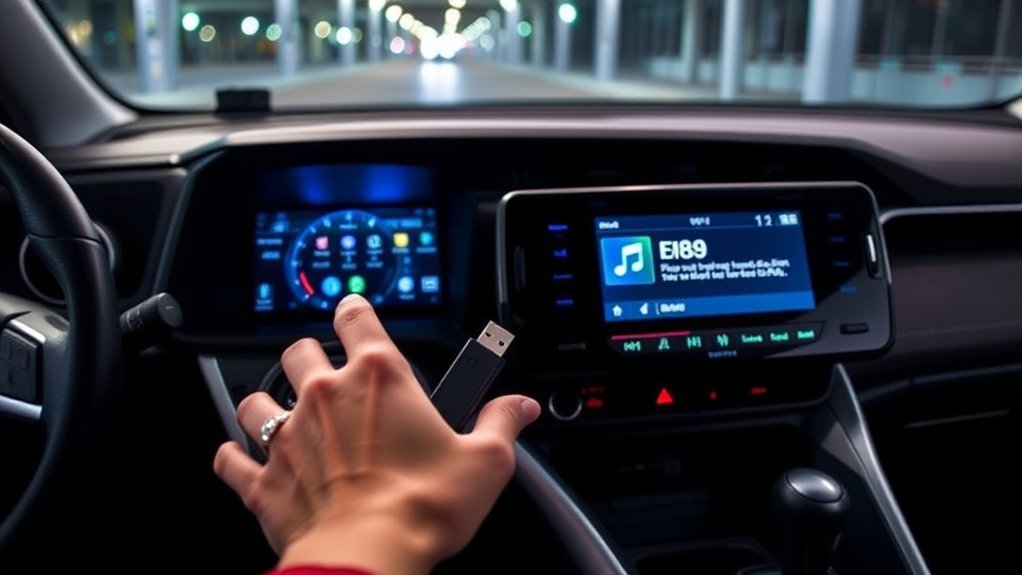
Most Toyota RAV4 multimedia systems with USB audio or Bluetooth audio can play MP3 music, but the exact setup depends on the vehicle’s model year, market, trim, and installed head unit. Newer systems may use a USB Type-C data port, while older models may use USB-A. Always confirm the specifications in the multimedia manual for your RAV4.
Quick Answer
Yes. Most RAV4 multimedia systems that offer USB audio or Bluetooth audio can play MP3 music. The port, menu names, supported drive size, and file limits depend on the model year and head unit. Toyota’s 2026 RAV4 manual, for example, specifies USB Type-C playback, FAT16/32 formatting, and drives up to 32 GB.
Key Takeaways
- Use the RAV4’s data-capable USB port, not a charging-only port, when playing files from a flash drive.
- FAT32 is the safest practical format for many RAV4 systems; the 2026 manual lists FAT16/32 and a maximum capacity of 32 GB.
- Bluetooth is convenient for phone playback, while a flash drive avoids pairing and wireless-interference problems.
- USB limits, port types, menus, and supported formats vary, so check the multimedia manual for your exact model year.
At a Glance
| Time Required | About 5–10 minutes after the music files are ready |
| Difficulty | Easy |
| Tools Needed | Computer, compatible USB flash drive or smartphone, MP3 files, and a suitable USB cable or adapter when required |
| Cost | Usually no additional cost if you already own a compatible drive, phone, and cable |
Easily Connect USB Devices in Your Toyota RAV4
A USB flash drive is one of the simplest ways to keep a permanent offline music library in your RAV4. You can also connect certain portable music players or phones, although the system may treat those devices differently from a standard mass-storage drive.
Before starting, identify the correct data-capable USB port. Its location and connector type vary. Some RAV4s use USB-A, while the 2026 RAV4 multimedia system plays flash-drive music through a USB Type-C port. Other USB sockets in the cabin may provide charging only.
- Copy compatible MP3 files to a properly formatted USB flash drive.
- Start the vehicle or switch the multimedia system on while parked.
- Connect the flash drive directly to the data-capable USB port.
- Open the audio or music screen and select the source button.
- Select the displayed device name or USB.
- Choose a track through Folders, Artists, Albums, Songs, Genres, or Composers.
When a previously used flash drive is selected again, the system may resume from the file that was playing earlier. The availability of browsing categories depends partly on the metadata stored in each music file.
Note: Do not assume that every USB socket can read music. A port that charges your phone may be charge-only. Check the port label or your vehicle’s multimedia manual if the USB source does not appear.
Bluetooth MP3 Streaming in Your RAV4
Bluetooth audio lets you play MP3 files stored on a phone or compatible portable player without leaving a flash drive connected. The phone performs the actual file playback and sends the audio to the RAV4.
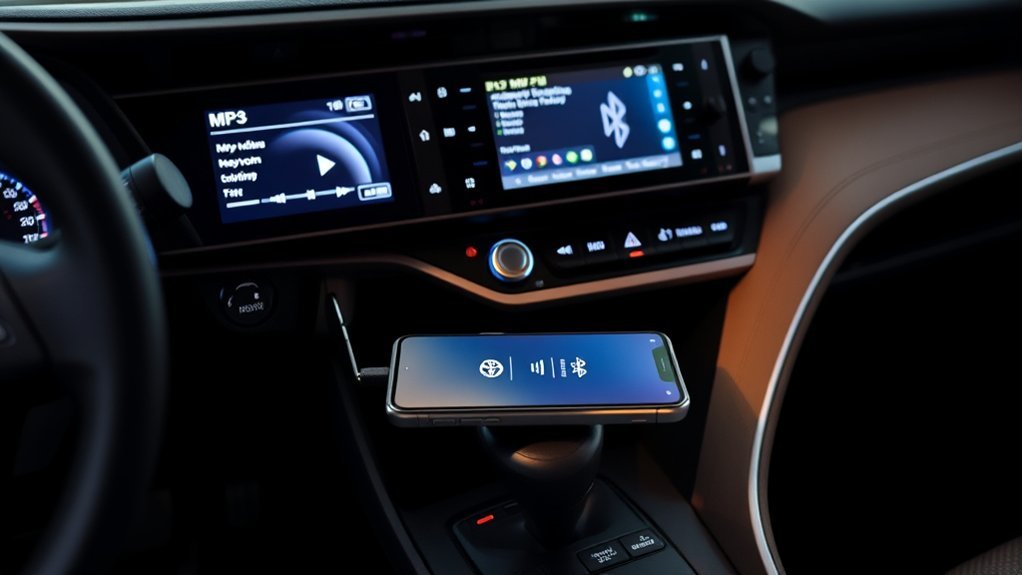
- Park the vehicle and enable Bluetooth on the phone or music player.
- Open the RAV4’s Bluetooth and device settings.
- Select the option to add or register a device.
- Choose the RAV4 multimedia system on the phone and confirm the displayed pairing code.
- Allow media-audio access when prompted.
- Open your music player, start the MP3 file, and select Bluetooth as the RAV4 audio source.
Depending on the phone and head unit, you may be able to browse tracks, albums, and artists from the vehicle display. Other devices may provide only play, pause, and track-change controls.
Bluetooth is convenient, but performance can be affected by the phone, competing wireless connections, calls, or multimedia Wi-Fi use. Toyota also notes that some Bluetooth functions may be limited depending on the portable device. A USB flash drive avoids pairing and wireless interference, but it requires compatible formatting and files.
Pro Tip: If Bluetooth music stutters, disconnect unused wireless devices, temporarily disable the multimedia system’s Wi-Fi function, and keep the phone near the cabin rather than buried under other electronics.
USB Formatting Tips for Compatibility
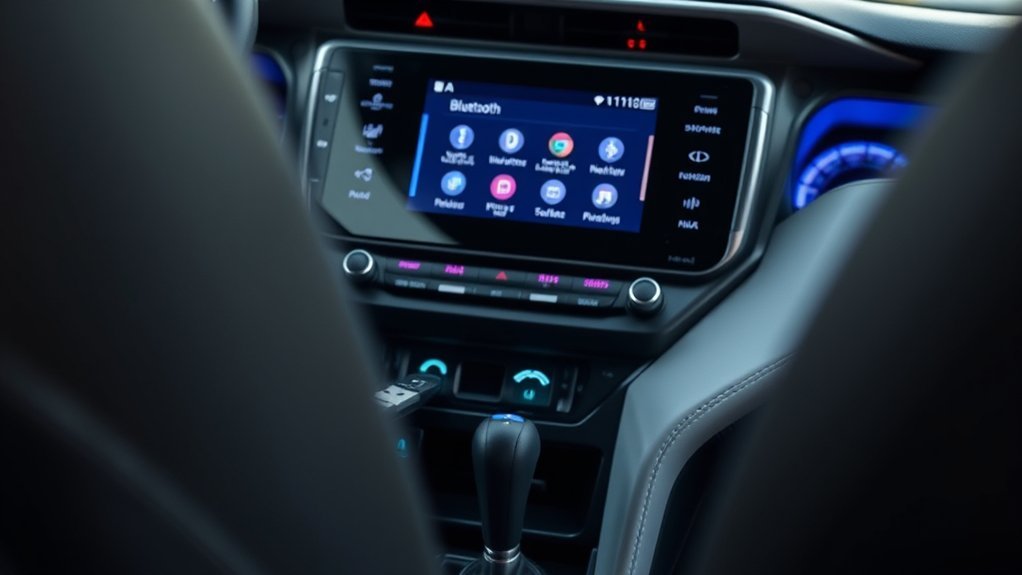
FAT32 is the safest practical choice when preparing a USB flash drive for a Toyota RAV4. The current 2026 multimedia manual lists FAT16 and FAT32 as supported filesystems. NTFS and exFAT are not listed and may prevent the drive from appearing.
For the 2026 RAV4 multimedia system, Toyota lists FAT16/32 formatting, drives up to 32 GB, eight folder levels, 9,999 files, and a maximum individual file size of 2 GB.
The documented 2026 limits are:
| Specification | 2026 RAV4 multimedia limit |
|---|---|
| Filesystem | FAT16 or FAT32 |
| USB capacity | Up to 32 GB |
| Folders | Up to 3,000, including the root folder |
| Folder depth | Up to eight levels |
| Files | Up to 9,999 total and 255 per folder |
| Individual file size | Up to 2 GB |
These limits are not guaranteed to apply to older RAV4 systems. Use Toyota’s manual and warranty lookup to confirm the requirements for your model year.
A 32 GB drive can theoretically hold roughly 550 hours of 128 kbps MP3 audio before allowing for formatting overhead, album artwork, and other files. Actual capacity will be lower.
Supported Audio Formats and File Names
The 2026 RAV4 multimedia manual lists MP3, WMA, AAC, WAV, FLAC, and ALAC playback from a USB flash drive. Older systems may support a smaller or different set of formats.
Use a filename extension that matches the file’s real encoding. Renaming an unsupported file from another format to .mp3 does not convert it. Toyota warns that an incorrect extension can cause improper recognition and potentially loud noise during playback.
Music downloaded for offline listening inside a subscription app may use encryption or digital-rights protection. Those downloads generally cannot be copied to a flash drive and played as ordinary MP3 files. Use the original app through Android Auto, Apple CarPlay, or Bluetooth instead.
Troubleshooting USB Playback Issues
If the RAV4 does not recognize a drive or skips certain files, work through the following checks in order. Test the system while the vehicle is safely parked.
USB Formatting Concerns
- Confirm that the drive uses FAT32 or another filesystem explicitly listed in your vehicle’s manual.
- Make sure the drive does not exceed the documented capacity limit.
- Back up the files, reformat the drive, and copy a small test folder containing two or three MP3 files.
- Avoid security software, encryption, or multiple partitions on the flash drive.
- Remove unrelated files and unnecessary folders that could slow the initial scan.
Formatting erases the contents of the drive, so save a copy of your music on a computer first.
Device Recognition Problems
If the USB source does not appear:
- Verify that you are using the data-capable multimedia port rather than a charging-only socket.
- Connect the drive directly instead of through a USB hub.
- Remove and reconnect the drive while the vehicle is stationary.
- Try a smaller, basic flash drive from a reputable manufacturer.
- Check the connector for dirt, damage, looseness, or excessive pressure.
- Test the drive on a computer and repair or replace it if files cannot be read reliably.
- Delete hidden system files if they repeatedly interfere with track changes.
If the drive appears but individual tracks do not play, verify that each filename extension matches the actual audio encoding. Re-export questionable files as standard MP3 files rather than merely changing the extension.
Warning: Do not connect, remove, browse, format, or troubleshoot a USB device while driving. Stop in a safe place before operating the multimedia screen or handling a connected device.
Choosing the Right Music Apps for Your RAV4
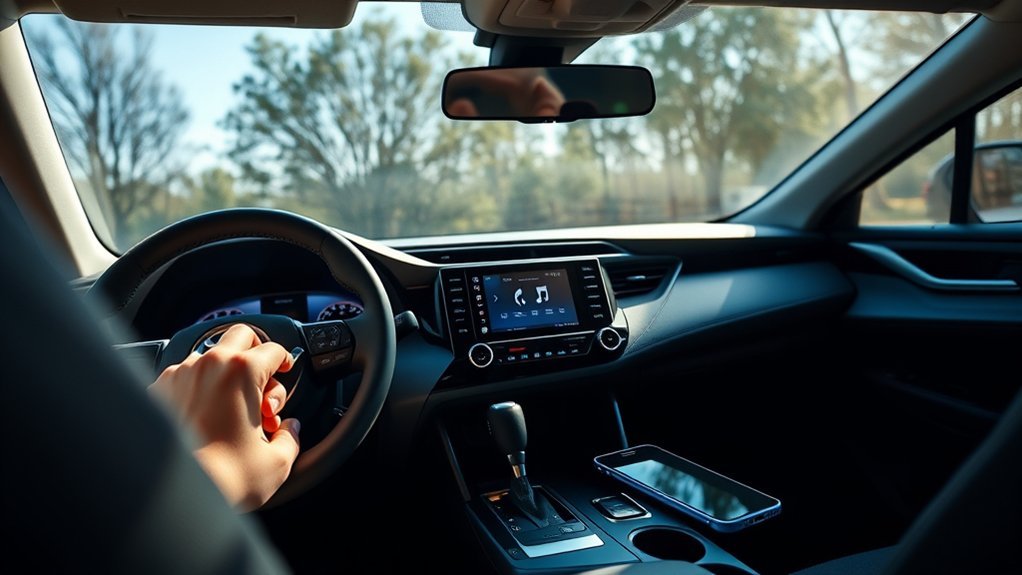
A music app is useful when your MP3 files are stored on an Android phone rather than a USB flash drive. The app must support Android Auto if you want its interface to appear on the RAV4 display.
Google advises users to choose media apps that are specifically compatible with Android Auto. App availability can change with updates, the phone’s region, or Google Play requirements, so confirm that the app appears in the Android Auto launcher before relying on it.
[Amazon Products Picked for You]

No Setup, Just Play: Preloaded with Spotify, Spotify Kids, Amazon Music, Pandora, Deezer, TIDAL, and YouTube Music; save time and enjoy your favorite songs, audiobooks, and podcasts the moment you power on

✽【7 inch Double Din Radio 】 High resolution, 1080P Full HD. 7" inch 178*103*63mm LCD Touch screen. Enjoy an experience to watch HD video. Please check the size of your car’s radio before ordering. Package included : a back-up camera, install frame, Steering wheel control

Apple CarPlay - Access icons on your iPhone by activating Siri voice controls, or via the capacitive touchscreen. Available features include Phone, Music, Maps, Text messages, Radio, Podcasts, & Audiobooks
Best Apps Overview
Musicolet is designed for local files and currently advertises Android Auto support, including access to playlists, folders, queues, and the device’s music library.
AIMP is another local-file player that currently lists Android Auto support and handles MP3, AAC, FLAC, OGG, WAV, and numerous other formats on the phone.
YouTube Music and Pandora are alternatives for streaming. Pandora’s current paid services are called Pandora Plus and Pandora Premium, not Pandora One. Subscription requirements, offline playback, and available controls differ by service.
Compatibility With Android Auto
To use a compatible player:
- Install the music app and grant it access to the phone’s local audio files.
- Open the app on the phone once and confirm that the MP3 library appears.
- Connect the phone to Android Auto by the method supported by your RAV4.
- Open the Android Auto app launcher and select the music app.
- Use voice commands, steering-wheel controls, or the limited on-screen controls available while driving.
Do not assume that every Android music player supports Android Auto. If an app such as Simple Music Player does not appear in the vehicle’s app launcher, use a currently supported alternative rather than enabling unofficial developer settings.
For official instructions, see Google’s guide to listening to media with Android Auto.
Top Music Apps for Your RAV4
The best choice depends on whether you want to play local MP3 files or stream music through a mobile-data connection.
| App | Best use | Important note |
|---|---|---|
| Musicolet | Offline MP3 files, folders, playlists, and queues | Android app with current Android Auto support |
| AIMP | Local libraries with many file formats and playlist options | Android app with current Android Auto support |
| YouTube Music | Streaming, playlists, and eligible offline downloads | Some features require a subscription and use the app rather than direct USB-file playback |
| Pandora | Personalized stations and subscription streaming | Current plans include Pandora Plus and Pandora Premium |
USB playback is usually the most self-contained option because it does not require cellular service, a streaming subscription, or phone pairing. Android Auto and Bluetooth are better when you want the phone to manage playlists, downloads, and app-based content.
[Amazon Products Picked for You]

Upgrade to Wireless CarPlay & Android Auto The 2 in 1 Wireless CarPlay and Android Auto Adapter converts your factory wired system into a wireless experience. It’s perfect for families using both iPhone and Android phones, allowing effortless switching without unplugging or swapping cables. This adapter is compatible with over 1,000 vehicle models—supporting 800+ with wired CarPlay and 500+ with wired Android Auto. Works with iPhone 6 or later and Android 11 or above devices.

True 2-in-1 Dual System: For iPhone & Android - This smart dongle is the ultimate solution for mixed-device households. It functions as both a Wireless CarPlay Adapter and a Wireless Android Auto Adapter. The intelligent chip automatically identifies your connected phone and switches protocols instantly. Perfect for families sharing a car—switch between iPhone and Android seamlessly without swapping cables or buying separate adapters.

Note: Car models with USB 2.0 ports may experience protocol mismatch with USB 3.2 Android Auto cable, potentially causing device recognition failure, slow charging speeds, or even complete charging failure.
Organizing Your Music Files for Easy Navigation
Good file organization makes a large USB library easier for the RAV4 to scan and browse. It also reduces the number of tracks shown as “Unknown Artist” or “Unknown Album.”
- Create a main folder for each artist or genre.
- Use album subfolders rather than placing thousands of tracks in one directory.
- Keep the folder depth comfortably below your system’s documented limit.
- Name tracks consistently, such as
01 - Song Title.mp3. - Add accurate ID3 tags for title, artist, album, genre, track number, and composer.
- Use modestly sized album artwork to avoid slow scanning or display problems.
- Delete duplicates, broken files, and unnecessary computer-generated folders.
Toyota’s current system can use MP3 ID3 information to display artist, title, and album details. Folder names remain useful when files have missing or inconsistent tags.
How to Use MP3 Players With Your RAV4
A dedicated MP3 player can connect through USB or Bluetooth if both the player and the RAV4 support the required mode. Compatibility is not guaranteed merely because the device can charge through USB.
[Amazon Products Picked for You]
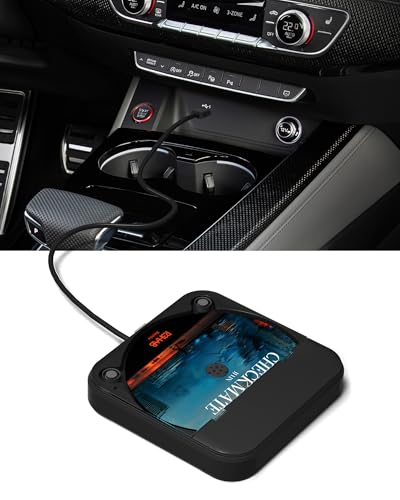
Plug and Play & CD player for car:Looking for a car CD player? This CD player is perfect for car without CD player, it is lifesaver for car without CD player! It’s incredibly easy to use—just plug it into the car’s USB or AUX port, and it works instantly. Once connected, the player supports both touchscreen and steering wheel control for easy, safe operation while driving.

【Type-C & USB 2 in 1 Plug and Play】 No data cable is needed, you can directly connect it to mobile phones and laptops with type-c ports. A type-c to USB adapter cable is included, so it can also be used to connect to desktop computers or car audio systems with traditional USB ports. Use High-speed port to transfer files or charge U5 music player.

Safe Phone Calls while Driving: The latest Bluetooth 5.0 technology provides lower power consumption and wider compatibility. You could enjoy your smart phone music or handsfree calling through your car stereo system(sell without power adaptor)
Connecting Your MP3 Player
- Charge the MP3 player before connecting it.
- Use a data-capable cable that fits the player and the RAV4’s multimedia port.
- Connect the player while the vehicle is parked.
- Select USB or Bluetooth Audio from the RAV4 source menu.
- If prompted on the player, choose a media, file-transfer, or audio mode rather than charging only.
- Wait for the library scan to finish before repeatedly disconnecting the device.
Ensuring Compatibility and Readability
Some portable players expose their storage as a standard USB mass-storage device, while others require proprietary software or use a connection mode the RAV4 cannot browse. If direct USB playback fails, Bluetooth may still work because the player handles the files internally and sends only the audio stream to the vehicle.
Check removable memory cards for corruption, verify that the files play on another device, and use formats listed in your vehicle’s multimedia manual. A properly organized library with valid tags will be easier to navigate.
Troubleshooting Connection Issues
- Replace a charge-only cable with a verified data cable.
- Connect directly instead of through an adapter hub.
- Try Bluetooth if the player’s USB storage mode is incompatible.
- Check the memory card and internal storage for filesystem errors.
- Test a small folder containing ordinary, unprotected MP3 files.
- Keep the player charged to prevent shutdowns during scanning or playback.
- Restart the multimedia system if it remains unresponsive.
On the 2026 RAV4 system, Toyota instructs the user to hold the POWER/VOLUME knob for at least three seconds to restart a multimedia system that is responding extremely slowly. Older head units may use a different button or duration, so consult the applicable manual before performing a reset.
Community Insights on Music Playback in the RAV4
Owner discussions frequently recommend a basic 32 GB FAT32 flash drive with clearly organized MP3 folders. That advice aligns with the specifications in Toyota’s current 2026 multimedia manual, but it should not replace the manual for a different model year.
Owner experiences can still help identify practical issues, including hidden computer files, corrupt tracks, unreliable adapters, or inconsistent tags. However, claims about maximum capacity, supported formats, and required reset procedures should be checked against Toyota’s documentation rather than assumed from another owner’s vehicle.
Musicolet and AIMP remain practical Android Auto options for local files. Occasional delays when changing songs can come from phone performance, a large music database, album artwork, Bluetooth conditions, or the app itself—not necessarily a fault in the RAV4.
Safety Features of the RAV4’s Infotainment System
Toyota advises drivers not to operate the multimedia system, portable device, or USB flash drive while driving. Some selections may be unavailable while the vehicle is moving, and the exact restrictions depend on the multimedia system.
- Prepare playlists and folders before beginning the trip.
- Connect and troubleshoot devices only while safely parked.
- Use steering-wheel track controls when available.
- Use supported voice commands for compatible phone apps.
- Keep the volume low enough to hear traffic, emergency vehicles, and warning sounds.
- Do not force the console closed around a large flash drive, cable, or adapter.
- Do not leave a phone or flash drive in a hot parked vehicle for long periods.
Navigation prompts, calls, or alerts may temporarily reduce, pause, or interrupt music. This is normal system behavior and does not necessarily indicate a damaged file or failed connection.
Related Guides
Frequently Asked Questions
Can I play MP3 files from my smartphone in a Toyota RAV4?
Yes. You can normally play phone-based MP3 files through Bluetooth audio or through a compatible Android Auto or Apple CarPlay music app. Direct USB-phone browsing depends on the phone, cable, connection mode, model year, and multimedia system.
What audio formats does the RAV4 support besides MP3?
Support varies by model year. Toyota’s 2026 RAV4 multimedia manual lists MP3, WMA, AAC, WAV, FLAC, and ALAC for USB playback. Check the manual for your exact vehicle before converting a large music library.
Is there a USB-drive size limit?
Yes, many systems specify a maximum capacity. The 2026 RAV4 multimedia manual lists drives up to 32 GB. A larger drive may fail to appear or may behave inconsistently. Limits for older RAV4 systems can differ.
Does a RAV4 USB drive need to be FAT32?
FAT32 is the safest practical choice for many RAV4 systems. Toyota’s 2026 manual lists FAT16 and FAT32. NTFS and exFAT are not listed for that system and may not be recognized.
Why does my RAV4 charge the USB device but not play its music?
You may be using a charging-only port or cable. Connect the device to the multimedia data port with a verified data cable. Also check the drive format, file type, capacity, and connection mode.
How do I restart the RAV4 multimedia system?
On the 2026 RAV4 multimedia system, hold the POWER/VOLUME knob for at least three seconds when the system is responding extremely slowly. Older systems may require a different procedure, so verify the instructions in the applicable multimedia manual.
Can I play streaming services through the RAV4?
Yes. Compatible services can play through Bluetooth, Android Auto, or Apple CarPlay. The app, subscription, phone, region, and RAV4 multimedia system determine which controls and offline features are available.
Conclusion
A Toyota RAV4 can play MP3 music through a compatible USB flash drive, Bluetooth device, or smartphone app. USB is ideal for a permanent offline library, while Bluetooth and Android Auto are convenient when your phone manages the music.
The important step is to follow the specifications for your particular model year. Confirm the data-port location, supported filesystem, capacity limit, and playable formats before preparing a large library. For the 2026 RAV4 system, Toyota specifies a USB Type-C connection, FAT16/32 formatting, drives up to 32 GB, and support for several common audio formats.
Sources
- Toyota 2026 RAV4 Multimedia Owner’s Manual — USB playback, supported formats, capacity limits, Bluetooth precautions, safety guidance, and restart instructions
- Toyota Manuals and Warranties — model-year-specific owner and multimedia manuals
- Google Android Auto Help: Listen to Media — compatible media-app requirements and Android Auto playback
- Musicolet on Google Play — current local-file and Android Auto support information
- AIMP on Google Play — current format and Android Auto support information
- Pandora Plans — current Pandora Plus and Pandora Premium service names
