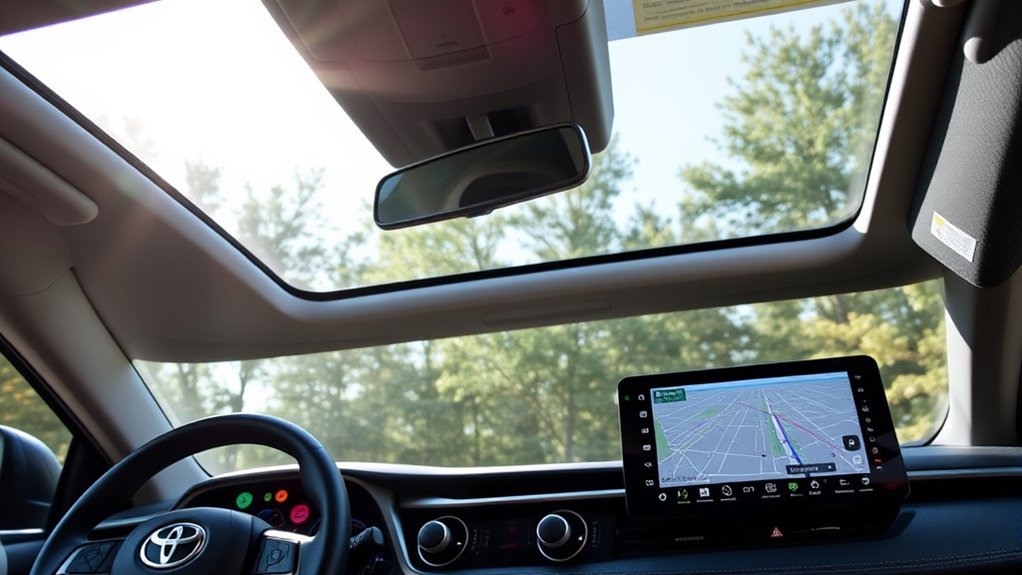
There are two main ways to get maps on a Toyota RAV4: use the vehicle’s available built-in navigation or display a compatible phone’s navigation apps through Apple CarPlay or Android Auto. The right method depends heavily on your RAV4’s model year and multimedia system, so check compatibility before troubleshooting a missing Maps or Navigation option.
Last updated: October 2026
Quick Answer: Pick Your RAV4 Model Year
- 2023 or newer: connect your iPhone or Android phone wirelessly with Apple CarPlay or Android Auto. No cable is needed.
- 2020–2022: plug your phone into the USB media port to use Apple CarPlay or Android Auto.
- 2019: Apple CarPlay (iPhone) over a USB cable. Android Auto was not added until 2020.
- 2018 or older: Apple CarPlay and Android Auto are generally not available. Use built-in navigation if your trim has it, or a phone on a dash mount.
- Built-in Toyota navigation: Cloud Navigation is available on some 2023 and newer RAV4s, but it needs an active Drive Connect trial or subscription.
Warning: Complete first-time CarPlay, Android Auto, Bluetooth, and navigation setup while the RAV4 is safely parked. Do not troubleshoot or enter detailed destinations while driving.
Check Which Map Options Your RAV4 Supports
Before changing settings, find your RAV4’s model year and multimedia system. Features vary by year, trim, market, and equipment.
How to find your model year: check the 10th character of your VIN. You can find the VIN on the dash plate at the base of the windshield on the driver’s side, on the driver’s door-jamb sticker, or on your registration. K = 2019, L = 2020, M = 2021, N = 2022, P = 2023, R = 2024, S = 2025, T = 2026.
How to spot the 2026 system: the 2026 RAV4 is the all-new generation. It has a 12.3-inch digital gauge cluster and a 10.5-inch or 12.9-inch center screen.
| U.S. RAV4 Model Years | Navigation, Apple CarPlay and Android Auto |
|---|---|
| 2018 and older | Apple CarPlay and Android Auto are generally not available. Some trims have Toyota’s earlier Entune audio system, and some include built-in navigation. Check your owner’s manual for your exact system. |
| 2019 | Apple CarPlay came standard and works over a USB cable (wired). Android Auto was not available yet. |
| 2020–2022 | Toyota added Android Auto for 2020, so these years have both Apple CarPlay and Android Auto over a USB cable (wired). Some trims with Premium Audio also have Toyota’s older Dynamic Navigation. |
| 2023–2025 | Toyota Audio Multimedia and wireless Apple CarPlay and Android Auto became standard across the 2023 RAV4 lineup. Built-in Cloud Navigation is part of Drive Connect and needs an active trial or subscription. |
| 2026 | All-new 6th-generation RAV4 with Toyota’s latest Audio Multimedia system, standard wireless Apple CarPlay and Android Auto, and native turn-by-turn directions on the digital gauge display. A 1-year Drive Connect trial is included on the XSE, Limited, and GR SPORT. The LE, XLE Premium, SE, and Woodland can use Drive Connect but need a subscription. |
Toyota documents the addition of Android Auto for the 2020 RAV4, standard wireless Apple CarPlay and Android Auto for the 2023 RAV4 lineup, and standard wireless Apple CarPlay and Android Auto with its newest multimedia platform on the 2026 RAV4. For a longer year-by-year breakdown, see our guide to which Toyota RAV4 years have Apple CarPlay and Android Auto.
Note: If your RAV4 does not show a Map, Navigation, Apple CarPlay, or Android Auto option, that does not necessarily mean something is broken. The feature may not be included with that model year, market, trim, or multimedia unit.
Note: If your RAV4 is 2018 or older, you can still get maps with a phone on a dash mount running Google Maps or Waze, or with built-in navigation if your trim has it. If your 2019–2022 RAV4 only supports a USB connection, wireless CarPlay and Android Auto adapters exist. Make sure an adapter lists your exact model year before you buy.
How to Use the Built-In Navigation System in Your RAV4
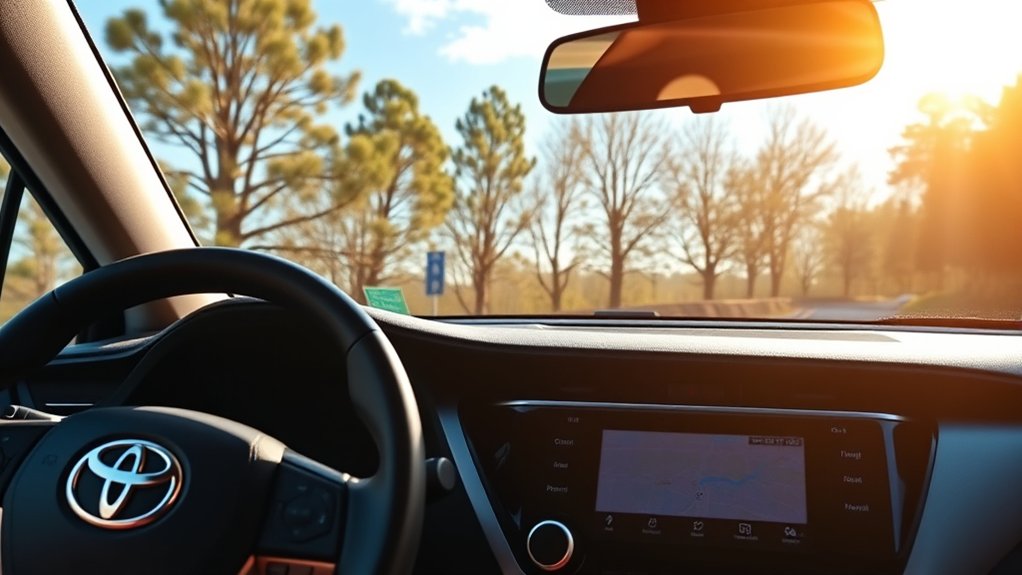
If your RAV4 has factory navigation, look for a Map or Navigation control on the multimedia display. The exact menus vary between older Dynamic Navigation systems and newer Toyota Audio Multimedia systems.
On compatible newer vehicles, Toyota’s Drive Connect service can include Cloud Navigation, Intelligent Assistant, and Destination Assist. Cloud Navigation is the newer system; older RAV4s may have Toyota’s earlier Dynamic Navigation instead. Toyota states that Drive Connect can provide real-time traffic elements and connected navigation information, and it requires an active trial or paid subscription. Apple CarPlay and Android Auto keep working without Drive Connect.
You can check current availability, pricing, and plan details through Toyota Connected Services. Before your trial ends, check the plan details for your model to see what stays available afterward. For trim-by-trim detail, see Does the Toyota RAV4 Have Built-In GPS?
Basic Built-In Navigation Steps
- Park the RAV4 and turn on the multimedia system.
- Select Map or Navigation if it appears on the display.
- If you do not see a Map or Navigation option, register your RAV4 in the Toyota app and activate your Drive Connect trial or subscription. Toyota says the trial can be activated when you add your vehicle in the app.
- Search for an address, business, or point of interest using the touchscreen or supported voice command.
- Review the destination and start route guidance.
Voice commands can reduce the amount of screen interaction required. Depending on the multimedia generation, you may be able to ask the Toyota voice assistant for a destination, point of interest, or route.
How to Use Apple CarPlay for Maps on Your RAV4
Apple CarPlay lets a compatible iPhone display supported navigation apps on the RAV4’s multimedia screen. Depending on your phone and installed apps, that can include Apple Maps, Google Maps, and other CarPlay-compatible navigation services.
The main advantage is familiarity: your saved locations, recent searches, contacts, and preferred phone apps remain available through the CarPlay interface. Traffic and routing information depend on the navigation app and its data connection.
How to Connect Apple CarPlay
According to Apple’s CarPlay instructions, setup depends on whether the vehicle supports wired or wireless CarPlay.
- Make sure Siri is enabled on your iPhone.
- For wired CarPlay, connect the iPhone to the RAV4’s USB media port with a USB cable that carries data (not just power).
- For wireless CarPlay (2023 and newer), make sure Bluetooth and Wi-Fi are on, pair your iPhone with the RAV4 over Bluetooth, and accept the CarPlay prompt. If it does not appear, open iPhone Settings > General > CarPlay and choose your RAV4.
- Accept the CarPlay permission prompts on the phone and vehicle display.
- Select the CarPlay icon if the interface does not open automatically.
- Open your preferred map app and choose a destination.
In short, 2019–2022 RAV4s connect with a USB cable, and 2023 and newer RAV4s connect wirelessly.
Pro Tip: If your iPhone charges but CarPlay never appears on an older wired system, make sure you are using the USB media/data port and a cable that supports data transfer, not only charging.
How to Use Android Auto for Maps on Your RAV4
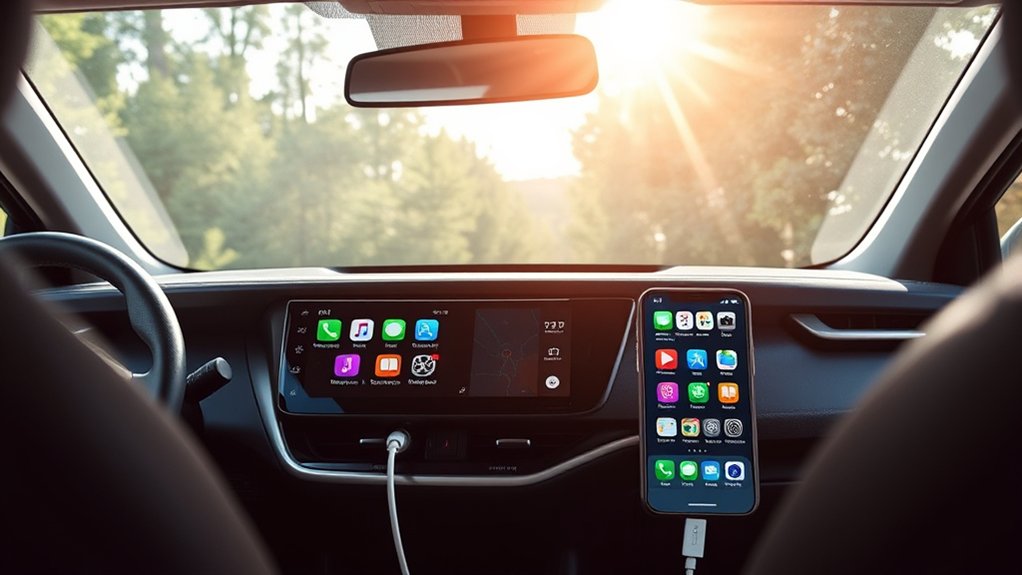
Android Auto lets a compatible Android phone provide navigation, calling, messaging, and supported apps through the RAV4’s display. Google’s current guidance states that Android Auto is integrated into supported Android phones, so you normally do not need to download a separate Android Auto app.
Set Up Wired Android Auto
- Confirm that your RAV4 multimedia system and Android phone support Android Auto.
- Park the RAV4 and turn on the infotainment system.
- Connect the phone to the compatible USB media port using a USB cable that carries data (not just power).
- Follow the permission and setup prompts on the phone and vehicle display.
- Select Android Auto on the RAV4 display if it does not start automatically.
- Open Google Maps, Waze, or another compatible navigation app.
Set Up Wireless Android Auto
If your RAV4 supports wireless Android Auto, enable Bluetooth, Wi-Fi, and Location Services on the phone. Pair the phone with the RAV4 through Bluetooth and follow the on-screen prompts. Android Auto should then start wirelessly after pairing.
Google provides the current wired and wireless instructions in its Android Auto setup guide.
How to Use Google Maps or Waze on Your RAV4
Google Maps and Waze both work in the RAV4 through Apple CarPlay (iPhone) or Android Auto (Android). You do not install them on the car.
- Install or update Google Maps or Waze on your phone.
- Connect your phone to the RAV4 with Apple CarPlay or Android Auto.
- Tap the Google Maps or Waze icon on the CarPlay or Android Auto home screen.
- Say or type a destination, then start the route.
If the app icon is missing on an iPhone, open Settings > General > CarPlay, choose your RAV4, and tap Customize to add it.
Real-Time Updates: Built-In vs. Mobile Navigation
Both options can show live traffic. The difference is where the data comes from: your phone, or your RAV4’s own connection through Drive Connect.
| Feature | Toyota Connected Navigation | CarPlay / Android Auto Maps |
|---|---|---|
| Traffic information | Available on supported connected-navigation systems and services. | Available through compatible map apps when the phone has the necessary connection. |
| Map familiarity | Integrated with the vehicle’s native multimedia interface. | Uses familiar phone apps, saved destinations, and app accounts. |
| Phone required | No phone needed. Cloud Navigation needs an active Drive Connect plan. | Yes. |
| Subscription | Connected Toyota navigation features may require an active trial or subscription. | CarPlay and Android Auto themselves do not require a Toyota Connected Services subscription; phone, data, and individual app charges can still apply. |
If you already rely on Google Maps, Apple Maps, or Waze, smartphone projection may feel more familiar. If you prefer navigation that is integrated into the vehicle interface and do not want to depend on your phone for every trip, Toyota’s factory navigation may be more convenient when your RAV4 supports it.
What to Do if Maps or Phone Navigation Does Not Work
Most navigation problems can be narrowed down without performing a factory reset.
- Confirm compatibility. Check that your specific RAV4 model year and multimedia system support the feature you are trying to use.
- Park and reconnect. Disconnect the phone, restart it if necessary, then reconnect it after the multimedia system is fully running.
- Check the correct USB port. On a wired system, use the multimedia/data USB port rather than a charging-only port.
- Try another data cable. A damaged or charging-only cable can prevent CarPlay or Android Auto from starting even though the phone charges.
- Check phone permissions. Make sure CarPlay or Android Auto has the required permissions and is not disabled in the phone settings.
- For wireless connections, check Bluetooth and Wi-Fi. Android Auto also recommends having Location Services enabled during setup.
- Remove and pair the phone again. Delete the existing connection from both the phone and vehicle, then repeat the first-time pairing process.
- Check Toyota Connected Services. If factory Cloud Navigation has stopped working, confirm that the relevant trial or subscription is active.
- Use a full system reset only when necessary. A factory-level multimedia reset can remove saved profiles and settings, so consult the instructions for your exact multimedia generation before using it.
Note: If your phone charges normally but neither CarPlay nor Android Auto appears, the problem is often compatibility, the USB media port, the cable, permissions, or the multimedia connection settings rather than the map app itself.
Best Practices for Using Your Chosen Navigation System
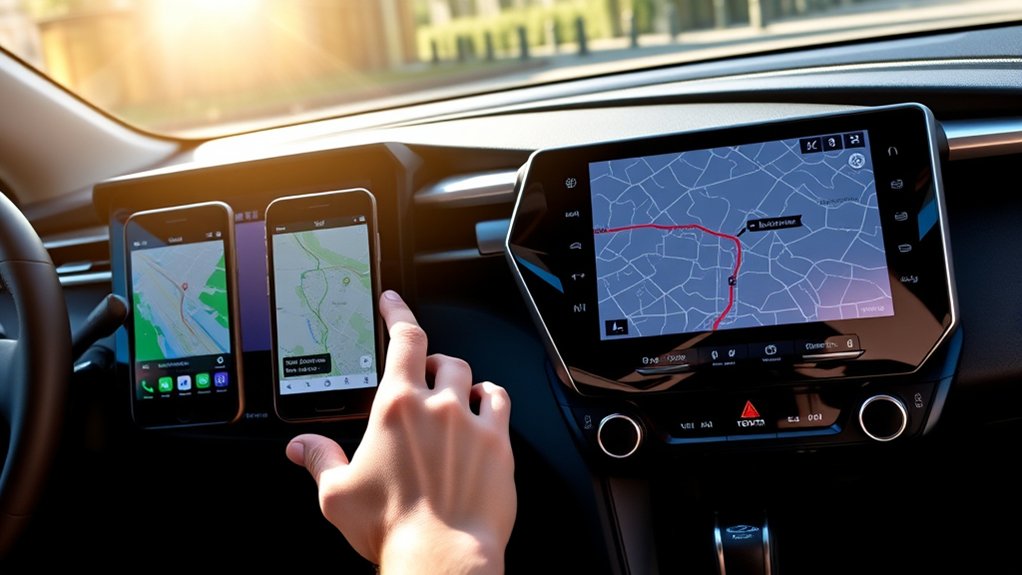
Once your map system is working, a few habits can make navigation easier and reduce unnecessary interaction with the screen.
| Best Practice | What to Do |
|---|---|
| Set the destination before driving | Enter detailed addresses and complete setup while parked. |
| Use voice controls | Use Siri, Android Auto voice controls, or Toyota’s supported voice assistant when appropriate. |
| Keep software current | Keep your phone operating system, navigation apps, and supported vehicle software current. |
| Use a reliable connection | For a wired connection, use a USB cable that carries data (not just power) and the correct USB media port. |
| Check service status | If Toyota connected navigation stops updating, verify the applicable Connected Services status. |
Try both factory navigation and smartphone projection if your RAV4 supports them. The better option is the one that gives you the information you need with the least interaction while driving.
Frequently Asked Questions
Can I Use Maps Without a Smartphone in My RAV4?
Yes, if your RAV4 is equipped with a compatible factory navigation system. Newer Toyota connected-navigation features may require an active trial or subscription and network availability, but they do not require you to run navigation from a smartphone. If your RAV4 does not have factory navigation, you may need CarPlay, Android Auto, or another compatible navigation solution.
Is There a Subscription Fee for Built-In Navigation Updates?
It depends on the navigation system. Toyota’s current Drive Connect features, including Cloud Navigation on compatible vehicles, require an active trial or paid subscription. Older RAV4 navigation systems may use different map-update and connected-service arrangements, so check the multimedia documentation for your exact model year.
How Do I Reset the Navigation System in My RAV4?
Try normal troubleshooting before performing a factory reset: disconnect and reconnect your phone, restart the phone, remove and re-pair the device, and restart the multimedia system by holding the power/volume knob until the screen restarts. If you still need a full reset, many Toyota systems list it under Settings (or Setup) > General > Delete Personal Data. The exact menu name varies by multimedia generation, so confirm it in your owner’s manual. A full reset removes saved settings, paired phones, and navigation favorites, so use it only when necessary.
Can I Customize Route Preferences in My RAV4’s Navigation?
Usually, yes, but the available choices depend on the navigation system. Factory navigation and phone map apps may offer settings such as avoiding toll roads, highways, ferries, or other route types. Open the route or navigation settings for the specific system you are using to see which preferences are supported.
What Should I Do if Navigation Maps Are Outdated?
First identify which navigation system your RAV4 uses. Compatible Toyota Cloud Navigation and Dynamic Navigation systems can receive connected map information while the required service is active. Older embedded systems can have different update procedures. For CarPlay or Android Auto, keep your phone, navigation app, and operating system updated and make sure the phone has the connectivity required by the map service.
Why Does My Phone Charge but CarPlay or Android Auto Not Start?
A charging connection does not prove that the port and cable are carrying data. Make sure your RAV4 supports CarPlay or Android Auto, use the correct USB media/data port, try a different high-quality data cable, check phone permissions, and confirm that CarPlay or Android Auto is enabled in the multimedia settings.
Does Every Toyota RAV4 Have Apple CarPlay and Android Auto?
No. Availability depends on model year and market. Apple CarPlay was added to the U.S. RAV4 for 2019 and Android Auto for 2020. For 2023, Toyota made wireless Apple CarPlay and Android Auto standard across the RAV4 grades, and the all-new 2026 RAV4 continues with standard wireless support. RAV4s from 2018 and older generally have neither.
Conclusion
Getting maps on a Toyota RAV4 is usually straightforward once you know which multimedia system the vehicle has. Use factory navigation when your RAV4 is equipped for it, or connect a compatible phone through Apple CarPlay or Android Auto. Do not assume that all model years have the same features: connection methods, wireless support, factory navigation, and Toyota Connected Services vary. Set everything up while parked, keep your phone and apps current, and check compatibility before assuming a missing map option is a malfunction.
Sources
- Toyota Audio Multimedia and Connected Services — Drive Connect, Cloud Navigation, Dynamic Navigation, subscriptions, and real-time connected-navigation features.
- Toyota USA Newsroom — 2020 RAV4 Multimedia Enhancements — confirms Android Auto was added to the RAV4 for the 2020 model year.
- Toyota USA Newsroom — 2023 RAV4 Updates — confirms standard Toyota Audio Multimedia and wireless Apple CarPlay and Android Auto across 2023 RAV4 grades.
- Toyota USA Newsroom — 2026 RAV4 — current-generation multimedia, standard wireless smartphone integration, native navigation on the gauge display, and Drive Connect trial details by grade.
- Apple Support — Use CarPlay with Your iPhone — official wired and wireless CarPlay setup instructions.
- Google Android Auto Help — Set Up Android Auto — official wired and wireless Android Auto setup and compatibility guidance.
