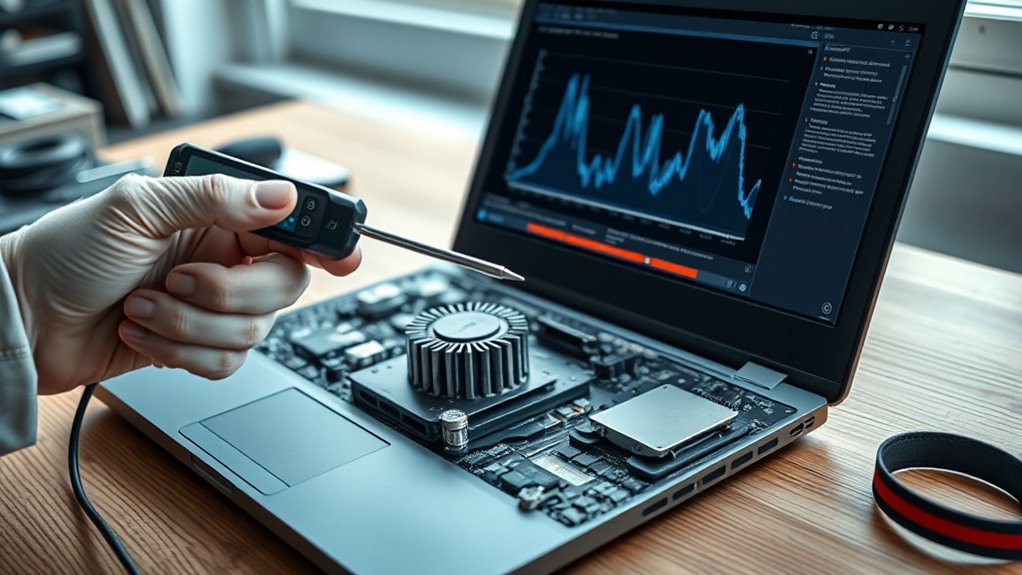
A laptop thermal sensor is likely working if temperature readings rise and fall with workload, fan speed changes are gradual, and the system does not show random spikes, false overheating, or unexpected shutdowns. Utilities such as HWiNFO, HWMonitor, or BIOS temperature screens can be compared for consistency. Large mismatches, idle fan surges, or unstable readings suggest sensor or firmware issues. Further checks can confirm whether the fault lies in the sensor, cooling system, or software controls.
Key Takeaways
- Use HWiNFO, HWMonitor, or OpenHardwareMonitor to watch CPU and GPU temperatures in real time.
- Check whether fan speed changes smoothly with workload instead of staying loud or erratic at idle.
- Compare BIOS temperature readings with software readings to spot inconsistent or unstable sensor data.
- Look for signs like sudden shutdowns, throttling, or false overheating alerts during light use.
- Update BIOS and drivers, then retest; if readings remain abnormal, the thermal sensor may be faulty.
How To Tell If a Laptop Thermal Sensor Works
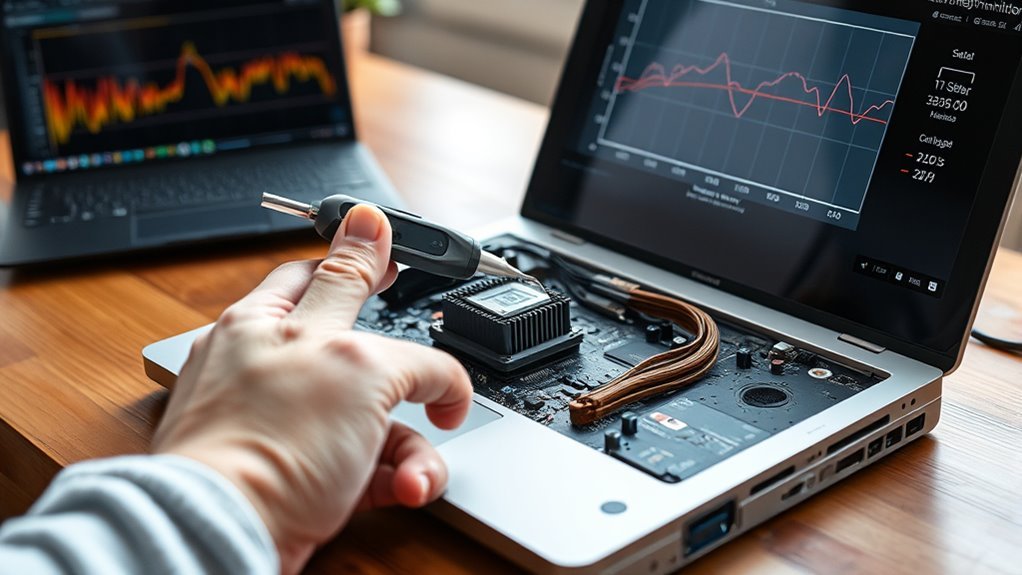
A laptop thermal sensor can be assessed by observing whether the cooling behavior and temperature reports remain consistent under normal conditions.
When thermal sensors function properly, fan speed should rise and fall in proportion to workload, not persist at maximum output during light use.
Diagnostic software such as HWMonitor or OpenHardwareMonitor can monitor temperature values and compare them against expected ranges under load and at idle.
BIOS readings provide a second reference point; if startup temperatures diverge sharply from software readings, sensor accuracy is suspect.
Erratic fluctuations, especially while the machine is idle, also indicate unstable measurement.
Repeated unexpected shutdowns may show that protection logic is reacting to false readings rather than genuine heat.
A sound sensor supports free, controlled operation by delivering reliable data, allowing the system to respond only when necessary.
Consistent readings across tools confirm functional thermal sensing and preserve user autonomy.
Signs Your Laptop Temperature Is Wrong
Unusual fan behavior, such as constant or erratic speed changes at low load, can indicate that the thermal sensor is reporting incorrect values to the control system.
Sudden shutdowns or throttling without a corresponding rise in workload may suggest that the sensor is triggering false overtemperature protection.
A mismatch between software temperature readings and actual chassis heat further supports a fault in temperature sensing or sensor calibration.
Unusual Fan Behavior
Fans that remain at high speed during light workloads often indicate a thermal sensor fault, especially when CPU and GPU activity is minimal. A misreporting thermal sensor can drive fan speed upward without valid thermal demand, suggesting false readings rather than real heat.
Diagnostic signs include:
- constant fan noise at idle
- abrupt fan speed spikes with low load
- repeated high-low cycling
- cooling that fails to match workload
- heat persisting despite active airflow
Such behavior points to either sensor inaccuracy or a control-loop problem, both of which restrict reliable cooling behavior. A stable system should align fan response with workload and temperature data.
When that alignment is absent, the laptop’s thermal management is not acting with precision, and the user gains little freedom from unnecessary noise or uncertainty.
Sudden Shutdowns
Sudden shutdowns during demanding tasks often indicate that the laptop’s thermal readings are inaccurate, allowing temperatures to rise until the system triggers a protective power-off. In this condition, the thermal sensor may fail to report the true CPU temperature, leaving the cooling system unable to respond in time.
Random shutdowns while rendering, gaming, or compiling code are strong diagnostic clues. A malfunction can also force fans to run at maximum speed, draining the battery without restoring stable operation.
Regular temperature monitoring software helps confirm whether readings remain plausible under load. When shutdowns persist despite normal ambient conditions and clean airflow, the thermal sensor should be treated as suspect.
Identifying this fault restores control, preserves hardware autonomy, and prevents unnecessary interruptions.
Temperature Reading Mismatches
When temperature readings do not align with actual behavior, a laptop’s thermal sensor should be suspected. A faulty temperature sensor can report overheating while the chassis remains only mildly warm, or it can mask true thermal stress.
Diagnostic signs include:
- Fan locked at maximum speed during light workloads
- Sudden shutdowns or throttling without load escalation
- Repeated temperature warnings at normal surface temperatures
- Different monitoring tools showing conflicting readings
- Excessive heat on the laptop surface despite routine fan activity
Such mismatches indicate that the system may be reacting to false data rather than actual thermals.
Accurate temperature readings are essential for stable operation, informed maintenance, and user autonomy. When the sensor loses precision, the machine’s protective logic becomes unreliable, and liberated control over performance is compromised.
What Causes Laptop Temperature Reading Errors?
Temperature reading errors in laptops often stem from faulty thermal sensors that misreport internal heat levels, which can lead to improper fan control and increased overheating risk.
Dust accumulation in vents and fans may restrict airflow, raising chassis temperature and distorting sensor output.
Software conflicts, including outdated drivers, can interrupt communication between temperature sensors and the operating system, producing misleading values.
Some laptop models use sensors of uneven quality, so their ability to monitor their temperature varies, reducing measurement consistency across devices.
Physical damage from impact or manufacturing defects can also destabilize readings or stop reporting entirely.
In practice, these faults separate users from accurate thermal awareness and limit control over hardware health.
A diagnostic approach should thus treat inconsistent readings as a signal of sensor, airflow, or driver-related failure rather than assume normal operation.
Check Laptop Temperature With Software
Temperature monitoring tools such as OpenHardwareMonitor, HWiNFO, and Speccy provide real-time CPU and GPU readings, typically in Celsius, for direct thermal assessment.
These utilities allow comparison of observed CPU temperatures against normal operating ranges and can monitor multiple components concurrently.
If reported values appear inconsistent, built-in sensor accuracy should be verified before concluding that overheating is present.
Temperature Monitoring Tools
Software monitoring tools provide the most reliable way to check a laptop’s thermal sensors in real time. For temperature management, dedicated temperature monitoring tools expose internal readings that Windows 10 cannot supply natively.
- OpenHardwareMonitor
- HWiNFO
- Core Temp
- MobileMeter
- WMIC or PowerShell
These applications report CPU, GPU, and individual core temperatures, allowing precise diagnosis of overheating or sensor failure.
Some command-line methods can work, but they may depend on hardware support and return Kelvin values, which complicates interpretation. Regular observation of these metrics helps maintain safe operating conditions, reduce thermal stress, and preserve device longevity.
For users seeking autonomy from hidden heat, software-based monitoring provides measurable control and actionable evidence of sensor health, without disassembly or guesswork.
Reading CPU Temps
To verify that a laptop’s thermal sensor is functioning, third-party utilities such as HWiNFO or Core Temp should be used to read CPU temperatures in real time.
These tools expose sensor data that the operating system may not display directly, allowing precise temperature inspection without vendor lock-in. Compatibility must be confirmed, because some laptops report only partial sensor values.
During a sustained workload, the CPU temperature should update consistently as load changes. A flat reading, extreme low value, or ceilinged high value can indicate a faulty sensor or reporting path.
On Windows, command-line access is also possible with wmic /namespace:rootwmi PATH MSAcpi_ThermalZoneTemperature get CurrentTemperature; the output is Kelvin times ten, so conversion is required for interpretation.
Comparing Normal Ranges
A reliable temperature check begins by comparing real-time CPU and GPU readings from tools such as OpenHardwareMonitor or HWiNFO against the laptop’s expected operating range. The operator should monitor the temperature during load, then verify it against manufacturer thermal limits.
A healthy CPU commonly spans 20°C to 100°C under stress, though model-specific limits vary. Sudden spikes above 90°C deserve scrutiny, as they may indicate a failing thermal sensor or restricted airflow.
- Check idle and load values
- Compare against OEM limits
- Watch for abrupt spikes
- Note readings that stay low or high
- Escalate persistent mismatch
If software reports remain consistently abnormal, the thermal sensor or cooling system likely requires further investigation, restoring reliable performance and user freedom.
Check Laptop Temperature in BIOS and Command Prompt
When a laptop’s thermal behavior needs a quick diagnostic check, the BIOS often provides the most direct reading: after rebooting and entering setup with the startup key, the temperature values are typically listed under Hardware Monitor, where the CPU and other key components may be shown in real time and flagged if they exceed manufacturer limits.
This view is useful for verifying the temperature of critical parts without loading the operating system.
If BIOS access is unavailable, Command Prompt offers a secondary route. The command `wmic /namespace:rootwmi PATH MSAcpi_ThermalZoneTemperature get CurrentTemperature` returns thermal data in Kelvin multiplied by 10.
PowerShell can also query `Get-WmiObject msacpi_thermalzonetemperature -namespace root/wmi`. For interpretation, divide the value by 10, then subtract 273.15 to convert to Celsius.
These readings provide a clear, liberation-minded baseline for evaluating thermal sensor output and operational health.
Fix Laptop Thermal Sensor Problems
Faulty laptop thermal sensors often reveal themselves through persistent fan noise at low load, erratic temperature readings in monitoring tools such as HWMonitor or HWiNFO, and unexplained shutdowns or performance throttling triggered by false overheating reports.
To fix these faults, first monitor sensor data across idle and load conditions. If readings fluctuate without thermal cause, the cooling path may be misinformed.
Monitor sensor data at idle and load; erratic readings without heat signal a misinformed cooling path.
- Update BIOS firmware to correct sensor communication.
- Install current chipset and thermal drivers.
- Cross-check temperatures with multiple monitor tools.
- Reboot and retest after each change.
- Seek professional diagnostics if symptoms persist.
Stable sensor behavior should produce consistent fan response and believable temperature trends. Random slowdowns indicate the system may be defending against a phantom heat event.
Users seeking control over their hardware should prioritize verified sensor data, since precision restores autonomy and prevents unnecessary throttling. DIY probing beyond software and firmware can risk warranty loss and physical damage.
When to Call a Laptop Repair Shop
If a laptop repeatedly shuts down, throttles performance, or reports overheating while external temperatures and monitoring tools indicate normal conditions, a professional repair shop should evaluate the thermal sensor.
Persistent fan noise during cool operation, or sudden fan-speed swings under light load, points to faulty sensors rather than normal regulation. Continuous overheating with fans already running suggests the cooling system is being misled by bad readings, and the device should be tested by a certified technician.
At that stage, further self-repair can mask the fault and increase hardware damage. A repair shop can measure sensor output, inspect the motherboard, and determine whether the issue is calibration, cabling, or component failure.
Regular maintenance also helps identify faults early, preserving safe operation and keeping the machine usable without needless constraint. Timely professional diagnosis restores control, protects components, and supports a user’s freedom from avoidable failure.
Frequently Asked Questions
How to Test Laptop Thermals?
Laptop thermals are tested by monitoring CPU and GPU temperatures with HWMonitor or HWiNFO, then stress testing with Prime95 or FurMark. Thermal management should remain stable; sensor calibration can be checked if readings drift or throttle unusually.
How to Test a Thermal Sensor?
A thermal sensor is tested by comparing live temperature readings under load with expected rises, while checking for erratic output and fan behavior. Like a compass in fog, thermal sensor types guide diagnosis; sensor replacement options follow failure confirmation.
How Do I Tell if My Temperature Sensor Is Working?
A working temperature sensor shows sensor functionality through stable readings, normal fan behavior, and no overheating symptoms under moderate load. Diagnostic software should report plausible temperatures; abrupt shutdowns, throttling, or erratic fan swings suggest failure.
How to Check Laptop Heating Issue?
Laptop heating is checked by monitoring fan response, CPU/GPU temperatures, airflow, and shutdown behavior, then applying cooling solutions, cleaning vents, and renewing thermal paste if readings remain excessive or unstable under load.
Conclusion
To sum up, a laptop thermal sensor can be judged by comparing software readings, BIOS values, and system behavior for consistency. If temperatures remain implausible, fluctuate erratically, or fail to rise under load, the sensor, its wiring, or the motherboard may be faulty. A reliable sensor acts like the machine’s thermometer, quietly reporting accurate heat levels. When readings are unstable despite software checks and basic troubleshooting, professional diagnostics are warranted to prevent overheating damage.
