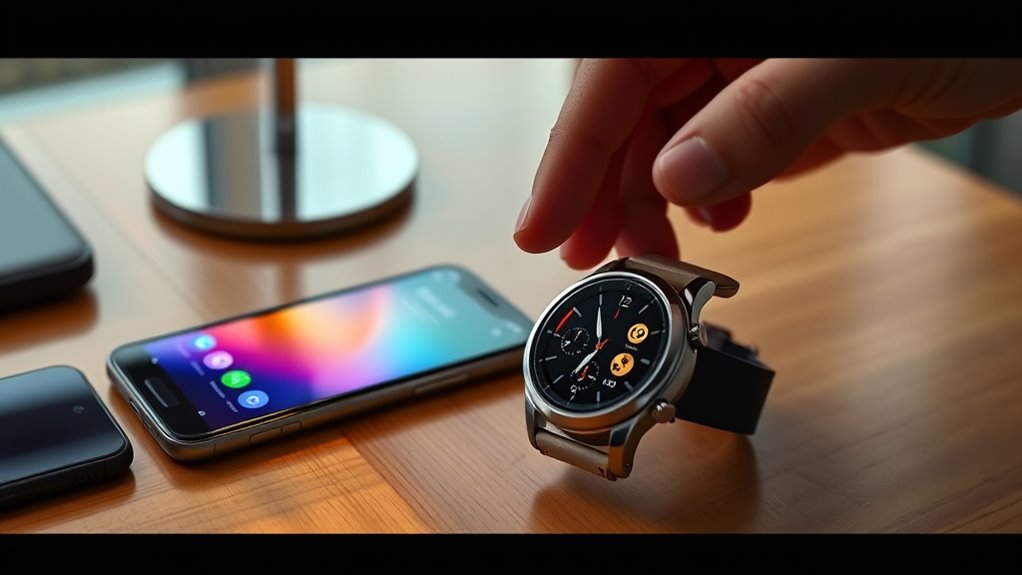
The Galaxy Watch 7 is not officially compatible with iPhone, but a third-party app called Merge offers a way to connect the devices. It may provide notifications, phone calls, and selected health-data syncing. However, this workaround is different from Samsung’s normal pairing process, and several features remain unavailable. Here’s what you need to know before trying it.
Quick Answer
The Samsung Galaxy Watch 7 does not support direct iPhone pairing through Samsung’s official apps. Merge offers an unofficial Bluetooth connection that may support calls, notifications, and Apple Health syncing. Samsung’s supported initial setup requires Android, although Merge advertises another installation method. Full Samsung features and guaranteed compatibility are unavailable on iPhone.
At a Glance
| Difficulty | Advanced compared with normal smartwatch pairing; unofficial workaround required |
| Tools Needed | Galaxy Watch 7, compatible iPhone, Merge app, and an Android phone for Samsung’s supported initial setup |
| Cost | Merge requires an active subscription for its advertised features; a free trial is listed |
Can the Galaxy Watch 7 Connect to iPhone?
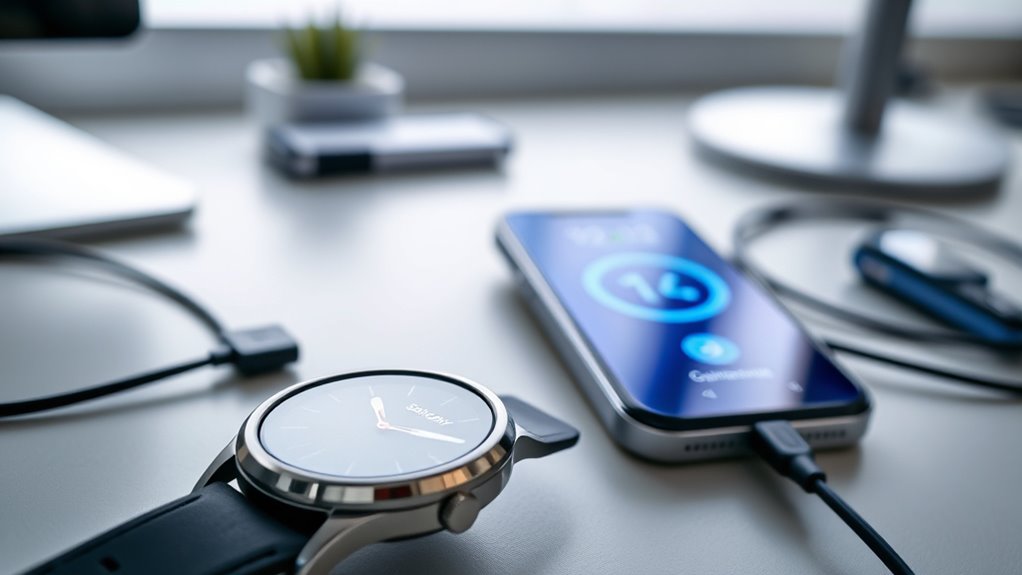
Yes, through a third-party workaround, but not through Samsung’s official pairing system. The Galaxy Watch 7 runs Google’s Wear OS platform, which Samsung does not support on iPhones.
According to Samsung’s Galaxy Watch compatibility chart, the Watch7 requires a compatible Android phone running Android 11 or later. iOS is explicitly listed as unsupported.
This means you cannot simply install Samsung’s Galaxy Watch app on an iPhone, select the Watch7, and complete normal setup.
However, the third-party Merge app offers a different connection method. It uses Bluetooth communication between the watch and iPhone to provide selected functions.
The distinction matters:
- Official compatibility: The Galaxy Watch 7 does not support iOS through Samsung’s apps.
- Third-party connection: Merge advertises support for the Watch7 and iPhone.
- Full functionality: Samsung-specific features, account integration, and certain health services remain restricted.
- Reliability: Connection quality depends on the app, software versions, permissions, and devices.
Samsung also warns that it cannot guarantee the performance, security, or features of third-party connections.
For someone who already owns a Galaxy Watch 7, testing Merge may be worthwhile. For someone buying a smartwatch primarily for iPhone use, official compatibility is a safer starting point.
What You Need to Connect Galaxy Watch 7 to iPhone
Connecting a Galaxy Watch 7 to an iPhone requires more preparation than pairing a supported smartwatch. You need compatible software, Bluetooth access, and a method of installing Merge on the watch.
Before starting, prepare the following:
- Samsung Galaxy Watch 7: A watch that can run the Merge Wear OS application.
- Compatible iPhone: The current Merge App Store listing requires iOS 17.2 or later.
- Merge app: Install the iPhone application and its companion watch application.
- Bluetooth: Enable Bluetooth and keep both devices nearby during pairing.
- Android phone: Required for Samsung’s supported initial setup process.
- Account and app permissions: Complete any account setup and grant the permissions needed for the features you want.
Merge’s official App Store listing identifies the app as Merge: Connect Android Watches.
The listing advertises a 14-day free trial and says an active subscription is required for its features. Available plans and prices depend on the storefront.
Merge also advertises an installation option that can prepare certain watches without a separate Android phone. This is a developer-provided workaround rather than an officially supported Samsung setup method.
Therefore, access to a compatible Android phone remains the more dependable starting point, particularly for a new or recently reset watch.
Set up Galaxy Watch 7 With Android First
Samsung’s supported setup method starts with a compatible Android phone. This allows Galaxy Wearable to configure the watch, complete account setup, and install available updates.
Follow these steps:
- Turn on the Galaxy Watch 7. Charge it first if the battery is low.
- Prepare an Android phone. Use a compatible device running Android 11 or later.
- Install Galaxy Wearable. Download Samsung’s official application from Google Play or the Galaxy Store.
- Enable Bluetooth. Keep the watch and Android phone close together.
- Open Galaxy Wearable. Select the Galaxy Watch 7 when it appears.
- Confirm pairing. Follow the prompts on both screens and approve the connection.
- Complete account setup. Sign in to the required Samsung and Google services when prompted.
- Finish configuration. Allow the watch to install any necessary software or app updates.
The watch should then display its normal watch face and allow access to installed applications.
Samsung’s official setup instructions explain that Wear OS Galaxy Watches require a compatible phone during supported initial setup. They also distinguish Samsung pairing from unofficial iPhone workarounds.
Warning: Do not factory-reset the watch simply to connect it to an iPhone. Resetting or transferring to another primary phone can erase data. Back up important information through the supported Android setup before making major pairing changes.
Once the watch is running normally, you can attempt the Merge connection without assuming that Samsung’s official phone pairing has been replaced.
Install Merge Connect on the Watch
Merge needs software on the iPhone and the Galaxy Watch 7 to communicate. Installing the application on only one device is not enough.
The developer’s Galaxy Watch 7 connection guide describes the watch-side installation, Bluetooth pairing, and permission process.
Install Merge App
Start by installing Merge on both devices. The watch version handles communication with the iPhone application.
- Open the App Store on your iPhone.
- Find and install Merge: Connect Android Watches.
- Open Google Play on the Galaxy Watch 7.
- Search for Merge and install its compatible watch application.
- Launch the applications on both devices.
- Review the requested permissions and subscription terms.
If the watch has not completed initial setup, its app store may not be available yet. In that case, use a compatible Android phone or investigate Merge’s advertised installation option within its iPhone application.
Merge’s own instructions differ on whether Android activation is always necessary. Treat any direct iPhone-only installation as an unofficial method whose success may depend on the watch’s software state.
Pair via Bluetooth
After installation, initiate pairing through Merge rather than relying only on the iPhone’s Bluetooth device list. A standard Bluetooth connection alone does not provide Samsung’s missing iOS support.
- Turn on Bluetooth on the iPhone.
- Open Merge on the iPhone.
- Open Merge on the Galaxy Watch 7.
- Allow Bluetooth permissions when requested.
- Wait for the iPhone to appear in the watch application’s available devices.
- Select the iPhone from the watch.
- Accept the pairing confirmation on both devices.
- Enable the notification and health-data permissions you want to use.
If the application requests a subscription or trial activation, review the available plan before proceeding.
Pairing is complete when Merge reports an active connection and supported functions can communicate between devices.
Do not assume that Bluetooth showing “Connected” means all notifications, calls, and health features are working.
How to Pair Galaxy Watch 7 With iPhone?
The practical Galaxy Watch 7 and iPhone pairing process has two parts: establish the Merge connection and verify what actually works. The second part is necessary because successful Bluetooth pairing does not guarantee full functionality.
After following the installation steps above, perform these checks:
- Confirm the connection. Open Merge on the watch and iPhone and check their connection status.
- Test an ordinary notification. Send an email or message to the iPhone and check whether an alert reaches the watch.
- Test an incoming phone call. Call the iPhone from another number and check whether the watch displays the call.
- Check audio. If call answering is available, confirm whether audio works through the watch.
- Test app notifications. Try an alert from a supported messaging or social application.
- Check health syncing. If enabled, confirm whether supported workout or activity information appears in Apple Health.
A successful Merge connection should be judged by working features, not by the Bluetooth pairing status alone.
If calls or notifications fail while the connection appears active, the problem may involve permissions, the subscription level, or the third-party app’s compatibility.
Completing these checks early helps determine whether the workaround is useful enough for everyday use.
What Works on Galaxy Watch 7 With iPhone
Merge advertises several useful functions for Galaxy Watch 7 owners using an iPhone. These include notification delivery, phone calls, selected health-data transfers, and basic media controls.
However, these are features advertised by Merge, not native functions guaranteed by Samsung.
- App notifications: Alerts from email, messaging, and social applications may appear on the watch.
- Phone calls: Merge advertises the ability to receive, answer, and make calls through the connected watch.
- Contact syncing: Caller information and supported contacts may be shared between devices.
- Apple Health syncing: Merge advertises transferring selected activity, heart-rate, and workout information.
- Music playback controls: Supported media controls may allow play, pause, and track changes.
- Camera controls: The developer also advertises remote camera operation with the iPhone.
These features can make an existing Watch7 more useful after switching from Android to iPhone.
For example, seeing an email notification during a meeting may be valuable even if the watch cannot send a complete reply.
Similarly, viewing an incoming call can be convenient, but the full calling experience should be tested before depending on it.
The watch can also perform some local functions independently, including showing the time, using installed watch applications, and recording certain activities after setup.
The important limitation is that local watch features and iPhone-connected features are not the same thing.
Galaxy Watch 7 Features That Don’t Work
The Galaxy Watch 7 loses important capabilities when used with an iPhone instead of a supported Android phone. Merge does not turn the iPhone into a Samsung Galaxy phone or provide complete access to Samsung’s services.
The most important restrictions involve official watch management, certain health tools, messaging, and device integration.
- Official Galaxy Wearable pairing: Samsung does not support setting up the Watch7 through its iPhone application.
- Samsung Health Monitor on iPhone: The official companion app is not available for iOS.
- ECG and blood pressure services: Their official setup depends on supported Samsung devices, regional availability, and service requirements.
- Full Samsung Health integration: Merge’s Apple Health syncing does not replace every Samsung Health function.
- Complete watch management: Samsung’s normal settings, backup, transfer, and firmware-management features are not reproduced by Merge.
- Messaging replies: Receiving an alert does not guarantee that replies can be sent directly from the watch.
- LTE integration: A working Bluetooth connection to an iPhone does not automatically configure cellular service or cross-device messaging.
Samsung’s Health Monitor compatibility requirements confirm that its companion service is not available on iOS devices.
This distinction is especially important for anyone interested in ECG, blood pressure, or other health measurements that require a companion application.
Note: Some health information may still be recorded locally or transferred through supported third-party services. However, that does not establish access to Samsung’s regulated health features. Smartwatch health readings are not a replacement for medical assessment; consult a healthcare professional about concerning symptoms or results.
The Galaxy Watch Ultra faces similar official iOS restrictions because it also uses Samsung’s Wear OS platform.
How Notifications and Calls Work
Notifications and calls are among the main reasons to connect a Galaxy Watch 7 to an iPhone through Merge. The application works as a communication bridge, passing supported information between the two devices.
Its usefulness depends on whether the required connections and permissions remain active.
Notification Delivery
Merge advertises delivery of iPhone notifications to the Galaxy Watch 7, including alerts from supported email and social applications.
For example, a WhatsApp message, Instagram alert, or new email may appear on the watch after the application receives the necessary permissions.
Notification delivery depends on several conditions:
- The iPhone must be receiving the original notification.
- Merge must have the permissions needed to forward supported alerts.
- The watch and iPhone must maintain the required connection.
- Any application-specific notification controls must allow the alert.
Users may encounter delayed notifications, missing alerts, or inconsistent syncing if any of these conditions change.
The watch may display message previews without offering the same reply options found on Android.
For important conversations, confirm the available actions on the watch instead of assuming every iPhone notification is fully interactive.
Call Handling
Merge advertises phone-call support on the Galaxy Watch 7 when connected to an iPhone. According to the developer, incoming calls can ring on the watch and users can answer or decline them from the wrist.
Actual call behavior should be checked on the individual device before relying on it.
| Action | Result |
|---|---|
| Incoming call | Merge advertises a call alert on the watch |
| Answer or decline | Advertised by Merge; verify watch audio and controls |
| App alerts | Supported email and social notifications may appear |
There is an important difference between ordinary phone calls and internet-based calls through applications such as WhatsApp.
A watch receiving WhatsApp notifications does not prove it can answer WhatsApp voice calls. Direct WhatsApp calling support should be treated as unconfirmed until tested with the current app and watch software.
Similarly, the ability to decline an incoming call does not necessarily mean microphone audio, speaker audio, and outgoing calls all function correctly.
Test each feature separately.
Feature Limitations
The main limitation of Merge is that it cannot provide the complete behavior of an officially supported smartwatch connection.
For example, the Watch7 may display an email notification without allowing a full reply. Notification actions can differ between applications, and some alerts may arrive later than expected.
Other limitations include:
- Connection interruptions: Background restrictions or app changes may interfere with communication.
- Limited replies: Some messages must still be answered on the iPhone.
- App-dependent calling: Call functions may differ from the developer’s advertised experience.
- Incomplete health syncing: Not every measurement or Samsung Health feature transfers to Apple Health.
- Restricted Samsung services: Features requiring a Galaxy phone remain unavailable through the iPhone connection.
These limits explain why the Galaxy Watch 7 can provide useful alerts without becoming a fully integrated iPhone smartwatch.
How to Fix Galaxy Watch 7 iPhone Pairing Issues?
If the Galaxy Watch 7 will not connect to your iPhone, start by checking the Merge apps, Bluetooth permissions, and connection status. Because Samsung does not officially support this pairing, troubleshooting should focus on the third-party connection rather than standard Samsung iOS setup.
Try these fixes in order, starting with the simplest.
- Check compatibility. Confirm that the iPhone meets Merge’s current software requirements and that the Galaxy Watch 7 is supported.
- Check Bluetooth. Make sure Bluetooth is enabled and keep the devices close during troubleshooting.
- Open both Merge apps. Check whether each application shows the other device as connected.
- Review permissions. Confirm that Bluetooth, notification, and other relevant access has been granted.
- Restart both devices. Restart the iPhone and Galaxy Watch to clear temporary connection problems.
- Update the applications. Install available Merge updates on the iPhone and watch.
- Check the watch software. Use Samsung’s supported update process on a compatible Android phone when necessary.
- Reconnect through Merge. Follow the application’s own reconnection process instead of assuming a connection through iPhone Bluetooth settings is sufficient.
- Check the subscription. Confirm that the features being tested are included in the active plan or trial.
If the Galaxy Watch appears in the iPhone’s Bluetooth settings but notifications do not work, check the connection inside Merge. Bluetooth pairing alone is not enough.
If reconnecting requires moving the watch between primary phones, take care with the watch’s existing data.
Samsung’s official watch transfer instructions warn that some reconnection procedures can reset the watch and remove stored information.
Back up the watch before attempting any transfer or factory reset.
Also avoid repeatedly resetting the watch when only one app feature is failing. A missing notification or call usually needs more focused troubleshooting.
If the connection still fails, use Merge’s in-app support or contact its developer with the watch model, iPhone model, software versions, and the exact error message.
Because this is an unsupported Samsung configuration, no troubleshooting method can guarantee that every advertised feature will work.
Is Galaxy Watch 7 Worth Using With iPhone?
The Galaxy Watch 7 may be worth using with an iPhone if you already own the watch and only need selected functions. It is a less attractive purchase if reliable iPhone integration is your main requirement.
The decision depends on which features matter most.
- Already own a Watch7: Testing Merge may let you keep using your existing smartwatch for basic communication and activity features.
- Need accurate notification handling: Confirm that your most-used applications work consistently before depending on the connection.
- Want Samsung health features: A compatible Galaxy phone remains important for full access to supported Samsung services.
- Plan to buy a new watch: Consider an officially supported iPhone alternative instead of relying on a third-party workaround.
An Apple Watch is designed to pair directly with compatible iPhones. Apple’s setup instructions describe the native pairing and management process.
Garmin is another option for fitness-focused users. However, compatibility with iPhone does not mean every notification action is available. Garmin’s notification documentation explains how supported actions differ between iOS and Android.
Some Fitbit devices also offer official iPhone connectivity, although compatibility and features depend on the model.
For anyone who mainly wants notifications and basic fitness tracking, those officially supported options may require less setup and maintenance.
Key Takeaways
- Samsung’s official compatibility guidance lists iOS as unsupported for the Galaxy Watch 7.
- Merge offers an unofficial connection, but its features depend on software, permissions, and subscription access.
- Samsung’s supported initial setup uses Android; Merge’s advertised Android-free method is not guaranteed by Samsung.
- Receiving notifications does not guarantee message replies or support for WhatsApp voice calls.
- Apple Health syncing through Merge does not provide the complete Samsung Health Monitor experience.
- For a new purchase, an officially iPhone-compatible smartwatch is generally the more dependable choice.
Frequently Asked Questions
Is the Galaxy Watch 7 Compatible With iPhones?
No, the Galaxy Watch 7 is not officially compatible with iPhones. Samsung’s Galaxy Wearable software does not support native iOS pairing for this model. The third-party Merge app offers limited connectivity, including advertised notification and call features, but Samsung does not guarantee its performance or functionality.
Can I Use My Samsung Galaxy Watch With My iPhone?
Yes, some older Samsung Galaxy Watches support official iPhone pairing, including the Galaxy Watch, Watch Active, Active2, and Watch3. Newer Wear OS models, including the Watch7, are not officially compatible. Third-party applications such as Merge may offer selected functions, but they do not provide complete Samsung integration.
Does My Galaxy Watch Need to Be Connected to My Phone?
No, the Galaxy Watch 7 can perform some functions without an active phone connection after setup. Local watch features and certain fitness tools may remain available. An activated LTE model can also use supported cellular services independently, but that does not create native iPhone compatibility or guarantee all messaging functions.
Can I Answer Calls on a Samsung Watch?
Yes, supported Galaxy Watches can answer calls when properly connected to a compatible phone or cellular service. Merge also advertises call support for the Watch7 with an iPhone. However, third-party calling must be tested on the specific setup, and direct WhatsApp voice-call support is not confirmed.
Can I Connect Galaxy Watch 7 to iPhone Without Android?
Samsung’s officially supported initial setup process requires a compatible Android phone. Merge advertises a separate installation method that may work without one, but the developer’s instructions differ on this requirement. Treat the Android-free approach as an unofficial option rather than a guaranteed setup method.
Conclusion
The Galaxy Watch 7 and iPhone can communicate through Merge, but this is an unofficial workaround rather than full compatibility. Notifications, calls, and selected health-data transfers may be useful, while Samsung-specific functions remain restricted.
If you already own the watch, test Merge’s advertised features before committing to a subscription. If you’re buying a smartwatch specifically for an iPhone, choosing a model with official iOS support is the more dependable option.
Sources
- Samsung: Galaxy Watch Compatibility Requirements: Confirms Galaxy Watch7 Android requirements and lack of official iOS support.
- Samsung: Set Up Your Galaxy Watch: Explains initial setup requirements and Samsung’s warning about third-party iPhone connections.
- Merge: How to Connect Galaxy Watch 7 to iPhone: Describes the developer’s pairing process and advertised features.
- Apple App Store: Merge Connect Android Watches: Confirms the app listing, iOS requirement, subscription model, and advertised functions.
- Samsung: Reconnect Galaxy Watch to a New Phone: Explains watch transfers, backup considerations, and possible data loss.
- Samsung: Health Monitor App Compatibility: Confirms supported devices and restrictions on official health monitoring features.
- Garmin: Smartwatch Notification Actions: Explains differences between iOS and Android notification interactions.
- Apple: Set Up Your Apple Watch: Documents native Apple Watch and iPhone pairing.