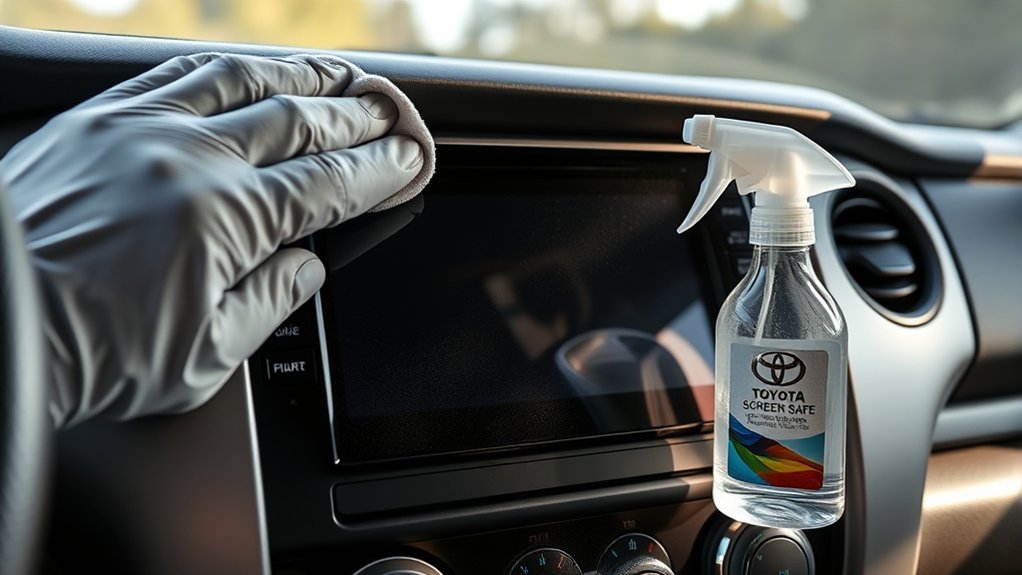
To clean a Toyota Tundra touchscreen safely, start with a clean glasses-cleaning cloth or similarly soft microfiber cloth and use light pressure. Remove loose grit before wiping. If dry wiping is not enough, use only minimal moisture and follow the cleaning instructions for your exact Tundra multimedia system. Never spray liquid directly onto the display. For the 2026 Tundra, Toyota specifically warns against hard cloths, forceful contact, benzine, and alkaline cleaning solutions.
Last updated: September 11, 2026
Quick Answer
Park your Tundra and turn off the display. Remove loose grit, then wipe the screen gently with a clean glasses-cleaning cloth or similarly soft microfiber cloth. Start dry. If marks remain, Toyota’s general touchscreen guidance allows a soft cloth lightly dampened with lukewarm water, but your exact Tundra multimedia manual takes priority. Never spray the screen directly or scrub with heavy pressure.
Key Takeaways
- Use a clean glasses-cleaning cloth or similarly soft microfiber cloth and apply only light pressure.
- Start dry and use minimal moisture only when needed.
- Apply moisture to the cloth, never directly to the touchscreen, and keep liquid away from the bezel and openings.
- Use the multimedia manual for your exact Tundra model year before relying on generic cleaner advice.
- Treat screen protectors as optional because Toyota notes that plastic film or coating can interfere with touch response.
At a Glance
| Time Required | About 3 to 5 minutes |
| Difficulty | Easy |
| Tools Needed | Clean glasses-cleaning or soft microfiber cloth; second dry soft cloth; lukewarm water only when appropriate |
| Cost | Minimal; usually no added cost if you already have clean soft cloths |
Which Toyota Cleaning Guidance Should You Follow?
| Source | What It Says | Priority |
|---|---|---|
| 2026 Tundra Multimedia Owner’s Manual | Use a glasses-cleaning or similarly soft cloth; avoid forceful contact, hard cloths, benzine, and alkaline solution. | Highest for a 2026 Tundra |
| Toyota touchscreen support guidance | Provides general Toyota touchscreen-cleaning guidance, including use of a soft cloth with lukewarm water. | Use when it does not conflict with your model-specific manual. |
| Toyota general interior-cleaning guide | Discusses microfiber, specialized LCD cleaner, light pressure, drying, and avoiding ammonia-based cleaners and abrasives. | Broad guidance; do not use it to override a stricter Tundra manual. |
Rule of thumb: When Toyota instructions differ, follow the multimedia manual for your exact model year and system first.
How to Clean Your Tundra Touchscreen Without Scratches
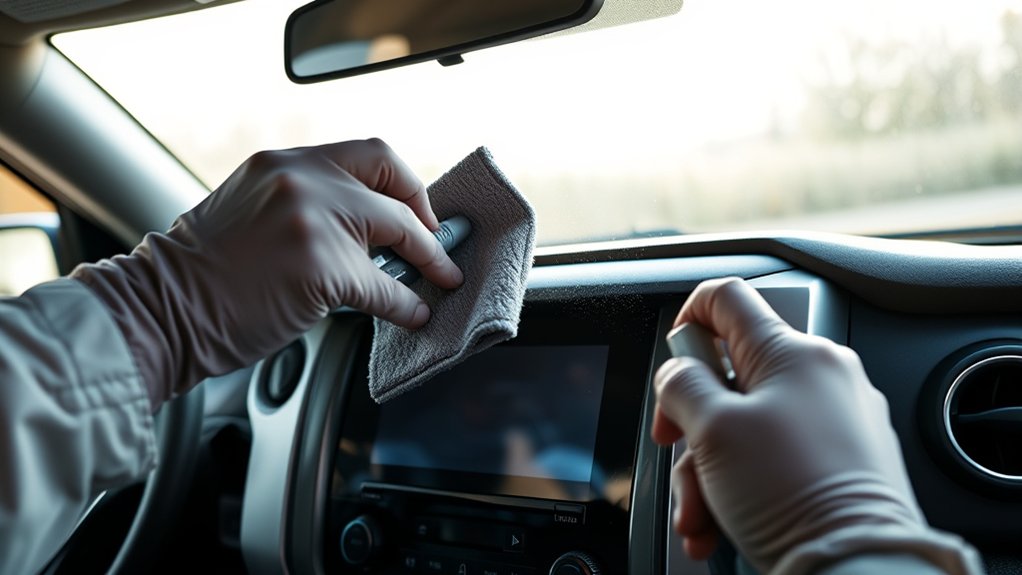
The safest method is to start dry and use the least aggressive approach that removes the marks. The 2026 Toyota Tundra Multimedia Owner’s Manual recommends a glasses-cleaning cloth or similarly soft cloth. It also warns that forceful contact or a hard cloth may scratch the screen.
Before wiping, look closely for sand, crumbs, or other hard debris. Dragging grit across the surface can create a scratch even when the cloth itself is soft. Lift loose debris gently with a clean, dry section of the cloth before wiping fingerprints.
Use light, straight strokes across the display. You do not need to scrub or polish it. If dry wiping does not remove the mark, use only the cleaning method allowed for your multimedia system and apply any permitted moisture to the cloth rather than directly to the touchscreen.
“Gently clean the screen with a glasses cleaning cloth or similar soft cloth.” — Toyota 2026 Tundra Multimedia Owner’s Manual
What Cleaner Is Safe for a Toyota Tundra Touchscreen?
For a current Tundra, the safest starting point is not a chemical cleaner. Use a clean glasses-cleaning cloth or similarly soft microfiber cloth. Toyota’s touchscreen-cleaning guidance also describes using a soft cloth lightly dampened with lukewarm water.
Toyota’s broader interior-cleaning guidance discusses specialized LCD cleaner, but that page covers vehicle interiors generally. Do not treat a general cleaning article as permission to override a stricter multimedia manual for your Tundra.
Safe starting choices:
- A clean glasses-cleaning cloth
- A clean, soft microfiber cloth reserved for the display
- Lukewarm water applied sparingly to the cloth when appropriate
- A separate clean, dry soft cloth for the final wipe
Avoid using:
- Paper towels, shop towels, napkins, or rough fabric
- Benzine or alkaline cleaning solutions
- Household glass cleaner unless your exact multimedia instructions specifically permit it
- Ammonia-based cleaners
- Gasoline, kerosene, or strong solvents
- Abrasive pads, polishing compounds, or stiff brushes
- Any cleaner sprayed directly onto the screen
If you want to use a chemical screen cleaner, first confirm that it is compatible with the instructions for your exact Tundra multimedia unit. A product being marketed for phones, televisions, laptops, or generic automotive displays does not prove that it is appropriate for your screen.
Pro Tip: Keep one small microfiber cloth exclusively for the touchscreen. A cloth previously used on the dashboard may carry grit, dressing, wax, or cleaner residue onto the display.
Step-by-Step Guide to Cleaning Your Touchscreen
-
Park safely and turn off the display. Do not clean or operate the touchscreen while driving. Turning the display off also makes fingerprints and streaks easier to see.
-
Let the screen cool if it feels hot. Toyota notes that the display surface can become hot under some conditions. Wait until it is comfortable to touch before cleaning.
-
Inspect the surface for hard debris. Use a clean, dry part of the cloth to lift dust and grit gently. Do not press debris against the screen.
-
Wipe with a dry soft cloth. Use light horizontal or vertical passes. Avoid hard pressure, rapid scrubbing, and rough circular polishing.
-
Use minimal moisture only if needed. If the applicable Toyota guidance for your multimedia system allows it, lightly dampen the cloth with lukewarm water. The cloth should feel barely damp, not wet.
-
Clean stubborn marks gently. Wipe the affected area with overlapping passes. Keep the damp cloth away from the edges, seams, buttons, and openings around the screen.
-
Dry the display. Use a clean, dry section of soft cloth to remove remaining moisture and streaks.
-
Turn the system on and test it. Confirm that the display responds normally before driving.
Warning: Never spray water or cleaner directly onto the touchscreen. Liquid can run into the bezel or nearby controls. Apply only a small amount to the cloth, and do not clean the screen while the truck is moving.
Avoid These Common Cleaning Mistakes for Your Touchscreen
Most touchscreen-cleaning problems come from excessive pressure, contaminated cloths, unsuitable chemicals, or too much moisture. Avoiding those mistakes matters more than buying a particular cleaning product.
Using Harsh or Generic Cleaners
The 2026 Tundra multimedia manual specifically warns against benzine and alkaline solutions and tells owners to use a glasses-cleaning or similarly soft cloth.
Toyota’s broader interior-cleaning article discusses specialized LCD cleaner and even mentions an isopropyl-alcohol mixture, while other Toyota touchscreen guidance can be more conservative. The safest way to resolve that difference is to give the model-specific multimedia manual priority.
Do not assume a cleaner is safe because it works on household glass, a phone, laptop, or television. If a cleaner’s instructions and your Tundra manual do not clearly support its use on the display, use the simpler soft-cloth method instead.
Neglecting Regular Cleaning
You do not need to clean the screen on a rigid daily or weekly schedule. Clean it when fingerprints, dust, or residue affect visibility or operation.
Once you are safely parked, remove sticky spills, food residue, sunscreen, lotion, or other contamination promptly. Waiting can allow residue to spread, collect dust, or require more wiping later.
Routine light cleaning is safer than infrequent aggressive scrubbing. A dry soft-cloth wipe is often enough for ordinary fingerprints.
Improper Cloth Selection
A soft cloth can still scratch the display if it is dirty. Check the cloth for sand, dried cleaner, crumbs, or other debris before each use.
Avoid:
- Paper towels and facial tissues
- Rough shop rags
- Sponges or scrub pads
- Clothing that may contain dirt or hard fibers
- Microfiber cloths already used on wheels, exterior paint, dashboards, or greasy controls
Store your touchscreen cloth in a clean pouch or sealed compartment so it does not collect debris between uses.
How Often Should You Clean Your Touchscreen?
Clean the display as needed rather than following a fixed calendar. A lightly used truck may need only occasional wiping, while a screen used often for navigation, audio, cameras, and vehicle controls may collect fingerprints more quickly.
A practical routine is:
- Dry-wipe the display when fingerprints begin to affect visibility.
- Clean oily or sticky marks once the truck is safely parked.
- Inspect the screen after dusty or off-road travel.
- Use moisture only when a dry cloth does not remove the mark.
- Wash or replace the cloth when it becomes dirty.
Frequent light wiping with a clean soft cloth is less risky than hard scrubbing with a contaminated cloth or unsuitable cleaner.
Should You Use a Screen Protector?
A screen protector is optional. A well-fitted protector may provide a replaceable wear surface, reduce fingerprints, or change glare, but it can also alter image clarity or touch response.
The 2026 Tundra Multimedia Owner’s Manual lists plastic film or coating on the screen as one condition that can contribute to touchscreen buttons not responding or malfunctioning. It also lists dirt and water on the screen as possible causes.
That does not mean every protector will cause a problem. It means compatibility and installation quality matter.
Before installing one, confirm:
- It is made for your exact Tundra model year and screen size.
- It does not cover sensors, openings, buttons, or the bezel.
- The manufacturer states that normal touch sensitivity is retained.
- The adhesive is designed for automotive displays.
- You can remove it without aggressive solvents.
Note: If touch response changes after installing a protector, check for bubbles, incorrect alignment, trapped moisture, lifting edges, or an incompatible film. Remove the protector according to its instructions if the problem continues.
How to Choose a Screen Protector for Your Tundra
Do not choose a protector based only on a brand name or a general claim such as “universal fit.” Tundra screen dimensions, bezel shapes, and multimedia systems vary by model year and trim.
What to Look For in an Aftermarket Protector
- Exact fit: The listing should name your Tundra year, applicable screen size, and compatible trim or multimedia system.
- Clear installation guide: Alignment tabs or a positioning frame can make installation easier.
- Touch compatibility: The protector should be designed to preserve normal touch input.
- Finish: Clear protectors prioritize image sharpness, while matte or anti-glare finishes can reduce reflections but may soften the image.
- Edge clearance: The protector should not press against the bezel or overlap controls.
- Removable adhesive: Avoid products that require aggressive chemicals for removal.
Potential Benefits and Trade-Offs
A compatible protector can provide a replaceable surface for fingerprints and light wear. Some finishes may also reduce reflections or make smudges less visible.
However, no protector can guarantee a scratch-free screen. Grit, poor installation, trapped dust, excessive pressure, or an incompatible film can still affect the surface or operation. A protector may also change color, contrast, glare, or touch sensitivity.
Consider how you use the truck. A protector may be more useful when the cab is frequently exposed to dust, work equipment, passengers, or repeated screen use. Owners who keep the cabin clean and use a dedicated soft cloth may prefer the original display surface.
Installation Tips for Protectors
- Park in a clean, low-dust area and turn off the display.
- Clean the screen with the safe method described above.
- Dry the surface completely.
- Use the protector manufacturer’s dust-removal method without dragging grit across the screen.
- Align the protector before allowing the adhesive to contact the display.
- Lower it slowly to reduce trapped dust and bubbles.
- Press only as firmly as the installation instructions require.
- Test every part of the touchscreen after installation.
If the kit includes a chemical preparation wipe, check its instructions against the multimedia manual for your Tundra before using it. Do not assume every supplied wipe is suitable for every Toyota screen.
User Tips for Touchscreen Care
- Keep one clean microfiber or glasses-cleaning cloth in the center console for the display only.
- Touch the screen with clean fingertips rather than fingernails, pens, keys, or other hard objects.
- Do not leave a wet cloth or bottle of cleaner against the display.
- Avoid applying dashboard dressing or interior spray near the screen.
- Let the display cool before cleaning if it has become hot in direct sunlight.
- Wipe fingerprints with light passes instead of waiting until heavy scrubbing seems necessary.
- Check your exact model-year manual before trying a new chemical cleaner or protector.
Toyota provides year-specific documentation through its Manuals and Warranties portal. Cleaning instructions and touchscreen behavior can differ between Tundra generations and multimedia systems.
Troubleshooting Touchscreen Issues After Cleaning
Streaks or Haze Remain
Use a fresh, dry section of a soft cloth and wipe in straight, overlapping passes. Persistent haze can come from too much cleaner, a contaminated cloth, or an interior product previously applied to the screen.
Do not immediately add more liquid. Try a clean, dry cloth first.
The Touchscreen Is Not Responding
Toyota’s 2026 Tundra manual notes that dirt or water on the display can affect touchscreen operation. Plastic film or coating can also interfere with response. Dry the display completely, especially around the edges, and make sure another finger or your palm is not resting on the screen.
If the system remains unresponsive:
- Check for remaining moisture, dirt, or residue.
- Remove gloves and operate the screen with a clean fingertip.
- Check whether a recently installed screen protector is interfering.
- Restart the multimedia system using the procedure appropriate for your Tundra.
- If the issue continues, check for applicable multimedia software updates or professional diagnosis.
For more detailed next steps, see the site’s Toyota Tundra infotainment reset guide and Toyota Tundra infotainment software update guide.
Ghost Touches or Unintended Inputs Appear
Power the system off and inspect the screen for moisture, residue, pressure from the bezel, or a lifting screen protector. Dry the surface and test it without touching another part of the display with your palm.
If unintended inputs continue after the screen is clean and dry, consult the model-year manual or a Toyota service department. Persistent ghost touches can have causes unrelated to cleaning.
You Notice a Scratch
Cleaning cannot remove a physical scratch. Do not use toothpaste, polishing compound, abrasive paste, or a glass scratch-removal product unless Toyota specifically approves it for your display.
A protector may make a very fine mark less noticeable, but it does not repair the surface. Ask a Toyota dealer about inspection or replacement options if the scratch affects visibility or operation.
The same broad cleaning principles may apply to other Toyota vehicles, including the Tacoma, but always follow the manual for the specific model and multimedia system.
Frequently Asked Questions
How do you clean a car touchscreen without scratching it?
Turn off the display, inspect it for grit, and wipe gently with a clean glasses-cleaning or similarly soft microfiber cloth. Start dry. If the applicable manufacturer guidance permits moisture, lightly dampen the cloth rather than spraying the screen. Never scrub or press hard.
How do you clean a Toyota Tundra screen?
Park the truck, turn off the multimedia display, remove loose grit, and wipe with a clean soft cloth. The 2026 Tundra manual recommends a glasses-cleaning or similar soft cloth and warns against forceful contact, hard cloths, benzine, and alkaline cleaning solutions.
How do you clean a Toyota infotainment screen?
Use the multimedia manual for the exact Toyota model and year. A clean glasses-cleaning or similarly soft microfiber cloth is the safest starting point. Use light pressure, never spray the display directly, and use moisture or chemical cleaner only when the applicable Toyota instructions support it.
What does Toyota recommend for cleaning the dashboard?
Toyota’s general interior guidance recommends cleaning the dashboard with a microfiber cloth dampened with water or a suitable mild cleaner. Do not automatically use the same dashboard product on the touchscreen because the multimedia display can have different cleaning requirements.
Can you use alcohol wipes on a Toyota Tundra touchscreen?
Do not assume alcohol wipes are universally approved for a Tundra touchscreen. Toyota’s broad interior-cleaning article discusses an isopropyl-containing LCD cleaning option, but the 2026 Tundra manual gives a simpler soft-cloth method and does not tell owners to use alcohol for routine cleaning. Follow the multimedia manual for your exact model year rather than relying on generic cleaner advice.
Can you use Windex or glass cleaner on a Toyota Tundra touchscreen?
Do not use household glass cleaner on the Tundra display unless the instructions for your exact multimedia system explicitly allow it. A product that is safe for windows is not automatically safe for an automotive touchscreen. Start with a clean soft cloth and follow the model-year manual.
Can a screen protector affect touchscreen response?
Yes. Toyota’s 2026 Tundra manual lists plastic film or coating on the screen as a condition that can contribute to poor response or malfunction. Use a protector made for the correct Tundra screen and check it for bubbles, moisture, lifting edges, or misalignment if touch performance changes.
Conclusion
You can clean a Toyota Tundra touchscreen safely without heavy scrubbing or experimenting with household chemicals. Start with a clean glasses-cleaning or similarly soft microfiber cloth, remove grit first, use light pressure, and introduce moisture only when the applicable Toyota guidance permits it.
Most importantly, use the multimedia manual for your exact Tundra as the primary authority. For a 2026 Tundra, Toyota recommends a soft cloth and specifically warns against forceful contact, hard cloths, benzine, and alkaline cleaning solutions. If touch response remains abnormal after the screen is clean and dry, move from cleaning to infotainment troubleshooting rather than adding more cleaner.
Sources
- Toyota 2026 Tundra Multimedia Owner’s Manual (OM0C090U) — supports the soft-cloth method, light-touch guidance, benzine and alkaline-solution cautions, screen-temperature warning, and information about dirt, water, and plastic film affecting touch response.
- Toyota Customer Service: How Should I Clean the Touchscreen Panel? — provides Toyota’s general touchscreen-cleaning guidance, including use of a soft cloth with lukewarm water.
- Toyota: How to Clean Your Car’s Interior — provides broader guidance covering microfiber, LCD-screen cleaner, ammonia-based cleaners, abrasives, light pressure, and drying.
- Toyota 2022 Tundra Multimedia Owner’s Manual — provides model-specific reference material for the beginning of the current Tundra generation.
- Toyota Manuals and Warranties — provides model-year-specific owner and multimedia documentation.