
Unlocking drone geofencing for a DJI drone starts with one rule: DJI approval and legal flight authorization are not the same thing. DJI FlySafe controls what your drone will allow, while FAA airspace rules and local laws control what you are legally allowed to do. Before you fly, check the zone type, confirm your DJI account and app are ready, and get any required airspace authorization before requesting or activating an unlock.
Quick Answer
To unlock DJI drone geofencing, check the airspace first, confirm the DJI zone type, then use DJI FlySafe for the correct unlock method. Some zones only need an in-app acknowledgment, while controlled or restricted areas may require LAANC, a COA, or other official authorization before DJI approves the unlock.
Key Takeaways
- DJI geofencing is a safety layer, not a replacement for FAA airspace checks or local rules.
- Enhanced Warning Zones, Authorization Zones, and Restricted Zones can require different steps before takeoff.
- A DJI unlock does not automatically make the flight legal; you still need any required FAA or local approval.
- Use DJI FlySafe, B4UFLY, LAANC, UAS Facility Maps, and TFR checks together before you fly.
At a Glance
| Time Required | A few minutes for simple in-app acknowledgments; longer for Custom Unlock requests that need supporting documents. |
| Difficulty | Easy for Warning or Enhanced Warning prompts; moderate when FAA or DJI documentation is required. |
| Tools Needed | DJI Fly app or DJI FlySafe Portal, DJI account, internet connection, drone serial number, flight controller serial number when required, and any FAA authorization documents. |
| Cost | DJI unlocking is generally free, but your flight may still require paid insurance, permits, or location-specific permissions. |
Understanding DJI FlySafe and Enhanced Warning Zones
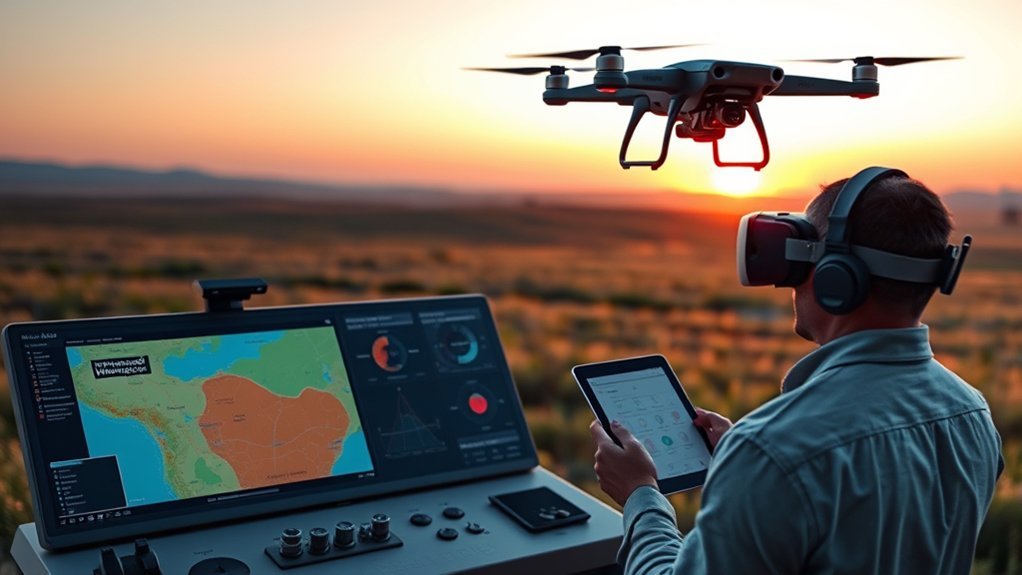
As you navigate drone operation, understanding DJI FlySafe and Enhanced Warning Zones is vital for safe, compliant flying. DJI FlySafe is the system that shows nearby airspace alerts, zone categories, and unlock options for many DJI aircraft.
Starting January 13, 2025, DJI shifted parts of its U.S. geofencing approach so some areas that once triggered stronger automatic restrictions may appear as Enhanced Warning Zones. These zones alert you when you approach sensitive or controlled airspace and place more responsibility on you to confirm whether the flight is legal before takeoff.
That change does not mean you can fly anywhere you want. DJI’s map is only one safety layer. You still need to follow FAA rules, temporary flight restrictions, local rules, property restrictions, and any site-specific requirements.
In many cases, an Enhanced Warning Zone lets you continue after reviewing the alert and accepting responsibility. However, Authorization Zones and Restricted Zones may still require an unlock, proof of authorization, or a custom request before the drone will fly.
Gaining access to Enhanced Warning Zones is usually simpler than requesting access for higher-restriction areas. Enhanced Warning prompts focus on awareness and responsibility, while Authorization or Restricted areas may require identity verification, date-specific unlocking, or proof that you have legal approval to operate there.
Use the DJI FlySafe map as an advisory tool, but always cross-check your planned flight with official airspace tools. The FAA B4UFLY service, LAANC, UAS Facility Maps, NOTAMs, and Temporary Flight Restriction resources help confirm what DJI’s map may not fully show.
Staying informed about local airspace rules and accurately evaluating zone classifications is essential before attempting to unlock geofencing. Treat the unlock process as the final technical step, not the first safety check.
Warning: Never treat a successful DJI unlock as legal permission to fly. You may still need FAA authorization, airport coordination, landowner permission, event approval, or compliance with local rules before takeoff.
Steps to Check Airspace and Local Regulations

Understanding airspace and local regulations is key to safe drone operations. DJI FlySafe can show a geofence, but it may not show every legal restriction affecting your flight. Before you unlock anything, follow a simple preflight review.
- Use the FAA’s B4UFLY service to check for permanent and temporary no-drone zones on mobile or desktop platforms.
- Verify geofenced areas with the DJI FlySafe map, which classifies zones into categories that guide your next step.
- Check whether your flight is in controlled airspace and whether LAANC authorization is available for your planned location and altitude.
- Review Temporary Flight Restrictions before flying, especially near stadiums, emergency response areas, VIP movement, wildfire activity, or major public events.
- Confirm local rules for parks, schools, campuses, beaches, neighborhoods, protected sites, and private property.
| Resource | Purpose |
|---|---|
| FAA B4UFLY | Check no-drone advisories, controlled airspace notices, and safety guidance |
| DJI FlySafe Map | Identify DJI geofenced area classifications and available unlock paths |
| FAA UAS Facility Maps | Check altitude grids around airports and controlled airspace |
| LAANC | Request near-real-time authorization for eligible controlled airspace |
| TFR Notices | Avoid temporary restricted areas that may not appear clearly in DJI alerts |
Additionally, regularly check for Temporary Flight Restrictions that could affect your flight plans. TFRs can change quickly and may apply even when your drone app appears ready to fly.
Note: Check airspace on the day of the flight, not just when you plan the mission. A location that looks clear today may be restricted tomorrow because of an event, emergency, or temporary security requirement.
Self Unlock vs. Custom Unlock: What You Need to Know
How can you navigate the unlocking process without creating legal or safety problems? Start by understanding the difference between simple in-app unlocking and a Custom Unlock request.
Self Unlock is the simpler method. It is commonly used for zones where DJI allows you to unlock through the app or FlySafe workflow after confirming your DJI account, verifying your identity when required, and accepting responsibility for the flight.
Depending on the zone and drone model, DJI may ask you to verify your account through SMS, payment-card verification, or another account-based method. This does not authorize the flight by itself; it only removes a DJI flight limitation for the selected zone and time.
Custom Unlock is used when the flight area requires stronger review or when the normal in-app process does not cover your mission. You may need to submit documents such as LAANC approval, a Certificate of Authorization (COA), an FAA waiver, written site permission, or another official approval.
Before proceeding with either method, check the DJI FlySafe app or portal to identify the exact zone type. Then confirm whether FAA authorization or local permission is required before you request the unlock.
Don’t skip the basic setup. Update the DJI app, sign in to your DJI account, confirm your drone is linked correctly, and make sure your aircraft firmware and controller app can receive unlock licenses.
Staying informed about local airspace rules is essential because the unlocking process can vary by region, drone model, controller type, DJI app version, and the specific airspace classification around your flight area.
| Unlock Type | Best For | What You May Need |
|---|---|---|
| In-app acknowledgment | Warning or Enhanced Warning prompts where DJI lets you continue after reviewing the alert | DJI account, app access, and your own legal airspace check |
| Self Unlock | Authorization-style zones where DJI allows account-based unlocking | DJI account, identity verification when prompted, aircraft details, date, and flight area |
| Custom Unlock | Restricted areas, special operations, or missions that need supporting documents | LAANC, COA, FAA waiver, written permission, or other proof that supports the request |
Unlocking Process for DJI Drones
To unlock geofencing for DJI drones, follow a systematic process that starts before you reach the takeoff site. This helps you avoid app delays, missing documents, and last-minute denials.
- Update your DJI app and firmware. Use the DJI Fly app, DJI GO 4, or the correct app for your drone model. Sign in before leaving for the flight location.
- Check the legal airspace first. Use B4UFLY, LAANC, UAS Facility Maps, and TFR checks to confirm whether your planned flight is allowed.
- Open DJI FlySafe and identify the zone. Look at the exact zone category, not just the color on the map, because unlock requirements can differ.
- Choose the right unlock path. Use an in-app acknowledgment for eligible warning-style prompts, Self Unlock for eligible authorization-style zones, or Custom Unlock when DJI requires supporting documents.
- Enter accurate flight details. Match the location, date, time, drone, controller, and account information to your real operation.
- Upload supporting documents when required. For Custom Unlock, provide the strongest proof you have, such as LAANC authorization, a COA, an FAA waiver, or written site approval.
- Sync and activate the license. After approval, connect your controller and drone to the internet, sync the license, and confirm it appears in your app before takeoff.
- Do one final safety check on site. Recheck airspace, weather, people, obstacles, remote ID status, battery level, and return-to-home settings.
For Enhanced Warning Zones, you may only need to review the warning and agree to assume responsibility for your flight decisions. For Authorization Zones, the app may require additional verification during takeoff or before the flight.
If you’re trying to unlock a Restricted Zone through Custom Unlock, provide relevant documentation such as LAANC approval, a Certificate of Authorization (COA), an FAA waiver, or other official permission that matches the operation.
Submit release requests through the DJI FlySafe Portal when the in-app method is not enough. Identify the zone, select the correct date, outline the flight purpose, and attach documents that support your request.
Once approved, unlock licenses may transfer to your drone or controller after syncing. You can usually check activation in the DJI app under unlock license, GEO zone, or aircraft unlocking settings, depending on the app and model you use.
Pro Tip: Request a Custom Unlock before you arrive on site. Do not wait until you are standing at the launch point, especially if the area has weak mobile service or you need document review.
Common Unlock Problems and How to Fix Them
Even when your request is approved, DJI geofencing can still block takeoff if the license does not sync or the flight details do not match. Most issues come from account mismatches, expired unlock windows, incorrect aircraft selection, or poor internet access.
| Problem | Likely Cause | Fix |
|---|---|---|
| Unlock license does not appear | You are signed into a different DJI account or the controller has not synced | Sign into the same account used for the request, connect to the internet, and refresh unlock licenses |
| Drone still will not take off | The unlock area, date, time, or aircraft does not match your current operation | Check the approved license details and submit a corrected request if needed |
| Custom Unlock is denied | Documents do not prove authorization for that location or altitude | Upload clearer proof, match dates and coordinates, and include a short flight explanation |
| Unlock works on one device but not another | The license is not synced to the controller or app you are using | Use the intended controller, refresh licenses, and restart the drone, controller, and app |
If the unlock still fails, stop and reassess before flying. Do not try to bypass the system, modify the drone, spoof location data, or use unsafe workarounds. Those choices can create safety risks and may violate laws, DJI terms, or site rules.
Staying Informed: Resources for Safe Drone Flying

Staying informed about drone regulations and geofencing zones is essential for safe, compliant flying. Regularly consult the DJI FlySafe portal to keep up with geofencing categories and unlock options, especially as more responsibility shifts to the pilot.
Use the FAA’s B4UFLY service for airspace guidance and no-drone advisories. Check LAANC availability when you plan to fly in controlled airspace, and confirm whether your altitude is allowed for your specific location.
Temporary restrictions deserve special attention. Stadium events, disasters, law enforcement activity, firefighting, presidential movement, and major public gatherings can create restrictions that override your normal flight plan.
Familiarize yourself with common geofencing zones, such as Enhanced Warning Zones, Authorization Zones, and Restricted Zones, so you understand your flight responsibilities and unlock procedures before you arrive.
Additionally, always follow local laws and regulations alongside DJI FlySafe guidance. Regional rules may limit launches, landings, filming, night operations, park use, or operations near crowds even when DJI allows the drone to take off.
This diligence improves your flying experience and keeps you within legal boundaries. A careful pilot checks the drone app, official airspace sources, and the real-world location before every flight.
Frequently Asked Questions
How can I bypass DJI geofencing?
You should not bypass DJI geofencing. Use the DJI FlySafe system to unlock restrictions legally and safely. Before flying, confirm the zone type, get any required FAA or local authorization, and follow the official unlock process for your drone model.
How do you unlock DJI GEO zones?
To unlock DJI GEO zones, log in to the DJI Fly app or DJI FlySafe Portal, identify the zone, choose the correct unlock method, enter your flight details, and submit any required documents. Once approved, sync the unlock license to your aircraft or controller before takeoff.
How do you remove DJI drone restrictions?
To remove DJI drone restrictions, use an in-app acknowledgment for eligible warning-style zones, Self Unlock for eligible authorization-style zones, or Custom Unlock for areas that require proof. You may need LAANC approval, a COA, an FAA waiver, or written permission depending on the flight.
How do you unlock a locked DJI drone?
To unlock a locked DJI drone, update the DJI app, sign in to your DJI account, connect the drone and controller, check the zone type, and follow the unlock prompts. If the drone is in a Restricted Zone, submit a Custom Unlock request with matching authorization documents.
Does a DJI unlock mean I have FAA approval?
No. A DJI unlock only removes or changes DJI’s software restriction for that zone. FAA approval, LAANC authorization, waivers, local permits, and property permission are separate requirements that you must check before flying.
Why is my DJI unlock not working after approval?
The most common reasons are account mismatch, expired unlock dates, wrong aircraft selection, unsynced licenses, weak internet, or a location that does not match the approved unlock area. Sign in with the correct DJI account, sync licenses, restart the app and drone, and verify the approved details.
Conclusion
DJI geofencing works like a gatekeeper, but you remain the pilot in command. The safest approach is simple: check official airspace first, confirm the DJI zone type, choose the correct unlock method, and make sure your approval matches the real flight location, date, aircraft, and altitude.
By understanding the difference between Enhanced Warning Zones, Authorization Zones, and Restricted Zones, you can avoid last-minute surprises and fly with more confidence. Unlock the drone only when the flight is legal, safe, and fully planned.
Sources
- DJI FlySafe — DJI geofencing maps, unlock tools, and zone guidance.
- FAA B4UFLY — official FAA airspace awareness resource for drone pilots.
- FAA LAANC — controlled airspace authorization process for eligible drone flights.
- FAA Temporary Flight Restrictions — TFR guidance that can affect drone operations.
