
Updating a Toyota RAV4 navigation system starts with identifying which multimedia unit is installed. Newer RAV4 systems may use Cloud Navigation or receive multimedia software over the air, while older factory-navigation units may require Toyota-approved map media or dealer service. A USB software update is not automatically a navigation-map update.
Quick Answer
First, use your RAV4’s VIN and multimedia manual to identify the installed system. Cloud Navigation and Dynamic Navigation receive connected map information with an active service. Eligible multimedia firmware can update over the air or by USB, but Toyota’s general software portal does not provide navigation-map files. Legacy maps may require Toyota-approved media or a dealer.
Key Takeaways
- Map data, multimedia software, and connected-navigation subscriptions are three different things.
- Do not download a generic map file or buy a map card until you have confirmed compatibility by VIN and multimedia-system model.
- Toyota Audio Multimedia software may update over the air or by an eligible USB workflow, but that process does not necessarily update navigation maps.
- Cloud Navigation and Dynamic Navigation depend on an active trial or subscription, vehicle connectivity, and GPS availability.
- A RAV4 without factory navigation can use compatible smartphone navigation through Apple CarPlay or Android Auto.
At a Glance
| Time Required | About 5 minutes to identify the system and check for updates; download and installation time varies by system, connection, and update size. |
| Difficulty | Easy for an over-the-air check; moderate for an eligible USB or legacy map-media update. |
| Tools Needed | VIN, the Toyota app or Toyota Owners account, the correct multimedia manual, a stable connection, and an approved USB drive or map medium only when specified. |
| Cost | Eligible self-installed multimedia software may be free. Connected Navigation requires an active trial or plan. Legacy map media and dealer labor vary by VIN, region, and seller. |
Warning: Park safely before using the multimedia display. Do not perform setup while driving. If the vehicle must remain in READY mode or with the engine running, keep it outdoors or in a properly ventilated area. Never disconnect the 12-volt battery, remove an active USB drive or map card, or interrupt power while the system says it is installing or writing data.
Understanding the Importance of Navigation Updates for Your Toyota RAV4
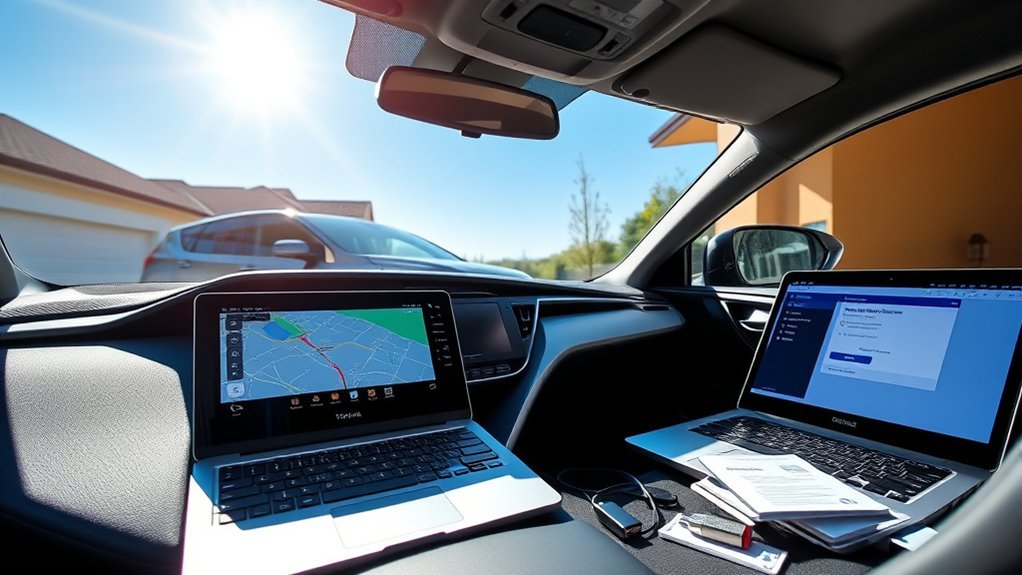
Current map information can help the navigation system recognize newer roads, changed interchanges, updated addresses, and revised points of interest. However, the way a RAV4 receives that information depends on its multimedia hardware and connected-service status.
A system with Toyota Dynamic Navigation can receive current map information from the cloud on compatible vehicles. Newer eligible vehicles may use Drive Connect Cloud Navigation, which combines connected map, traffic, routing, voice-assistant, and destination features.
Older embedded-navigation systems may keep a fixed map database in the head unit or on Toyota-approved map media. Those systems do not become current merely because the multimedia firmware was updated.
The most important update step is not formatting a USB drive. It is determining whether the RAV4 needs a map update, a multimedia software update, or a connected-navigation activation.
Navigation remains a driver aid. Road signs, temporary closures, construction instructions, and actual road conditions always take priority over an on-screen route.
Preparing for Your Toyota RAV4 Update: Identify the System First
Toyota RAV4 multimedia equipment varies by model year, trim, package, market, and previous replacement or retrofit work. Do not rely on the vehicle’s year alone.
1. Look Up the Vehicle by VIN
Visit Toyota’s Manuals and Warranties page, add or select the RAV4, and open the navigation or multimedia manual that matches the vehicle. Using the VIN is more reliable than following instructions written for a different trim or screen.
The Toyota app can also show the vehicle’s eligible Connected Services, active trials, subscription status, and available features after the vehicle is added to the account.
2. Match What You See to the System Type
| What the System Shows | Likely System | How Navigation Stays Current |
|---|---|---|
| Cloud Navigation, Drive Connect, “Hey Toyota,” or a Toyota Audio Multimedia interface | Toyota Audio Multimedia with eligible connected services | Activate or renew Drive Connect through the Toyota app. Eligible multimedia software is checked separately through the Software Update menu. |
| Dynamic Navigation, Dynamic Route, or Entune Premium Audio with Navigation | Connected embedded navigation | Current map and route information may download from Toyota’s cloud while service is active. Full database updates or renewals may require Toyota or dealer assistance. |
| A Map or Navigation app plus a physical MAP microSD slot or removable map medium | Legacy embedded navigation | Use the exact Toyota-approved map product or update process listed in the matching manual. Dealer service may be required. |
| No built-in Map or Navigation app, but Apple CarPlay or Android Auto is available | Multimedia system without factory embedded navigation | Update the navigation app on the phone. There is no Toyota embedded map database to update. |
Note: A menu labeled “Software Update” normally refers to multimedia-system software. It should not be assumed to update the embedded navigation-map database.
3. Understand the Three Update Types
Navigation-map update: Changes roads, addresses, map geometry, and points-of-interest data stored or supplied to the navigation system.
Multimedia software update: Updates the head unit’s operating software, compatibility, stability, interface, or supported functions. Toyota offers eligible over-the-air, USB, and dealer-assisted multimedia software updates, depending on the system.
Connected-navigation activation or renewal: Enables Cloud Navigation or Dynamic Navigation features that depend on the Toyota app, an active trial or subscription, vehicle connectivity, and GPS reception.
4. Check the Current Version and Service Status
Menu names vary, but look under areas such as Settings, General, System Information, Software Update, Map Data, or Navigation Settings. Record the displayed software version, map version, and any subscription-expiration information before making changes.
In the Toyota app, confirm that the correct vehicle is selected and review Connected Services. If Cloud Navigation or Dynamic Navigation has stopped working after a trial ended, a software download may not restore the service; activation or renewal may be required.
5. Prepare Before Updating
- Park where the vehicle can remain safely powered for the required installation period.
- Use a stable Wi-Fi connection when the vehicle specifically requests Wi-Fi.
- Confirm that the 12-volt battery is healthy.
- Remove unrelated USB storage devices from the multimedia ports.
- Record important favorite destinations, Home and Work addresses, audio presets, and profile details.
- Read the update notes and on-screen instructions before selecting Install.
- Use only files, media, and instructions supplied or approved for the exact system.
How to Update Your Toyota RAV4 via USB: Eligible Multimedia Software Only
A USB drive may be appropriate when Toyota’s official software workflow identifies an eligible multimedia update for the vehicle. It should not be treated as a universal method for downloading Toyota navigation maps.
Toyota’s Software Update portal explicitly separates eligible multimedia software from navigation and map updates. If the portal or the matching multimedia manual does not offer a USB update for the RAV4, do not use a file intended for another vehicle or head unit.
Confirm USB Update Eligibility
- Open Toyota’s official software-update page.
- Select or enter the requested vehicle and multimedia information.
- Confirm that an update is offered for the exact system.
- Read Toyota’s computer-download and vehicle-installation instructions.
- Use the USB capacity and format specified by those instructions. Do not assume every system uses the same USB size or file structure.
Install the Eligible Multimedia Software
- Prepare the USB drive exactly as directed by Toyota. Do not rename, unzip, relocate, or reorganize files unless the instructions require it.
- Park the RAV4 and place it in the power mode specified by the multimedia manual.
- Insert the USB drive into the multimedia USB data port, not a charge-only port.
- Open the multimedia Settings or Software Update menu.
- Select the USB update option when it appears.
- Review the version information and terms, then begin the installation.
- Leave the USB drive installed until the system confirms completion or instructs you to remove it.
- Restart the multimedia system or vehicle only when prompted.
Pro Tip: Photograph the current software-version screen and the completed-update message. This gives you a record if you later need dealer or Toyota support.
What About Legacy Map Cards or Other Map Media?
Some older compatible Toyota navigation systems store map-related data on a dedicated microSD card or other approved medium. The correct part depends on the head unit, region, and vehicle configuration.
Before purchasing anything:
- Open the multimedia manual for the exact VIN.
- Check whether the unit has a clearly labeled MAP card slot or another specified map medium.
- Record the current map version and head-unit information.
- Ask a Toyota dealer or participating Toyota parts seller to confirm compatibility.
- Follow the manual’s ignition and removal instructions. Do not remove a map card while the system is powered or reading the card.
Warning: Avoid used, copied, modified, or unverified map cards. A card may be incompatible, region-locked, outdated, already associated with another system, or contain unauthorized data. Confirm the Toyota part or update product by VIN before purchase.
How to Execute a Wireless Update on Your Toyota RAV4
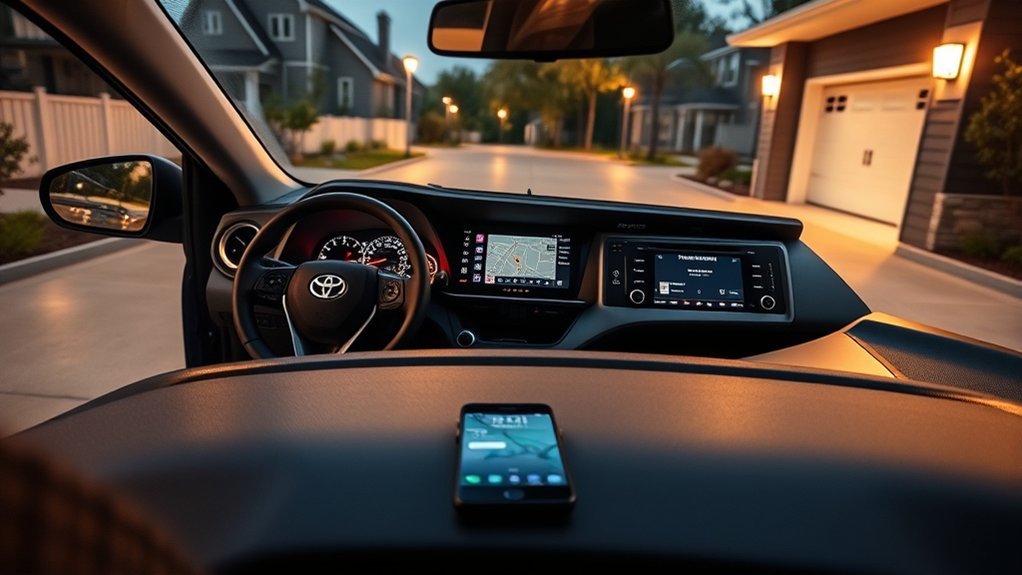
“Wireless update” can describe two different processes: receiving connected navigation information from Toyota’s cloud or installing multimedia-system software over the air. Check which process the screen is offering before proceeding.
Use Cloud Navigation or Dynamic Navigation
For an eligible RAV4 with Drive Connect:
- Add the vehicle to the Toyota app and complete the primary-driver setup.
- Open the vehicle’s Connected Services information.
- Activate the available Drive Connect trial or subscription.
- Confirm that the vehicle has cellular and GPS reception.
- Open the Map or Navigation app in the vehicle.
- Sign in or load the correct driver profile if prompted.
- Test a destination and check whether current traffic, routing, or point-of-interest information appears.
Drive Connect includes Cloud Navigation, Intelligent Assistant, and Destination Assist on eligible vehicles. Toyota currently lists the Go Anywhere plan at $15 per month as of July 14, 2026, but plan contents, trials, eligibility, taxes, and pricing can change. Check the current Toyota Connected Services plans before subscribing.
On compatible Dynamic Navigation systems, cloud-delivered map and route information is available while the service is active and the vehicle can communicate with Toyota’s servers. If the service has expired, review renewal options in the Toyota app or contact a dealer.
Check for an Over-the-Air Multimedia Software Update
- Park the RAV4.
- Open the gear-shaped Settings menu.
- Select Software Update, System Update, or the equivalent item shown in the matching manual.
- Open the available-update details.
- Review the version, release information, estimated requirements, and terms.
- Connect to Wi-Fi if the system requires it. Some equipped systems may also receive update information through the vehicle’s data connection.
- Start the download and follow every on-screen instruction.
- Do not use the touchscreen unnecessarily during installation.
- Allow the multimedia system to restart if requested.
Toyota confirms that compatible vehicles with the latest Toyota Audio Multimedia system can receive eligible software updates through the display. See Toyota’s over-the-air update information and the vehicle’s multimedia manual for the exact menu sequence.
Verify the Update
After the system restarts:
- Return to the software or map-information screen and confirm the new version.
- Open the Map app and calculate a short test route.
- Confirm that voice guidance, Bluetooth, Apple CarPlay, Android Auto, audio presets, and driver profiles still work.
- Re-enter a setting only if the update notes or system reset changed it.
- Keep the update record or confirmation photo with the vehicle’s service information.
Troubleshooting Common Update Issues for Your Toyota RAV4
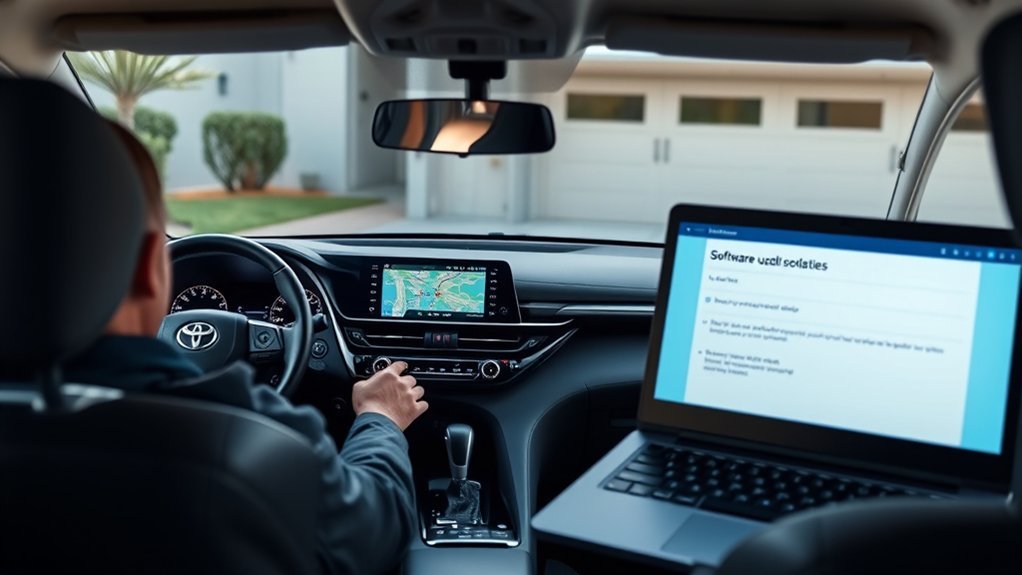
Start with the displayed error and the correct multimedia manual. Avoid repeatedly restarting the installation or trying files from a different Toyota model.
| Problem | Likely Cause | What to Do |
|---|---|---|
| No Map or Navigation app appears | The vehicle may not have embedded factory navigation, or the connected profile is not active. | Check the VIN equipment and multimedia manual. Use Apple CarPlay or Android Auto if embedded navigation is not equipped. |
| No Software Update menu appears | The system may use a different menu, may not support owner-installed updates, or may already be current. | Use the exact manual and Toyota software portal. Contact a dealer if the manual specifies dealer service. |
| Cloud Navigation stopped working | Expired Drive Connect or Dynamic Navigation service, weak cellular/GPS reception, or a driver-profile issue | Check Connected Services in the Toyota app, confirm the primary profile, move to an open area, and restart the multimedia system. |
| USB drive is not recognized | Charge-only port, unsupported drive, incorrect format, altered folder structure, corrupt download, or ineligible system | Use the multimedia data port and repeat Toyota’s exact preparation instructions with a compatible empty drive. |
| “No update available” appears | The software may already be current, the update may not apply, or the system may require dealer service. | Compare the displayed version with Toyota’s eligibility result and confirm the vehicle information. |
| An address cannot be found | Wrong navigation region, incomplete address entry, outdated legacy map data, or unavailable cloud connection | Check the region, enter the city before the street where required, test another destination, and verify connectivity or map version. |
| Installation was interrupted | Power loss, removed USB media, connection failure, or system restart | Follow the recovery message. Do not disconnect the battery. Contact Toyota or a dealer if the screen remains frozen or repeatedly fails. |
| Favorites or profile settings are missing | The wrong driver profile loaded, the user signed out, or settings changed during the update | Sign in to the correct Toyota profile, check saved profiles, and restore recorded settings. Do not perform a factory reset unless directed. |
Safely Reboot the Multimedia System
When no installation is active, many Toyota systems can be restarted by pressing and holding the multimedia power or volume knob until the display reboots. Menu behavior varies, so use the matching manual if this does not work.
A reboot may correct a temporary connection or profile error, but it will not create a subscription, add factory navigation to an unequipped vehicle, or install a missing legacy map database.
When to Contact Toyota or a Dealer
Request assistance when:
- the display remains blank, frozen, or trapped in a restart loop;
- an update repeatedly fails with the same error;
- the unit requests an activation code you do not have;
- you cannot confirm map-media compatibility;
- the installed head unit differs from the original equipment;
- the map database or software version cannot be identified;
- the manual says dealer installation is required.
Have the VIN, multimedia model information, current version, error message, and update method ready when contacting support.
Cost Breakdown: What to Expect for Toyota RAV4 Updates
There is no single navigation-update price for every RAV4. The cost depends on whether the vehicle needs a multimedia software update, a Connected Services subscription, legacy map media, or dealer labor.
| Update or Service | What to Expect |
|---|---|
| Eligible self-installed multimedia software | The software download may be provided without a separate charge. The owner supplies any required USB drive and internet connection. |
| Dealer-installed multimedia software | Dealer diagnostic or labor charges may apply. Ask for a written estimate. |
| Drive Connect Cloud Navigation | Toyota lists Go Anywhere at $15 per month as of July 14, 2026. Eligibility, trial length, plan contents, taxes, and pricing can change. |
| Dynamic Navigation renewal | Availability and renewal terms depend on the equipped system. Confirm through the Toyota app or a dealer. |
| Legacy map card, map medium, or map database | Part and licensing prices vary by system, region, version, and seller. Toyota does not provide one universal RAV4 price. |
| Apple CarPlay or Android Auto navigation | No Toyota embedded-navigation update is required. Smartphone data, compatible apps, and any third-party subscription terms still apply. |
Note: Before paying for a map product, compare its release or coverage information with the map version already installed. A costly legacy-map update may offer little value if you normally navigate through a current smartphone app.
How Often Should You Check for an Update?
The correct schedule depends on the system:
- Cloud Navigation or Dynamic Navigation: Keep the service active and allow the system to connect. Check the Toyota app when connected features stop working or a trial is near expiration.
- Multimedia software: Install applicable updates when Toyota or the vehicle notifies you, especially when the release addresses stability, phone compatibility, or a known system issue.
- Legacy embedded maps: Check for a newer compatible release before a long trip, after major road changes in your area, or when the system repeatedly fails to recognize valid roads and addresses.
- Apple CarPlay or Android Auto navigation: Keep the phone’s operating system and navigation app updated through the phone’s official app store.
A universal annual purchase is unnecessary for every owner. Update when the system, available release, driving needs, and cost justify it.
Using Apple CarPlay or Android Auto Instead
If your RAV4 does not have embedded Toyota navigation—or if an older map update is not cost-effective—use a compatible navigation app through Apple CarPlay or Android Auto.
This option can provide current app-based maps, live traffic, search, and routing without replacing the RAV4’s multimedia hardware. Compatibility may be wired or wireless depending on the model and system.
Update the phone app through Apple’s App Store or Google Play. Third-party navigation apps run through the phone-projection interface; they do not replace or modify Toyota’s embedded map database.
Pro Tip: Download an offline area in your preferred smartphone navigation app before traveling where cellular coverage may be limited. Confirm the route before driving.
Frequently Asked Questions
Can I update Toyota RAV4 navigation without a subscription?
It depends on the system. An eligible multimedia software update may not require a navigation subscription, but that software update may not change map data. Cloud Navigation and Dynamic Navigation connected features require an active trial or subscription. A legacy embedded-navigation system may use separately purchased Toyota-approved map media or dealer service.
How often should I update my RAV4 navigation system?
There is no universal annual requirement. Connected systems receive current information while the service and connection are active. Install applicable multimedia software when Toyota offers it. For legacy maps, check for a compatible release when local roads have changed, addresses are missing, or you are preparing for a major trip.
Will an update erase my saved destinations or settings?
A routine update is not intended to function as a factory reset, but behavior can vary by multimedia system and update. Record important destinations, Home and Work addresses, audio presets, and profile information before installing. Afterward, verify that the correct driver profile is loaded.
Can I install third-party maps in the factory Toyota navigation system?
Do not install unapproved map files or media in Toyota embedded navigation. Mapping software intended for a different vehicle or system is not compatible. You can still use third-party navigation apps through compatible Apple CarPlay or Android Auto because those apps run from the phone rather than modifying Toyota’s map database.
How do I check for an available update manually?
Park the vehicle and open Settings, then look for Software Update, System Update, System Information, Map Data, or a similar item. Menu names vary. Also check Toyota’s official software portal, the Toyota app, and the multimedia manual selected by VIN. If no owner-installed option is listed, contact a Toyota dealer.
Is a multimedia software update the same as a navigation-map update?
No. Multimedia software controls the head unit’s operation, compatibility, interface, and features. Map data contains roads, addresses, and points of interest. One update may be available without the other, and Toyota’s general multimedia software portal does not provide navigation-map updates.
Why does my RAV4 say navigation is unavailable?
The vehicle may not have embedded navigation, the Drive Connect or Dynamic Navigation service may have expired, the correct user profile may not be loaded, or cellular and GPS reception may be limited. Check the VIN equipment, Toyota app, subscription status, profile, and connection before attempting a software update.
Conclusion
To update a Toyota RAV4 navigation system correctly, begin with the VIN and exact multimedia manual. Determine whether the vehicle uses Drive Connect Cloud Navigation, Dynamic Navigation, legacy embedded maps, or smartphone projection. Then use the method approved for that system.
Use the Software Update menu or Toyota’s software portal only for eligible multimedia software. Do not assume that a USB firmware installation changes navigation maps. For legacy map data, verify Toyota-approved media or dealer service by VIN. For connected navigation, check the Toyota app, driver profile, connection, trial, and subscription status.
Following the system-specific process prevents incompatible downloads, unnecessary purchases, interrupted installations, and confusion between map data and multimedia firmware.
Sources
- Toyota Software Updates — confirms that eligible multimedia software and navigation-map updates are separate.
- Toyota Audio Multimedia System Updates — explains over-the-air, USB, and dealer multimedia software options.
- Toyota Connected Services — documents Drive Connect, Cloud Navigation, Dynamic Navigation, and activation requirements.
- Toyota Connected Services Plans — provides current plan features and pricing.
- Toyota Manuals and Warranties — provides model- and VIN-specific multimedia and navigation manuals.
- Toyota Genuine Navigation MicroSD Card Information — confirms that compatible legacy Toyota systems may use dedicated map-related media.
