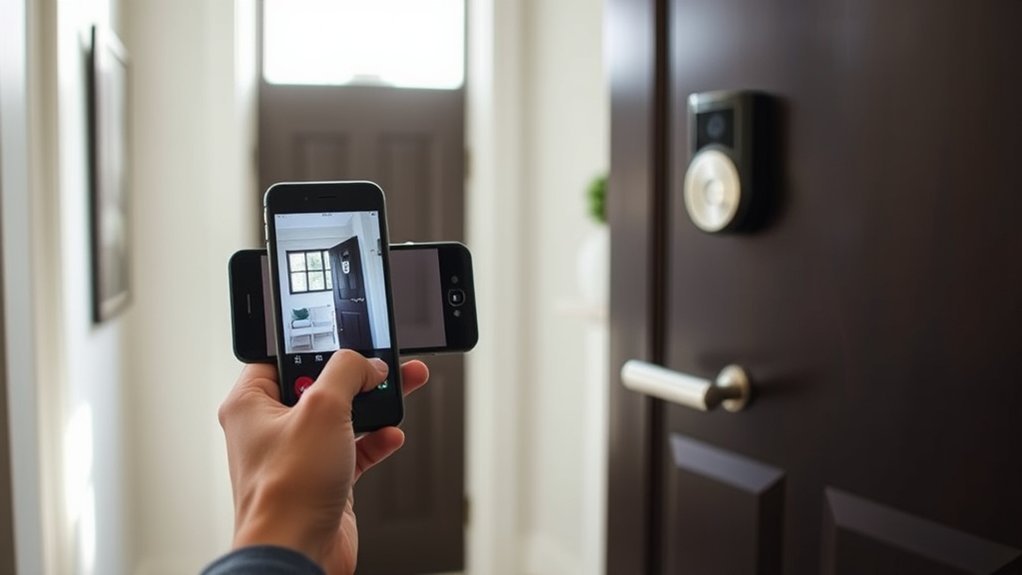
To connect the eufy Video Doorbell E340 to your phone, you need the eufy app, a free account, and a 2.4 GHz Wi-Fi connection. Once setup is complete, you can answer visitors, check packages, receive motion alerts, and review recorded events from your iPhone or Android phone.
Quick Answer
Install the eufy app (formerly eufy Security), sign in, tap Add Device, and scan the QR code on the back of the E340. Follow the prompts to connect the doorbell to 2.4 GHz Wi-Fi. Then open its device screen to use Live View, two-way talk, notifications, Quick Replies, and saved events.
At a Glance
| Tools Needed | E340 doorbell, charged battery, smartphone, and 2.4 GHz Wi-Fi |
| Cost | The app and basic local video recording require no subscription |
Download the Eufy Security App
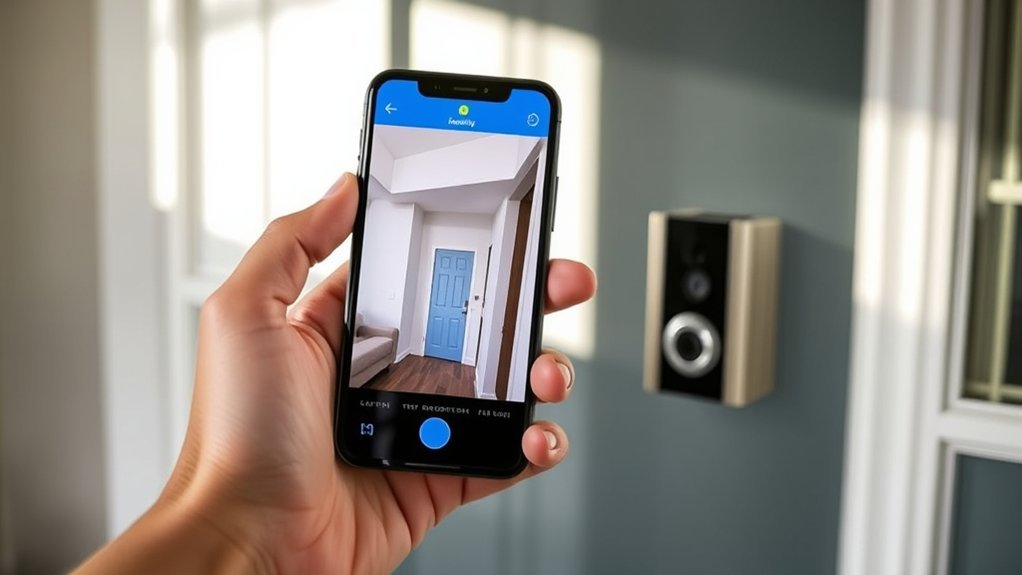
Start by installing the eufy app from the Apple App Store or Google Play. Some manuals call it the eufy Security app; eufy’s current support pages use the shorter name. The free app manages setup, Live View, device settings, and alerts.
- Find the eufy app on your phone and install it.
- Open it and sign in, or register a free eufy account.
- Allow the permissions the app needs for setup, including camera access to scan the QR code.
- Enable phone notifications so you can receive doorbell rings and motion alerts.
Before continuing, charge the removable doorbell battery and make sure you know your home Wi-Fi password. Eufy’s official app guide confirms the free account and 2.4 GHz Wi-Fi requirements.
Test a doorbell press and a motion alert after setup. This confirms that the app works before you depend on it for visitors or deliveries.
Add Doorbell E340 and Connect Wi-Fi
Add the E340 through the app’s device setup screen, then connect it to your home Wi-Fi. The doorbell supports 2.4 GHz Wi-Fi only, not 5 GHz, so check which network you select.
- Open the eufy app and tap the + or Add Device option.
- Choose the video doorbell category and select Video Doorbell E340 or the matching model shown in the app.
- Scan the QR code on the back of the E340. If the app offers manual code entry, use that when scanning fails.
- Press the rear SYNC button if prompted. Eufy’s E340 manual says holding it for two seconds produces a setup beep.
- Select your 2.4 GHz Wi-Fi network, enter its password, and follow the connection prompts. Turn on Bluetooth if the app requests it for discovery.
- Wait for the app to confirm that the doorbell was added. Open its device card to test the video feed.
The official E340 user guide identifies the rear QR code and SYNC button and explains that the doorbell can work directly with a home router. A HomeBase is optional, not a prerequisite for phone pairing.
If your router combines both bands under one network name, try a separate 2.4 GHz network or the router’s setup option if discovery fails. Keep the phone and doorbell near a strong signal while pairing.
Choose Battery or Wired App Settings
The E340 supports a removable battery or compatible existing doorbell wiring. You choose the installation method based on your home; it is not simply an app switch that changes how an unwired doorbell receives power.
Its 6,500 mAh battery can be removed for charging, which eufy says takes about five hours. With compatible wiring, the doorbell draws power through the wired connection while the battery stays installed. The battery can provide backup power during an electrical outage.
| Mode | Advantage | App Effect |
|---|---|---|
| Battery | More flexible placement; recharge when needed | Monitor battery status and adjust power-related settings where available |
| Wired | Keeps the installed battery charged with compatible wiring | Monitor device power and operation; the battery must remain installed |
Check eufy’s E340 specifications and power options before choosing a wired setup. For the physical mounting steps, eufy also provides E340 installation instructions.
Warning: Turn off power at the breaker before connecting existing doorbell wires. Confirm that the wiring and transformer are compatible. If you are unsure, use a qualified electrician. Battery backup does not guarantee remote app access if your router or internet connection also loses power.
Enable Doorbell E340 Notifications
Use the E340’s Notifications settings to choose alerts for doorbell rings and detected motion. You also need notification permission in your iPhone or Android settings; enabling only one side may leave you without alerts.
- Open the E340 device card and its settings, then find Notifications or Notification Settings.
- Enable doorbell-ring alerts and the motion or detection alerts you want.
- In the phone’s Settings app, allow notifications from eufy.
- Review the current Home, Away, or other security mode and its push-notification options.
- Test a doorbell press. If motion alerts are missing, confirm Motion Detection is enabled and any snooze setting is off.
The E340 supports people, face, and package detection. Where your app provides separate alert controls, choose the ones that matter most to you; activity zones and sensitivity adjustments can help reduce unhelpful motion notifications.
If alerts remain silent, check Do Not Disturb or Focus on iPhone, or battery optimization settings on Android. The eufy notification setup guide explains both phone permissions and app-level settings.
Watch Live Video and Use Two-Way Talk
Open the E340 device in the eufy app to see the doorway live and talk to someone outside. The doorbell has two cameras: a 2K main camera that looks outward and a downward-facing camera for the doorstep and packages.
Open Live View
Tap the E340 device preview or Live View to start the stream. Check both camera views to see a visitor’s face and the area where deliveries are left.
- Open the main camera view to see the approach to your door.
- Inspect the downward view for packages or activity close to the threshold.
- Use full-screen viewing, if shown, for a closer look, then close the feed when finished.
The main camera records at 2048 × 1536, while the second camera records at 1600 × 1200. Both views can help you spot activity that a single forward-facing camera might miss.
Start Two-Way Talk
While Live View is open, tap the microphone or talk control to speak through the doorbell. Its built-in speaker plays your voice to the visitor, and the doorbell microphone sends their reply to your phone.
If you cannot talk, use a supported Quick Reply to play a preset message instead. This is useful when you are in a meeting or want to acknowledge a delivery without starting a conversation.
Adjust Audio Settings
Open the E340’s settings and look for Audio Settings if voices are too quiet or missing. Check the phone’s microphone permission before assuming the doorbell is faulty.
- Check Audio Recording and Doorbell Audio Volume in the available doorbell settings.
- Raise your phone’s media volume and check whether sound is routing to Bluetooth earbuds or a headset.
- If visitors cannot hear you, allow microphone access for the eufy app.
- If sound lags or cuts out, test the doorbell’s Wi-Fi signal and try Live View again.
Eufy’s two-way audio troubleshooting guide covers these checks and notes that a short delay can occur in two-way talk.
View Doorbell E340 Events and Recordings
Tap the Events tab in the eufy app to review recorded doorbell presses and motion clips. Select an event to play it, or use the available filters to narrow the list by device, video type, or storage location.
- Open Events and choose the E340, if you manage more than one device.
- Tap a recorded event to view the clip.
- Use the download option to save important footage to your phone.
- Delete unwanted events only after saving anything you might need.
The E340 includes 8 GB of built-in local storage and can record without a paid cloud subscription. Eufy estimates up to 90 days of clips based on 30 recordings of 20 seconds each per day. Actual retention depends on how often and how long your camera records.
For centralized or expanded storage, the E340 also works with a compatible HomeBase S380 (HomeBase 3) or HomeBase 2. It does not require either one for basic standalone use.
Eufy’s event download and deletion instructions explain how to export or remove clips. Deleting an event through the app also deletes its local copy, and the action cannot be undone.
Note: Local recording does not mean every optional feature stays completely offline. Eufy says thumbnail previews in push alerts and cloud backup can involve cloud processing or temporary cloud storage when those features are enabled.
Fix Doorbell E340 Pairing and App Issues
If the E340 will not connect or the app shows it as offline, check power, Wi-Fi, and permissions before resetting anything. A failed setup is often easier to fix by correcting the network or restarting the app.
Check Bluetooth and Wi-Fi
Start with the connections used during setup. The E340 needs a working 2.4 GHz Wi-Fi connection for normal remote phone access, while the app may request Bluetooth during initial discovery.
- Make sure the battery is charged and the doorbell powers on.
- Confirm the selected router network is 2.4 GHz, not 5 GHz, and re-enter the Wi-Fi password if needed.
- Move closer to the router for testing or improve coverage near your front door.
- Enable Bluetooth and any requested app permissions during device discovery.
- Close and reopen the eufy app, then test Live View on Wi-Fi and mobile data to narrow down the problem.
If Live View works on one connection but not another, check your phone’s VPN, data connection, or router restrictions before changing the doorbell settings.
Reset Pairing Process
If a clean setup still fails, resetting the device can clear a stuck pairing state. The E340 has a SYNC button on the back; do not confuse it with the doorbell button on the front.
Warning: Save any important recordings before a factory reset. Resetting can require setting the doorbell up again, and unsaved footage or settings may be lost.
- Try the normal two-second SYNC press first if the app is simply waiting for a pairing signal.
- If a full reset is needed, eufy’s doorbell troubleshooting guidance says to hold SYNC for about 10 seconds.
- Reopen the app, select Add Device, rescan the E340 QR code, and repeat the 2.4 GHz Wi-Fi setup.
- Confirm that Live View, push alerts, and recorded events work afterward.
A flashing red LED by itself should not be used as proof that the reset succeeded; follow the doorbell’s prompts and check its status in the app.
Update App and Firmware
Keeping the eufy app and doorbell firmware current can fix compatibility problems and restore missing controls. Check for an app update first, then review the device’s firmware status.
- Open the App Store or Google Play Store and install any available eufy app update.
- In the E340 settings, open General → About Device to inspect the firmware or system version.
- Use the check-for-update option if available, and keep the doorbell connected to reliable Wi-Fi during the update.
- If the device still cannot connect after the previous checks, use the support option in the app to report the problem.
According to eufy’s firmware update instructions, many devices install firmware automatically when connected. The About Device page can also offer a manual check.
Key Takeaways
- The E340’s rear QR code and SYNC button are part of the initial pairing process.
- A HomeBase is optional; the E340 can connect directly to a compatible Wi-Fi router.
- The removable battery stays installed even when you use compatible doorbell wiring.
- Its dual cameras cover both the visitor and the doorstep, and local clips do not require a subscription.
- Export important recordings before deleting events or performing a factory reset.
Frequently Asked Questions
How Can I Connect My Doorbell Camera to My Phone?
Install the eufy app, sign in, and choose Add Device. Scan the E340’s rear QR code and follow the prompts to join your 2.4 GHz Wi-Fi network. Once the doorbell appears in the app, test Live View and a doorbell press.
How to Connect Eufy E340 to Wi-Fi?
Select the E340 in the app’s Add Device flow, scan its QR code, and choose a 2.4 GHz network. Enter the Wi-Fi password carefully. If pairing fails, move closer to the router, check the network band, and repeat the guided setup.
How Do I Access My Doorbell Camera?
Open the eufy app and tap your E340 device card to see its live video. The Events tab holds saved motion and doorbell recordings. You can use the app away from home as long as the doorbell and your phone have working internet connections.
How to Use Doorbell Camera Without Subscription?
The E340 can save recorded events to its built-in 8 GB storage without a paid subscription. Set it up normally in the eufy app, enable motion recording and alerts, and use Events for playback. Optional cloud services are separate from basic local recording.
Does Eufy E340 Need a HomeBase?
No. The E340 works independently when connected to your home Wi-Fi router, with clips saved to its built-in storage. HomeBase 2 and HomeBase S380 are compatible optional additions. You can complete phone setup without buying either accessory.
Does the E340 Support 5 GHz Wi-Fi?
No. The E340 supports 2.4 GHz Wi-Fi rather than 5 GHz. If your router combines both bands under one network name, use a dedicated 2.4 GHz option for setup if pairing does not complete. The phone may use mobile data for remote viewing afterward.
Conclusion
Once you add the E340 to the eufy app, test three things: Live View, a doorbell-ring alert, and recorded-event playback. If all three work, your phone is ready to manage visitors and deliveries. If one fails, start with the relevant app permission, power, or Wi-Fi check before attempting a reset.
Sources
- eufy: About the App: App name, downloads, account and network requirements.
- eufy: Video Doorbell E340 User Guide: QR code, SYNC button, setup and power options.
- eufy: Video Doorbell E340 Product Specifications: 2.4 GHz Wi-Fi, storage estimate, battery and HomeBase support.
- eufy: E340 Installation Guide: Battery or wired mounting and wiring safety.
- eufy: Phone Notifications Guide: Push alerts and phone permissions.
- eufy: Two-Way Audio Troubleshooting: Audio controls, permissions and reset precaution.
- eufy: Download and Delete Videos: Events, filters, downloads and permanent deletion.
- eufy: Firmware Updates via App: Automatic updates and manual firmware checks.

