Connecting an iPhone 12 to a 2015 Toyota RAV4 lets you make hands-free calls and play music through the vehicle’s speakers. You can use the factory Bluetooth system without installing a new stereo. However, the original 2015 RAV4 does not support Apple CarPlay, and USB audio compatibility depends on the installed multimedia system.
Quick Answer
To connect your iPhone 12 to a 2015 Toyota RAV4, enable Bluetooth on your phone. Open Setup > Bluetooth > Add on the Toyota touchscreen, select the vehicle on your iPhone, and confirm the pairing request. Allow contact access if desired, then select Bluetooth audio to play music through the speakers.
At a Glance
| Difficulty | Easy |
| Tools Needed | iPhone 12 and the RAV4’s factory Bluetooth system |
| Cost | No additional equipment or subscription required for Bluetooth pairing |
Check iPhone 12 and RAV4 Compatibility
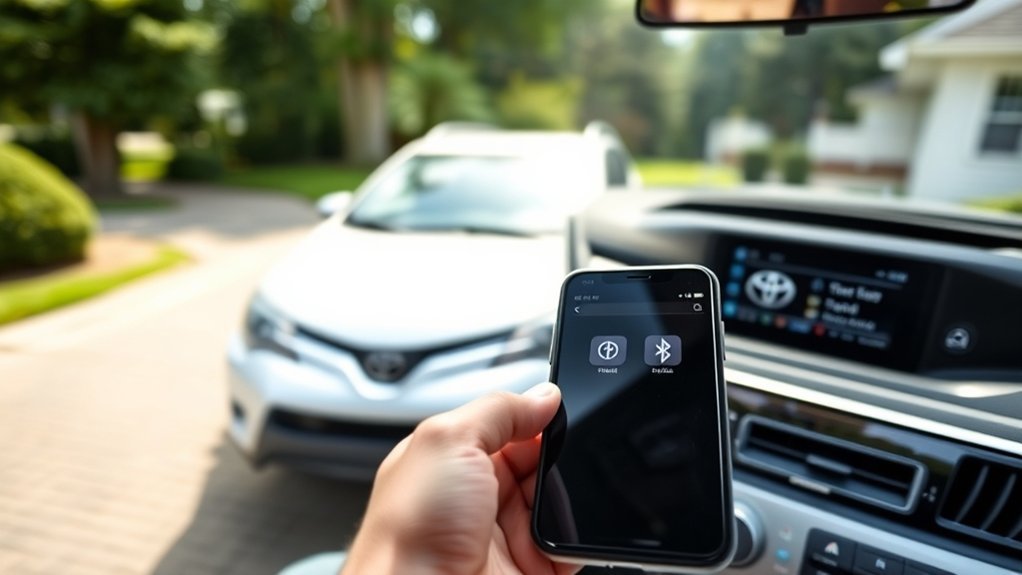
The iPhone 12 can generally connect to a 2015 Toyota RAV4 through Bluetooth for hands-free calls and wireless audio. However, the available features depend on which factory audio system your vehicle has.
The 2015 RAV4 was available with different audio configurations, including Entune Audio and upgraded touchscreen systems. Some controls and menu labels vary between them.
Before pairing, check the following:
- iPhone Bluetooth: Open Settings > Bluetooth and make sure it is enabled.
- Vehicle Bluetooth: Confirm that the factory multimedia system is powered on and Bluetooth is active.
- Existing connections: Check whether another phone is already connected to the vehicle.
- Software: Install an available iPhone software update if you are experiencing connection problems.
The iPhone 12 was released after the 2015 RAV4, so it was not included in Toyota’s original device compatibility documentation. Its Bluetooth functions can still work, but every feature and USB playback mode is not guaranteed.
For the original vehicle setup, consult Toyota’s 2015 RAV4 Quick Reference Guide, which includes Bluetooth pairing instructions for the factory multimedia system.
Pair Your iPhone 12 to RAV4 Bluetooth
Pairing your iPhone 12 with the RAV4 creates a saved connection between the phone and vehicle. Once registered, the devices can reconnect automatically when Bluetooth is enabled and the vehicle starts.
Complete the initial setup while parked. Keep your iPhone nearby and unlocked so you can respond to pairing requests.
Warning: Do not attempt Bluetooth registration or operate the multimedia setup menus while driving. Complete the process before starting your trip.
Enable Bluetooth Pairing
Start by making your iPhone discoverable and opening the RAV4’s Bluetooth registration screen. Both devices must be ready to connect before pairing can finish.
| Action | Result |
|---|---|
| Enable Bluetooth on the iPhone | Allows the phone to discover nearby devices |
| Open the RAV4 pairing menu | Makes the vehicle available for registration |
- Turn on the RAV4’s multimedia system.
- Unlock your iPhone 12.
- Open Settings > Bluetooth on the iPhone.
- Turn Bluetooth on.
- Keep the Bluetooth settings screen open.
- Press the HOME button on the Toyota touchscreen system.
- Select Setup, then Bluetooth.
- Select Add to begin registering a device.
The RAV4 should now display its Bluetooth device name or begin searching for a compatible phone.
If your vehicle has a different audio interface, look for Bluetooth Setup or a registration option in its Phone menu. The steering-wheel Phone button can also provide access to telephone functions.
Register iPhone 12
Once the RAV4 is ready, select its Bluetooth name from your iPhone’s available devices. The car and phone will then exchange a pairing request.
- Look under Other Devices on your iPhone’s Bluetooth screen.
- Tap the Toyota device name shown on the vehicle display.
- Wait for the pairing request to appear.
- Compare the displayed codes if both devices show a numeric code.
- Accept the request on the iPhone.
- Confirm registration on the Toyota screen if prompted.
Some systems may request a PIN instead of displaying matching confirmation numbers. Enter the PIN shown by the vehicle if your phone requests it.
The RAV4 should display a connection confirmation when registration succeeds.
On systems that support separate phone and audio connections, the vehicle may establish those connections during the same registration process.
Confirm Connection Settings
After pairing, check both devices to make sure the connection completed. A successful pairing should let you access the vehicle’s hands-free phone system and Bluetooth audio source.
| Interface | Required check |
|---|---|
| iPhone 12 | Toyota device appears under My Devices as connected |
| 2015 RAV4 | iPhone is registered and its connection status is confirmed |
If the car requests permission to access contacts or other supported phone information, respond according to your preferences.
You can review the connection on the iPhone using Apple’s Bluetooth connection instructions.
If the pairing codes do not match, cancel the request and restart registration. Do not approve an unfamiliar device.
Set Up Calls and Music in the RAV4
Bluetooth calling and Bluetooth music use different connection functions. Your iPhone may connect successfully for calls while music still plays through the phone.
Test each function separately to identify any problems.
Set Up Hands-Free Calling
Once connected, the RAV4’s Phone menu lets you place and receive calls through the vehicle’s speakers and microphone.
- Open the Phone screen on the RAV4.
- Select your connected iPhone if the system asks you to choose a phone.
- Allow contact sharing on the iPhone if you want the vehicle to access your phonebook.
- Check whether your contacts appear on the vehicle display.
- Place a test call while safely parked.
The steering-wheel Phone controls can be used to answer and end calls.
If contacts do not appear, open Settings > Bluetooth on your iPhone and tap the information icon beside the Toyota connection. Review the available contact-sharing options.
The available options depend on the connection and iOS version.
Contact sharing is optional. You can still use supported Bluetooth calling functions without granting access to your entire phonebook.
Play Music Through Bluetooth Audio
To hear music through the RAV4 speakers, select Bluetooth as the vehicle’s audio source. Pairing alone does not always change the active audio input.
- Confirm that your iPhone is connected through Bluetooth.
- Press the AUDIO button on the RAV4.
- Open the audio source selection screen.
- Select Bluetooth Audio.
- Start music or another audio program on your iPhone.
- Adjust the vehicle volume to a comfortable level.
Depending on the stereo and application, you may be able to skip tracks or control playback using the touchscreen or steering-wheel buttons.
Some music library and track information may not display correctly with newer phones. This does not necessarily mean the audio connection has failed.
If music remains on the iPhone, open its audio playback controls and select the Toyota Bluetooth connection as the output destination.
Use USB for Charging and Audio
The 2015 Toyota RAV4 includes a USB connection for supported audio devices. An iPhone 12 can also use a compatible Lightning-to-USB cable for charging, although USB music playback is not guaranteed on every original 2015 stereo.
USB audio is not the same as Apple CarPlay. Connecting a cable does not add CarPlay or its touchscreen applications to the factory system.
Connect Your iPhone Through USB
- Park the vehicle and turn on the multimedia system.
- Connect a compatible Lightning-to-USB cable to your iPhone 12.
- Insert the USB end into the vehicle’s USB port.
- Unlock your iPhone.
- Respond to any device-access prompt that appears.
- Press AUDIO on the RAV4.
- Select the iPod or USB source if the stereo recognizes your phone.
- Start audio playback and check whether sound comes through the vehicle speakers.
For supported devices, the RAV4 can display an iPod audio source and provide playback controls.
However, a modern iPhone may not be recognized by the original USB audio interface. Features such as playlist browsing and track information can also vary.
If the phone charges but does not appear as an audio source, try a different compatible data cable. You can continue using Bluetooth for music even if USB playback is unavailable.
What If USB Charges but Does Not Play Music?
Charging confirms that the cable is supplying power, but it does not prove that the stereo can communicate with the iPhone.
Check the following:
- Make sure the cable supports data transfer, not charging alone.
- Unlock the phone before connecting it.
- Check whether the iPod or USB source appears on the vehicle display.
- Try a different compatible cable.
- Inspect the phone’s charging port for debris or damage.
- Test Bluetooth audio to confirm that the vehicle speakers work normally.
Apple provides additional guidance for connecting an iPhone to a car through USB or Bluetooth.
If USB recognition remains unavailable but Bluetooth works, the problem may be a compatibility limitation rather than a defective iPhone.
Fix iPhone 12 and RAV4 Connection Problems
Most Bluetooth connection problems can be narrowed down by checking the pairing status, active audio source, and saved devices. Begin with simple connection checks before deleting registrations or changing system settings.
iPhone Does Not Find the RAV4
If Toyota does not appear in your iPhone’s Bluetooth device list, make sure the vehicle is actually in registration mode.
- Return to the vehicle’s Bluetooth setup screen.
- Select Add or the available registration option.
- Turn Bluetooth off and back on from the iPhone’s Settings app.
- Keep the iPhone Bluetooth screen open while searching.
- Temporarily disconnect another phone already using the vehicle connection.
- Restart the iPhone and multimedia system if necessary.
The RAV4 must be ready to accept a new pairing request. Simply leaving its normal audio screen open may not make it discoverable.
Bluetooth Connects but Music Does Not Play
If calls work but music does not, first check the selected audio source.
- Select Bluetooth Audio on the RAV4 instead of FM, AM, USB, or AUX.
- Start playback on the iPhone and check its volume.
- Confirm that the vehicle is selected as the iPhone’s audio output.
- Check whether another paired phone has taken over the audio connection.
- Try a different audio application.
A working hands-free connection does not automatically confirm that the separate Bluetooth music connection is active.
Calls Work but Contacts Are Missing
Missing contacts usually indicate that phonebook access has not been granted or the information has not synchronized.
Review the Toyota device settings on the iPhone and allow contact sharing if that option is available. Then reconnect the phone and check the vehicle’s Phone menu.
Some contact fields and call-history information may not transfer correctly because of differences between the older vehicle system and newer phone software.
Connection Drops or Fails to Reconnect
For intermittent Bluetooth problems, restart the phone and remove competing connections before attempting a complete reset.
Restart the iPhone 12 and the RAV4 multimedia system to clear temporary connection problems before deleting saved devices.
If the problem continues, check whether the iPhone connects reliably to another Bluetooth device. You can also test a different compatible phone with the RAV4.
These checks help identify whether the problem follows the phone or remains with the vehicle.
For persistent faults, check Toyota’s multimedia software update portal for updates applicable to the exact vehicle configuration.
Not every older multimedia system has an available update. Only install software intended for the installed Toyota unit.
Reset Your RAV4 Bluetooth System
If normal troubleshooting fails, remove the saved Bluetooth connection from both devices and pair them again. This clears the existing registration and allows the phone and vehicle to create a fresh connection.
Start by removing only the affected phone rather than resetting every vehicle setting.
Warning: Deleting a registered Bluetooth device removes its saved connection. A broader multimedia initialization may also erase other stored settings. Use a full system reset only when necessary.
Remove the iPhone From the RAV4
- Turn on the vehicle’s multimedia system.
- Open the Bluetooth Setup screen.
- Select the option for managing registered devices.
- Choose the iPhone 12 entry.
- Select Remove or Delete.
- Confirm the deletion when prompted.
On some factory systems, the device removal controls appear directly within Setup > Bluetooth.
If the device list is full, removing an unused registration can also make room for the new phone.
Forget the Toyota Connection on Your iPhone
- Open Settings > Bluetooth.
- Find the Toyota connection under My Devices.
- Tap the information icon beside its name.
- Select Forget This Device.
- Confirm the request.
The previous registration should now be removed from the iPhone.
Pair Both Devices Again
After deleting the old connection, restart the iPhone and vehicle multimedia system.
Return to the RAV4’s Bluetooth registration screen, select Add, and complete the pairing process again.
Verify the displayed pairing request and confirm the connection on both devices.
Finally, test a phone call and play music through Bluetooth Audio. These two checks confirm whether the main connection functions have returned.
If the system still fails to recognize multiple compatible phones, contact a Toyota service department or a qualified automotive electronics technician for further diagnosis.
Frequently Asked Questions
How to Sync iPhone With Toyota RAV4?
Enable Bluetooth on your iPhone, open the RAV4 Bluetooth registration menu, and select the vehicle from your phone’s available devices. Confirm the pairing request on both screens. Once connected, you can use hands-free calling and select Bluetooth Audio to play music.
How Do I Connect My Phone to My 2015 Toyota RAV4?
Open Setup > Bluetooth > Add on the factory touchscreen, then select the Toyota device in your phone’s Bluetooth settings. Confirm the pairing request and allow contact access if desired. The exact menu labels depend on the installed audio system.
Why Is My iPhone Not Connecting to My Toyota?
Your iPhone may fail to connect because the vehicle is not in pairing mode, another phone is connected, or the saved Bluetooth registration is causing a problem. Restart both devices and try again. If the issue continues, forget the Toyota connection on your iPhone, remove the phone from the vehicle, and repeat pairing.
Does the 2015 Toyota RAV4 Have Apple CarPlay?
No, the original 2015 Toyota RAV4 does not have factory Apple CarPlay. The factory system supports Bluetooth calling and audio streaming, with USB playback available for compatible devices. Adding CarPlay requires a suitable aftermarket stereo or compatible integration system.
Can I Play iPhone 12 Music Through My 2015 RAV4?
Yes, you can play music from your iPhone 12 through the RAV4’s Bluetooth audio system. Pair the phone, select Bluetooth Audio on the vehicle, and start playback. USB audio may also work, but compatibility with the original 2015 stereo is not guaranteed.
Why Does My iPhone Charge but Not Play Music Through USB?
Your iPhone may charge without playing music because the cable or vehicle’s USB audio system cannot establish a compatible data connection. Try a suitable data cable and check the iPod or USB source. If the phone remains unrecognized, use Bluetooth audio instead.
Conclusion
Connecting an iPhone 12 to a 2015 Toyota RAV4 is usually straightforward through the factory Bluetooth system. Complete the pairing process, allow the phone permissions you want, and select Bluetooth Audio for music.
If the connection fails, check the active audio source before deleting saved devices and pairing again. Remember that USB playback depends on compatibility, while Apple CarPlay requires additional hardware rather than a simple software setting.
Sources
- Toyota: 2015 RAV4 Quick Reference Guide: Factory Bluetooth registration, pairing sequence, and supported vehicle functions.
- Apple: Connect iPhone to Bluetooth Accessories: Bluetooth pairing, device management, and removing saved connections.
- Apple: How to Connect Your iPhone to Your Car: Bluetooth and USB connection procedures and troubleshooting.
- Apple: CarPlay Available Models: Manufacturer and model-year compatibility.
- Toyota: Audio Multimedia System Updates: Checking for eligible multimedia software updates.

