
Toyota Tacoma adaptive cruise control is Toyota’s Dynamic Radar Cruise Control (DRCC). It helps hold a set speed and adjust the following gap when it detects a slower vehicle ahead. DRCC controls speed, not the whole driving task: you still steer, monitor traffic, choose a safe following distance, and brake whenever conditions require it.
Last updated: September 19, 2026. Reviewed against current Toyota Safety Sense guidance and Tacoma model-year information.
Quick Answer
Toyota Tacoma DRCC is adaptive cruise control: select the radar-cruise mode, set a target speed, choose a following-distance level, and confirm the status on the Multi-Information Display. On 2024+ Tacoma models, Toyota Safety Sense 3.0 uses updated steering-wheel controls and four distance settings. Toyota distinguishes Full-Speed Range DRCC from DRCC on manual-transmission vehicles, so low-speed behavior and controls must be checked against your exact year and transmission.
Key Takeaways
- DRCC controls speed and following distance only. You remain responsible for steering, braking, and safe driving.
- All 2024+ U.S.-market Tacomas use Toyota Safety Sense 3.0, but Toyota distinguishes Full-Speed Range DRCC from DRCC on manual-transmission vehicles.
- Use the vehicle-to-vehicle distance button to change the gap. TSS 3.0 adds a fourth following-distance setting compared with the previous three-setting layout.
- Cancel or pause DRCC with the brake or cancel control, then resume only when traffic and road conditions are safe.
- Do not rely on DRCC in poor visibility, heavy rain, snow, sharp curves, off-road driving, or when sensors are blocked.
At a Glance
| Time Required | About 2–5 minutes to learn the controls before driving |
| Difficulty | Easy, but you should practice on a clear road first |
| Tools Needed | Your Tacoma, the steering-wheel cruise controls, and your model-year owner’s manual |
| Cost | $0 if your Tacoma already has DRCC |
Affiliate disclosure: This page may contain affiliate links. If you buy through one of those links, the site may earn a commission at no extra cost to you.
Quick Overview: What DRCC Does on the Tacoma
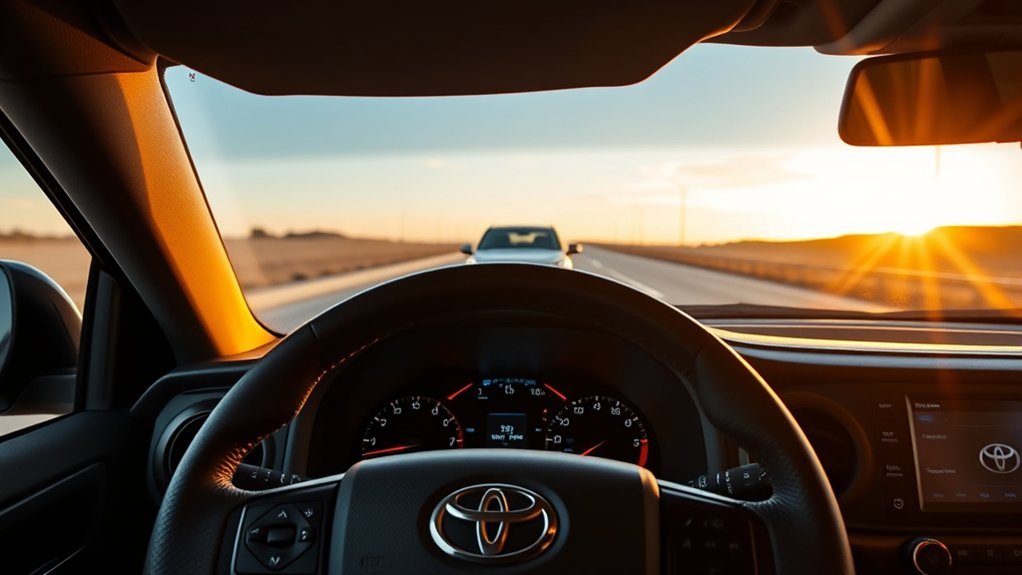
When you set Dynamic Radar Cruise Control, the Tacoma tries to hold your chosen speed. If it detects a slower vehicle ahead, it can reduce throttle and apply braking to help maintain the selected gap. When the lane clears, it can accelerate back toward your set speed.
That makes DRCC different from regular cruise control. Regular cruise control holds a constant speed until you brake, cancel, or change the setting. DRCC adds vehicle-to-vehicle distance control, so it reacts to traffic ahead within its limits.
For the redesigned 2024 Tacoma, Toyota made Toyota Safety Sense 3.0 standard and added a fourth following-distance setting. Toyota’s current Safety Sense guidance distinguishes Full-Speed Range DRCC from DRCC on manual-transmission vehicles. That distinction matters in slow traffic: do not assume every 2024+ Tacoma has identical stop-and-go behavior.
Warning: DRCC is a driver-assistance feature, not self-driving. Keep your hands on the wheel, watch traffic, and be ready to brake or steer at any time.
Does DRCC Steer the Tacoma?
No. DRCC manages acceleration and braking to support a set speed and following distance. On newer Tacoma models, Lane Tracing Assist (LTA) is a separate steering-assistance feature that can operate when compatible DRCC is enabled and the required lane or vehicle information is detected. Even when both systems are active, the driver remains responsible for steering and monitoring the road.
Before You Start: Check Your Tacoma Model Year
Before you follow any DRCC instructions, confirm which Tacoma you drive. Toyota changed Tacoma safety technology and controls over time, so one set of button directions may not fit every truck.
| Tacoma Type | What to Expect | Best Next Step |
|---|---|---|
| 2024+ Tacoma, automatic transmission | Toyota Safety Sense 3.0 with updated steering-wheel controls and Full-Speed Range DRCC on applicable configurations. | Select Adaptive Cruise Mode, confirm the DRCC indicator, and verify the exact low-speed behavior in the owner’s manual. |
| 2024+ Tacoma, manual transmission | Toyota Safety Sense 3.0 uses DRCC, but Toyota distinguishes it from Full-Speed Range DRCC. | Do not assume automatic-transmission stop-and-go behavior; use the manual for the transmission-specific limits. |
| 2018–2023 Tacoma with TSS-P | Toyota identifies these trucks with High-Speed Dynamic Radar Cruise Control and an older cruise-control layout. | Expect different set-speed thresholds and controls; confirm them in the year-specific manual. |
| Tacoma without DRCC | May have conventional cruise control only, depending on year and equipment. | Verify the feature through Toyota’s manual lookup before following DRCC instructions. |
You can find model-specific information through the Toyota Owners manuals page. Use your year and model because warning messages, buttons, and cruise icons can vary.
Turn DRCC On and Set Your Speed
Use DRCC only when road and traffic conditions are steady. A clear highway or open road is the best place to learn it. Avoid practicing in crowded traffic, construction zones, rain, snow, or sharp curves.
Powering On DRCC
First identify your control layout. On 2024+ Tacoma models, use the steering-wheel Driving Assist controls and select Adaptive Cruise Mode. Earlier DRCC-equipped Tacomas use an older cruise-control switch or stalk layout. Do not copy button sequences from a different generation.
Next, confirm the system on the Multi-Information Display. On a 2024+ Tacoma, Toyota identifies the selected mode as Adaptive Cruise Mode and shows a DRCC indicator when the system is ready. On older trucks, look for the radar-cruise or RADAR READY indication described in that model-year manual. If the display shows an unavailable or malfunction message, drive manually and read the full message when safely parked.
Note: Toyota’s current TSS 3.0 guidance says Full-Speed Range DRCC and DRCC on manual-transmission vehicles are designed to be set at speeds above 20 mph. Earlier TSS-P DRCC guidance uses a higher initialization threshold. Your Tacoma’s year-specific manual is the final source for the exact limit.
Setting Desired Speed
After DRCC is ready, drive at the speed you want and use the set control shown for your steering-wheel or stalk layout. Older Tacoma systems commonly use – / SET; redesigned 2024+ trucks use the updated Driving Assist control layout. Confirm the stored speed on the Multi-Information Display instead of relying on button memory. If traffic ahead is slower, DRCC may stay below that target to maintain the selected gap.
Use the + / RES control to raise the set speed and the – / SET control to lower it. Some models change speed in small steps with a quick press and larger steps when you hold the control. Watch the display so you know what speed you actually set.
| Action | Common Control | Result |
|---|---|---|
| Turn system on | Cruise or Driving Assist button | Places DRCC in standby if conditions are met. |
| Set speed | SET or – / SET | Stores your current speed as the target speed. |
| Increase speed | + / RES | Raises the set speed. |
| Decrease speed | – / SET | Lowers the set speed. |
| Resume | + / RES | Returns to the last stored speed when safe and available. |
Confirming Radar Ready
Do not rely only on the button you pressed. Confirm DRCC on the display before you relax your right foot. Look for the set speed, cruise indicator, and following-distance bars or vehicle icon.
If no vehicle is ahead, DRCC works much like regular cruise and aims for your set speed. If a vehicle is detected ahead, the display may show a lead-vehicle icon, and the Tacoma will try to maintain your selected distance.
If the Tacoma does not detect the vehicle ahead, cuts in late, or behaves differently than expected, brake and take control. DRCC can help on steady roads, but it cannot predict every traffic movement.
Switch Between DRCC and Regular Cruise
Some Tacoma models let you use conventional cruise control instead of DRCC. Conventional cruise holds a set speed but does not maintain a gap from the vehicle ahead.
The switch method depends on model year. Older Tacoma systems may use a press-and-hold action on the cruise control switch or stalk, while redesigned 2024+ trucks use the Driving Assist mode controls to select the desired cruise mode. Always confirm the conventional cruise indicator on the display before assuming vehicle-to-vehicle distance control is off.
Use DRCC for steady traffic where maintaining a gap helps reduce speed changes. Use regular cruise only when you want a constant speed and you are ready to manage all following distance yourself.
Pro Tip: Before a long trip, sit parked and identify the cruise button, SET, RES, cancel, and distance controls. Learning them while stopped is safer than hunting for buttons at highway speed.
Change the DRCC Following Distance on the Tacoma
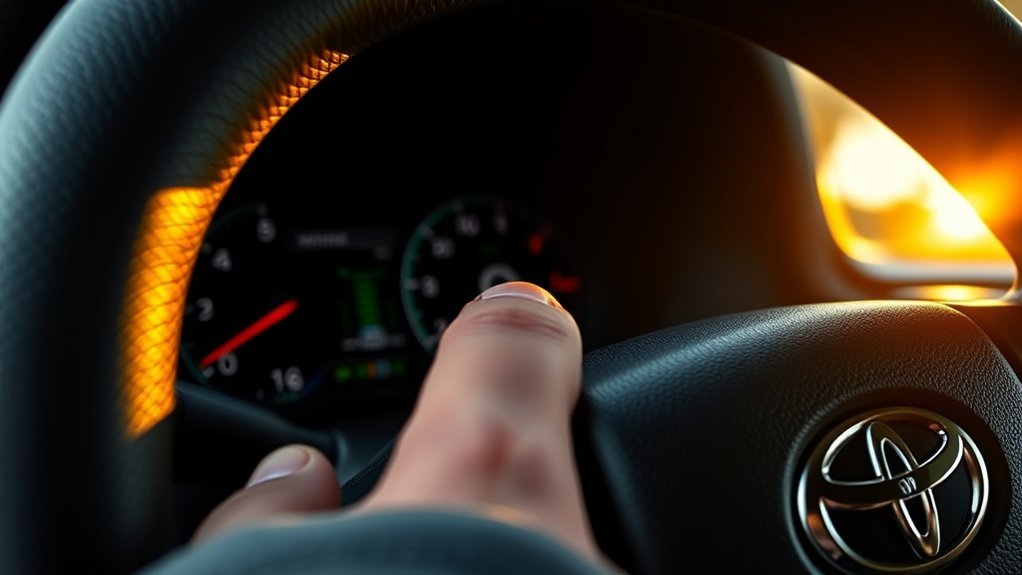
The following-distance setting tells DRCC how much space to leave between your Tacoma and the vehicle ahead. Use the vehicle-to-vehicle distance button, often shown with a car and distance bars, to cycle through the available gap settings.
Earlier Tacoma DRCC systems use three following-distance levels. Toyota says TSS 3.0 adds a fourth setting and improved detection of preceding and adjacent-lane vehicles to make speed changes smoother in situations such as lane changes. Your display shows the distance level actually selected on your truck.
Selecting Distance Levels
Press the distance button to cycle through the available levels. The actual space changes with vehicle speed and conditions, so do not treat a displayed level as a fixed number of feet or seconds. Select a larger displayed gap when you want more reaction space, and always leave enough room to brake manually.
| Distance Setting | What It Changes | Driver Reminder |
|---|---|---|
| Shorter displayed level | Reduces the target following gap compared with a longer level. | You still must maintain a safe stopping margin and brake when needed. |
| Longer displayed level | Increases the target following gap. | Use more space when speed, weather, load, or visibility increases stopping risk. |
| Earlier Tacoma DRCC | Commonly provides three selectable distance levels. | Confirm the level on the Multi-Information Display. |
| TSS 3.0 Tacoma | Adds a fourth following-distance setting. | Use the display, not memory, to confirm the selected level. |
Disabling Distance Control
If your Tacoma supports conventional cruise, switching to it disables distance control. That means the truck will no longer slow down just because traffic ahead is slower. You must control the gap with the accelerator and brake.
Do not switch to conventional cruise just because DRCC feels too cautious in traffic. A wider gap can invite other drivers to merge, but that does not mean the system is wrong. Choose the mode that matches the road, traffic, weather, and your comfort level.
Pause, Cancel, and Resume DRCC While Driving
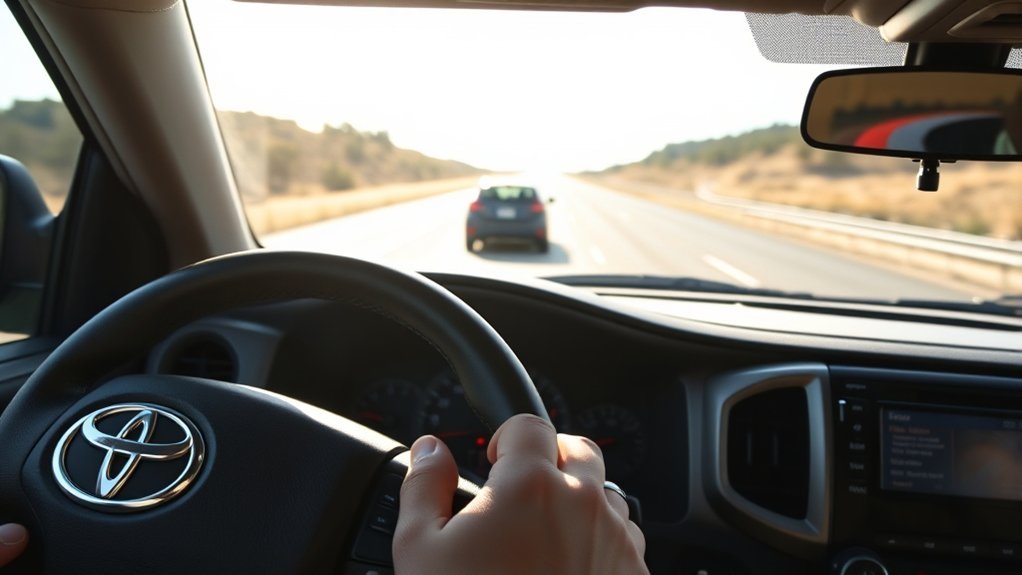
You can pause or cancel DRCC when traffic changes, a vehicle cuts in, the road curves sharply, or you simply want direct control again.
Pressing the brake usually cancels active cruise control and returns speed control to you. Many Tacoma models keep the previous set speed available so you can press RES later. Pressing the main cruise or Driving Assist button may turn the system off more completely and may clear the stored speed, depending on the model.
| Input | What Usually Happens | When to Use It |
|---|---|---|
| Brake pedal | Cancels active speed control. | Use anytime you need immediate manual control. |
| Cancel control | Pauses or cancels cruise without turning off the whole system. | Use when traffic is changing but you may resume soon. |
| + / RES | Attempts to return to the stored set speed. | Use only when the lane ahead is clear and conditions are safe. |
| Main cruise or Driving Assist button | May turn cruise off and clear the stored setting. | Use when you are done with DRCC for that drive. |
Resume with care. If your last set speed was much higher than current traffic speed, the Tacoma may accelerate when DRCC resumes. Check the display and traffic ahead before pressing RES.
Safety Limits and Quick Troubleshooting Tips
DRCC is intended mainly for highway use. Toyota warns that radar-cruise performance can be limited by poor visibility, slippery roads, sharp curves, steep grades, heavy traffic, blocked sensors, and traffic situations the system does not recognize in time. Treat any unexpected response as a reason to brake or cancel the system.
When Not to Use DRCC
- Do not rely on DRCC when rain, snow, fog, dust, glare, or road spray prevents the camera or radar from seeing clearly.
- Avoid DRCC on sharp or winding curves, slippery roads, steep grades, sudden grade changes, and off-road trails.
- Do not use it when the radar or windshield-camera areas identified in your owner’s manual are blocked by mud, ice, snow, stickers, accessories, or damage.
- Use extra caution when towing, carrying a heavy load, or driving on wet roads because stopping distance changes.
- Be ready to brake when traffic cuts in, motorcycles are near the lane edge, or a stopped vehicle appears ahead.
If DRCC Is Unavailable or Acts Strangely
If your Tacoma shows a DRCC unavailable message, take over manually first. When parked safely, read the complete warning and inspect the radar and windshield-camera areas identified in your owner’s manual. Remove visible mud, snow, ice, or other temporary obstructions without disturbing sensor alignment.
Next, check the conditions. Bright sun, heavy spray, snow, fog, road grime, and extreme temperature changes can affect driver-assistance sensors. If the message clears after cleaning or after the weather improves, the system may return to normal.
If the warning stays on, DRCC cancels repeatedly in clear conditions, or the message began after windshield, bumper, grille, collision, suspension, or alignment work, have the system inspected by a qualified repairer. Camera and radar calibration may require model-specific equipment and procedures.
Related Guides
Frequently Asked Questions
How does Toyota Tacoma Dynamic Radar Cruise Control work?
Toyota Tacoma DRCC uses forward sensing to help maintain your set speed and a selected distance from the vehicle ahead. If traffic slows, the system can reduce speed. If the lane clears, it can accelerate back toward your set speed within system limits.
Is Tacoma DRCC the same as adaptive cruise control?
Yes. DRCC is Toyota’s name for its adaptive cruise control feature. It helps adjust vehicle speed to maintain a preset following distance, but it does not replace attentive driving.
Can I use regular cruise control instead of DRCC on a Tacoma?
Some Tacoma models allow conventional cruise control. The switch method depends on model year and control layout, so use the owner’s manual and confirm the regular cruise indicator on the display before assuming distance control is off.
Why does my Tacoma slow down below the speed I set?
DRCC may slow below your set speed when it detects a slower vehicle ahead. That is normal. The system is trying to maintain the selected following distance. If the lane clears, it may accelerate back toward the set speed.
Why does my Tacoma say DRCC is unavailable?
The system may be unavailable because sensors are blocked, weather is poor, visibility is limited, or a system fault is present. Clean the sensor areas when safely parked and check the message again. If it remains, have the truck inspected.
Does Tacoma DRCC work in stop-and-go traffic?
Applicable 2024+ automatic-transmission Tacomas use Full-Speed Range DRCC, which is designed for low-speed following as well as highway use. Toyota separately identifies DRCC on manual-transmission vehicles, so do not assume the same stop-and-go behavior. Check the manual for your exact year and transmission.
What speed can I set Toyota Tacoma DRCC?
Toyota’s current TSS 3.0 guidance says Full-Speed Range DRCC and DRCC on manual-transmission vehicles are designed to be set at speeds above 20 mph. Earlier TSS-P Tacoma systems use a higher initialization threshold, so check the year-specific owner’s manual before relying on one number.
Does Toyota Tacoma DRCC steer the truck?
No. DRCC manages speed and following distance. On newer equipped Tacomas, Lane Tracing Assist is the separate feature that can provide lane-centering steering support while compatible DRCC is active and operating conditions are met.
Conclusion
Toyota Tacoma DRCC can reduce repeated throttle and brake adjustments on suitable highways by helping hold a set speed and selected following gap. The key is matching the instructions to your model year and transmission, because 2024+ TSS 3.0 controls and low-speed behavior differ from earlier TSS-P systems.
Before driving, identify the cruise controls while parked. Then select the correct mode, set your speed, choose a following-distance level, and confirm the status on the Multi-Information Display. If traffic, weather, road geometry, or a sensor warning makes the system unreliable, cancel DRCC and drive manually. Use Toyota’s year-specific owner’s manual as the final authority for your Tacoma.
Sources
- Toyota Safety Sense — supports TSS 3.0 DRCC/FSDRCC definitions, manual-transmission distinction, set-speed wording, Lane Tracing Assist relationship, and owner’s-manual caveats.
- Toyota USA Newsroom: 2024 Toyota Tacoma — supports standard TSS 3.0 on the redesigned Tacoma, the fourth following-distance setting, and enhanced vehicle detection.
- Toyota Owners Manuals and Warranties — helps owners verify model-specific controls, icons, warnings, and operating limits.
- Toyota USA Newsroom: 2018 Toyota Tacoma — supports TSS-P becoming standard across the Tacoma lineup with High-Speed DRCC.
- NHTSA Driver Assistance Technologies — backs the general adaptive cruise control definition and driver-responsibility guidance.

