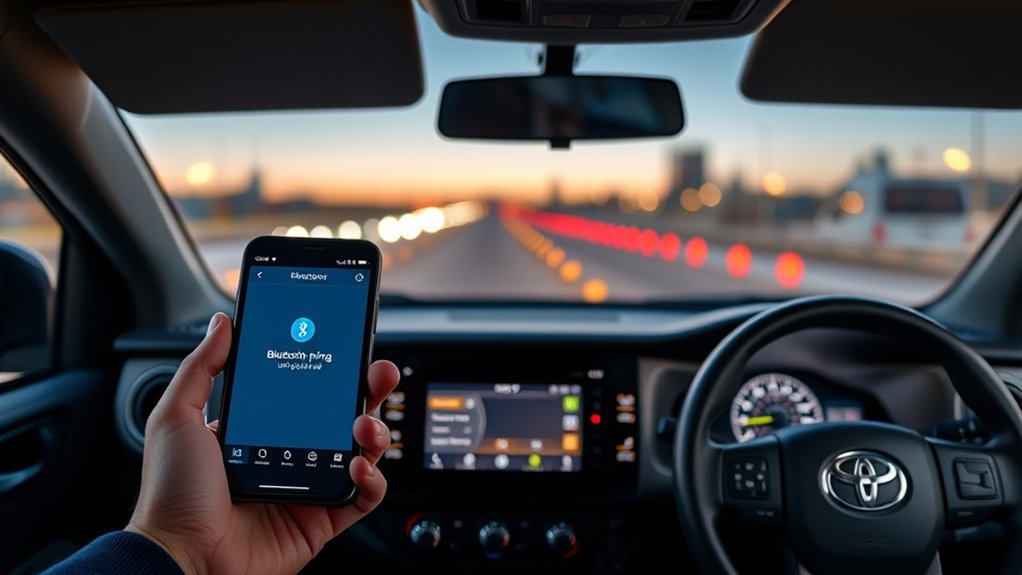
If your Toyota Tacoma’s Bluetooth won’t connect, avoid repeatedly tapping the same connection button. A saved pairing, phone permission, primary-device setting, software issue, or multimedia profile conflict is often responsible. You can usually identify and correct the problem in about 10 to 20 minutes while the truck is safely parked.
Quick Answer
To fix Toyota Tacoma Bluetooth problems, park the truck, restart the phone and multimedia system, then delete the Tacoma from the phone and delete the phone from the truck. Pair again, confirm the matching code, and allow calls, contacts, messages, and media. If it still fails, update software and check the model-year manual.
Key Takeaways
- Delete the old connection from both the Tacoma and your phone before pairing again.
- Confirm the same pairing code appears on both screens and approve the requested permissions.
- Check the phone, media, contacts, and messaging settings separately because one feature can fail while the others work.
- Disconnect other saved phones while testing to prevent primary-device or automatic-connection conflicts.
- Use the manual for your exact model year because Tacoma multimedia menus and update methods vary.
At a Glance
| Time Required | 10 to 20 minutes |
| Difficulty | Easy |
| Tools Needed | Your phone, the Tacoma multimedia screen, and the model-year owner’s manual |
| Cost | Usually $0 for DIY troubleshooting; dealer diagnosis or repair may cost extra |
Warning: Park the Tacoma, apply the parking brake, and complete all pairing or reset steps before driving. Do not navigate Bluetooth, Apple CarPlay, or Android Auto menus while the vehicle is moving.
Understanding Bluetooth Compatibility for Your Tacoma
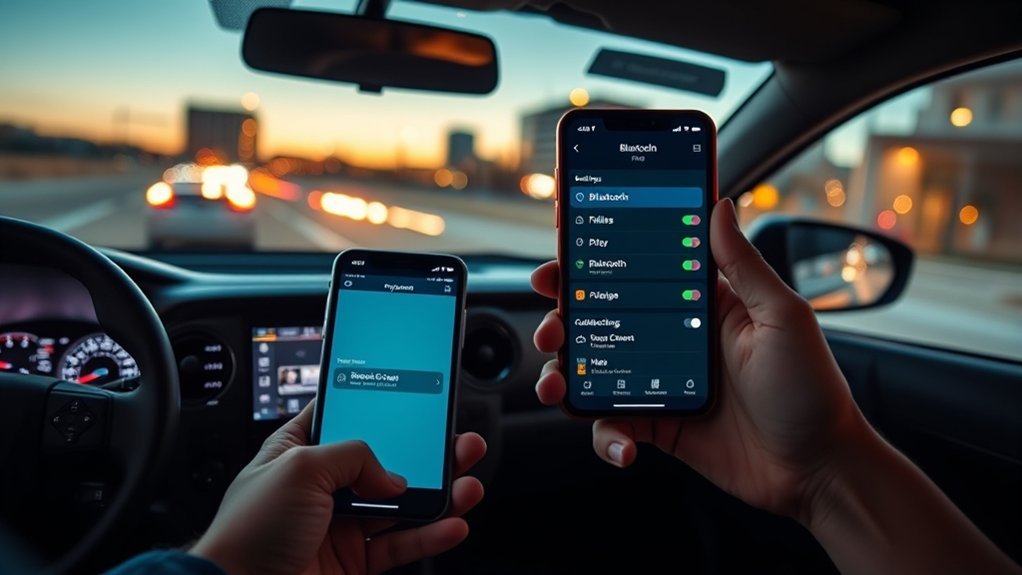
Your Tacoma’s exact Bluetooth menus depend on its model year, trim, and installed multimedia unit. Newer Toyota Audio Multimedia systems commonly use a Bluetooth & Devices menu, while older systems may use labels such as Phone, Setup, Bluetooth, Add Device, or Register Device.
Use Toyota’s mobile-phone compatibility resource and the manual for your exact Tacoma model year when a menu name in this guide does not match your screen.
Compatibility is not simply a yes-or-no question. A phone may support hands-free calls but have limited contact syncing, text-message support, Bluetooth audio, wireless Apple CarPlay, or Android Auto functionality.
Identify the Type of Connection Problem
Before changing settings, note exactly what is failing:
- The Tacoma does not appear on the phone: The truck may not be in pairing mode.
- The phone appears but pairing fails: A saved pairing or mismatched confirmation code may be blocking setup.
- Calls work but music does not: The media profile or audio source may be disabled.
- Music works but contacts do not: The phone may not have granted contact or message permission.
- Bluetooth works but CarPlay or Android Auto does not: Phone projection has additional compatibility and connection requirements.
- Every phone fails: The Tacoma may need a multimedia restart, software update, or professional diagnosis.
Note: Test with one phone at a time. A second saved phone may connect automatically and prevent the phone you are troubleshooting from becoming the active or primary device.
How to Pair Your Bluetooth Device
Start with Bluetooth enabled on your phone and keep the phone unlocked during setup. Turn off Bluetooth temporarily on other phones that have previously connected to the Tacoma.
Pair a Newer Toyota Audio Multimedia System
- Park the Tacoma and leave the multimedia system powered on.
- Open Settings on the Tacoma touchscreen.
- Select Bluetooth & Devices.
- Select Search for devices. If another device is already associated with the system, select Add another device.
- Choose your phone when it appears on the vehicle screen.
- Confirm that the same pairing code appears on the phone and the Tacoma, then approve it on both devices.
- Select Set as Primary Device if you want this phone to connect first.
- Choose whether to enable Apple CarPlay or Android Auto when the system asks. You can also continue with regular Bluetooth only.
- Approve phone, contacts, messages, media, and notification permissions on your device.
Toyota’s official Bluetooth pairing guide illustrates these steps for its latest Audio Multimedia platform.
Pair an Older Tacoma Multimedia System
On many older Tacoma systems, press Menu, choose Setup, open the Bluetooth or Phone menu, and select the option to add or register a device. Open your phone’s Bluetooth settings, choose the Toyota system, and confirm the displayed passcode.
Menu names differ across older head units. Follow the multimedia or navigation manual for your exact model year rather than entering a generic PIN found online.
Verify the Connection After Pairing
Complete three quick tests before assuming the setup is finished:
- Place a short hands-free call and check the microphone and speaker audio.
- Select Bluetooth audio as the source and play a song or podcast.
- Open the phone or contacts screen and confirm that allowed contacts or recent calls appear.
Troubleshooting Bluetooth Connection Issues
If the phone previously worked but now refuses to connect, perform a clean re-pair. Deleting the connection from only one side can leave mismatched saved credentials on the other device.
Perform a Clean Bluetooth Reset
- On the Tacoma, open the saved-device list and choose your phone.
- Select Forget, Remove, or Delete Device.
- On the phone, open Bluetooth settings and forget the Toyota or Tacoma connection.
- Restart the phone.
- Power the Tacoma multimedia system off and back on. If needed, shut off the truck, open the driver’s door, wait for accessory power to end, and restart the vehicle.
- Turn off Bluetooth on other nearby phones that have connected to the truck.
- Pair the phone again from the Tacoma’s device menu.
- Confirm the code and approve all required permissions.
Pro Tip: Rename your phone to a simple, unique name before pairing. This makes it easier to distinguish it from old phones, family devices, and duplicate saved entries.
If the Phone Is Paired but Will Not Connect
Open the Tacoma’s device list and select the saved phone manually. On newer systems, verify that Use for Phone and Use for Media are enabled.
If another phone is marked as primary, disconnect it or change the preferred device. Automatic connection may otherwise keep selecting the wrong phone when the truck starts.
If Calls Work but Bluetooth Audio Does Not
- Select Bluetooth Audio from the Tacoma’s audio-source menu.
- Make sure the phone’s media-audio permission is enabled for the Toyota connection.
- Raise the media volume on the phone after playback begins.
- Pause audio on headphones, smartwatches, or other Bluetooth speakers connected to the phone.
- Close and reopen the music or podcast app.
If Contacts, Messages, or Call History Do Not Sync
Open the Toyota connection in your phone’s Bluetooth settings and allow contact sharing, messages, notifications, and call-history access where available. Some phones display these permissions only during the first pairing attempt.
If you previously denied access, forget the connection on both sides and pair again. Phone model, operating system, carrier settings, and Tacoma multimedia compatibility can limit messaging features even when calls and music work.
If the Phone Suddenly Stopped Connecting
A recent phone update may have changed Bluetooth permissions or stored connection data. Restart the phone, check for another operating-system update, and repeat the clean re-pair process.
For an iPhone, Apple recommends checking connection settings, restarting the phone and vehicle, forgetting the car, and setting it up again. Review Apple’s current CarPlay troubleshooting guidance when projection is also affected.
For Android, confirm that the Toyota connection still appears under saved devices and use the device settings to disconnect or forget it when necessary. Google’s Bluetooth setup guide shows the current Android pairing and device-management controls.
Typical Bluetooth Pairing Problems and Their Solutions
| Problem | Likely Cause | What to Do |
|---|---|---|
| Tacoma does not appear on the phone | The multimedia system is not searching for devices | Open Bluetooth & Devices and start a new-device search. |
| Pairing code fails | Old pairing data or the wrong device was selected | Cancel, forget both saved entries, restart, and pair again. |
| Phone connects and then drops | Another phone is taking priority or software is unstable | Disable competing phones, set the correct primary device, and update software. |
| Calls work but music does not | Media audio is disabled or the wrong source is selected | Enable media use and select Bluetooth Audio. |
| Contacts do not appear | Contact-sharing permission was denied | Allow contact access or pair again and approve the prompt. |
| Only one specific phone fails | Phone software, settings, or compatibility issue | Update the phone, reset its Bluetooth settings, and check Toyota compatibility. |
| Every phone fails | Multimedia software or hardware problem | Restart the system, check for updates, and arrange diagnosis if the failure continues. |
Bluetooth Versus Apple CarPlay and Android Auto
Bluetooth calling and audio are separate from Apple CarPlay and Android Auto. Your phone may remain connected for calls while the projection interface fails to open.
Wireless Apple CarPlay Problems
Wireless CarPlay normally requires both Bluetooth and Wi-Fi. On the iPhone, confirm that both are enabled, open Settings → General → CarPlay, select the Tacoma, and verify that the connection is allowed.
If CarPlay still fails, forget the vehicle in the CarPlay settings, remove the Bluetooth connection from both devices, restart them, and set up the connection again. Also confirm that Siri and CarPlay permissions are enabled.
Android Auto Problems
Verify that your phone and Tacoma support the type of Android Auto connection you are attempting to use. Some combinations require a USB data connection even when standard Bluetooth calling works.
When using a cable, connect directly to the vehicle’s media USB port with a known-good data cable. Charging-only cables, adapters, hubs, and damaged ports can prevent Android Auto from launching.
Updating Your Tacoma’s Infotainment System
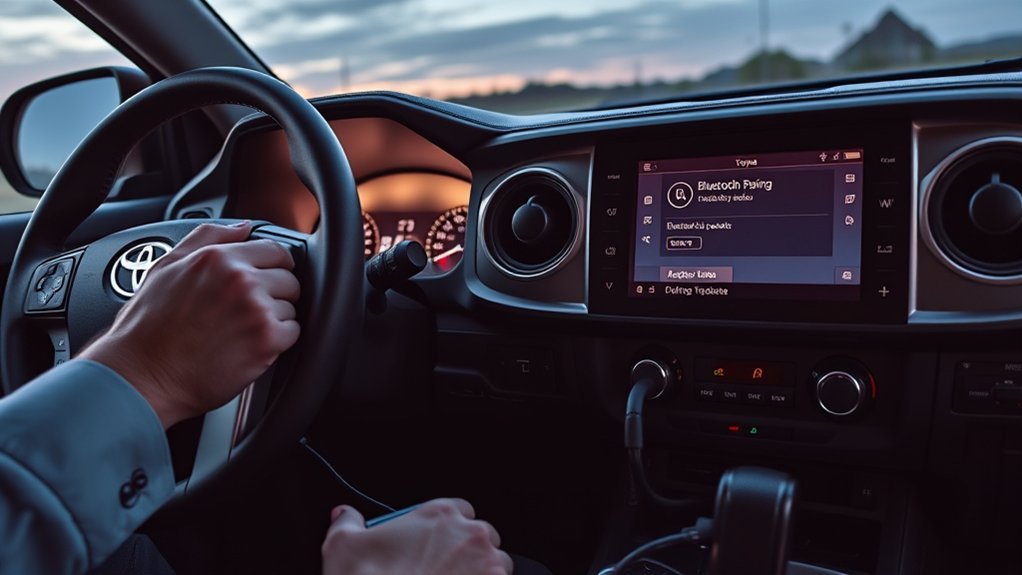
Outdated phone or multimedia software can cause pairing failures, dropped connections, delayed contact syncing, and phone-projection problems. Update your phone’s operating system before performing more disruptive resets.
For the Tacoma, review the software section in the model-year multimedia manual or use Toyota’s firmware update resource. The available update method depends on the vehicle and head unit, so do not install a file intended for a different Toyota model or multimedia system.
Some updates may be available through the vehicle, a Toyota-provided USB procedure, or a dealership. Ask the service department whether diagnostic or installation charges apply before approving the work.
Note: A map update and a multimedia firmware update are not always the same product. Confirm that the update specifically applies to the audio or Bluetooth system.
How to Eliminate Bluetooth Signal Interference
Signal interference is less common than stale pairing data, but it is worth checking when the connection drops only in certain situations. Keep the phone inside the cabin and test without extra wireless accessories.
| Action | Why It Helps | How to Test |
|---|---|---|
| Disconnect other saved phones | Prevents automatic connection and primary-device conflicts | Turn off Bluetooth on the other phones and restart the Tacoma. |
| Disconnect headphones and watches | Stops calls or audio from routing to another accessory | Temporarily disconnect accessories from the phone. |
| Remove USB hubs or adapters | Eliminates accessory and phone-projection conflicts | Connect the phone directly or test Bluetooth with USB unplugged. |
| Move away from crowded wireless areas | Reduces competing wireless activity during initial pairing | Repeat the pairing process in a quieter location. |
| Restart both systems | Clears temporary connection and routing errors | Restart the phone and fully cycle the Tacoma accessory power. |
Reset Phone Network Settings Only as a Last Resort
If one phone continues to fail after a clean re-pair, consider resetting that phone’s network settings. The exact menu varies by phone and operating-system version.
This reset can erase saved Wi-Fi networks, Bluetooth pairings, VPN settings, or other network preferences. Record anything important before proceeding, then pair the Tacoma again after the phone restarts.
Avoid performing a full Tacoma multimedia factory reset unless the model-year manual or Toyota support specifically recommends it. A factory reset may erase saved phones, profiles, presets, favorites, navigation data, and personalized settings.
When to Visit Your Toyota Service Center for Help?
Professional diagnosis becomes reasonable after you have tested more than one compatible phone and completed the clean re-pair process. A problem affecting every phone is more likely to involve the Tacoma’s multimedia software, microphone, antenna, USB interface, wiring, or head unit.
Arrange service when:
- The Bluetooth menu is missing, unavailable, or permanently grayed out.
- The multimedia display freezes, reboots, or fails to save devices.
- Two or more updated phones cannot pair.
- The microphone or speakers fail during every hands-free call.
- The connection stopped working after electrical, battery, or dashboard work.
- An official update repeatedly fails to install.
- The system reports an error that remains after restarting and re-pairing.
When several known-good phones fail in the same Tacoma, stop resetting the phones and have the vehicle’s multimedia system checked.
Use Toyota’s service-center locator to find a dealership. Ask whether the diagnosis is covered by the vehicle warranty or a service campaign and request an estimate for any customer-pay work.
Tips for Maintaining a Reliable Bluetooth Connection
Once Bluetooth is working, a few habits can reduce repeat problems:
- Keep one frequently used phone set as the primary device.
- Remove phones you no longer use from the Tacoma’s saved-device list.
- Install stable phone operating-system updates.
- Review Bluetooth permissions after a major phone update.
- Use simple, unique device names.
- Disconnect unused headphones or speakers before starting the truck.
- Use a direct, high-quality data cable when operating wired CarPlay or Android Auto.
- Restart the phone and multimedia system when connection behavior changes unexpectedly.
Frequently Asked Questions
Why is my Bluetooth not working in my Toyota Tacoma?
Common causes include stale pairing data, another phone taking priority, disabled phone or media permissions, outdated software, or a compatibility limitation. Forget the connection on both the phone and Tacoma, restart both systems, and pair again.
How do I reset Bluetooth in a Toyota Tacoma?
Remove the phone from the Tacoma’s saved-device list, forget the Tacoma in the phone’s Bluetooth settings, restart both systems, and pair them again. Use a full multimedia factory reset only as a last resort because it can erase saved settings.
Why does my Tacoma show that the phone is connected but play no sound?
The phone may be connected only for calls. Enable the media option for that device, select Bluetooth Audio as the Tacoma’s source, raise the phone’s media volume, and disconnect headphones or other speakers that may be receiving the audio.
Why are my contacts not showing on the Tacoma screen?
Contact sharing was probably denied or disabled. Open the Toyota device entry in your phone’s Bluetooth settings and allow contacts, call history, messages, or notifications. If the permission is unavailable, forget the connection and pair again.
Why does my Tacoma Bluetooth keep disconnecting?
Another saved phone may be connecting automatically, the phone may be routing audio to a different accessory, or one system may need an update. Test with other phones disconnected, set the correct primary device, and complete a clean re-pair.
Why does Bluetooth work but Apple CarPlay or Android Auto fail?
Phone projection has requirements beyond standard Bluetooth. Wireless CarPlay uses Bluetooth and Wi-Fi, while some Android Auto and CarPlay systems require a compatible USB data connection. Check vehicle support, phone settings, permissions, cables, and the correct USB media port.
Conclusion
Most Toyota Tacoma Bluetooth problems can be corrected without replacing parts. Start by identifying the failed feature, disconnect competing phones, remove the saved connection from both devices, restart them, and pair again with the correct permissions.
If multiple updated phones fail in the same truck, check the Tacoma’s model-year manual and available multimedia updates. Persistent menu, microphone, display, or head-unit problems should be diagnosed by a Toyota service center.
Sources
- Toyota Audio Multimedia and Connected Services — Bluetooth features, compatibility resources, and setup safety.
- Toyota Bluetooth How-To Guide — current Audio Multimedia pairing, primary-device, connection, and forget-device steps.
- Toyota Manuals and Warranties — model-year-specific multimedia instructions.
- Apple Support: If You Need Help With CarPlay — iPhone connection, restart, permission, and reconfiguration guidance.
- Android Help: Find and Set Up Bluetooth Devices — pairing, saved-device, disconnection, and forget-device controls.

