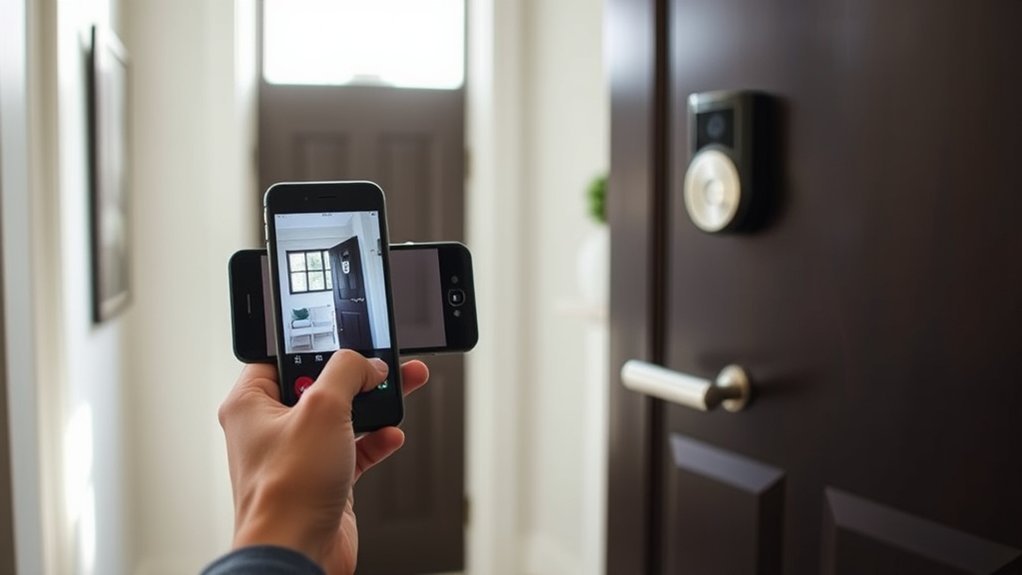
To use the Eufy Doorbell E340 on a phone, the user installs the Eufy Security app from the App Store or Google Play, creates an account, and enables notifications. In the app, select the “+” icon, choose Doorbell E340, connect it to a 2.4GHz Wi-Fi network, and choose battery or wired mode. The app then provides Live View, two-way audio, Quick Replies, and event playback. Additional setup tips and troubleshooting steps appear below.
Download the Eufy Security App
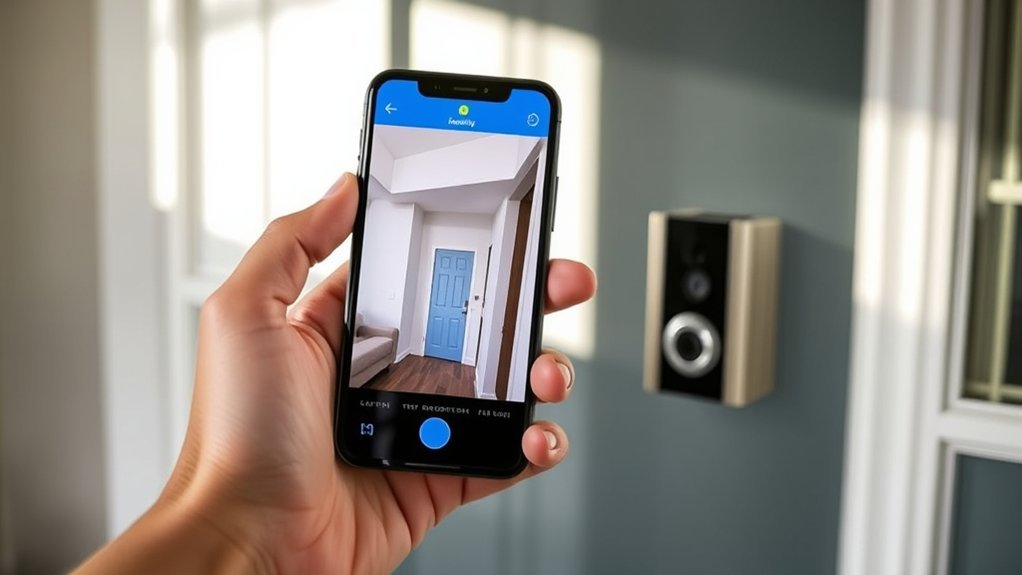
Download the Eufy Security App from the Apple App Store or Google Play Store to access the full functionality of the Doorcam E340. This application serves as the control center for independent monitoring, allowing the user to manage notifications, view live footage, and use two-way audio to address visitors remotely.
Its interface centralizes essential commands without requiring ongoing subscription dependence.
After installation, the user should create a new account, then enable phone notifications for the Eufy app to receive immediate updates on doorbell activity. Within the app, settings can be adjusted for real-time alerts and quick replies, giving greater control over visitor interactions.
Create an account and enable notifications to receive instant doorbell alerts, then customize real-time settings and quick replies for smoother visitor management.
Recorded events stored locally can also be reviewed through the app, with access to up to 60 days of footage at no extra cost. Features shaped by AI from the post are presented through practical tools that support awareness, faster response, and a more self-directed security routine with minimal operational friction daily.
Add Doorbell E340 and Connect Wi-Fi
With the app installed and notifications enabled, the next step is to add the Doorbell E340 in the eufy Security app by tapping the “+” icon and selecting “Doorbell E340” from the device list. The app then guides setup and initiates Wi-Fi pairing for independent remote access.
- Confirm that the phone is connected to a 2.4GHz Wi-Fi network, since the Doorbell E340 does not support 5GHz. These installation tips prevent pairing failures and unnecessary delays.
- Enter the Wi-Fi password exactly as prompted, then wait for the confirmation sound indicating a secure connection. Positioning the doorbell within strong router range supports stable alerts and smooth video streaming.
- If pairing stalls, apply basic troubleshooting steps: recheck credentials, verify signal strength, and restart the app if needed. Many user experiences show that weak Wi-Fi is the most common obstacle.
After connection, notification preferences can be adjusted to receive alerts when visitors press the button promptly.
Choose Battery or Wired App Settings
After Wi-Fi setup is complete, the eufy Security app prompts the user to select either battery or wired power for the Doorbell E340 based on the installation method. This choice defines initial power management and aligns operation with placement constraints or existing doorbell wiring. Battery mode offers battery benefits through a 6500mAh pack, supports cable-free positioning, and reaches full charge in about five hours. Wired mode delivers wired convenience by supplying continuous power through compatible existing circuits.
| Mode | Advantage | App Effect |
|---|---|---|
| Battery | Flexible placement | Shows charging status |
| Wired | Continuous supply | Confirms stable input |
Within settings, the user can review and change the selected mode if installation conditions evolve. The app reports power status changes, allowing efficient oversight without manual checks. Selecting the correct option at setup grants practical independence: battery for liberated placement, wired for steady operation, including support through outages where the connected doorbell system remains active and ready.
Enable Doorbell E340 Notifications
Most notification controls for the Doorbell E340 are managed in the eufy Security app. The user opens the app, selects the Doorbell E340 from the device list, and enters its settings panel. From there, the Notifications section provides the primary tools for enabling push alerts for doorbell rings and other activity.
- Open Notifications and activate push alerts for rings, then confirm the preferred notification types are enabled.
- Verify phone-level app permissions so the eufy Security app can deliver alerts without restriction or delay.
- Use event customization to target alerts for recognized faces, package detections, or other selected motion events.
This configuration gives the user more control over when attention is required, reducing unnecessary interruptions while preserving awareness.
For stable performance, firmware updates should be checked regularly within the app. Updated firmware can improve delivery speed, reliability, and overall responsiveness of the Doorbell E340 notification system.
Watch Live Video and Use Two-Way Talk
To watch live video, the user opens the eufy Security App, selects the Doorcam E340, and taps Live View to access the real-time 2K HD feed.
Two-way talk is started from the live screen to enable direct communication with visitors and provide an audible deterrent when needed.
Audio settings should then be adjusted in the app to optimize microphone and speaker performance for clear transmission.
Open Live View
- View the front-facing camera to monitor approach activity at the door in real time.
- Switch to the downward camera to inspect packages, steps, or movement below the main field of view.
- Press the microphone icon to enable two-way audio when immediate verbal response is necessary.
These controls give the user greater command over entry-point monitoring without delay.
Used correctly, Live View supports independent oversight, faster assessment, and a clearer understanding of surrounding conditions at any time from anywhere.
Start Two-Way Talk
To begin two way communication, the user should tap the microphone icon while remaining in Live View. The app then transmits and receives sound between the device and the visitor, supporting strong audio clarity during brief exchanges.
This function improves visitor engagement by enabling direct responses from any location. If speaking is not practical, the user can select Quick Replies to send preset messages instead.
This keeps communication active while preserving flexibility, distance, and personal autonomy at all times.
Adjust Audio Settings
After two-way talk is active, audio behavior can be refined in the Eufy Security app for clearer live communication. From the camera settings, the user selects Audio to manage sound notification settings for live feeds and optimize two-way communication with fewer distractions.
- Tap the microphone during live view to speak directly through the doorbell, then raise device volume for stronger playback and practical audio clarity tips.
- Open camera settings, choose Audio, and enable or disable sound notifications based on preferred alert control and a more independent monitoring routine.
- Maintain stable Wi-Fi to reduce lag, cut interruptions, and preserve voice sync. If direct response is not possible, customize quick replies in settings to deliver preset messages efficiently.
These adjustments support more reliable, self-directed visitor interactions through the app.
View Doorbell E340 Events and Recordings
Open the Eufy Security app on a phone to review real-time notifications and access recordings from the Doorbell E340. From the main interface, the user should open the Events tab to inspect a structured timeline of doorbell rings, motion detections, and other logged interactions.
Effective event categorization simplifies navigation and reduces dependence on constant monitoring. Proper notification settings also help surface relevant activity without unnecessary interruption.
Selecting any listed event opens detailed recorded footage for direct review. The app supports quick viewing, allowing rapid access to filtered items such as known visitors or package deliveries.
Footage is stored locally on the device for up to 60 days, which supports private retention without subscription fees. For greater control over storage and management, the Doorbell E340 should remain connected to HomeBase™ S380.
This setup expands capacity and centralizes access, enabling a more autonomous and efficient method for reviewing security events through the phone app daily.
Fix Doorbell E340 Pairing and App Issues
To fix Doorbell E340 pairing and app issues, Bluetooth and Wi-Fi should first be verified, along with device power and network range.
If setup does not complete, the pairing process should be reset by restarting the app and doorbell, then repeating the in-app sync steps.
The app and doorbell firmware should also be updated to correct compatibility problems and improve connection stability.
Check Bluetooth And Wi-Fi
Verify the phone’s Bluetooth is enabled and connected to a stable Wi‑Fi network before pairing the Eufy Doorbell E340, since Bluetooth supports initial setup while Wi‑Fi is required for app access and notifications.
- Confirm Bluetooth is active on the smartphone for initial discovery. This supports effective Bluetooth troubleshooting when the app cannot detect the doorbell.
- Check Wi Fi range by placing the E340 close enough to the router during setup. Limited signal strength often disrupts app communication and delays notifications.
- Use the Eufy Security app to confirm the phone and doorbell share the same network. For better connection stability, restart both devices if pairing stalls or app syncing fails.
These checks help users bypass preventable wireless barriers and maintain direct, reliable control over doorbell access.
Reset Pairing Process
If Bluetooth and Wi‑Fi checks do not resolve detection or syncing problems, resetting the Eufy Doorcam E340 pairing process can clear stalled app communication. To activate reset button functions, press and hold the reset button for 10 seconds until the LED flashes red.
Among LED indicator meanings, a red flashing light confirms the previous pairing state has been cleared and the device is ready for a fresh connection.
After reset, the user should open the Eufy Security app and select Add Device. The phone must remain on a 2.4GHz Wi‑Fi network, since the Doorcam E340 will not pair over 5GHz.
The app then guides the remaining steps, including presenting a QR code for the camera to scan. Useful troubleshooting tips include confirming network band selection and repeating the reset if setup stalls unexpectedly.
Update App And Firmware
Update the eufy Security app to the latest version before further troubleshooting, as current releases include compatibility fixes, feature updates, and pairing improvements for the Doorcam E340.
This guarantees access to app optimization strategies, user interface enhancements, and security feature updates that support reliable operation and independent control.
- Open the app store, install the newest eufy Security version, then confirm the smartphone is on a stable Wi-Fi network before pairing.
- In the app, check Doorcam E340 firmware updates regularly, because current firmware can correct pairing faults and improve device performance.
- If pairing still fails, reset the Doorcam by holding the reset button for 10 seconds, then review in-app settings for troubleshooting guidance or support options.
These steps reduce friction and restore dependable mobile access fast.
Frequently Asked Questions
How Can I Connect My Doorbell Camera to My Phone?
To connect a doorbell camera to a phone, one installs the eufy Security app, logs in, adds the device, scans the QR code, then configures smart home integration, camera features, and troubleshooting tips.
How to Connect Eufy E340 to Wi-Fi?
To connect Eufy E340 to Wi-Fi, one follows the Eufy app features: select device, join 2.4GHz, scan QR code. Like Apollo’s precise docking, Camera placement advice helps signal; Wi Fi troubleshooting tips resolve pairing failures.
How Do I Access My Doorbell Camera?
Access occurs through the eufy Security App after account login and device pairing. Users then view live video, alerts, and camera features. For autonomy, verify shared Wi-Fi, apply troubleshooting tips, and maintain security benefits continuously.
How to Use Doorbell Camera Without Subscription?
A doorbell camera can operate without a subscription by enabling local video storage in the app, using wireless security settings, and activating smart notifications. This approach preserves encrypted footage access, real-time alerts, and independence from cloud fees.
Conclusion
Using the Eufy Security app, the Doorbell E340 can be set up, monitored, and adjusted with minimal effort. Once paired to Wi-Fi, users can manage power mode, notifications, live view, two-way audio, and recorded events directly from a phone. If issues appear, basic pairing and network checks usually restore normal operation. With the right settings in place, the app becomes the command center, putting the doorbell’s full functionality in the palm of the hand.
