The best fish finder settings are a clean baseline you can tune one control at a time. Start with Auto or the factory defaults, use a manual depth range slightly deeper than the bottom when depth is stable, raise sensitivity until clutter appears and then back it down slightly, and use the lowest noise-rejection setting that removes distracting interference. Choose only frequencies your transducer supports, and use Auto scroll or a manual chart speed that keeps fish and structure proportions natural.
Last updated: September 11, 2026. This guide uses cross-brand manufacturer guidance; exact menu names, scales, frequency choices, and imaging behavior vary by fish finder and transducer.
Quick Answer
To optimize fish finder settings, begin at the factory baseline, set range just beyond the bottom when depth is stable, increase sensitivity until weak clutter appears and then reduce it slightly, tune colorline or contrast so return strength is easy to separate, use a supported frequency suited to the depth, and apply only enough noise filtering to remove interference without erasing weak targets.
Key Takeaways
- Manual depth range gives you a steadier view than auto range when you know the water depth.
- Sensitivity should show fish, bait, and bottom detail without filling the screen with clutter.
- Colorline, contrast, and palette settings help separate fish from rocks, weeds, brush, and bottom hardness.
- Multiple transducers can work together, but similar frequencies may create cross talk; use interference controls, change frequency where supported, or turn one source off if needed.
- For side and down imaging, use a steady, straight trolling-speed pass; the best speed varies by model, transducer, range, and water conditions.
At a Glance
| Time Required | A few controlled calibration passes, plus quick tweaks as depth and conditions change |
| Difficulty | Beginner to intermediate |
| Tools Needed | Fish finder, mounted transducer, battery power, lake map or chart, and a few test passes over known depth |
| Cost | No extra cost if your unit is already installed |
Understanding Sonar Technology
When you’re out on the water, understanding sonar technology can make a significant difference in your fishing success. Fish finders send sound pulses, often called pings, through the water. The unit then reads the returned signals, or bounce back, and turns those returns into screen images.
Softer bottoms usually create weaker returns, while hard bottom and dense targets often create stronger echoes. Think of it like shouting into a pillow versus shouting toward a wall: the material, target size, angle, distance, and sonar frequency all influence the echo that comes back.
To optimize your fish finder, you need to adjust settings like sensitivity, colorline, contrast, depth range, frequency, chart speed, and noise filtering. These settings help you separate fish from bait, weeds, rocks, brush, and bottom changes. The clearer the return signal looks, the easier it becomes to pinpoint your catch and avoid wasting time in dead water.
Note: Brand labels are not always interchangeable. Sensitivity or gain changes how much return detail is displayed, while colorline, contrast, color gain, or color limit changes how return strength is rendered. Target-separation controls can do something different again. Use your model manual when a menu name is unclear.
Setting Depth Range
Setting the depth range on your fish finder manually can greatly improve the clarity of your display. If you’re fishing in shallow waters, adjusting the range helps remove wasted screen space and lets you focus on what matters most. Relying only on automatic settings might cause you to miss small fish, bait schools, drop-offs, brush piles, or subtle bottom changes.
Older or very basic units limit how far you can push these settings, and no amount of tuning fixes a weak transducer. If yours is holding you back, our picks for fish finders under $200 cover what that budget now buys.
Manual Depth Adjustment
While automatic depth adjustments can simplify your fishing experience, manually setting the depth range gives you better control and clarity for your specific fishing area. Manual depth adjustment lets you focus on the exact depth where fish are likely to hold, which makes fish and underwater structures easier to spot.
When the bottom is stable, set the lower range a little deeper than the actual bottom so the bottom stays visible without wasting most of the screen on empty depth. If depth changes quickly, Auto range may be the better choice because it keeps bottom contact without constant manual adjustment.
Automatic Depth Limitations
Automatic depth adjustments can simplify your fishing experience, but they often come with limits. Auto range may jump when you pass over weeds, suspended bait, sharp breaks, or steep structure. That jump can stretch or compress the screen at the wrong time, causing you to miss useful information.
By manually setting the depth range just beyond the bottom in stable water, you can keep more of the display focused on the useful water column. A full-screen view also makes small changes easier to judge. Switch back to Auto range when depth varies too quickly for manual adjustments to remain practical.
Enhanced Visibility Techniques
Use manual range when you are working a consistent depth or a narrow target zone. Use Auto range when you are searching unfamiliar water, crossing sharp breaks, or moving through rapidly changing depth. The goal is not to avoid Auto mode; it is to keep the bottom visible while giving useful targets enough screen space.
Use a full-screen sonar display when learning a new setting. Split-screen views are helpful later, but full-screen mode makes small changes easier to see. Regularly check and adjust your settings based on depth, vegetation, bottom hardness, waves, and water clarity.
| Situation | Range Choice | Why |
|---|---|---|
| Stable depth | Manual, slightly deeper than bottom | Keeps the useful water column large on screen |
| Rapid depth changes | Auto range | Helps maintain bottom contact without constant adjustment |
| Fish in a narrow depth band | Zoom or custom upper/lower range | Expands the strike zone for easier target separation |
| Fish tight to bottom | Bottom lock or bottom zoom, if available | Makes bottom-hugging targets easier to separate |
Choosing Sonar Frequency
Frequency affects detail, penetration, and—depending on the transducer—beam width. Higher frequencies often provide finer target and bottom detail, while lower frequencies generally penetrate deeper water more effectively. The exact beam width and usable depth depend on the transducer, not frequency alone.
Use only frequencies your transducer supports. Traditional examples include 200 kHz for higher-detail work and 50 or 83 kHz for deeper or wider-coverage applications on compatible systems. CHIRP sweeps a frequency band and can improve target separation. If your unit offers multiple supported frequencies or CHIRP bands, compare them on the same pass rather than assuming one setting is best everywhere.
Pro Tip: Do one slow pass over a known brush pile, dock, rock point, or depth break. Change only one setting at a time. This helps you see what each adjustment really does.
Adjusting Sensitivity and Colorline
To get the best results from your fish finder, start with the factory default or Auto sensitivity, then adjust based on depth, clutter, bottom hardness, vegetation, and interference. Increase sensitivity until weak clutter begins to appear, then reduce it slightly so bait, fish, and bottom detail remain visible. Adjust colorline, contrast, or the equivalent display control separately to make return strength easier to distinguish.
Optimal Sensitivity Settings
Adjusting your fish finder’s sensitivity settings can greatly improve what you can interpret. Start with the factory default or Auto setting if you are new to the unit. When you move to manual control, change the setting in small steps and compare the same target or bottom feature after each change.
Turn sensitivity up until light clutter starts to appear, then back it down slightly until the image looks clean but still shows bait, fish, and bottom detail. High sensitivity can create hot images that hide important details, while very low sensitivity can erase small fish and bait. The best setting shows enough information without making the display messy.
Colorline Adjustment Techniques
While you’re fine-tuning your fish finder, adjusting the colorline is essential for enhancing your underwater visibility. By tweaking the colorline slider, you can better distinguish between different densities of objects. Aim to set the colorline so you can tell the bottom structure apart from fish, weeds, rocks, wood, and bait.
Colorline also helps show bottom hardness. A hard bottom often returns stronger color, while a soft bottom may look weaker or thinner. This matters because bass, walleye, crappie, perch, and other species often relate to changes where soft bottom meets rock, gravel, shell, or clay.
How Water Conditions Change Sensitivity
Water conditions can change how much clutter and weak-target detail appears on screen. Algae, plankton, bubbles, turbulence, suspended debris, depth, and electrical or sonar interference can all change the display. Do not use a fixed seasonal percentage; tune sensitivity to what the unit is showing in the water you are fishing.
If weak bait or bottom-hugging targets disappear, add sensitivity gradually. If the screen fills with speckle or false returns, reduce sensitivity slightly before applying heavier filtering. Then adjust the colorline, contrast, or equivalent display control separately so stronger and weaker returns remain distinguishable.
Using Zoom, Bottom Lock, and Split-Screen Views
Zoom tools help when fish hold close to the bottom, along a drop-off, or inside a narrow depth band. Instead of watching the whole water column, use zoom to focus on the strike zone. This is especially helpful for vertical jigging, ice fishing, deep brush, standing timber, ledges, and offshore schools.
Bottom lock keeps the bottom in a stable position on the screen, making it easier to see fish that are tight to the lake floor. Split-screen views let you compare traditional sonar, down imaging, side imaging, and mapping at the same time. Use split screens when searching, then switch to a larger sonar view when you need to study detail.
Managing Transducer Activity
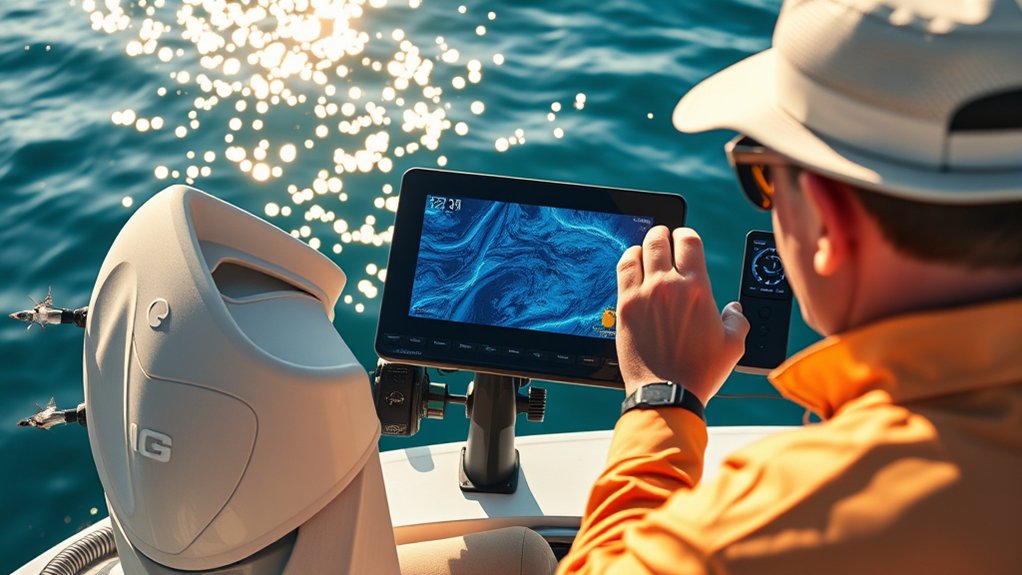
Multiple transducers can operate at the same time on compatible systems, but transducers using the same or similar frequencies may create cross talk. If you see repeating lines, false bottoms, or unusual clutter, use the unit’s interference-rejection control, change frequency where supported, or temporarily turn one sonar source off to isolate the cause.
Standby or stop-sonar functions can be useful when you intentionally want to pause pinging without shutting down the whole display. When you resume sonar, confirm the correct source, range, and bottom reading before you rely on the image.
Here’s a quick reference table for common transducer and interference problems:
| Screen Symptom | Likely Cause | First Adjustment |
|---|---|---|
| Repeating lines or ghost returns | Cross talk from another sonar source | Use the lowest effective interference setting, change frequency, or turn one source off |
| Bottom weakens at speed | Aerated water or transducer placement | Slow down and check transducer installation before adding heavy filtering |
| Clutter appears only with another device running | Electrical interference | Isolate the device and inspect power, grounding, and cable routing |
| One view is clean and another is noisy | Frequency or source-specific interference | Tune the affected sonar view instead of changing every setting |
Setting Noise Rejection and Surface Clarity
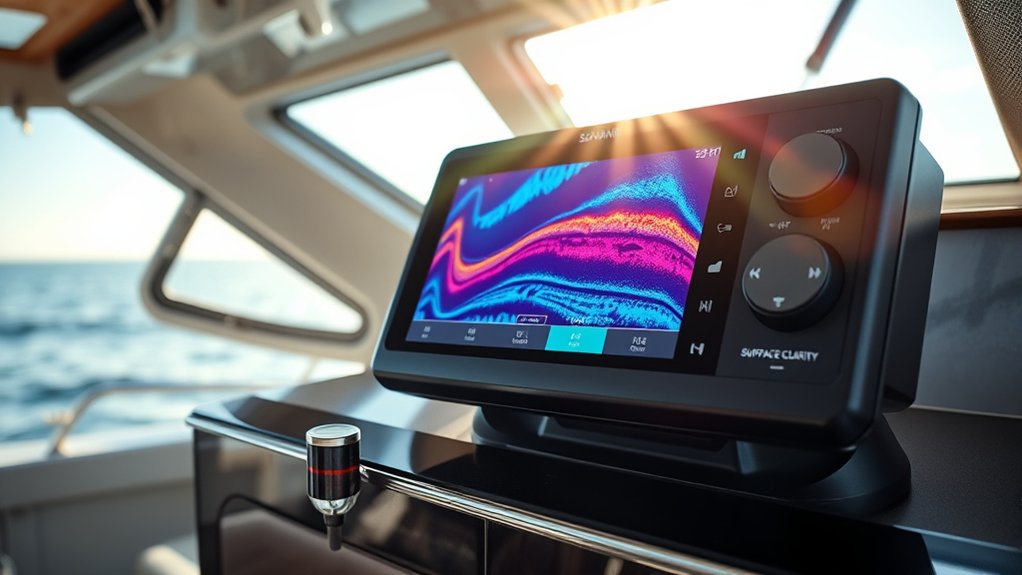
Adjusting noise rejection and surface clarity settings can improve a cluttered sonar image. Start with noise rejection at Off or the lowest available setting, then increase it only if interference remains. The goal is to remove distracting noise without hiding weak fish, bait, or bottom returns.
In shallow water, individual fish detection may not be as important as finding weeds, rocks, shade, brush, docks, and bait. In those cases, use surface clarity settings to reduce clutter from waves, bubbles, floating debris, and turbulence near the top of the water. This adjustment improves overall sonar image clarity and makes it easier to see fish and your lures.
Do not turn filtering too high unless you need it. Garmin’s sonar guidance recommends using the lowest interference setting that achieves the needed improvement. Heavy filtering can clean the screen but may also hide or weaken useful detail, so increase filtering only after you have checked sensitivity, installation, and the source of the noise.
Warning: A perfectly clean screen is not always the best screen. If you remove too much noise, you may also remove small fish, baitfish, thermoclines, or faint bottom transitions.
Scanning Techniques and Settings
When you’re out on the water, consistent scanning technique matters as much as the menu settings. Humminbird’s Side Imaging guidance calls for movement at trolling speeds, while the exact useful speed varies by system. Use a steady pass in a straight line, slow down when you need more time to interpret a target, and keep steering inputs smooth so structure is not distorted by the turn.
For scrolling sonar, use an automatic scroll-speed setting when your unit can link scroll rate to boat speed. If you set chart speed manually, adjust it until fish and structure look proportionate instead of relying on a fixed “match boat speed” rule. Too much or too little scroll can stretch or compress returns differently across brands.
To improve clarity and detail in sonar images, scan in straight lines rather than circles or erratic patterns. Straight passes make brush piles, roadbeds, rock transitions, docks, stumps, and fish schools easier to interpret. If you have a hard time getting clear images, adjust your sensitivity settings as you change depths or encounter varying bottom hardness.
Color Palettes and Image Quality
Choosing the right color palette can make a notable difference in image clarity because contrast and color perception change with glare, screen brightness, and your eyesight. Start with the factory palette, then compare any alternative palettes your unit actually provides and keep the one that makes weak and strong returns easiest for you to separate.
Adjusting sensitivity and contrast settings is essential. Overly bright images can obscure details, so find a balance that highlights important features without washing out the screen. A good palette should make fish, bait, and structure easy to read at a glance.
Modern fish finders can produce useful images with factory settings, but manual adjustments may help when glare, depth, clutter, or target strength changes. Some systems also offer automatic or dynamic contrast controls. Treat those as a baseline rather than assuming manual is always better; compare the same target before deciding which view is easier to interpret.
Reading Fish, Bottom, and Structure
Once your settings look clean, focus on what the returns mean. On traditional scrolling sonar, the far-right edge is the newest information and the image to the left is history. Fish may appear as arches, partial arches, dots, streaks, blobs, or bright marks depending on sonar type, boat speed, fish position, beam shape, and target movement. A perfect arch is not required.
Bottom hardness often shows through thickness and color strength. A hard bottom usually gives a stronger, brighter, or thicker return. A soft bottom often looks weaker. Weeds may appear as vertical growth from the bottom, while brush and timber may look irregular, rough, and branch-like. Bait schools often look like clouds, balls, or stacked specks.
The best clues come from patterns. One mark may not mean much. Several marks near bait, cover, current, shade, a depth break, or a hard-bottom transition are worth fishing.
Common Fish Finder Setting Mistakes
Many anglers struggle because they change too many settings at once. When the screen gets confusing, return to a simple baseline: factory-default sensitivity, Auto range or a conservative manual range, the lowest effective noise rejection, a familiar color palette, and Auto scroll or a manual chart speed that keeps returns proportionate.
- Never testing beyond Auto: Auto mode is a strong baseline, but stable depth, persistent clutter, or a narrow target zone may benefit from one manual adjustment at a time.
- Running sensitivity too high: Too much sensitivity creates clutter that can hide fish and structure.
- Running sensitivity too low: Too little sensitivity can erase bait, small fish, and weak returns.
- Ignoring transducer angle: A tilted or poorly mounted transducer can cause weak bottom readings and distorted images.
- Scanning inconsistently: Fast turns, abrupt speed changes, and uneven passes can distort imaging and make comparisons harder.
- Using one palette all day: Bright sun, clouds, glare, and water color can make one palette harder to read than another.
Quick Setup Workflow for Better Readings
Use this simple workflow when you launch the boat or move to a new lake. It helps you build a clean screen before you start making fishing decisions.
- Confirm depth: Check the map, sonar depth, and visible shoreline clues.
- Choose range mode: Use manual range slightly beyond bottom in stable depth, or Auto range when depth changes quickly.
- Choose frequency: Use only supported frequencies; higher frequency generally favors detail, while lower frequency generally favors deeper penetration.
- Set sensitivity: Raise it until clutter appears, then lower it slightly.
- Adjust colorline or contrast: Separate fish and cover from bottom hardness.
- Set noise rejection low: Increase it only when interference becomes distracting.
- Set chart speed: Use Auto scroll when available, or adjust manual chart speed until returns look proportionate.
- Scan straight: Make slow, straight passes over likely structure.
- Fish the pattern: Look for fish near bait, cover, breaks, and bottom changes.
Best Baseline Settings by Situation
The right settings depend on your unit, transducer, depth, and water conditions. Use these baselines as starting points, then fine-tune on the water.
| Situation | Suggested Starting Point | What to Watch |
|---|---|---|
| Stable shallow water | Manual range just beyond bottom, a supported higher-frequency or high-CHIRP view, factory-default sensitivity | Surface clutter, weeds, bait, and bottom changes |
| Changing mid-depth water | Auto range or a conservative manual range, factory-default sensitivity, lowest effective noise rejection | Fish near breaks, brush, bait, and hard-bottom areas |
| Deep water | A supported lower-frequency or CHIRP option, enough sensitivity to maintain weak targets and bottom detail | Weak returns, bottom lock, suspended fish, and bait schools |
| Heavy clutter or interference | Reduce sensitivity slightly, then use the lowest effective interference or surface-noise control | Whether filtering also removes bait or weak fish targets |
| Vertical jigging | Use zoom or bottom lock if available and enough sensitivity to see the lure without overwhelming clutter | Fish reactions, lure tracking, and bottom-hugging marks |
Troubleshooting Fish Finder Screen Problems
When the display looks wrong, change one variable at a time. Start with the symptom, make the smallest adjustment that targets its likely cause, then repeat the same pass so you can tell whether the change helped.
| Problem | Check First | Then Try |
|---|---|---|
| Clutter across the whole water column | Sensitivity and nearby sonar sources | Lower sensitivity slightly; use the lowest effective interference setting |
| Heavy clutter near the surface | Turbulence, bubbles, and surface-noise controls | Use surface-noise or TVG controls carefully so near-surface targets are not hidden |
| Bottom disappears at speed | Transducer flow and installation | Slow down; inspect for aerated water, mounting angle, and installation issues |
| Side-imaging targets look smeared | Boat path, turn rate, and range | Run a straighter, steadier pass and reduce range if the target is too small |
| Bait or small fish vanish after cleanup | Sensitivity and filtering | Back off the filter or add sensitivity until weak returns reappear |
Related Guides
Frequently Asked Questions
What is the best setting for a Humminbird fish finder?
For a Humminbird fish finder, start with the factory-default sensitivity and contrast values for your exact model and sonar view, then make small adjustments. Humminbird scales differ by product and software, so a universal percentage is not reliable. Keep filtering only as strong as needed, confirm the transducer is installed correctly, and tune range and color settings to the water you are fishing.
What frequency should I use on my fish finder?
Use only frequencies supported by your transducer. Higher frequencies or high-CHIRP bands generally favor detail, while lower frequencies generally penetrate deeper water more effectively. Traditional systems may offer options such as 200, 83, or 50 kHz, but available frequencies, beam widths, and useful depth vary by transducer.
How do you properly read a fish finder?
On traditional scrolling sonar, read the far-right edge as the newest return and the left side as history. Then compare depth, bottom strength, fish marks, bait clouds, and structure. Fish can appear as full or partial arches, dots, streaks, or bright marks, so confirm promising targets with repeated passes and nearby bait or structure.
How do you set up a fish finder on a boat?
To set up a fish finder on a boat, pair the display with a compatible transducer, install the transducer according to the manufacturer’s placement and angle instructions, connect reliable marine power, and confirm a stable bottom reading at low speed. Then tune range, sensitivity, frequency, filtering, and scroll speed over known depth.
Why does my fish finder show too much clutter?
Too much clutter can come from high sensitivity, surface turbulence, bubbles, electrical interference, sonar cross talk, suspended material, or installation problems. Lower sensitivity slightly first, then use the lowest interference or surface-noise setting that solves the problem. If clutter appears only when another device or transducer runs, isolate that source before adding heavier filtering.
Should I use auto or manual fish finder settings?
Auto settings are useful when you are learning a unit or moving through changing depths. Manual settings help when depth is stable, clutter persists, or you need to focus on a narrow zone. Start from Auto or the factory baseline, then change one control at a time so you can see what each adjustment actually does.
How fast should I go for side imaging?
Use a steady trolling-speed pass and keep the boat moving in a straight line. The exact best speed varies by manufacturer, transducer, range, and target size, so follow your model manual instead of treating one mph number as universal. If structure looks distorted, slow down, reduce sharp turns, and repeat the pass.
Conclusion
By fine-tuning your fish finder settings, you’re learning to read the water beneath you with more confidence. Range keeps the useful water column visible. Sensitivity reveals weak targets without overwhelming clutter. Colorline and contrast help separate return strength. Frequency, scroll speed, transducer installation, and interference control complete the picture.
Start with simple baseline settings, then adjust one control at a time. Make slow passes, compare what you see with your map, and trust repeated patterns more than one random mark. With each smart tweak, you move closer to finding productive structure, active fish, and that trophy fish waiting below the surface.
Sources
- NOAA Ocean Service: What is sonar? — supports the basic explanation of sonar sending sound pulses and reading returned echoes.
- Garmin ECHOMAP UHD Owner’s Manual — supports sonar setup concepts such as gain, range, frequency, and display adjustments.
- Humminbird Product Manuals — supports brand-specific settings such as sensitivity, color palettes, sonar views, and transducer setup.
- Lowrance Help and Support — supports general sonar setup, transducer, chart, and display adjustment guidance.