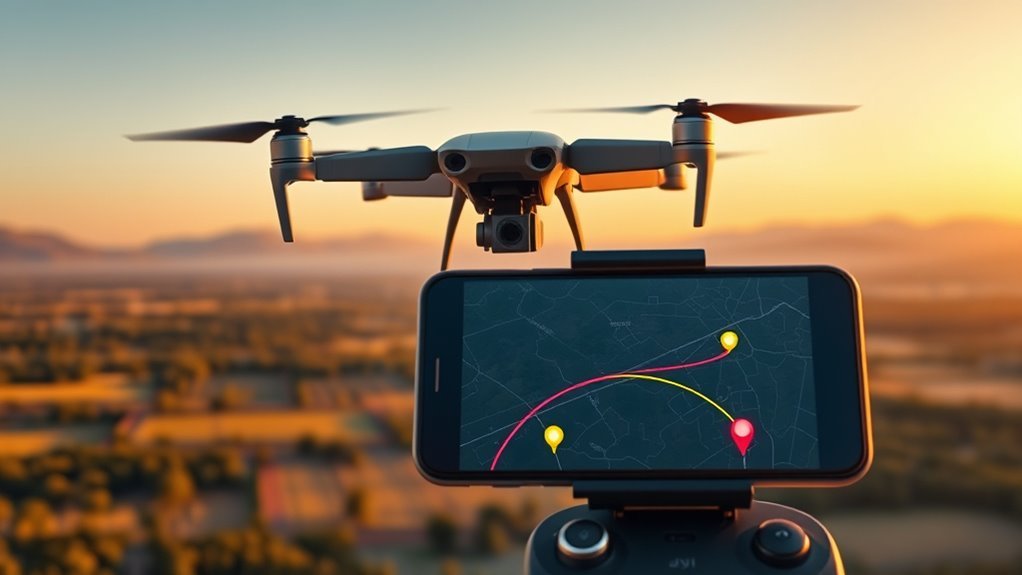
Litchi still expands waypoint missions for many DJI drones in 2026, but model support is uneven and version-specific. The process starts with verifying compatibility, then connecting the aircraft, planning a route in Litchi Hub, and tuning gimbal and camera actions. Some missions can be exported or loaded into DJI Fly, while others need direct execution in Litchi. The next step is where most pilots avoid mistakes.
Which DJI Drones Work With Litchi?
Litchi supports waypoint missions on several DJI drones, including the Mavic Mini 1, Mini 2, Mavic Air, Mavic Pro, Phantom 4, and Inspire series. Among DJI drones, compatibility depends on MSDK support, which determines whether Litchi can execute autonomous flight.
Litchi supports waypoint missions on several DJI drones, with compatibility depending on MSDK support for autonomous flight.
The Mini 2 and Mavic Air 2 are fully compatible for advanced waypoint missions through the app. The Mini 4 Pro is especially useful because it supports native waypoint flights in DJI Fly and Litchi Pilot, offering flexible control for users seeking operational independence.
By contrast, the Mini SE and Mini 4K do not support waypoint functionality in Litchi, so autonomous flight is unavailable on those models. The Mini 3 Pro, built under MSDK v5, reflects a newer compatibility path and should not be assumed interchangeable with older Mini drones.
Model verification is consequently required before planning missions.
Set Up Litchi and Connect Your Drone
Before flight operations begin, the drone and remote controller should be updated to the latest firmware to reduce compatibility issues and improve system stability when connected to the app.
After installation, launch Litchi, select the aircraft profile, and connect the controller by cable; on Android, confirm USB mode on Android if prompted.
For supported aircraft such as the DJI Mini, the app should recognize the link and expose the status bar, where battery state and satellite count can be checked before takeoff.
Litchi Hub Bridge may assist where direct pairing is required. The operator can then select Waypoint mode or another flight mode as needed.
During autonomous flight, the flight mode switch or the red stop button immediately restores manual control, preserving autonomy without surrendering safety.
While airborne, a new Home Point can be set by dragging the map marker, supporting mission planning and a secure return path.
Plan a Waypoint Mission in Litchi Hub
With the drone connected and ready for autonomous control, mission planning can move into Litchi Hub. Open Litchi Hub and enter the Flight Library, then create a new flight by selecting the blue folder button.
When prompted, choose the supported drone models and the DJI Fly app to confirm mission compatibility. The interface then allows a waypoint mission to be built with direct parameter control.
Add waypoints in sequence, set altitude, define cruise speed, and assign aircraft heading for each segment. For rapid routing, use the drawing tool to sketch a path and generate points automatically.
Add waypoints in sequence, set altitude, speed, and heading, or sketch a path to generate points automatically.
Batch edit controls streamline changes across multiple waypoints, reducing manual repetition and preserving operational independence. Review the route for alignment with the intended task, then use the blue Export button to export flight settings.
The resulting file integrates cleanly with the DJI Fly app, enabling execution without dependence on repetitive manual control.
Adjust Waypoints, Gimbal, and Camera Moves
Waypoint altitude and cruising speed can be set per point to shape the flight profile, with heading and curve size further refining path behavior during turns.
Gimbal pitch should be configured to match mission geometry, using waypoint altitude and control modes such as Focus POI, Interpolate, or manual input to maintain the desired camera angle.
Camera focus and exposure should then be adjusted to keep the subject sharp and properly exposed as the drone advances through each waypoint.
Waypoint Altitude And Speed
Altitude and speed settings let each waypoint be tuned for controlled, repeatable flight behavior in Litchi. Each Waypoint can store a specific altitude relative to the aircraft’s takeoff elevation, giving the DJI drone exact vertical freedom across the mission.
Speed may also be set per point; if left unchanged, it follows the mission cruising speed to preserve smooth shifts. In Curved Turns mode, the Curve Size control defines how tightly the aircraft arcs through a waypoint, shaping motion without abrupt corrections.
Arrival heading can likewise be specified so orientation changes remain deliberate and stable. Together, these parameters support disciplined route planning, precise camera pacing, and reliable execution.
They reduce guesswork and let the operator design a mission that moves with intention, not constraint.
Gimbal Pitch Control
Gimbal Pitch Control determines how the camera pitch changes during waypoint missions, with options for Disabled, Focus POI, or Interpolate. In Litchi’s Mission Hub, gimbal pitch control directs waypoint flights with disciplined camera movements and predictable framing.
| Mode | Behavior | Use |
|---|---|---|
| Disabled | Manual pitch | Real-time control |
| Focus POI | Tracks point | Center subject |
| Interpolate | Blends angles | Smooth shifts |
| Adjacent waypoints | Required for Interpolate | Stable motion |
| Model limits | Vary by drone | Extended range |
Focus POI keeps the selected point centered while pitch adapts to altitude. Interpolate links adjacent waypoints for cinematic arcs. Disabled leaves pitch free for manual adjustment. Model-specific angle limits shape the final range, preserving precise, liberated control over aerial composition.
Camera Focus And Exposure
Camera focus and exposure in Litchi can be configured to match the demands of each mission, with Auto, AFC, and Manual focus modes available to maintain image clarity during autonomous flight.
On DJI aircraft, this lets waypoint missions retain sharp subjects while the operator defines exposure behavior before takeoff. Each waypoint may carry altitude and speed values that shape camera movement, while the gimbal can be set to Disabled, Focus POI, or Interpolate.
Focus POI shifts pitch according to altitude, keeping the subject framed without constant intervention. Interpolate requires adjacent waypoints and produces smooth cinematic changes.
Use POIs and Drawing Tools
Points of Interest (POIs) in Litchi let the user define specific subjects or locations for the drone’s camera to track during a waypoint mission, producing more controlled and engaging footage.
In waypoint missions, multiple POIs can be added to customize camera behavior, so the aircraft maintains focus on chosen targets without manual intervention.
The Drawing Tool accelerates route creation by letting the planner sketch a path directly on the map, reducing setup time and improving mission clarity.
Waypoint spacing should then be adjusted to preserve smooth turns, consistent speed, and accurate positioning between points.
Batch Edit supports rapid refinement by applying altitude, speed, or other mission parameters to several waypoints at once, which keeps the workflow efficient and disciplined.
Used together, POIs and the Drawing Tool give operators a precise, flexible method for building autonomous flights that are repeatable, efficient, and creatively freeing.
Export Litchi Hub Flights to DJI Fly
After planning a mission with POIs and drawn routes in Litchi Hub, the flight can be transferred to DJI Fly by opening the flight settings, selecting the blue Export button, and granting any browser permission requested for Smart DJI Fly Export.
The export process in Litchi Hub should be performed with Litchi Hub Bridge installed, since it improves transfer reliability and supports the connected device in the correct USB mode.
During export, the operator may overwrite an existing mission or create a new one; exact naming is critical, because a mismatched KMZ file can prevent a valid DJI Fly transfer.
For manual handling, the KMZ file may be downloaded, renamed to match the DJI Fly convention, and used to replace the original file.
If blank missions appear later, sorting missions by modification date can help isolate file errors and preserve a clean, controllable workflow for liberated flight planning.
Import and Load the Mission in DJI Fly
To import a Litchi Hub mission into DJI Fly, the KMZ file must be renamed to match DJI Fly’s expected naming convention before loading it into the app. This step guarantees the Waypoint plan is recognized as a valid mission and not dismissed as a blank entry.
After export from Litchi, the operator should open DJI Fly, refresh the flight list, and confirm that the imported mission appears. On iPhone or iPad, restarting DJI Fly after export helps force the list to update.
After exporting from Litchi, refresh DJI Fly’s flight list and restart the app on iPhone or iPad if needed.
If the mission is difficult to locate, creating a dummy mission can place a new item at the top for easier identification. Existing corrupted or blank missions should be replaced after verifying the file name and format.
On Android, a stable USB connection and a dedicated data cable improve transfer reliability, supporting a clean import and preserving the mission’s structure for independent flight planning.
Start and Monitor Your Mission Safely
Before takeoff, the DJI drone should be confirmed to have current firmware to reduce the risk of connectivity problems during the mission.
After the DJI Fly Export is loaded, the operator can launch the Litchi mission from the mobile device and verify that the waypoint flight path matches the planned route.
During ascent, the status bar should be checked for satellite count, battery status, and signal strength, because these indicators govern safety operation.
On Android, the radar view can be used to monitor your mission and compare aircraft position against the mobile device’s location.
If conditions shift, a new home point may be set by dragging the map marker in flight, giving the pilot a flexible return reference.
Should autonomy become unsafe, the red stop button should be pressed immediately to halt the mission and restore manual control.
This preserves freedom of action while maintaining disciplined oversight.
Fix Common Mission and Export Issues
Common export problems can usually be traced to file naming, device settings, or transfer hardware. When moving a KMZ file from Litchi Hub, the file name should match DJI Fly’s convention before replacement; otherwise the mission in DJI may disappear or fail to load.
If the import shows a blank mission, sort projects by modification date to locate the latest export and detect corruption. On Android, USB debugging mode should remain disabled, because it can interrupt the export path and block recognition.
A dummy mission in DJI Fly can also serve as a clear placeholder, making replacement after export from Litchi Hub faster and less error-prone. For reliable data transfer on Android and iPad, use dedicated data cables, not charge-only leads.
These checks help operators preserve control and keep waypoint workflows functional across the following drone models that support this process.
Frequently Asked Questions
Which DJI Drones Are Compatible With Litchi?
Litchi is compatible with DJI drones such as the Mavic Mini 1, Mini 2, Mavic Air, Mavic Pro, Phantom 4, and Inspire series; however, the Mini 2 SE and Mini 4K are excluded.
DJI compatibility depends on MSDK support, with older MSDK v4 models enabling Litchi features like Waypoint optimization, custom flight, and app integration.
For liberated operation, firmware should remain current to preserve user experience and autonomous mission reliability.
Which DJI Drones Can Do Waypoint Missions?
DJI drones capable of waypoint missions stand in a neat bureaucratic queue, while others remain tethered to manual obedience.
Supported models include Mini 2, Mini 4 Pro, Mavic Air 2, Mavic Mini 1, Mavic 3, Phantom 3, and Inspire 1.
These permit waypoint navigation, mission planning, drone control, flight automation, and aerial photography.
Users should verify firmware before flying, since software updates can revoke or restore autonomy without warning.
Is Litchi Better Than DJI Fly?
Litchi is generally better than DJI Fly for advanced mission planning and flight automation. Its Litchi features, including waypoints, Points of Interest, and Mission Hub, offer stronger customization options and a more capable user experience for complex flights.
DJI Fly remains simpler and often more stable, but it limits autonomous control. For pilots seeking liberation from basic workflows, Litchi provides greater operational freedom, though app stability should be evaluated per drone model.
Which Drone Is Better, Dronelink or Litchi?
Litchi is generally the better choice for most pilots, while Dronelink suits advanced mission planning needs.
Litchi features a simpler User interface, clearer Flight modes, and fewer Compatibility issues across supported DJI models.
Dronelink pricing is subscription-based, which may suit operators seeking scalable automation, but it demands more technical setup.
For practical waypoint control and instructional use, Litchi usually offers the more accessible, liberated workflow.
Conclusion
In 2026, Litchi still extends DJI drones into a more deliberate flight system, where waypoint missions feel like plotted lines across an invisible grid. Supported models, including Mini 2, Mavic Air 2, Mavic Pro, Phantom 4, and Inspire series, can follow carefully tuned paths with controlled gimbal and camera behavior. When missions are exported, loaded, and checked before takeoff, the theory is confirmed: precision planning turns a drone into a repeatable aerial instrument.
