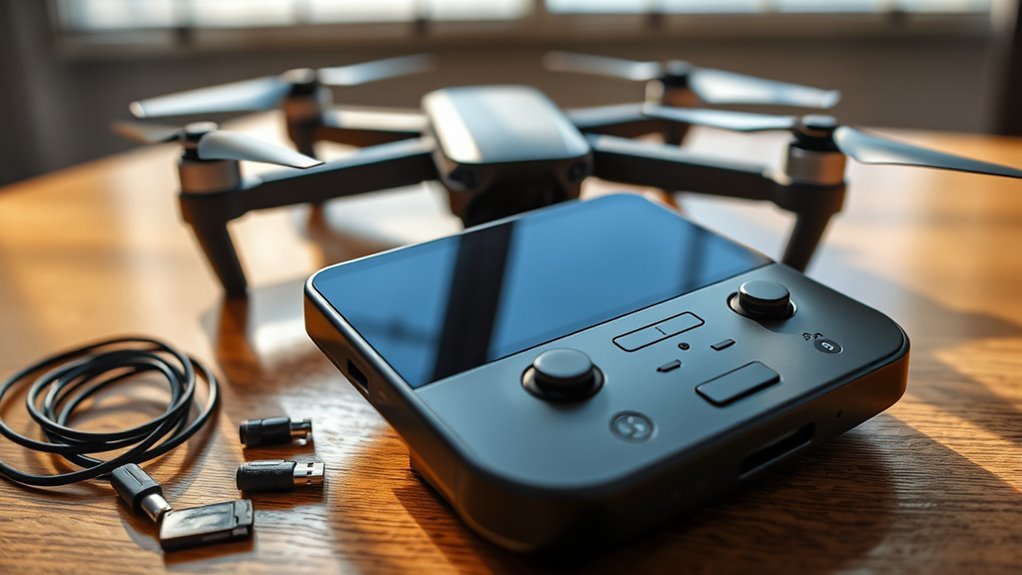
A drone camera black screen usually means the aircraft is powered but the live-video path has failed somewhere between the camera, aircraft, controller, app, and display. Start with the connection and app, then check firmware and interference before moving to gimbal or camera hardware. If the feed disappears while you are flying, concentrate on controlling and safely landing the aircraft before troubleshooting.
Quick Answer
Restart the drone, controller, app, and display device first. If telemetry works but video stays black, check the controller-to-phone connection, app compatibility, firmware, and interference next. Inspect the gimbal and camera only after those tests. SD-card playback can help separate a recording fault from a live-transmission fault.
At a Glance
| Difficulty | Basic connection checks first; hardware diagnosis may require professional service. |
| Tools Needed | Your drone app, controller, compatible display device, and a known-good data cable if your controller uses one. |
Warning: If the live feed turns black during flight, do not start rebooting equipment in the air. Maintain aircraft control, follow the model’s normal lost-signal procedure if needed, and land in a safe place before working through these checks.
Common Reasons Your Drone Camera Goes Black
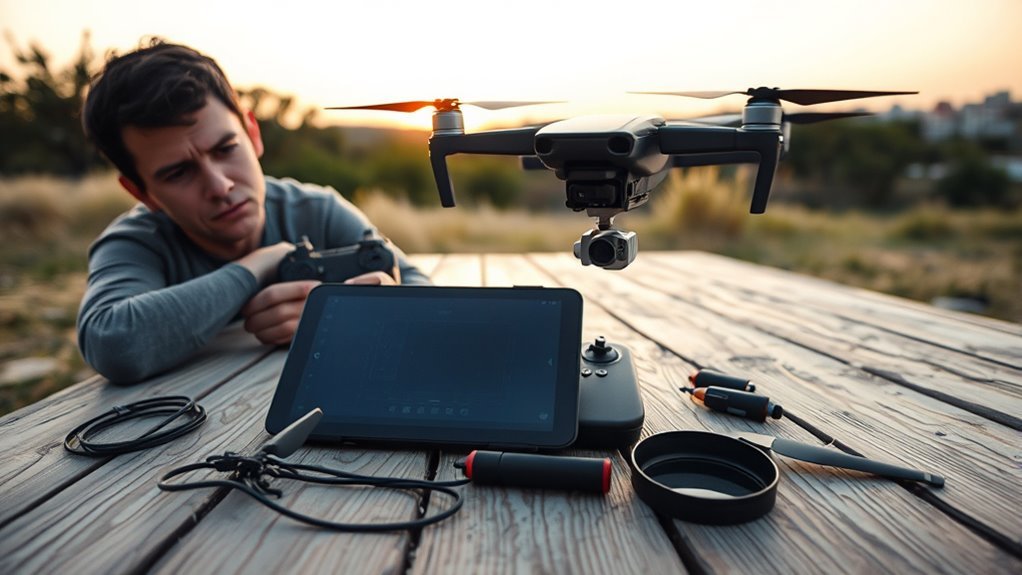
A black camera view usually comes from one of several separate problems: the controller is not communicating correctly with the phone or display, the video-transmission link is disrupted, the app or firmware is incompatible, or the camera hardware has a fault. The symptom alone does not prove that the camera sensor has failed.
For example, DJI’s image-transmission troubleshooting guidance lists incompatible firmware and signal interference among causes of a black image-transmission screen. That is why software and signal checks should come before disassembling the camera.
| What You See | Likely Area to Check | Best Next Test |
|---|---|---|
| Controller works, but phone shows disconnected or no camera view | Phone, cable, controller port, or app | Reconnect the cable and test another compatible device or cable. |
| Telemetry appears, but camera image is black | Image transmission, firmware, camera, or gimbal | Restart everything, check firmware, then compare the live feed with locally recorded media. |
| Feed works nearby but drops or freezes farther away | Interference, obstruction, or antenna orientation | Retest in a clear area at close range and follow the manufacturer’s antenna guidance. |
| Both live view and saved footage are abnormal | Camera, gimbal, sensor, or internal hardware | Inspect for damage and move toward manufacturer diagnostics or repair. |
Check the Camera, Gimbal, and Cables
Inspect the camera and gimbal from the outside before assuming an internal part has failed. A crash, hard impact, blocked gimbal, damaged connector, or internal flex/ribbon cable fault can interrupt camera operation, but unnecessary disassembly can make the problem worse.
- Power the aircraft off and check that the lens, camera housing, gimbal arms, dampers, and visible cables are not bent, torn, loose, or obstructed.
- Remove any gimbal protector or transport restraint before powering the aircraft on.
- Place the drone on a stable surface and watch the gimbal during startup. Look for abnormal shaking, binding, failure to initialize, or an error in the app.
- If your controller connects to a phone with a cable, inspect that cable and both ports. Reconnect it firmly and try a known-good data cable if one is available.
- If the drone was recently crashed, dropped, exposed to water, or shows visible damage, stop repeated power cycling and consider professional diagnosis.
Do not open a sealed camera or gimbal merely to inspect a suspected ribbon cable. Some manufacturers publish repair procedures for selected models, but the correct process depends on the aircraft. DJI’s Mavic Series repair guidance, for example, treats abnormal camera images and camera-sensor errors as hardware conditions that may require aircraft repair or replacement.
Fix App, Phone, and Controller Issues
If the hardware looks normal, test the connection between the controller, phone or display, and app. This is especially important when the controller can still operate the aircraft but the mobile device does not show the camera feed.
Start by fully closing the flight app. Power off the drone and controller, restart the phone or built-in display, and then reconnect the system in the normal order for your model.
For controllers that use a phone cable, remove a bulky phone case if it prevents the plug from seating fully. Disconnect and reconnect the cable, inspect the port for contamination or damage, and test a second data-capable cable if possible. DJI’s remote-controller and mobile-device troubleshooting identifies wrong apps, cable errors, controller-port faults, mobile-device problems, firmware issues, and compatibility as possible connection causes.
Next, confirm that you are using the correct official app for the aircraft. A phone can meet basic operating-system requirements yet still behave unpredictably with a flight app, so testing another supported device can be useful. DJI maintains a DJI Fly and DJI GO 4 compatibility list for this reason.
For drones or controllers that communicate with a phone over Wi-Fi rather than a cable, confirm that the phone is connected to the correct network and is not automatically moving to another one. The exact connection method differs by model.
A working flight-control link does not automatically prove that the separate phone, app, or video-transmission path is healthy.
Reset or Update Drone Firmware
Firmware should be checked after the basic restart and connection tests. Aircraft, controller, and app versions that are not compatible can cause missing image transmission even though other parts of the system still appear to work.
- Connect the drone and controller normally and check the official app for any firmware notice.
- Update the aircraft and controller using the manufacturer’s supported method for your exact model.
- Keep the equipment powered and avoid interrupting the update while it is being installed.
- After the update finishes, restart the aircraft, controller, app, and display device before testing the camera again.
- If your manufacturer provides a desktop firmware utility and your model supports firmware refresh or recovery, use only that official procedure.
DJI documents app-based updates and, for supported aircraft, updates through DJI Assistant 2 in its official drone firmware update guide.
Note: There is no universal factory-reset sequence for camera drones. Use a reset only when the manufacturer documents it for your exact aircraft, controller, or app rather than copying a button sequence from another model.
Test the Live Feed and SD Card
The next goal is to separate a live-transmission problem from a camera or recording problem. Test the preview, record a short clip if the camera allows it, and then compare what the app displayed with what the aircraft actually saved.
Check Live Feed
Power the drone on in a safe stationary location, connect the controller, and open the normal camera view. Watch whether telemetry and controls appear, whether the gimbal responds, and whether the image is completely black, frozen, or intermittently restored.
- Restart the app and check the feed again.
- Test close to the aircraft in an open area so distance, walls, and heavy radio interference are less likely to affect the result.
- If your setup uses a phone, test another compatible device when possible.
- Record a short clip or photo, then examine the saved media separately from the live preview.
Interference can affect the video path even when the equipment itself is healthy. Parrot’s official ANAFI connectivity troubleshooting, for example, specifically includes black screens, frozen streams, and communication disturbance among connectivity symptoms and recommends rebooting the complete system.
Pro Tip: If a newly recorded file plays normally from the aircraft’s storage but the live view remains black, concentrate on the app, controller, display, and video-transmission path before blaming the camera sensor.
Verify SD Card Recording
The SD card is most useful here as a diagnostic tool for the recording path. A full, unsupported, corrupted, or poorly seated card can cause recording errors, but a card problem should not automatically be blamed for a missing live preview.
Check that the card is recognized by the aircraft, has available space, and can save and play back a short recording. If the drone also has internal storage, comparing recordings from each available storage location can provide another clue.
If the saved footage looks normal while only the live display is black, the camera is at least capturing usable media. If saved footage is also black, corrupt, heavily distorted, or unavailable while camera errors appear, the fault may be deeper in the camera or image-processing hardware.
Warning: Formatting an SD card erases its stored files. Back up any footage you need before using a format function as part of troubleshooting.
Test Camera Output
A useful camera-output test compares three things: what the app shows, whether the gimbal and camera respond to commands, and whether the aircraft saves normal photos or video. Together, those checks narrow the fault more effectively than repeatedly restarting the camera.
If the live image returns on a different compatible phone or after replacing the controller cable, the original display path was likely responsible. If the feed fails on multiple compatible devices while the aircraft and controller remain correctly connected, image transmission or aircraft hardware becomes more suspect.
If neither the live view nor local recordings work and the app reports camera, sensor, or gimbal errors, stop treating the problem as a phone-setting issue. That combination points toward hardware inspection.
When to Repair or Replace the Camera
Consider repair when the black screen remains after restarts, connection tests, a compatible display test, firmware checks, and a clean close-range signal test. Visible crash damage, a gimbal that cannot initialize, camera or sensor errors, or abnormal saved footage also make hardware service more likely.
A loose or damaged internal ribbon cable can cause camera problems on some designs, but the exact internal construction differs by model. Unless your manufacturer provides a repair manual for your aircraft and you are comfortable following it, opening the gimbal simply to look for a cable is usually a poor first diagnostic step.
Replacement makes more sense only after the failed component has been identified and repair is impractical or uneconomical. If the aircraft is still under warranty or covered by a service plan, check the manufacturer’s service terms before opening or replacing camera parts yourself.
If the problem began immediately after a collision, water exposure, overheating event, or unsuccessful repair, tell the service technician what happened. That history can shorten diagnosis considerably.
Key Takeaways
- A black live feed does not automatically mean the camera sensor has failed; the app, controller cable, firmware, and transmission link can fail independently.
- If telemetry works but video does not, test the video path before opening the camera or gimbal.
- Normal footage saved on the aircraft while the preview remains black points more strongly toward the live-transmission or display path.
- Firmware updates and resets should follow the procedure for the exact drone model rather than a generic sequence.
- Crash damage, camera errors, abnormal saved footage, or failure across multiple compatible displays are stronger reasons to seek hardware service.
Frequently Asked Questions
Why Is My Camera Not Working and Showing a Black Screen?
A drone camera can show a black screen because the app, controller connection, video-transmission signal, firmware, gimbal, or camera hardware is not working correctly. If telemetry is still visible, the aircraft may remain connected while the video path has failed. Start with a restart and connection test before checking hardware.
How Do I Reset My Drone?
Start with a normal power cycle rather than a factory reset. Turn off the aircraft, controller, and app or display, then restart them using the normal procedure for your model. If a deeper reset is needed, use only the reset instructions published by the manufacturer for that exact aircraft or controller.
How to Fix Your Camera if It Is Black?
Restart the complete system, then check the phone or display connection, app compatibility, firmware, and video signal. Inspect the gimbal and visible camera connections only after those tests. If the screen stays black across multiple compatible displays or saved recordings are also abnormal, the drone may need hardware diagnosis.
How to Fix Digital Camera Black Screen?
For a drone’s digital camera, first determine whether the problem affects only the live preview or also the files saved by the camera. Restart the system, verify the connection and firmware, and inspect for physical damage. A persistent black preview plus abnormal saved files makes a camera or image-processing hardware fault more likely.
Why Does My Drone Record Video but Show a Black Live Feed?
If the drone records normal video but its live view is black, the camera is still capturing an image and the problem is more likely in the preview or transmission path. Check the controller-to-display connection, app, compatible device, firmware, and wireless signal before treating the camera itself as failed.
Can an SD Card Cause a Drone Camera Black Screen?
An SD-card problem can cause recording or storage errors, but it should not be your first explanation for a missing live feed. Use the card mainly to test whether the camera can save normal footage. If recordings are healthy but the preview is black, focus on the video-transmission and display path.
Conclusion
A drone camera black screen is best diagnosed from the outside in. Restart the system, verify the controller and display connection, check compatibility and firmware, test the signal, and compare the live view with locally saved footage. If those checks fail or the drone shows physical damage, camera errors, or abnormal recordings, move to manufacturer-approved repair instead of repeatedly resetting or opening the gimbal.
Sources
- DJI — How Can I Deal with Image Transmission Issues?: Supports firmware-mismatch and signal-interference troubleshooting for black image transmission.
- DJI — Connection Errors between the Remote Controller and a Mobile Device: Supports cable, port, app, device, firmware, and compatibility checks.
- DJI — DJI Fly or DJI GO 4 Phone Compatibility List: Supports testing a manufacturer-listed compatible mobile device.
- DJI — Updating Your Drone Firmware: Supports official app and DJI Assistant 2 firmware-update procedures.
- Parrot — ANAFI Connectivity Troubleshooting: Supports rebooting the system and treating black or frozen video as a connectivity symptom.
- DJI — Mavic Series Repair Manual: Supports escalation of abnormal camera images and camera-sensor faults to hardware repair.

