Toyota Camry navigation not working usually traces to one of five causes: a frozen multimedia unit, a failed phone connection, an expired Drive Connect trial or subscription, weak GPS reception, or a retired legacy app. Scout GPS Link on 2018–2024 Entune Audio units stopped working in October 2023. The fastest fix is to identify which navigation system your Camry year and trim actually uses, then follow the matching troubleshooting path instead of applying one reset to every model year.
Last updated: September 2026 — checked against Toyota US and Toyota Canada support information.
Quick Answer
If your Toyota Camry navigation is not working, first determine whether you use factory navigation, Apple CarPlay or Android Auto, or an older Entune/Scout system. Then restart the correct device, verify cables and permissions, check GPS reception and subscriptions, install model-specific updates, and check your VIN for service campaigns.
Key Takeaways
- Camry navigation systems vary by model year and trim, so the correct reset and update method also varies.
- A blank screen, wrong vehicle position, missing phone-projection icon, and “service unavailable” message point to different causes.
- Toyota discontinued Entune App Suite, including Scout GPS Link, in October 2023. The Entune head unit itself still handles radio, Bluetooth, and CarPlay/Android Auto where equipped; current connected navigation uses Toyota Audio Multimedia and the Toyota app.
- Do not remove dashboard panels or disconnect the 12-volt battery just to troubleshoot navigation. Escalate persistent hardware, power, antenna, or display faults to a qualified technician.
At a Glance
| Time Required | 10–30 minutes for basic checks |
| Difficulty | Easy; no dashboard disassembly |
| Tools Needed | Owner’s manual or VIN, compatible phone, and a known-good USB data cable if applicable |
| Cost | Usually $0 for basic troubleshooting; subscriptions, map media, diagnosis, or repairs may cost extra |
Warning: Park before changing navigation, phone, Bluetooth, Wi-Fi, or account settings. Do not troubleshoot a touchscreen while driving, and do not rely on a malfunctioning route if it conflicts with road signs or current conditions.
Which Navigation System Does Your Toyota Camry Use?
Before resetting anything, identify the system that is failing. Toyota has used several multimedia and navigation setups across Camry generations, and a step that applies to one version may do nothing—or erase saved data—on another.
Camry Navigation Systems by Model Year
Use this table as a starting point, then confirm your exact equipment with the VIN-based manual lookup. Year ranges follow U.S.-market Camrys; if you are unsure of your generation, see our guide to Camry generations by year.
| Model Years | Likely Navigation Setup | Check First |
|---|---|---|
| 2025–2026 (ninth generation) | Toyota Audio Multimedia: 8-inch screen on LE and SE, 12.3-inch screen on XLE and XSE. Drive Connect Cloud Navigation is available by subscription on the 8-inch unit and includes a 1-year trial on the 12.3-inch unit. Wireless Apple CarPlay and Android Auto. | Toyota app enrollment, Drive Connect trial or subscription status, and over-the-air software updates |
| 2018–2024 (eighth generation) | Entune 3.0 Audio and Audio Plus relied on the Scout GPS Link phone app, which ended October 30, 2023. Premium units with a physical MAP button use embedded Dynamic Navigation. Apple CarPlay from the 2019 model year and Android Auto from the 2020 model year. [VERIFY: CarPlay/Android Auto start years and MAP-button identification] | If you used Scout GPS Link, switch to CarPlay, Android Auto, or a phone app. If you have a MAP button, check GPS reception, map data, and Dynamic Navigation status. |
| 2012–2017 (seventh generation) | Original Entune multimedia; factory navigation on select trims. No factory Apple CarPlay or Android Auto. [VERIFY: trim availability] | Head-unit power, GPS reception, and map-data age; ask a dealer about map updates for embedded units [VERIFY: current map-update availability] |
Canadian and other-market Camrys can use different trims, service names, and trial terms, so always confirm by VIN.
Factory-Installed Navigation
This system displays maps and route guidance directly in the vehicle without requiring Google Maps, Apple Maps, or Waze on your phone. Depending on the year and equipment, it may use embedded map data, Dynamic Navigation, or newer cloud-based navigation. Some connected features require an active trial or subscription.
Apple CarPlay or Android Auto Navigation
Here, the map app runs on your phone and appears on the Camry’s display. A missing or grayed-out map icon usually points to phone compatibility, permissions, USB data, Wi-Fi, Bluetooth, or pairing—not the vehicle’s GPS antenna. Toyota’s current multimedia support includes both Apple CarPlay and Android Auto guidance.
Legacy Entune or Scout GPS Link
Some older Camrys used Entune App Suite and Scout GPS Link. Toyota discontinued App Suite services in October 2023, and support for Scout GPS Link ended on October 30, 2023. Affected features included Scout GPS Link, Destination Search, and Saved Destinations. See the official Toyota App Suite retirement notice and Toyota Canada’s Entune help centre. Repeatedly reinstalling or reopening retired apps is not a dependable solution. Owners of affected vehicles should check whether their head unit supports another factory option, Apple CarPlay, Android Auto, or a phone-mounted navigation app.
Note: Use Toyota’s manual selector with your model year or VIN to confirm your exact multimedia system, controls, update method, and reset procedure.
What Do Common Camry Navigation Symptoms Mean?
The symptom matters more than the word “navigation.” Use the table below to narrow the problem before changing settings.
| Symptom | Likely Area to Check First |
|---|---|
| Entire display is black, frozen, or repeatedly reboots | Multimedia power, software, head unit, fuse, display, or a vehicle-specific service campaign |
| Map opens but the car is shown in the wrong place | GPS reception, antenna fault, calibration, or phone location services |
| CarPlay or Android Auto icon is missing or grayed out | Phone compatibility, USB media port, data cable, permissions, Bluetooth/Wi-Fi, or pairing |
| Navigation says unavailable, offline, or subscription required | Toyota account, connected-service status, mobile data, vehicle connectivity, or expired trial/subscription |
| Scout GPS Link will not open or connect (2018–2024 Entune Audio/Audio Plus) | The service ended October 30, 2023; switch to CarPlay, Android Auto, or a phone navigation app |
| Routes are wrong but the system otherwise works | Map data, traffic service, route settings, or an incorrect destination |
| Only one phone fails | Phone settings, app permissions, cable, operating system, or saved pairing data |
A blank or gray screen does not prove that the GPS antenna failed or that the vehicle lost a smartphone connection. It only tells you that the display or requested feature is unavailable; the cause must be isolated with the checks below.
Why Software, Map, and Phone Updates Matter
“Update the navigation” can mean three separate things:
- Multimedia software or firmware: Runs the vehicle’s screen, pairing, audio, and navigation interface.
- Map data or connected navigation: Supplies roads, points of interest, traffic, and routing information.
- Phone software and map apps: Controls Apple CarPlay, Android Auto, Google Maps, Apple Maps, Waze, permissions, and device compatibility.
Newer Toyota Audio Multimedia systems may receive over-the-air software and cloud-navigation updates, while older systems can have different update procedures. Do not assume that an update must be downloaded through Entune. Follow the method listed in the manual for your exact Camry and head unit.
Pro Tip: Record your Camry’s model year, trim, current multimedia software version, exact error message, and whether the failure affects factory navigation or phone projection. This information makes dealer or Toyota support diagnosis much faster.
How to Troubleshoot Your Toyota Camry Navigation System
Work through these steps in order. Stop when the system returns to normal.
1. Park Safely and Capture the Exact Symptom
Take a photo of the message or screen while parked. Note whether audio, the backup camera, Bluetooth, and other touchscreen functions still work. If the whole display is dead, skip phone-app troubleshooting and move to the power, recall, and professional-diagnosis steps.
2. Confirm the System and Model Year
Use the physical controls, system information screen, owner’s manual, or VIN-based Toyota manual selector to determine whether you have factory navigation, Toyota Audio Multimedia, Entune, Scout GPS Link, Apple CarPlay, or Android Auto. Do not use a reset sequence copied from a different year or head unit.
3. Perform a Safe Power Cycle
With the vehicle parked, end the route, turn the vehicle off, open the driver’s door, and allow the multimedia system to shut down fully before restarting the Camry. If your manual lists a specific multimedia restart method, use that procedure. Button-hold times vary by unit, so there is no reliable universal “10-second” or “30-second” reset for every Camry.
4. Check USB, Wireless, and Phone Connections
For wired Apple CarPlay, Android Auto, or older phone-linked navigation:
- Use the vehicle’s USB media port, not a charge-only port.
- Try a short, known-good data cable. A cable can charge a phone yet fail to carry stable data.
- Unlock the phone and approve any connection, privacy, CarPlay, or Android Auto prompt.
- Confirm that location services, Bluetooth, Wi-Fi, and the selected map app have the permissions they need.
- Restart the phone, then test again.
- If possible, test another cable or compatible phone to separate a vehicle problem from a phone problem.
For wireless projection, remove the Camry from the phone’s saved Bluetooth/CarPlay/Android Auto list and remove the phone from the vehicle, then pair them again while parked. For iPhone-specific setup and settings, see our Toyota Camry Apple CarPlay guide.
5. Restart the Correct System, Not Retired Apps
If your Camry uses current Toyota Audio Multimedia, sign in through the Toyota app where required and verify the connected-service status. If it uses Apple CarPlay or Android Auto, restart the phone and reconnect the projection system. If the vehicle depended on Entune App Suite or Scout GPS Link, those services ended in October 2023, so use a supported alternative rather than repeatedly reinstalling an obsolete workflow.
6. Test GPS Reception in an Open Area
Move the parked vehicle outdoors with a broad view of the sky. Garages, tunnels, dense urban structures, covered parking, and some windshield accessories can delay or weaken positioning. Give the system several minutes to establish a location. If factory navigation remains far from the vehicle’s true position in open conditions, the antenna, receiver, wiring, or calibration may need professional testing.
7. Check Account, Data, and Subscription Status
Connected navigation can fail even when the screen and GPS hardware are fine. Confirm that the vehicle is added to the correct Toyota account, the Toyota app is signed in, required permissions are enabled, and any applicable Drive Connect or Dynamic Navigation trial or subscription is active. Also check whether the phone or vehicle has a usable data connection.
Connected Services trials begin on the original purchase or lease date of a new vehicle, not the date you bought it used. After a trial ends, Toyota requires a paid subscription to keep using that service. On a 2025–2026 Camry, a “subscription required” message on the map screen usually means the Drive Connect trial has expired rather than that the system has failed. Whether any basic on-screen routing remains after expiry varies by system [VERIFY: confirm post-trial behavior with Toyota]. If you do not want to subscribe, Apple CarPlay and Android Auto navigation do not require a Toyota subscription.
8. Install the Correct Updates
Check the vehicle’s settings for available software updates and review the model-specific manual. Newer systems may update over the air; older embedded-navigation units may require a different Toyota-approved process or dealer assistance. Update the phone operating system and navigation app separately when using Apple CarPlay or Android Auto.
9. Check for Recalls and Service Campaigns
Enter the Camry’s VIN or license plate in Toyota’s official recall and service-campaign lookup. A display or multimedia problem may have a vehicle-specific remedy that generic troubleshooting cannot identify.
10. Use a Factory Reset Only as a Last Software Step
A factory or personal-data reset may remove paired phones, saved destinations, profiles, radio presets, and account settings. Use only the reset described in your exact multimedia manual, back up anything important, and be prepared to pair devices again. A factory reset will not repair a failed screen, antenna, connector, or head unit.
Inspecting Your Toyota Camry’s Cable Connections Safely
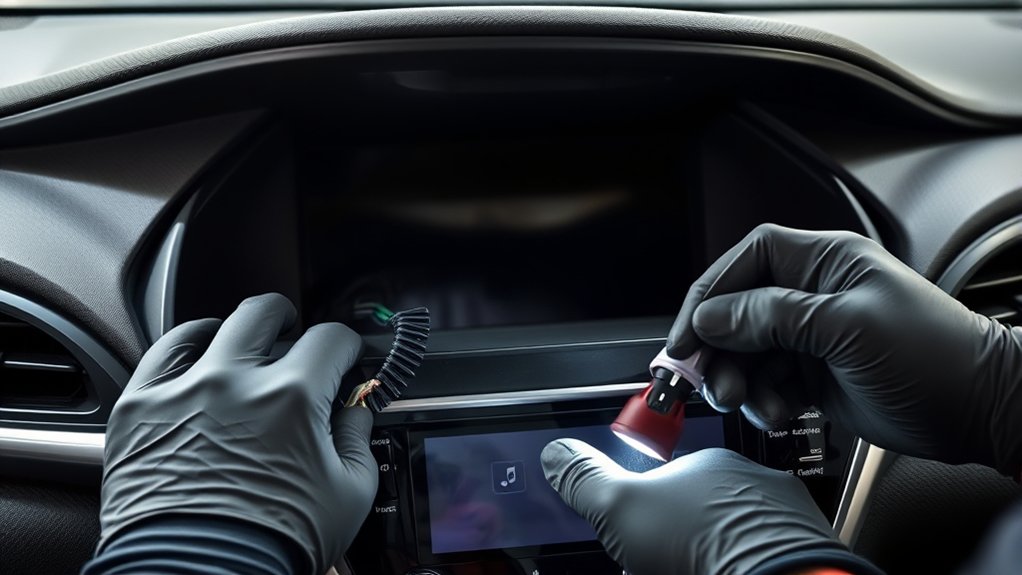
You can safely inspect the phone cable, USB plug, and visible media port for looseness, debris, bent contacts, or obvious damage. Test with another cable and gently clean accessible lint from the phone’s port using the phone manufacturer’s guidance.
Do not remove dashboard panels, probe wiring, replace fuses with a different rating, or unplug the head unit unless you have the correct service information and automotive electrical experience. Modern multimedia units share power and data networks with other vehicle systems, and careless work can cause damage or warning lights.
When Should You Seek Professional Help?
Schedule service when any of the following remains after basic troubleshooting:
- The entire display is black, freezes often, boot-loops, or loses power.
- Factory navigation consistently shows the wrong location outdoors.
- Multiple known-good phones and cables fail to connect.
- The backup camera, audio, steering-wheel controls, or other multimedia features also fail.
- The problem started after water intrusion, collision work, battery service, accessory installation, or a jump-start event.
- A software update cannot complete, or the same fault returns after a documented reset.
- Toyota’s VIN lookup shows an open campaign, or the system displays a persistent error code.
Bring your VIN, photos of the fault, software version, phone model, cable test results, and a list of completed steps. A dealer or qualified automotive electronics technician can check power, grounds, antenna signals, connectors, fault codes, firmware eligibility, and head-unit condition.
Alternatives to the Built-in Navigation System
If factory navigation is unavailable or no longer supported, practical alternatives include:
- Apple CarPlay: Use Apple Maps, Google Maps, or another compatible iPhone navigation app if your Camry supports CarPlay.
- Android Auto: Use Google Maps, Waze, or another compatible Android navigation app if supported.
- Phone mount and voice guidance: A legal, secure mount can provide navigation without depending on the vehicle display.
- Portable GPS unit: A standalone device can be useful in areas with limited phone coverage or for drivers who prefer a dedicated screen.
- Dealer-supported upgrade: Ask Toyota whether a software enhancement or compatible head-unit option exists for your exact VIN before buying aftermarket equipment.
Bluetooth audio alone normally carries sound and calls; it does not automatically mirror a live navigation map to the Camry’s screen.
User Experiences and Community Solutions
Owner forums can reveal patterns, but a community fix should be treated as a clue rather than a universal repair. Always compare advice with the manual for your exact year and multimedia unit.
Common Navigation Issues Reported by Owners
Frequently discussed problems include a frozen screen after startup, phone projection that stops reconnecting, routes that lag behind the vehicle, expired connected features, and confusion between legacy Entune/Scout instructions and newer Toyota Audio Multimedia. These reports are useful for describing symptoms, not for proving which component failed.
Community Troubleshooting Tips That Are Low Risk
- Restart the phone and fully power-cycle the parked vehicle.
- Try a different certified data cable and the correct USB media port.
- Delete and recreate the phone pairing.
- Test outdoors and compare factory navigation with the phone’s location.
- Check the exact error message, software version, subscription, and VIN campaigns.
Shared Fixes to Treat With Caution
Claims such as “hold the volume knob for 30 seconds,” “disconnect the battery,” or “remove the dash and reseat every connector” may apply to a particular unit or may temporarily hide a fault. Do not use those steps unless they appear in the correct Toyota documentation or are directed by a qualified technician.
The correct fix depends on whether the failure is in the vehicle’s multimedia unit, its GPS reception, a connected service, or the phone-projection link.
Frequently Asked Questions
How do I reset a Toyota Camry navigation system?
Use the restart or reset procedure in the multimedia manual for your Camry’s exact model year and head unit. As a low-risk first step, park, turn the vehicle off, allow the multimedia system to shut down fully, and restart. There is no single 10-second or 30-second button-hold rule for every Camry.
Why is my Toyota Camry navigation not working?
Common causes include a frozen multimedia system, incorrect phone permissions, a damaged or charge-only USB cable, broken pairing data, weak GPS reception, outdated software or map data, an inactive connected-service subscription, a retired legacy app, or a hardware fault.
Does Toyota Camry navigation work without a subscription?
Drive Connect Cloud Navigation on 2025–2026 Camrys depends on an active trial or paid subscription. The trial starts on the original purchase or lease date, and a paid plan is required after it ends. Apple CarPlay and Android Auto navigation work without any Toyota subscription.
Why did Scout GPS Link stop working in my Camry?
Toyota discontinued Entune App Suite in October 2023, and support for Scout GPS Link ended on October 30, 2023. Reinstalling the app will not restore it. Use Apple CarPlay, Android Auto, or a phone navigation app instead.
How do I update my Toyota Camry navigation system?
Check the software-update and navigation settings in the vehicle, then confirm the approved method in Toyota’s manual for your year and system. Newer Audio Multimedia systems may support over-the-air updates, while older factory navigation can use a different process. Phone-based navigation apps must be updated on the phone.
How do I reset the dashboard on a Toyota Camry?
The instrument cluster, maintenance reminder, and center multimedia display are different systems. Do not use a navigation-screen reset to clear dashboard warnings. Identify the specific warning or reminder and follow the corresponding procedure in the owner’s manual; have safety-related warning lights diagnosed.
Does Toyota Camry navigation still use Entune or Scout GPS Link?
Some older Camrys were sold with Entune App Suite or Scout GPS Link, but Toyota discontinued App Suite services, including Scout GPS Link, in October 2023. The Entune head unit still runs radio, Bluetooth, and CarPlay or Android Auto where equipped. Current Toyota support centers on Toyota Audio Multimedia, the Toyota app, connected navigation where equipped, Apple CarPlay, and Android Auto. Available features still depend on year, trim, hardware, region, and subscription.
Why is Apple CarPlay or Android Auto not showing?
Confirm that your Camry and phone are compatible, use the correct USB media port and a data-capable cable for wired connection, enable the required phone permissions, and turn on Bluetooth and Wi-Fi for wireless connection. Remove the saved phone from both devices, restart them, and pair again while parked.
Conclusion
When a Toyota Camry’s navigation stops working, begin with the system type and the exact symptom. Safe power cycling, phone and cable checks, GPS testing, account verification, approved updates, and a VIN campaign search solve many problems without disassembly. If the screen, power, GPS position, or multiple connections still fail, use the model-specific manual and arrange professional diagnosis rather than guessing at wiring or reset procedures.
